Collaboration platforms let teams communicate, share files, manage projects, and work together in real time.
They bundle chat, video, document editing, and task tracking into a single workspace.
Here’s the thing: the best platforms cut email volume and speed approvals.
I’ve seen teams reduce email by about 30% and approve work 20% faster after adopting chat and shared docs.
What are collaboration platforms?
Collaboration platforms remove friction between people and work. Remote teams use these platforms as hubs for daily tasks, while enterprise collaboration software supports security, compliance, and admin controls.
Small teams often rely on free collaboration platforms or lightweight apps.
Key capabilities include instant messaging, team collaboration tools, real-time co-editing, and shared drives. Good platforms offer real-time collaboration tools and strong file sharing and collaboration features like version history and permissions.
Pick tools that integrate with calendars, cloud storage, and your workflow apps. Look for automation that reduces manual updates and analytics that show team load. Prioritize secure sync and clear access controls.
Start by mapping your needs: chat, doc co-editing, video, and task views. Try a free tier for two weeks and track time saved to find the right team collaboration software for your workflow.
Key features to look for in collaboration software
Real-time communication and team chat
Real-time chat slashes email clutter and speeds decision making for distributed teams. Instant messaging and channels keep conversations focused, while threaded replies preserve context and make answers searchable.
Many teams cut internal email volume 40–60% within months after adopting team chat platforms and clear channel rules.
Threaded conversations save hours per week by stopping repetitive status updates. (No one wants to answer the same question three times in three different places!)
Set simple rules to stay organized:
-
Create one channel per project
-
Use threads for decisions
-
Link documents for live edits
-
Use real-time notifications sparingly
Try these steps and watch async work become smoother with modern real-time collaboration tools.
File sharing and document collaboration
File sharing and document collaboration keep teams aligned and productive. Cloud storage and version control let everyone edit the same file securely.
Version history saves hours after a bad edit. Use document collaboration tools that support comments, access controls, and auditing.
For example, Google Drive gives 15 GB free and Docs supports real-time edits across devices.
Choose cloud collaboration tools that integrate with your calendar and chat. Pick team collaboration software that scales with your business.
One team I know cut review cycles by 30% using Docs and comments.
Good collaboration platforms link files to tasks and chats. Start with one editor, train your team, and enforce naming plus folder rules.
Try a small pilot with your key project and measure time saved per week.
Video conferencing and screen sharing
Built-in video meetings with screen sharing keep remote teams aligned. Use screen sharing, whiteboarding, and recording features for clear handoffs.
Most collaboration platforms include these tools and live captions for accessibility.
Recordings cut follow-up emails by about 30%. Record meetings and add timestamps for decisions and tasks.
Tag recordings in your cloud collaboration tools for fast retrieval.
Sync clips with your document collaboration tools so context stays with files. Use transcripts as searchable notes inside your team collaboration tools.
Aim for 720p or higher for clear screens and enable 30 fps with live captions for accessibility. Connect recordings to your collaborative project management software to track action items.
Start using your platform’s recording and whiteboard tools today. Export key clips to shared folders for instant access.
Integration ecosystem and workflow automation
Integrations cut manual work and speed approvals. A platform that links Microsoft 365, Google Workspace, and project apps saves hours.
Look for robust workflow automation features in collaboration platforms.
Have you mapped out which repetitive tasks eat up your team’s time? Strong integrations make teams calmer and faster.
Start by mapping triggers: new task, file upload, form response. Use native connectors or tools like Zapier and Power Automate to sync data.
Automations can cut status update time by up to 40%.
Monitor runs, log errors, and add fallbacks for failed tasks. Focus on cloud collaboration tools with good security and APIs.
Test sync speed with a sample project file and enable audit logs and API rate limits.
Top 12 collaboration platforms to consider
Monday.com
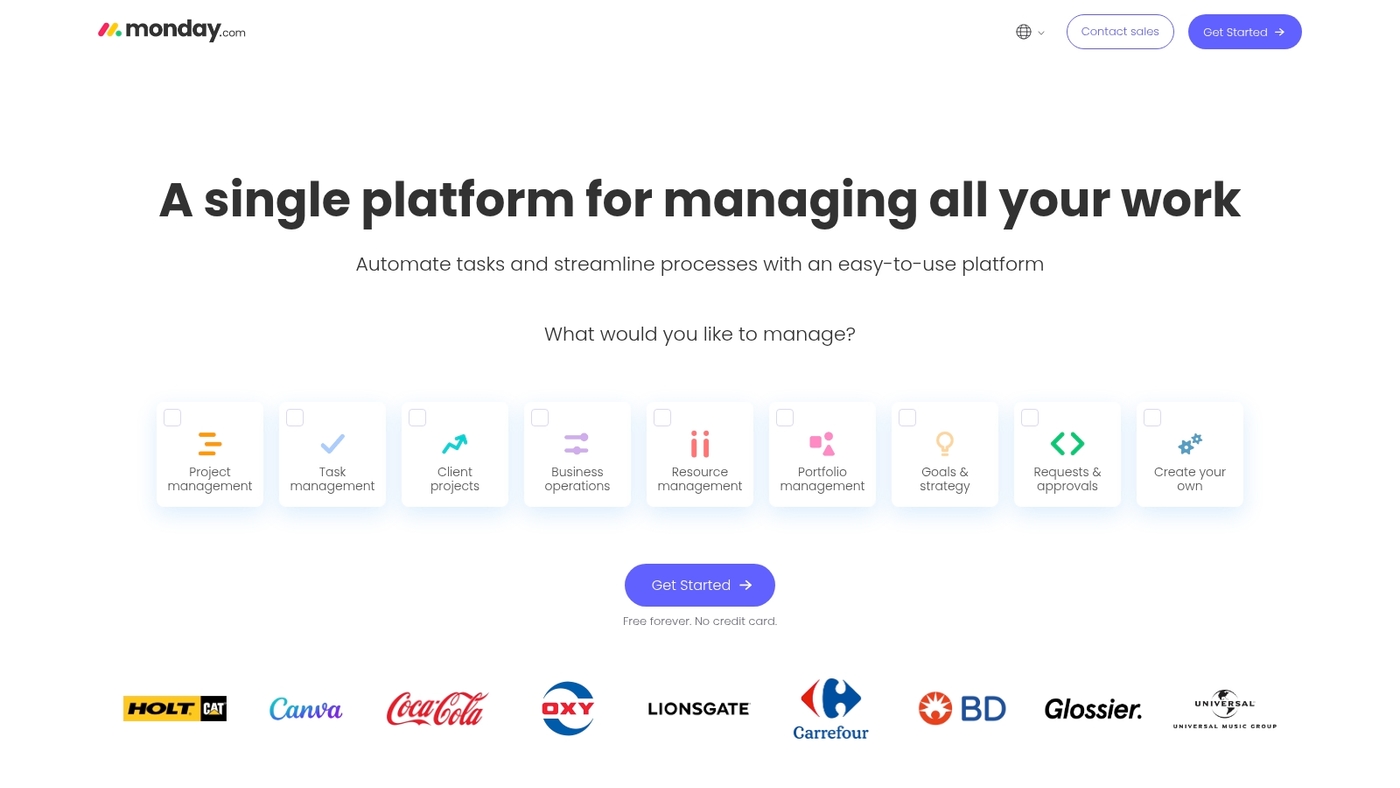
Monday.com is a flexible no-code work management platform that brings planning, communication, and automation into one place. It offers customizable dashboards, visual workflows, timeline and calendar views, and automation recipes that reduce manual updates.
The app connects with Google Workspace, Microsoft 365, Slack, and many other collaboration tools so files and tasks stay in sync. Its boards support real-time collaboration tools and file sharing with version history.
I’ve used Monday.com for months to centralize cross-functional work and cut our weekly planning time by about 30%.
The interface scales from simple team task lists to complex collaborative project management software for enterprise teams. Small teams can start with templates, while larger teams gain advanced automations and reporting.
|
Aspect |
Details |
|---|---|
|
Pros |
Flexible templates, no-code work builder, visual workflows, task automation |
|
Cons |
Advanced features add pricing complexity, learning curve for some users |
|
Best For |
Mid-sized teams, agencies, departments needing a single digital workplace platform |
|
Pricing |
Free tier available; paid plans roughly $8–$16/user/month; enterprise quotes on request |
Slack
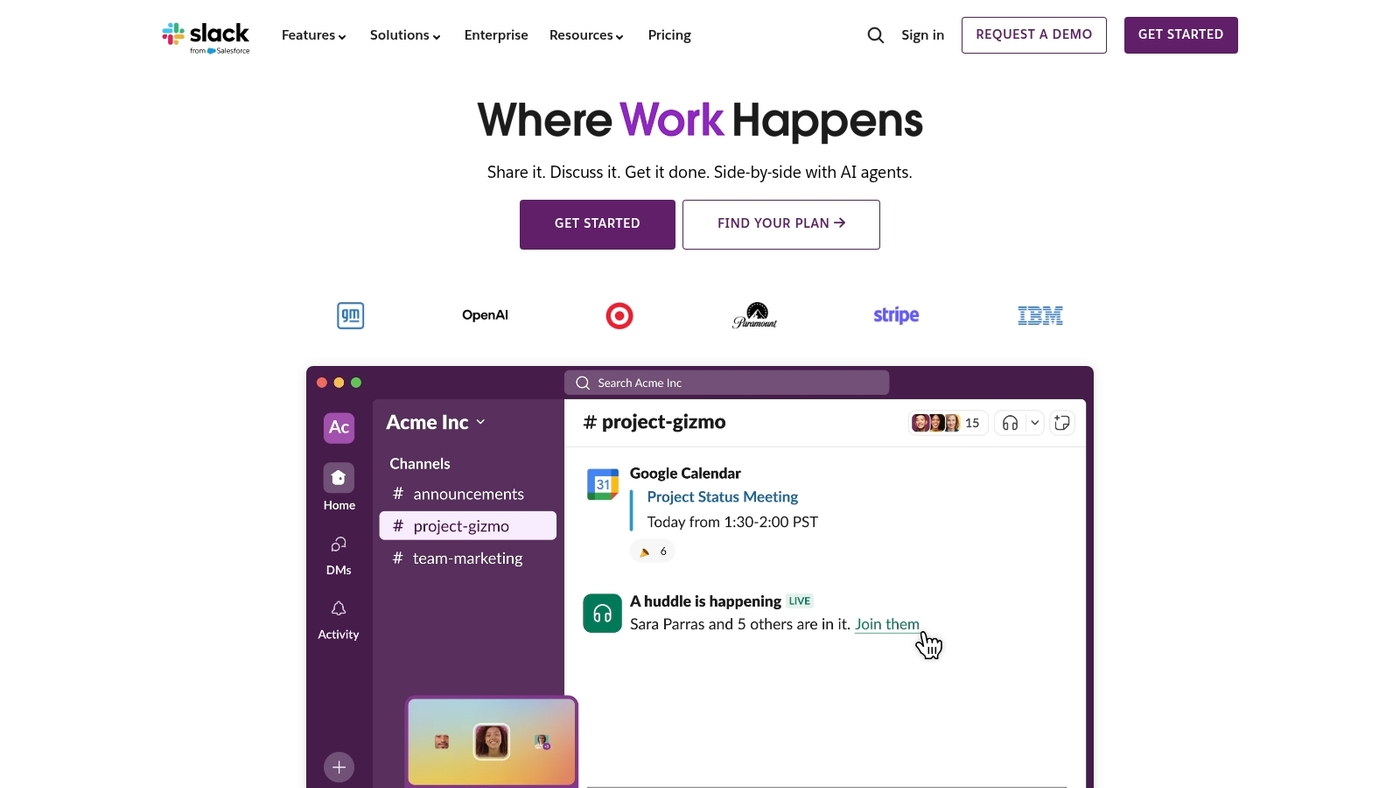
Slack centralizes team chat, async work, and faster decision-making for fast-moving tech teams. It supports channels, direct messages, and organized threads.
You get threaded conversations, collaborative Canvas notes, and rich file sharing.
Slack adds AI summaries that turn long threads and meetings into short bullets. The app links with hundreds of tools for alerts, automations, and calendar sync.
The free tier supports small teams with basic history and integrations.
Paid plans start from $7 to $12 per user per month, billed annually or monthly. I use Slack daily for quick decisions and persistent context.
Pros:
-
Strong app ecosystem with hundreds of ready integrations
-
Fast search and simple channel organization
-
Extensive integrations for automations and alerts
Cons:
-
Can get noisy without disciplined channel use
-
Advanced admin and compliance features need higher tiers
For who? Product and engineering teams, remote-first startups, and cross-functional squads that rely on real-time collaboration tools.
Pricing: Free tier available. Paid plans from $7–$12 per user per month depending on features and billing cycle.
Microsoft Teams
Microsoft Teams unifies chat, video meetings, and file storage. It integrates Outlook, Excel, and other Microsoft 365 apps.
It adds Copilot AI for faster meeting summaries and document drafts. G2 rates it 4.4 out of 5.
Teams works best for existing Microsoft users and large organizations. The platform ranks among top collaboration platforms for enterprise use.
It supports real-time collaboration tools and offers document collaboration, simple version control, and cloud sync for file sharing.
Admins get centralized management and audit logs. Developers can extend Teams with apps and bots.
Teams scales from small groups to full enterprise deployments.
Its tight Microsoft 365 integration saves hours weekly. You can try the free tier to test chat and meetings.
Pros:
-
Deep Microsoft 365 integration with Outlook and Office apps
-
Robust video meetings with recording and screen sharing
-
Enterprise-grade security and admin controls
Cons:
-
Can feel bloated for very small teams
-
Limited features outside Microsoft ecosystem without extra setup
For who? Organizations already using Microsoft 365 and IT-managed enterprises that need secure file sharing at scale.
Pricing: Free tier available. Paid plans come with Microsoft 365 subscriptions, starting around $6 per user per month.
Zoom Workplace
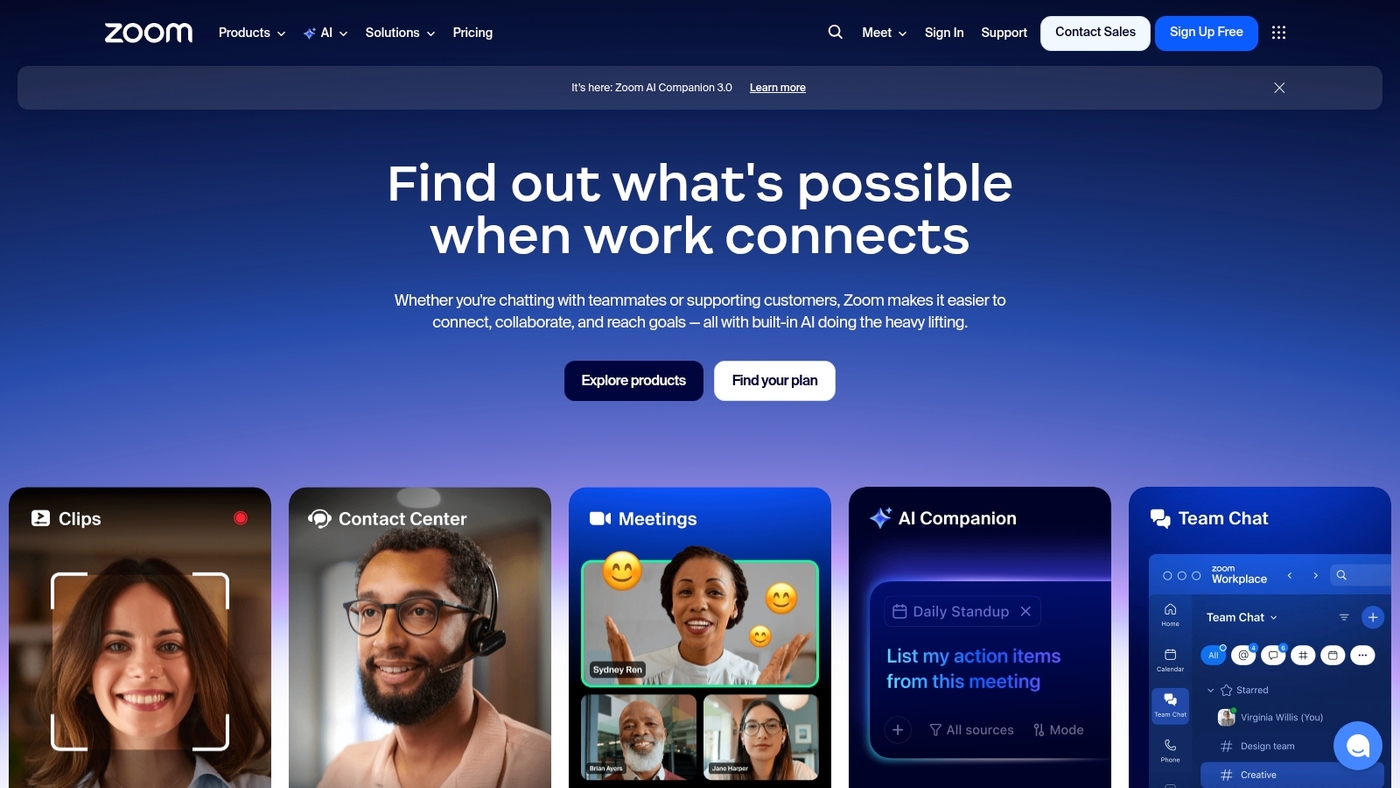
Zoom Workplace pairs HD meetings with a team chat platform and persistent channels. It offers async updates, whiteboarding, and searchable recordings.
The platform adds AI meeting summaries that cut note-taking time and speed follow-ups. You get high frame rates and low latency for screen demos.
The app supports file sharing and integrates with calendar tools and document collaboration apps.
Paid plans start at $13.33/user/month and a free tier remains available with a 40-minute limit on group meetings. Zoom scales well from small teams to large enterprises.
Try it if your workflows need robust video, chat, and easy meeting capture.
Pros:
-
High-quality meetings and high-quality screen sharing
-
AI summaries and threaded team chat
Cons:
-
Advanced features behind paid plans
-
Can become costly for large user counts
For who? Teams that run frequent meetings, remote collaboration, and live demos. Good for training, client calls, and hybrid teams.
Pricing: Free tier with limits. Paid plans from $13.33/user/month for workplace features and admin controls.
Google Workspace
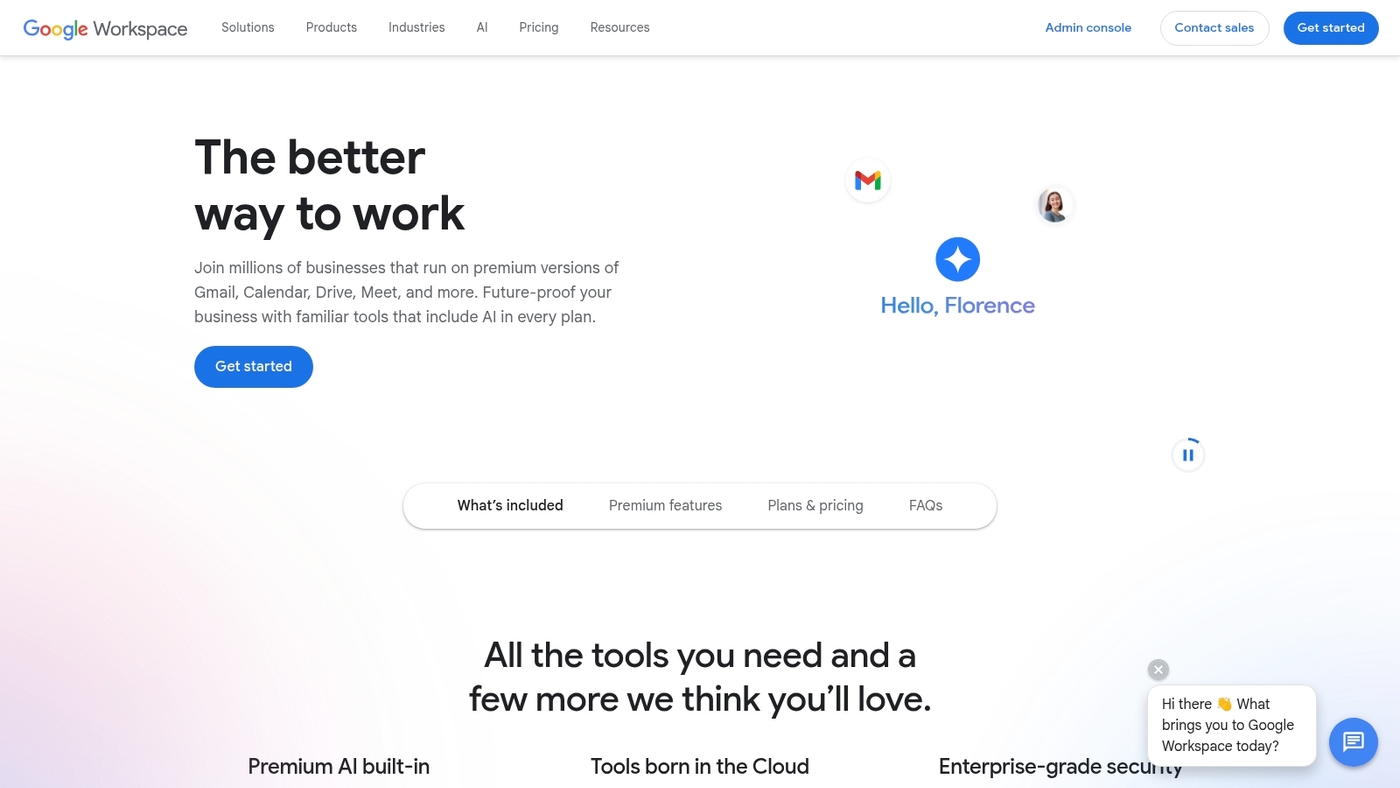
Google Workspace is the most seamless suite for real-time document collaboration and team communication. Docs, Sheets, and Drive let teams edit the same file at once.
Gemini AI helps draft text and summarize long threads. It rates 5/5 stars for communication in many reviews.
The cloud sync works across devices and offline edits save changes.
Admins get security controls and data loss prevention. It integrates with Calendar, Meet, and many third-party apps.
It scales from small teams to large enterprises with fast sharing, version history, and granular access rights.
It cuts meeting time and duplication. Teams often move from email to chat using shared docs and collaboration tools.
Pros:
-
Real-time co-editing across Docs, Sheets, Slides
-
Built-in Gemini AI for drafting and summaries
Cons:
-
Privacy controls require admin configuration
-
Advanced enterprise features add cost
For who? Teams needing fast file sharing, live editing, and team collaboration software.
Pricing: Plans start at $6/user/month for Business Starter. Business Standard $12 and Business Plus $18 per user monthly.
Asana
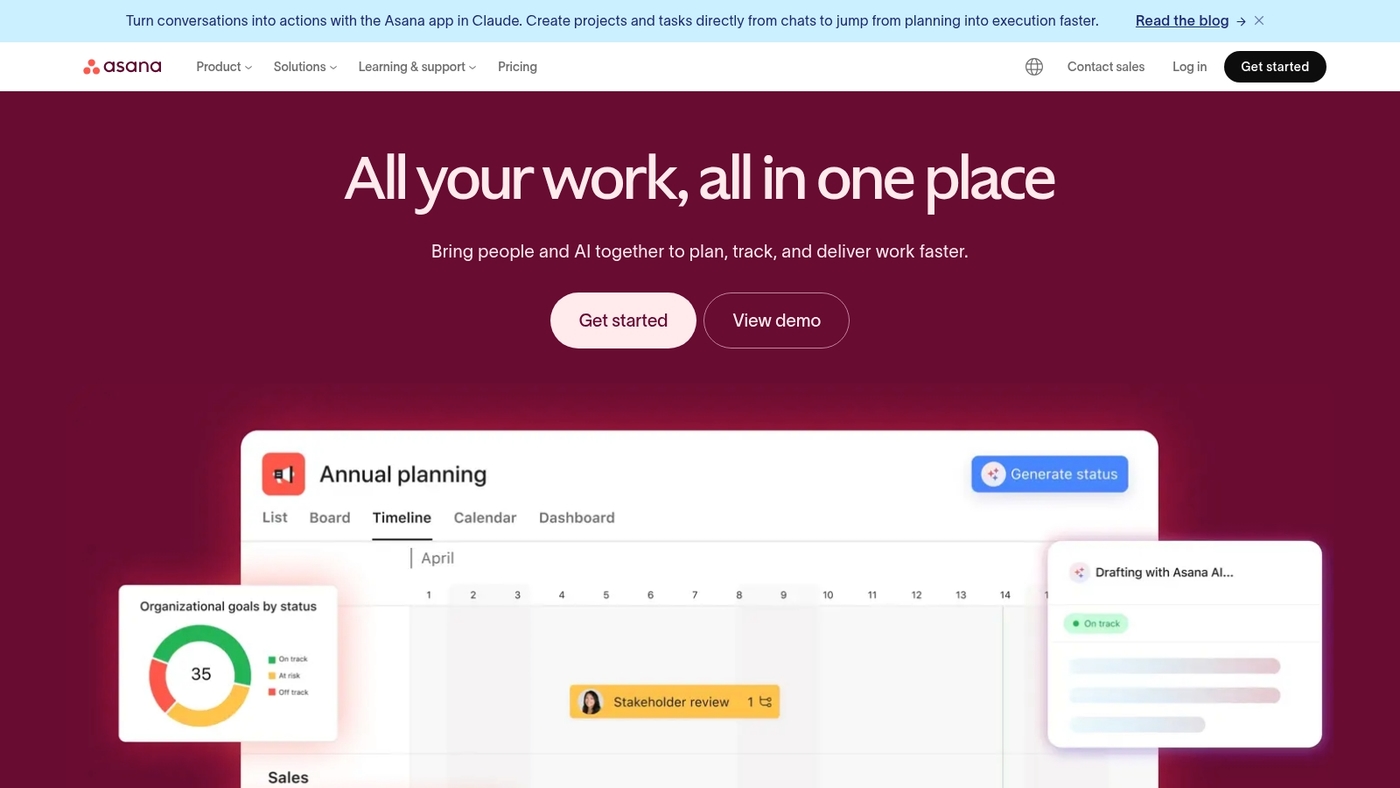
Asana makes task and project tracking simple for mid-sized teams. It offers visual boards, timelines, lists, and strong automation rules.
You can set dependencies, custom fields, and recurring tasks in minutes. Integrations include Slack, Google Workspace, Microsoft Teams, and many apps.
Reporting and workload views keep deadlines visible and resource strain clear.
File sharing and real-time updates support collaborative work on documents. I personally use Asana to run our content calendar and track launches.
See our roundup of best free task management software for lightweight alternatives. Try the free tier first to map a workflow.
Pros:
-
Flexible views: boards, lists, timeline for different workflows
-
Powerful automations reduce manual updates and repetitive work
Cons:
-
Advanced features lock behind higher tiers
-
Setup can feel dense for very small teams
For who? Mid-sized teams that need structured project tracking and cross-team coordination.
Pricing: Free plan available. Premium and Business plans add automation, dashboards, and admin controls.
Wrike
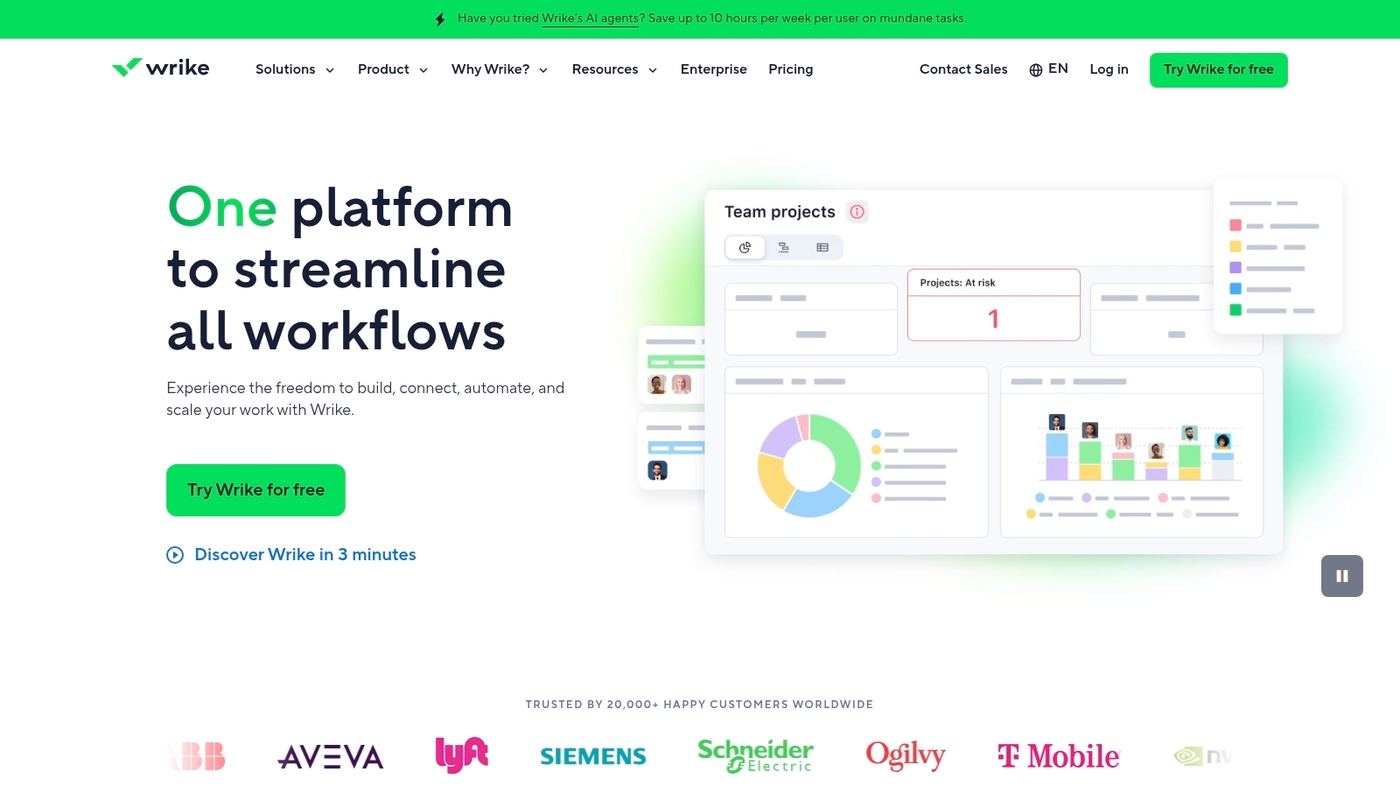
Wrike is a flexible work management platform that suits technical and manufacturing teams. It pairs customizable AI automations with time tracking and resource management.
The product offers Gantt charts, dashboards, request forms, and template libraries. You can automate approvals and push updates across tasks.
The AI automations reduce manual status updates and save teams real hours each week.
Wrike connects to Slack, Git, and major cloud drives for smooth file sharing and collaboration. Use it when projects need fine-grained resource control, reliable time logs, and scalable workflows.
The platform works as part of your suite of collaboration tools and as collaborative project management software.
Pros:
-
Powerful resource and time tracking
-
Strong automation for repetitive workflows
Cons:
-
Steep learning curve for new users
-
Advanced features require higher-tier plans
For who? Teams in tech and manufacturing that need robust planning, resource control, and audit trails.
Pricing: Plans range from free trials to enterprise tiers. Paid plans start around $9.80 per user per month for core features; enterprise pricing is custom.
ClickUp
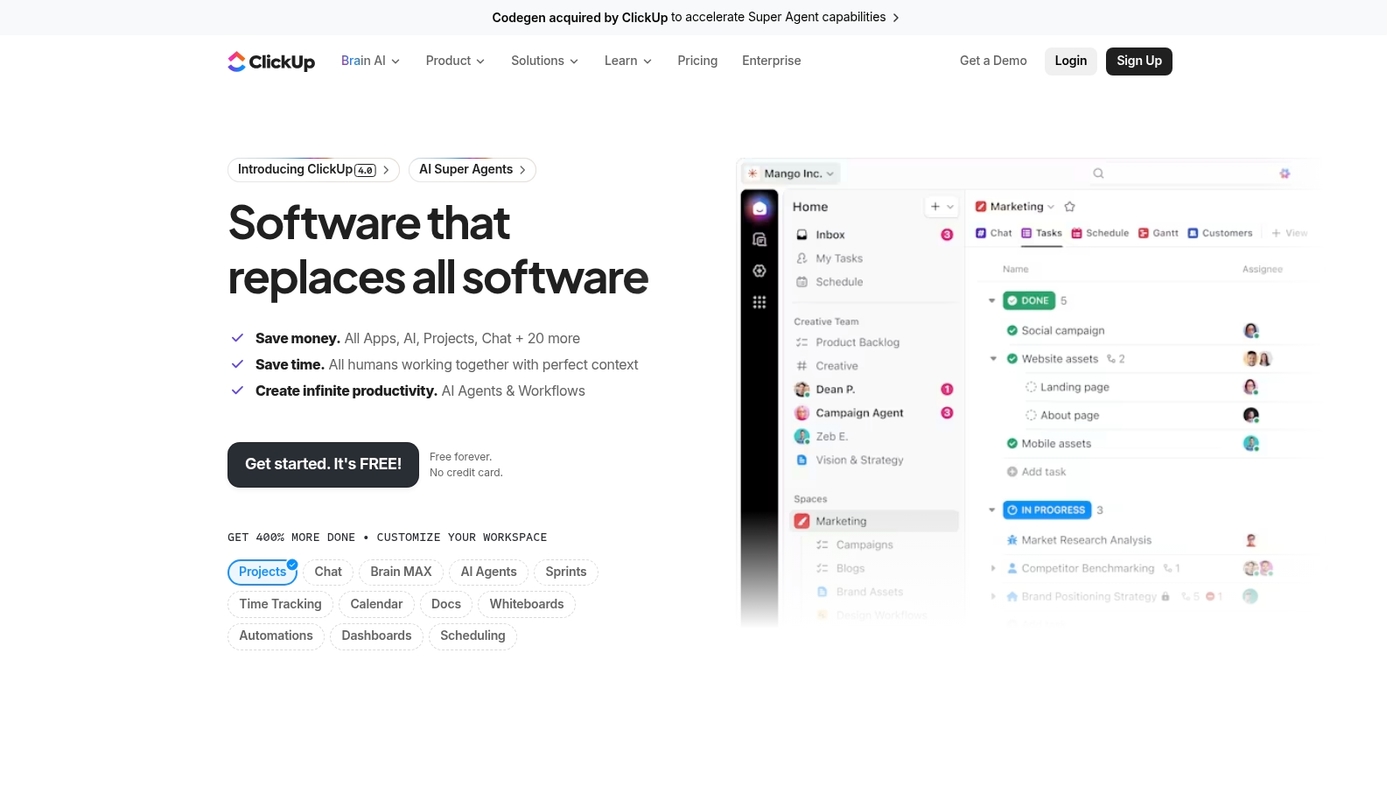
ClickUp unifies tasks, docs, chat, and goals into one customizable workspace. It rates 4.5/5 and offers deep customization and competitive pricing.
You can switch views from list to board to Gantt in seconds. Automations reduce repetitive work and save hours per week.
File sharing and real-time document collaboration work well.
The app integrates with Google Workspace, Slack, and Zoom. ClickUp speeds coordination on complex workflows.
We use it for editorial planning and task tracking. See our guide to the best free planning software for alternatives.
Pros:
-
Highly customizable workflows and views
-
Robust automations and native docs
Cons:
-
Steep learning curve for new users
-
Interface can feel cluttered for beginners
For who? Teams that juggle complex projects and documentation will benefit most. Product, marketing, and operations teams use ClickUp daily.
Pricing: Free plan available. Paid plans start at $5 per user per month.
Trello
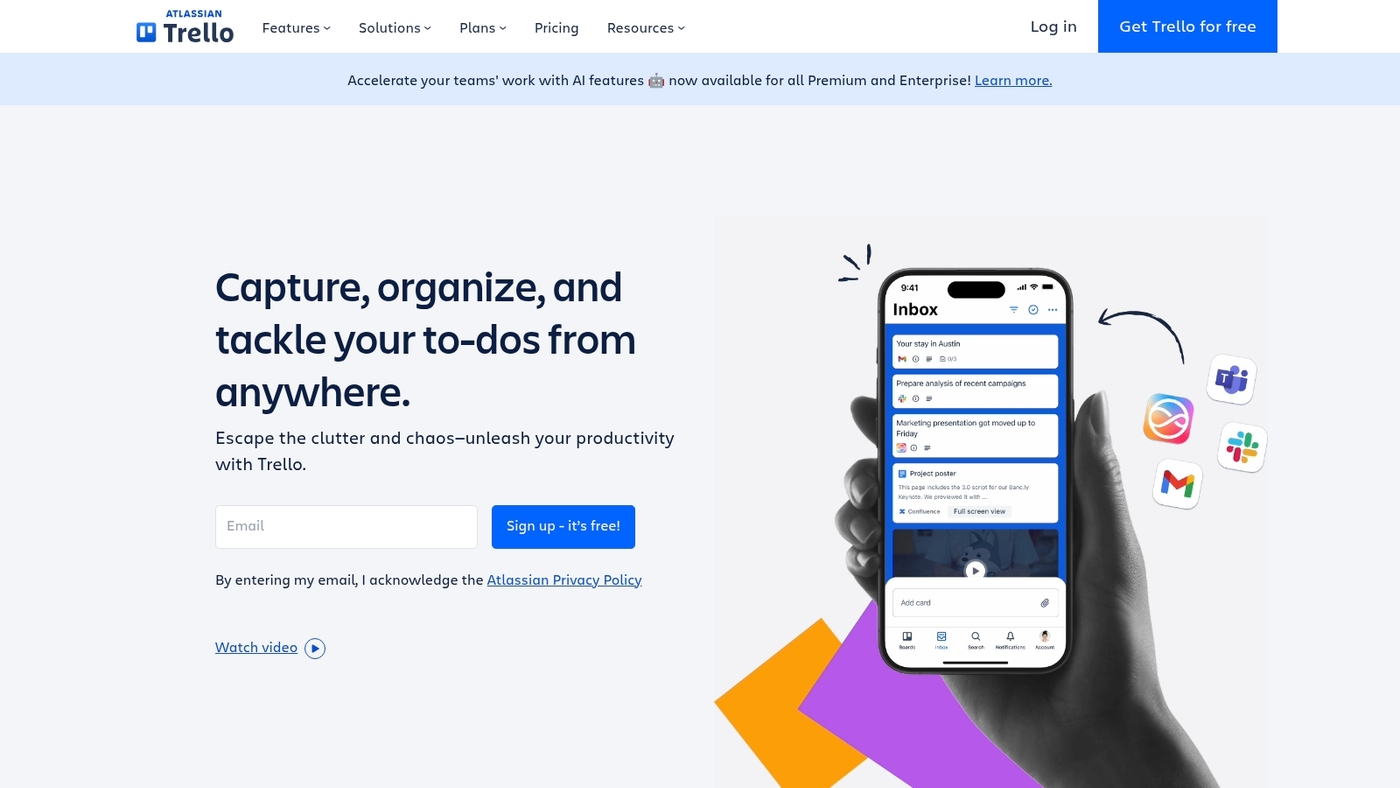
Trello offers a clean Kanban board that helps small teams track work visually. The board-and-card interface makes tasks clear.
You drag cards, add due dates, checklists, and labels. Power-Ups add calendar views and automations.
Trello shines for simple workflows and repeatable processes. I use it for content planning and light project tracking.
Trello ranks among popular collaboration platforms for small teams and solo operators.
It connects with Google Drive, Slack, and many collaboration tools. See this best free kanban software roundup for direct comparisons and free alternatives.
Pros:
-
Very low learning curve for new users
-
Generous free plan with unlimited boards and cards
-
Flexible cards support attachments, checklists, and labels
-
Mobile apps keep work synced on the go
Cons:
-
Limited built-in reporting for complex projects
-
Automation rules cap on free tier
-
Not ideal for heavy resource or time tracking
For who? We recommend Trello for small teams, freelancers, and content creators who need simple visual tracking. Use Trello if your workflows fit a board-and-card style.
Skip it if you need granular project metrics or advanced resource planning.
Pricing: Free tier available. Standard plans start near $5 per user per month billed annually. Premium runs around $10 per user per month.
Basecamp
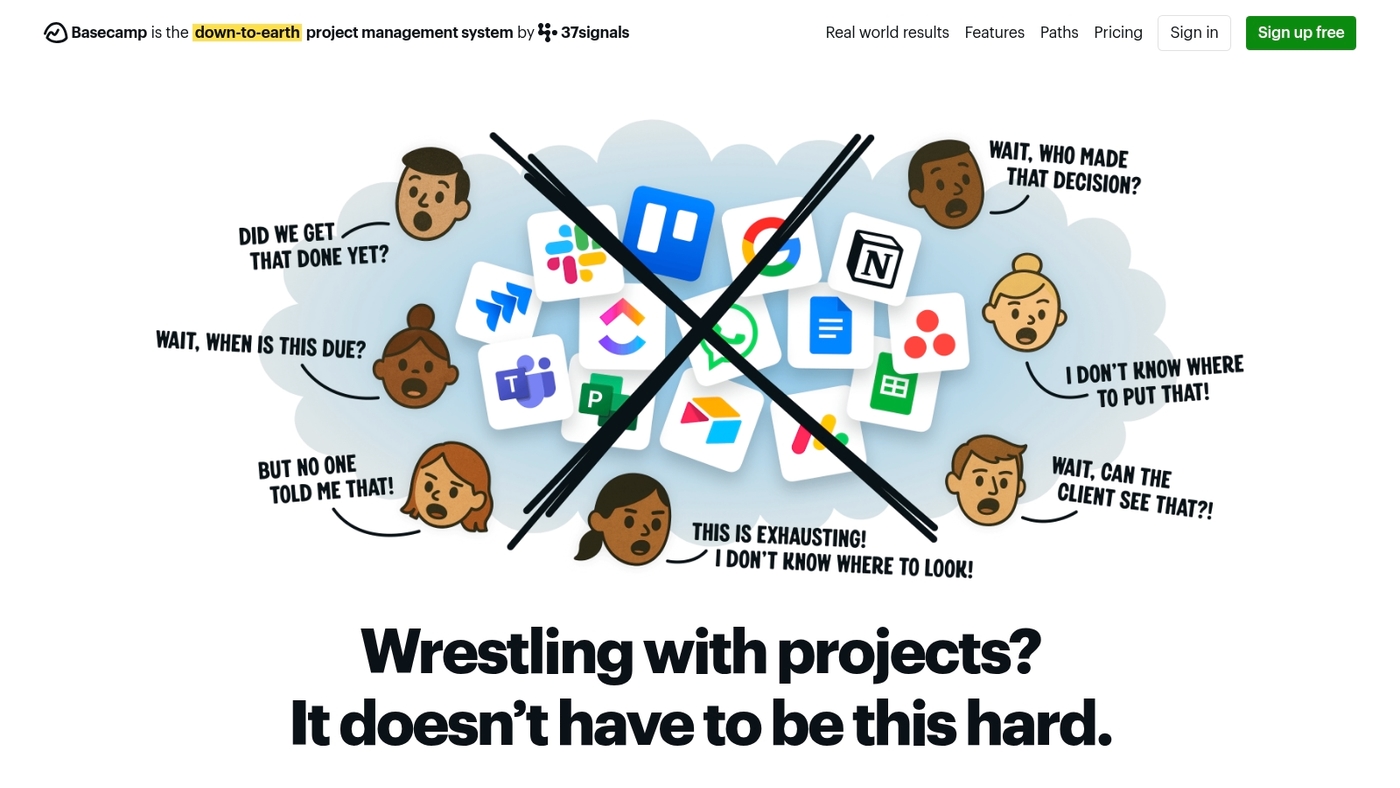
Basecamp keeps team collaboration simple and predictable. It consolidates to-dos, message boards, schedules, and file storage.
You get a single hub for tasks, messages, and shared documents.
That centralization cuts email volume and reduces context switching for remote teams. Flat pricing applies regardless of team size or project count.
That predictable cost helps your budget and avoids per-user surprises.
Basecamp fits many collaboration platforms lists as a reliable, low-friction option. It focuses on clear communication and basic file sharing.
The flat fee appeals to managers who need cost certainty.
The platform trades advanced workflow automations for clarity and speed. We recommend Basecamp for teams that want a simple hub.
Pros:
-
Fixed flat pricing for unlimited users
-
Simple message boards and to-do lists
Cons:
-
Limited advanced workflow automations
-
Basic document collaboration tools
For who? Small to midsize teams, nontechnical groups, and managers seeking clarity.
Pricing: $99 per month for business with unlimited users. Free personal plan available.
Notion
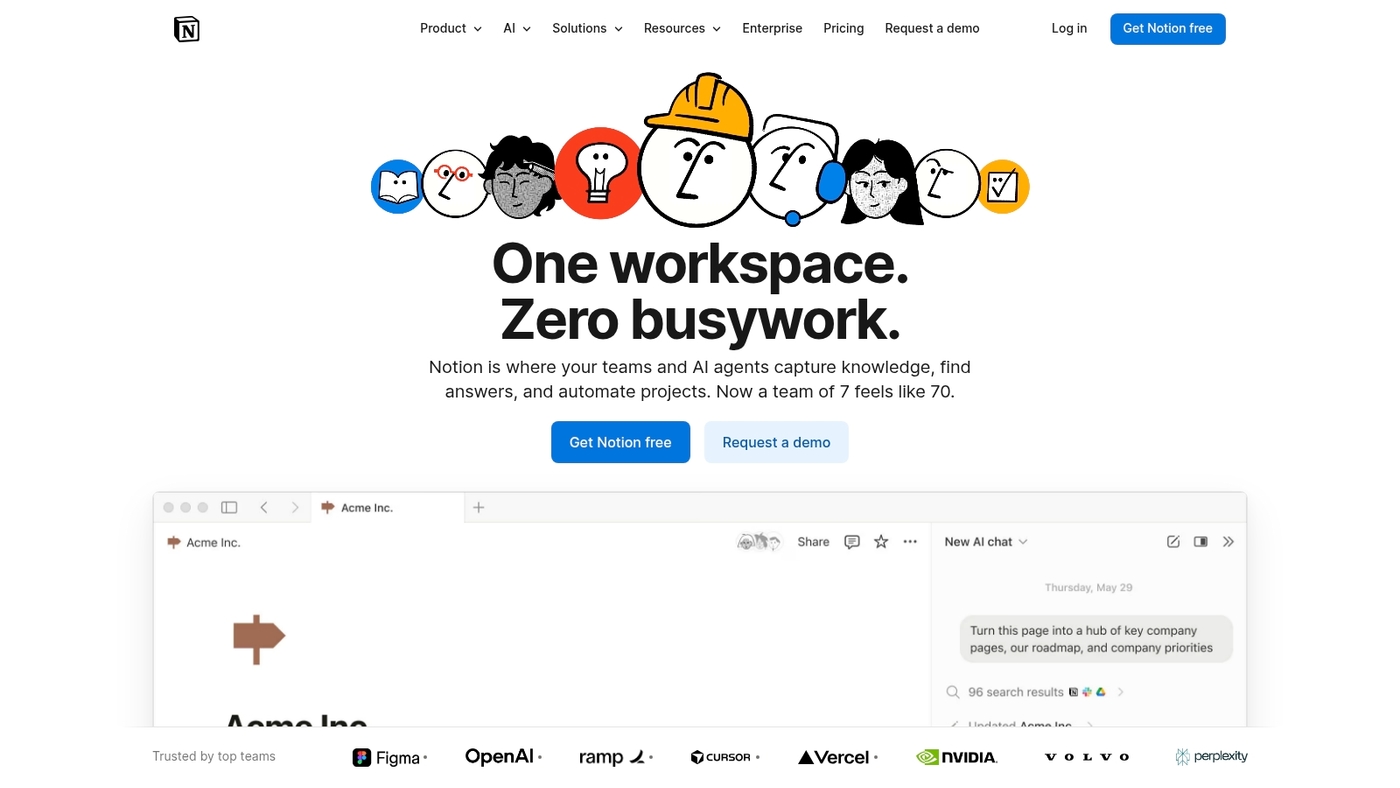
Notion is a flexible all-in-one workspace for teams. It combines notes, tasks, wikis, and databases.
The clean interface links project work with documentation and knowledge sharing.
You can build kanban boards, relational databases, and rich docs that connect to tasks. Its real-time collaboration features let teammates edit together and leave inline comments.
Notion fits teams that want a single place for project plans and reference material. I use it for editorial calendars and shared project notes.
Check our roundup of note apps for comparison at best free note-taking software.
Pros:
-
Highly customizable pages and databases
-
Strong mix of docs and lightweight project tracking
Cons:
-
Can feel complex for new users setting up structure
-
Advanced workflow automation is limited compared to dedicated PM tools
For who? We recommend Notion for small teams, content creators, and startups that need flexible documentation plus basic task tracking. Avoid it if you need heavy Gantt charts or strict resource management.
Pricing: Free tier available. Personal Pro and Team plans start at modest monthly rates per user. Enterprise plans offer SSO and advanced admin controls on request.
Read also: Top 14 White Label Project Management Software for 2026
Figma

Figma delivers real-time collaboration tools focused on design. It lets teams edit the same file in the browser.
Designers, product managers, and engineers can comment, prototype, and hand off assets with built-in version control.
Figma links design to work through integrations with Slack, Notion, and Jira. The interface shows live cursors and frame-based comments.
That cuts review cycles and reduces duplicate files.
Figma speeds feedback and lowers rework on visual projects. Teams use it for wireframes, hi-fi mockups, and interactive prototypes.
The platform scales with SSO and admin controls for larger organizations.
Pros:
-
Live co-editing and visible cursors
-
Robust prototyping and developer handoff
-
Generous free tier and cloud storage
-
Extensive plugins and integrations
Cons:
-
Performance can lag on very large files
-
Organization features sit behind higher tiers
For who? Designers, product teams, and cross-functional groups that need a single hub for visual collaboration and prototyping.
Pricing: Free starter plan available. Professional $12/editor/month and Organization $45/editor/month billed annually.
Read also: 13 Project Management Software For Nonprofit for 2026
What is the difference between collaboration software and project management tools?
Collaboration platforms focus on communication while project management tools handle planning and tracking.
Collaboration platforms prioritize messaging, synchronous work, and file sharing. They power real-time collaboration for chats, video calls, and co-editing.
These platforms act as team collaboration software, document collaboration tools, and cloud collaboration tools. They make remote collaboration tools practical for distributed teams.
Project systems emphasize task lists, timelines, milestones, and resource allocation. Teams use Gantt charts, task dependencies, and time tracking to keep projects on schedule.
Good project management tools connect tasks to deliverables and measure progress.
Many modern offerings blend both approaches. Products like Asana, ClickUp, Microsoft Teams, Slack, and Notion mix communications with task tracking.
For budget-conscious teams, check the best free online collaboration software to find practical options and quick pilots.
Most teams benefit from a single platform that supports messaging and task execution. Track task completion rate and average meeting minutes during a pilot.
Aim for a 30% drop in recurring status meetings and a 25% faster handoff time.
We test platforms on communication, docs, task tracking, automation, and security. Start with a two-week pilot focused on one workflow.
Measure time saved and fewer meetings to pick the right tool.
You might also like: 11 Best Project Management Software For Individuals for 2026
How do collaboration tools improve productivity?
Collaboration platforms boost productivity by keeping team work in one place and reducing context switching. They act as central hubs where chat, files, and tasks live together.
This reduces context switching and saves focus time.
Cloud collaboration tools make information searchable and reliable. Teams spend less time hunting files and more time delivering work.
They centralize information so approvals and updates happen in one feed. I’ve seen teams cut rework and speed decision cycles by about 25% after consolidation.
Async communication shines with remote collaboration tools. You avoid needless meetings and let people contribute on their schedule.
We saw teams drop meeting hours by 30% after switching to async channels and clear handoff notes.
Automation in collaboration software removes routine steps. Set rules to assign tasks, post status updates, and archive completed work.
Automations shrink manual handoffs and reduce missed steps.
Document collaboration tools enable real-time editing and version control. Teams edit together, comment inline, and keep a single source of truth.
That speeds launches and cuts review loops.
The right team collaboration tools pay back fast. Start by centralizing one workflow in your platform and add two automations in the first month.
Read also: Top 13 Project Management Software For Freelancers for 2026