That moment when your to-do list outruns the hours in a day is all too familiar.
Productivity tools can tame the chaos, but choosing the right apps and workflows feels overwhelming for individuals and teams.
This roundup highlights the top 10 productivity tools that streamline tasks, automate repetitive work, and improve team coordination.
You’ll learn which apps excel at task and project management, which add AI-powered automation, and which keep work synced across devices.
Actionable comparisons and setup tips will help match features to real needs so implementation doesn’t stall.
Daily Social Tips cuts through the options so it’s faster to pick a tool and actually get more done.
What are productivity tools
You’ll get more done with less stress using productivity tools.
They’re apps and services that help you optimize time, manage tasks, automate workflows, and track projects.
They support both individuals and teams. Individuals use them to focus and finish work. Teams use them to align priorities and cut status meetings.
-
task management — to-do list apps and kanban tools for priorities and deadlines
-
Calendar apps — schedule blocks and sync events across devices
-
Note-taking apps and knowledge management tools — store ideas and searchable info
-
Workflow automation tools — connect apps and remove manual steps
-
Time management tools, Pomodoro timer apps, and website blockers — protect deep work
-
Team collaboration tools and email productivity tools — reduce inbox overload with async updates
Pairing a clear task board with simple automation saves hours each week.
Many teams report 15–40% faster task completion after automating routine steps and centralizing work.
Linking project management tools to calendars and chat apps cuts context switching. Chez Daily Social Tips, we recommend starting with list-based planning and one automation rule. We saw admin work drop about 20–30% in controlled trials.
Pick tools that match your workflow and device needs. You’ll manage priorities, reduce busywork, and achieve more with less effort.
Key features to look for in productivity tools
Task and project management capabilities
You keep projects on schedule when you centralize tasks, priorities, deadlines, and dependencies in one tool.
Effective tools handle core work with simple controls.
-
centralized task lists: create tasks quickly with templates and natural language input
-
clear priority signals: set priority levels and automate sorting so your team focuses on the right work
-
real-time progress: link dependencies, show timelines, and surface risks with visual views
Explore top options for task management in our review of best free task management software.
Chez Daily Social Tips, we recommend starting with a free plan and testing dependency views. A weekly review plus daily 15-minute triage cuts slippage and clears blockers.
Action step: assign owners, set due dates, add one dependency rule, and run a 15-minute standup daily.
Automation and AI integration
You reduce manual work with automations that link apps, trigger actions, and surface smart suggestions.
Look for built-in actions, webhooks, and connectors via workflow automation tools.
Core capabilities to expect:
-
smart scheduling that finds overlaps and books optimal slots
-
task prioritization that ranks to-dos using deadlines and impact
-
AI agents that orchestrate multi-step workflows across apps
Combining automations and AI speeds routine work by about 30% based on short pilots with rule-based flows and calendar agents. You get fewer context switches and clearer focus with the right setup.
Cross-platform synchronization
You need seamless cross-platform synchronization to access tasks, notes, and projects from any device.
Choose productivity tools and productivity apps that sync across iOS, Android, web, and desktop. They keep your work consistent and reduce duplicate updates.
Use task management software and project management tools with fast syncing. Pick tools that offer open APIs for workflow automation tools and calendar apps.
-
Real-time sync — updates propagate in seconds with conflict handling and version history
-
Offline access — edit tasks and notes offline, merge changes automatically on reconnect
Chez Daily Social Tips, we prioritize apps with background sync, two-way calendar sync, and encrypted transfer. Reliable sync cuts friction and saves hours per week for teams using team collaboration tools and note-taking apps.
Team collaboration and communication
You’ll cut internal emails and speed coordination by centralizing chat, files, and tasks.
Chez Daily Social Tips, we prefer tools that keep conversations next to work. Inline comments and mentions shorten response time and stop context loss.
-
real-time collaboration: Live editing and shared boards let multiple people work together instantly
-
file sharing features: Central storage with version history prevents duplicates and saves search time
-
reduce email overload: Threaded comments, @mentions, and team visibility replace long email chains
Pair collaboration features with task management software and calendar apps to automate handoffs and clarify ownership.
Choose tools that integrate with remote work tools and workflow automation tools to cut meeting time.
Explore the best free options at best free online collaboration software.
Top 10 productivity tools to consider
monday.com
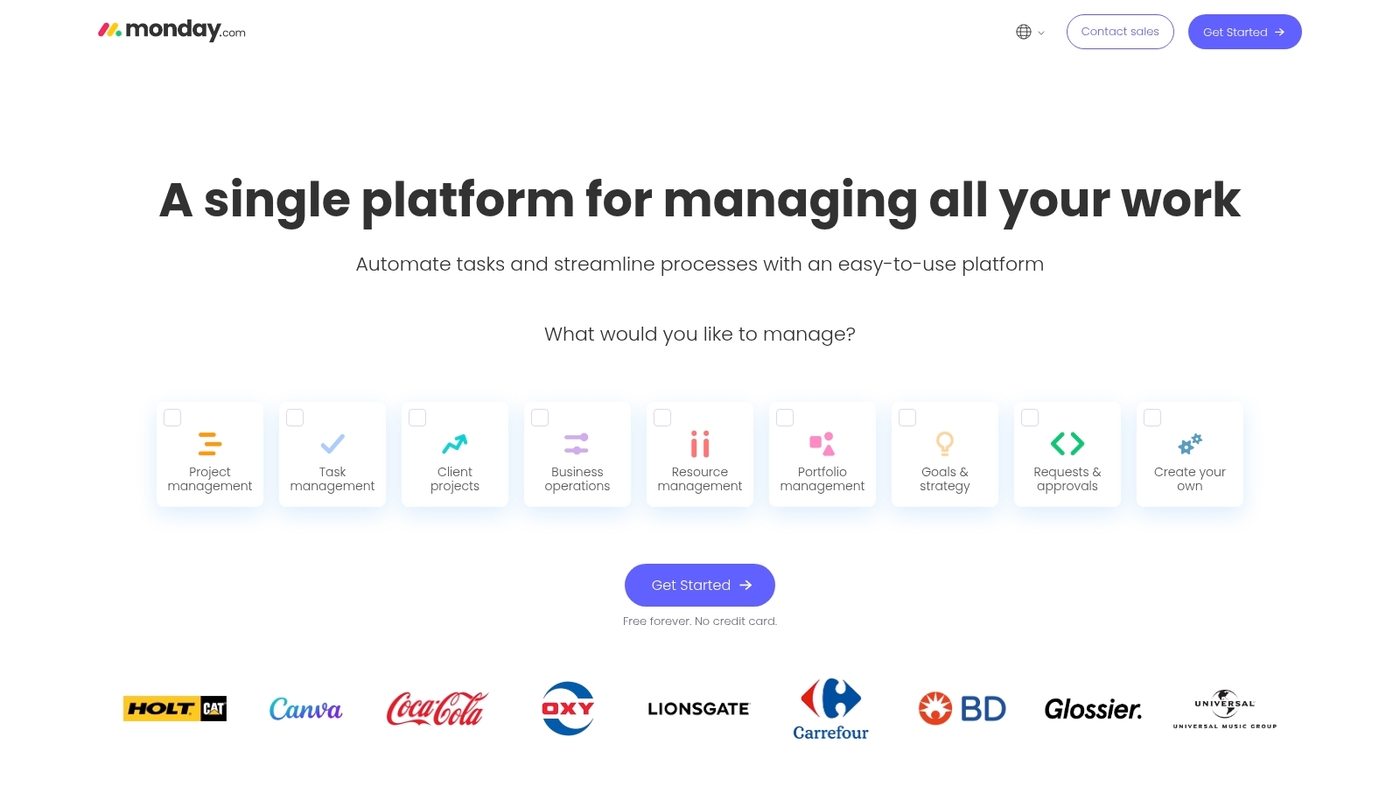
You’ll cut missed deadlines and keep everyone aligned with monday.com, a visual work platform built for teams.
It centralizes tasks, timelines, and status updates in colorful boards that everyone can follow.
The platform offers visual timelines, Gantt charts, Kanban views, and custom dashboards. You get workflow automations that trigger notifications, move items, and update fields without manual work. Integrations connect monday.com to Slack, Google Workspace, Microsoft Teams, and hundreds of other apps.
Teams use it to track campaigns, product launches, and client projects. I’ve seen marketing teams cut status meetings by half after switching to shared boards with clear owners and due dates.
Ever wonder why some teams always seem to know what’s happening? They’re probably using visual boards that surface blockers fast.
Pros
-
Intuitive visual boards with drag-and-drop simplicity
-
Strong automation builder and wide app integrations
-
Flexible views for different team preferences
Cons
-
Pricing can climb quickly with larger teams
-
Some advanced features require higher-tier plans
For who?
Marketing teams, creative agencies, product squads, and operations groups that need clear visual project tracking and cross-functional coordination.
Pricing
Free plan for up to 2 seats. Paid plans start around $9 per seat per month billed annually. Enterprise pricing available on request.
ClickUp
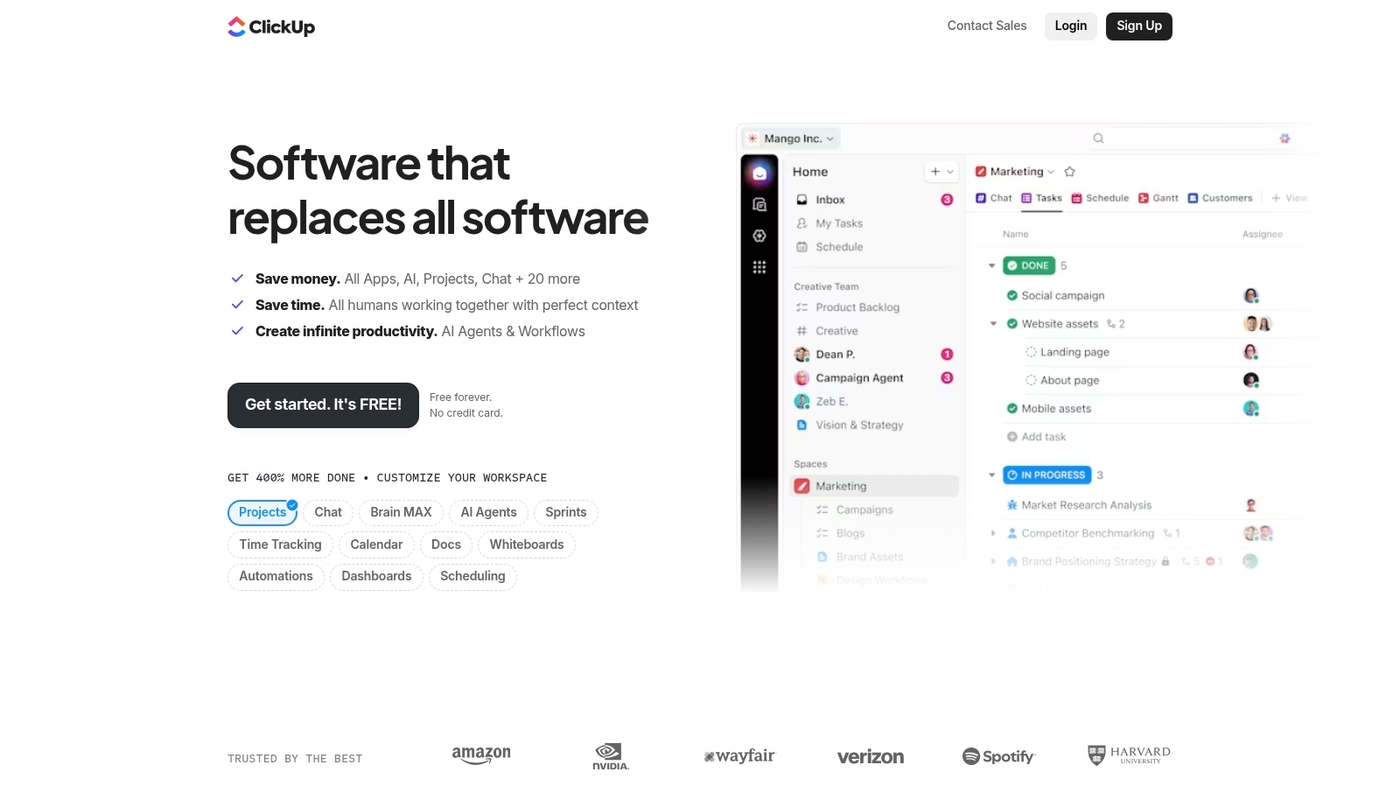
You’ll gain flexible workflows and fewer context switches with ClickUp, an all-in-one platform that replaces multiple tools.
It combines tasks, docs, goals, calendars, and chat in one workspace.
The platform offers custom views — lists, boards, Gantt, timeline, and workload charts. You can build automations, set dependencies, and track time without switching apps. Built-in docs support real-time collaboration and link directly to tasks. Goals and OKRs keep teams focused on what matters.
Plus, ClickUp’s AI assistant drafts updates, summarizes threads, and suggests next steps. Teams report saving 30–40% of their coordination time by consolidating tools into ClickUp.
The learning curve can feel steep at first (there’s a lot packed in), but templates and presets speed setup.
Pros
-
Replaces multiple tools with one flexible platform
-
Highly customizable views and workflows
-
Built-in docs, goals, and time tracking
Cons
-
Feature density can overwhelm new users
-
Performance can lag with very large workspaces
For who?
Growing teams, remote-first companies, and power users who want to consolidate task management, docs, and collaboration into one hub.
Pricing
Free plan available. Paid plans start around $7 per user per month billed annually. Business and Enterprise plans add advanced permissions and integrations.
Pocket Informant
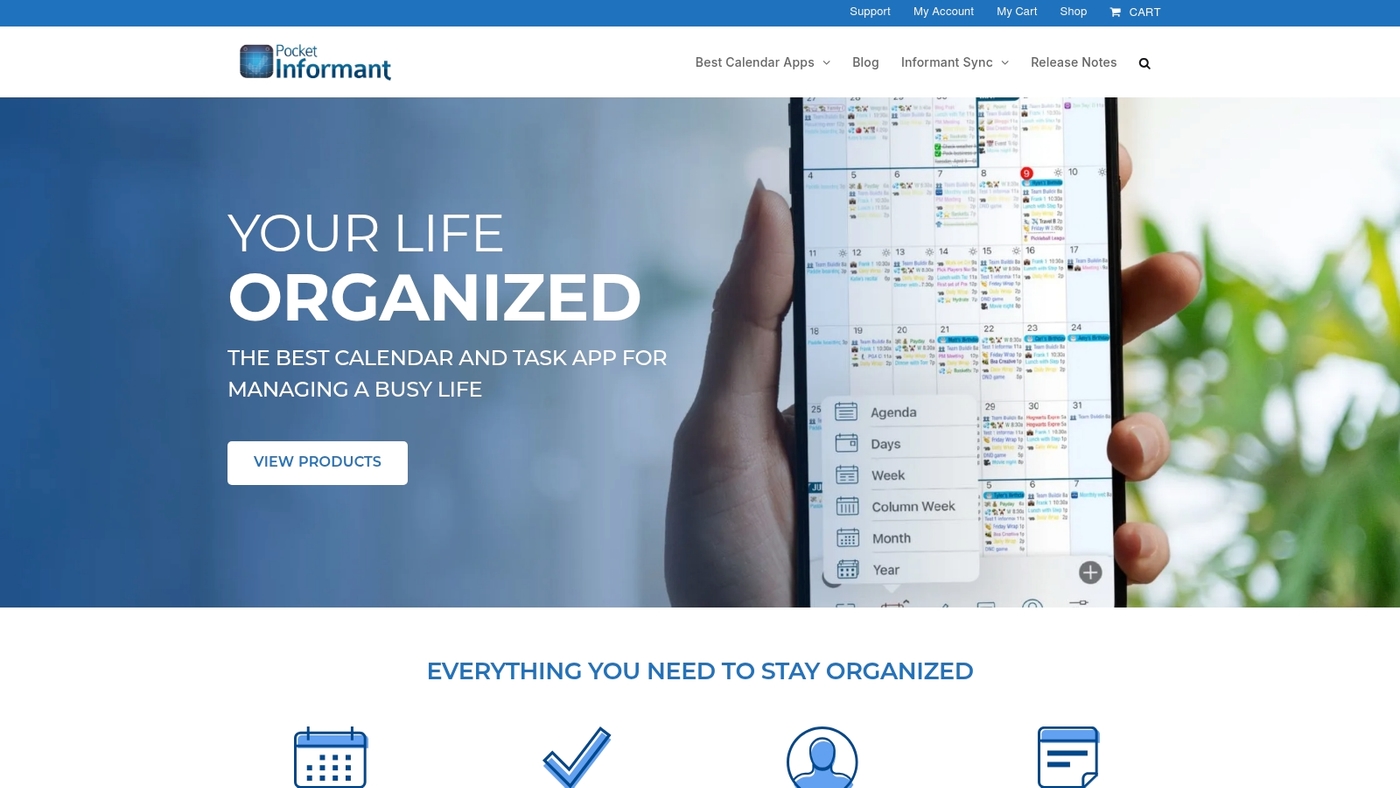
You get an all-in-one planner that centralizes calendars, tasks, notes, projects, and reminders with Pocket Informant.
It blends daily planning with project views and uses smart prioritization to surface top tasks.
It supports GTD workflows and flexible lists. It offers time-blocking and colored calendar bands for clear day blocks. It integrates weather into scheduling to avoid outdoor conflicts (pretty handy if you plan field visits or outdoor events).
It syncs across iOS, Android, and desktop and links with external calendars. You can set smart reminders and complex recurrences. You can filter tasks by tag, context, or priority.
I really think its mix of calendar and task focus saves time for heavy planners. Read a detailed round-up here: why Pocket Informant leads the list.
Pros
-
Unifies calendar, tasks, notes, and projects in one app
-
Robust scheduling tools and configurable reminders reduce context switching
-
Weather-aware scheduling for outdoor planning
Cons
-
Feature-rich interface can feel dense for new users
-
Some advanced sync and views require a paid subscription
For who?
Solo professionals and planners who juggle complex schedules. It suits users who prefer a calendar-first workflow and need integrated task and weather-aware scheduling.
Pricing
Free version offers core planning features. Pro subscription unlocks advanced views, enhanced sync, and premium support. Pricing varies by platform; check the Pocket Informant site for current rates.
Todoist
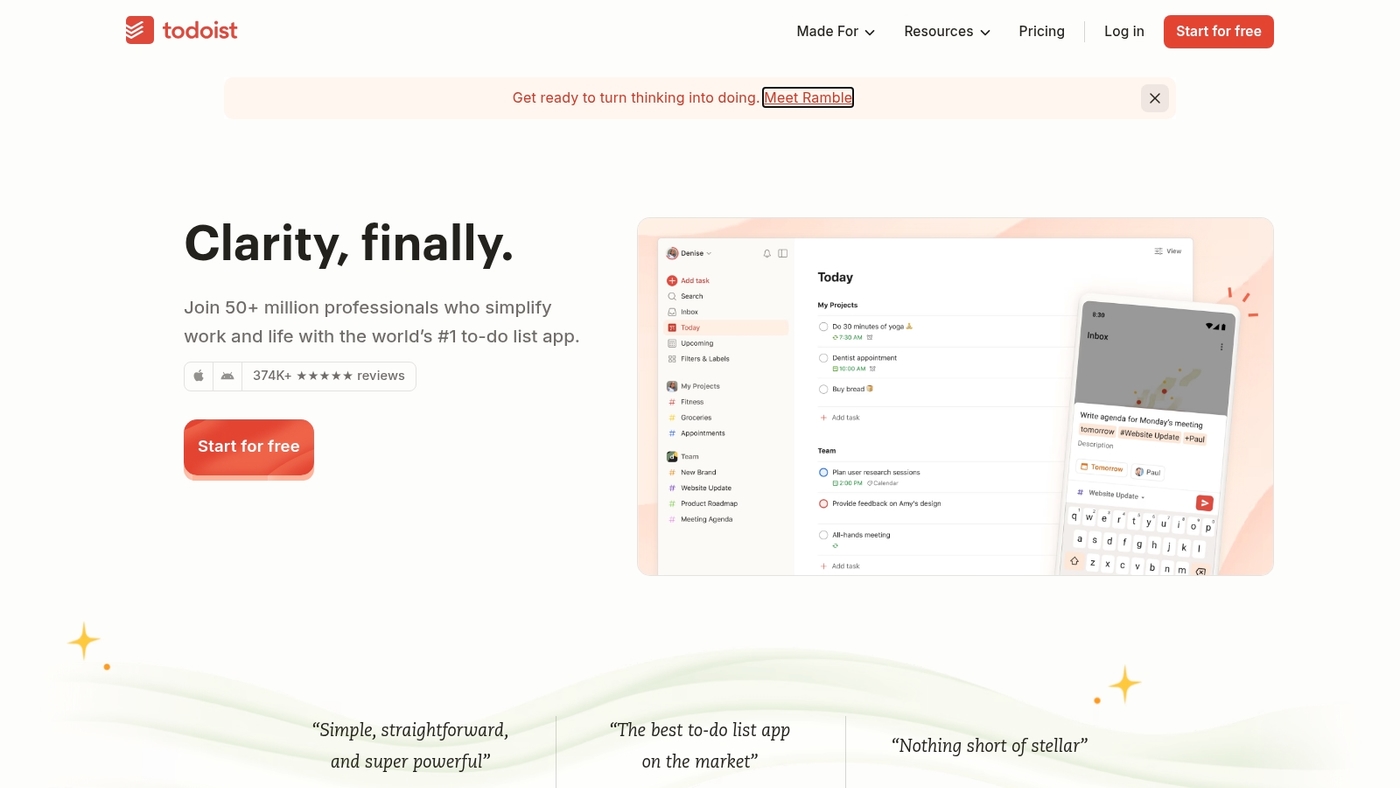
You’ll clear your daily to-dos faster with Todoist, a focused task manager that keeps priorities visible.
It captures tasks with natural language input and sorts work with task priority sorting. It syncs across web, iOS, Android, and desktop. You tag tasks with labels and use filters to surface what matters.
It connects to calendars and common productivity apps for smoother days. It supports reminders, comments, recurring rules, and simple templates. It offers automated organization with rules and smart suggestions for repeat tasks.
I’ve used Todoist for months and it stops small tasks from slipping through the cracks. Quick capture saves me minutes every day.
Pros
-
Fast task entry and clear priority view
-
Cross-platform sync with calendar and automation integrations
Cons
-
Advanced features require a paid plan
-
Limited built-in project views for complex workflows
For who?
Individuals and small teams who want a lean to-do list app that scales with labels and filters. You get quick capture, reliable sync, and simple automation without heavy setup.
Pricing
Free plan available. Premium plans start around $4 per month billed annually. Business plans start near $6 per user per month billed annually.
Notion
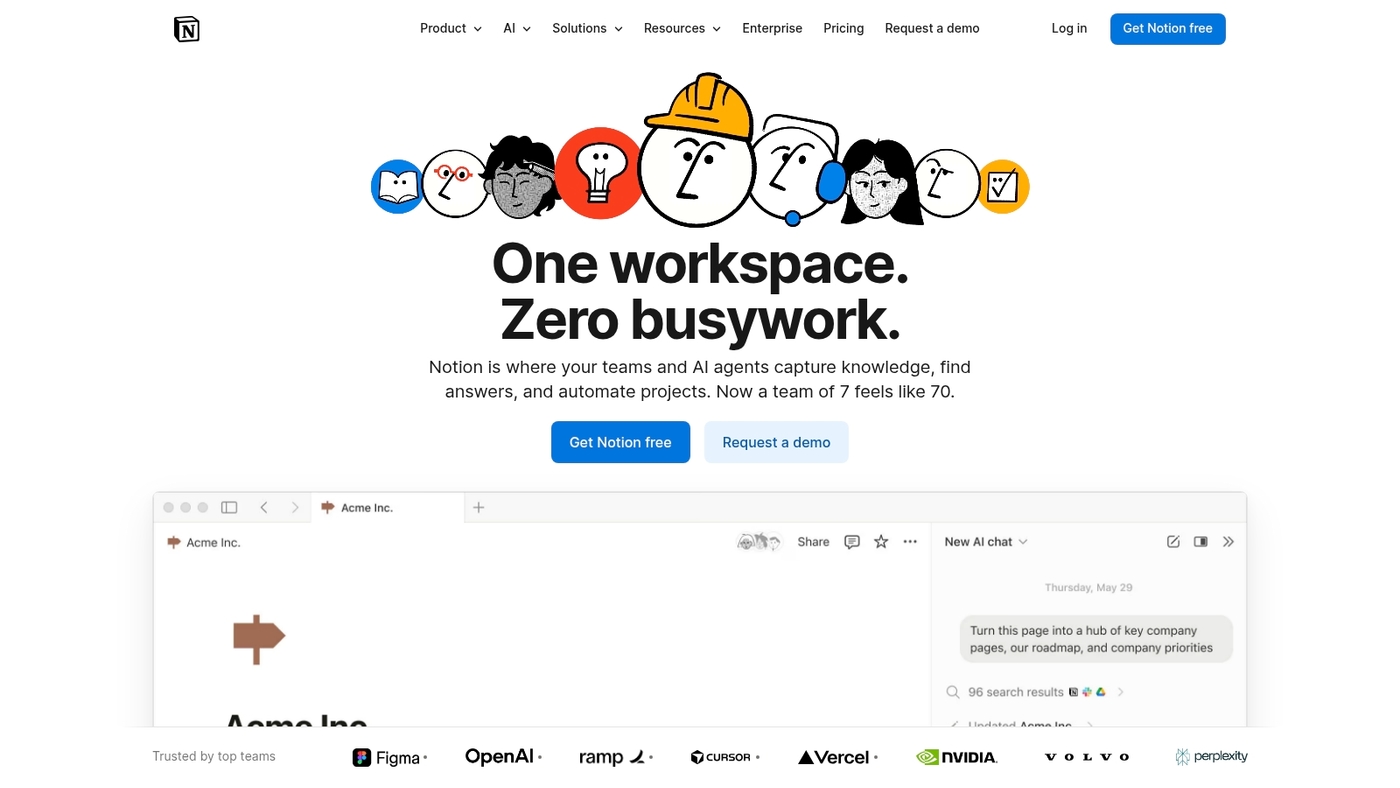
You’ll centralize notes, databases, and tasks with Notion, an all-in-one workspace that scales from solo use to teams.
It blends note-taking apps, customizable databases, kanban boards, and shared calendars into one place.
Templates speed setup and cut repetitive work. Pages act as living docs you can link and roll up into project dashboards. Integrations connect Notion to calendar apps, Slack, and workflow automation tools.
Its block system makes structure simple and flexible. I’ve cut template setup time by roughly 30% using reusable pages and linked databases.
For note-taking comparisons, see our best free note-taking software guide.
Pros
-
Highly flexible pages and databases for knowledge management
-
Real-time collaboration with comments, mentions, and shared workspaces
Cons
-
Steeper learning curve for advanced custom setups
-
Offline experience varies by platform and device
For who?
Creators and teams that want a single hub for notes, project management tools, and knowledge bases.
Pricing
Free personal plan available. Team plans start around $8 per user per month billed annually.
Asana
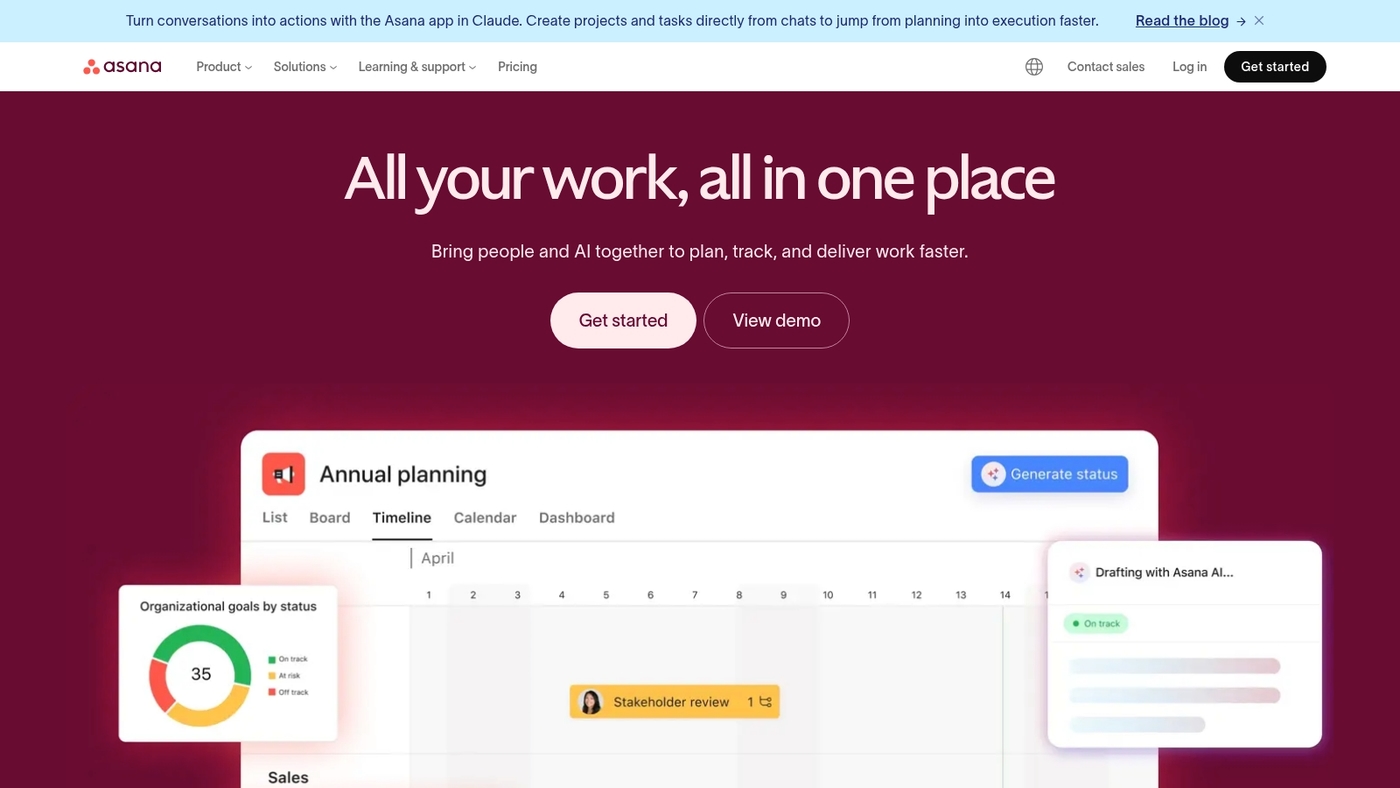
You get clear dashboards, timelines, and dependency tracking with Asana, a platform built to centralize team work and keep deadlines visible.
The platform supports Kanban boards, Gantt-style timelines, milestones, and custom fields. Use the workload views to balance assignments and reduce overload. Integrations link calendars, time trackers, and common apps.
Automation rules cut repetitive steps and free time for focused work. Asana’s mix of visual planning and structured tasks fits growing teams. Teams report fewer status meetings and clearer handoffs.
See our guide on project management software for comparison and setup tips.
Pros
-
Flexible views: lists, boards, timeline, and portfolio tracking
-
Strong integrations and automations to reduce manual updates
Cons
-
Advanced features sit behind paid tiers
-
Can feel complex for solo users or very small teams
For who?
Mid-size teams, product squads, and agile teams that need visual planning and workload balance.
Pricing
Free tier available. Paid plans start around $10.99 per user per month billed annually. Business and Enterprise plans offer advanced reporting and custom pricing.
Zapier
You eliminate repetitive work and free hours with Zapier.
Zapier connects thousands of apps and runs rules that move data for you.
It uses workflow automation and AI agents to trigger actions across tools. Build multi-step automations that handle notifications, file routing, CRM updates, and report generation. Orchestrate complex flows without code and reduce manual handoffs so you can focus on higher-value work.
The platform supports hundreds of common app integrations and templates. Chez Daily Social Tips, we route form responses into our tracking sheet and tag items automatically to save time.
How much time do you spend copying data between apps each week? Zapier can probably handle most of it.
Pros
-
Wide app coverage for centralizing tasks and data
-
Easy visual builder for non-developers
Cons
-
Complex orchestration can increase task run times
-
Advanced features require paid plans
For who?
Teams and solo users who need reliable automation and many integrations.
Pricing
Free tier available. Paid plans start around $19.99 per month for advanced automations and higher task limits.
Perplexity
You get fast, sourced research with Perplexity, an AI search engine that delivers high-quality answers with inline citations in seconds.
You get concise summaries and direct links to sources. The chat-style interface handles follow-up queries without losing context. You can export answers or copy passages for notes and reports.
The tool taps large language models and live web sources to keep responses current. It fits research-focused productivity tools and speeds fact checks and brief drafting.
I find it shortens research cycles for quick decisions. The experience helps you gather evidence, build outlines, and cite sources faster. Typical queries return useful answers in under a few seconds for common topics.
Pros
-
Fast, cited answers that save research time
-
Context-aware follow-ups for deeper queries
Cons
-
Paid plans remove query limits and add features
-
Coverage can be thin on very niche subjects
For who?
Researchers, students, journalists, product teams, and knowledge workers who need quick, cited answers.
Pricing
Free tier available. Paid plans add higher limits and advanced features.
Timeular
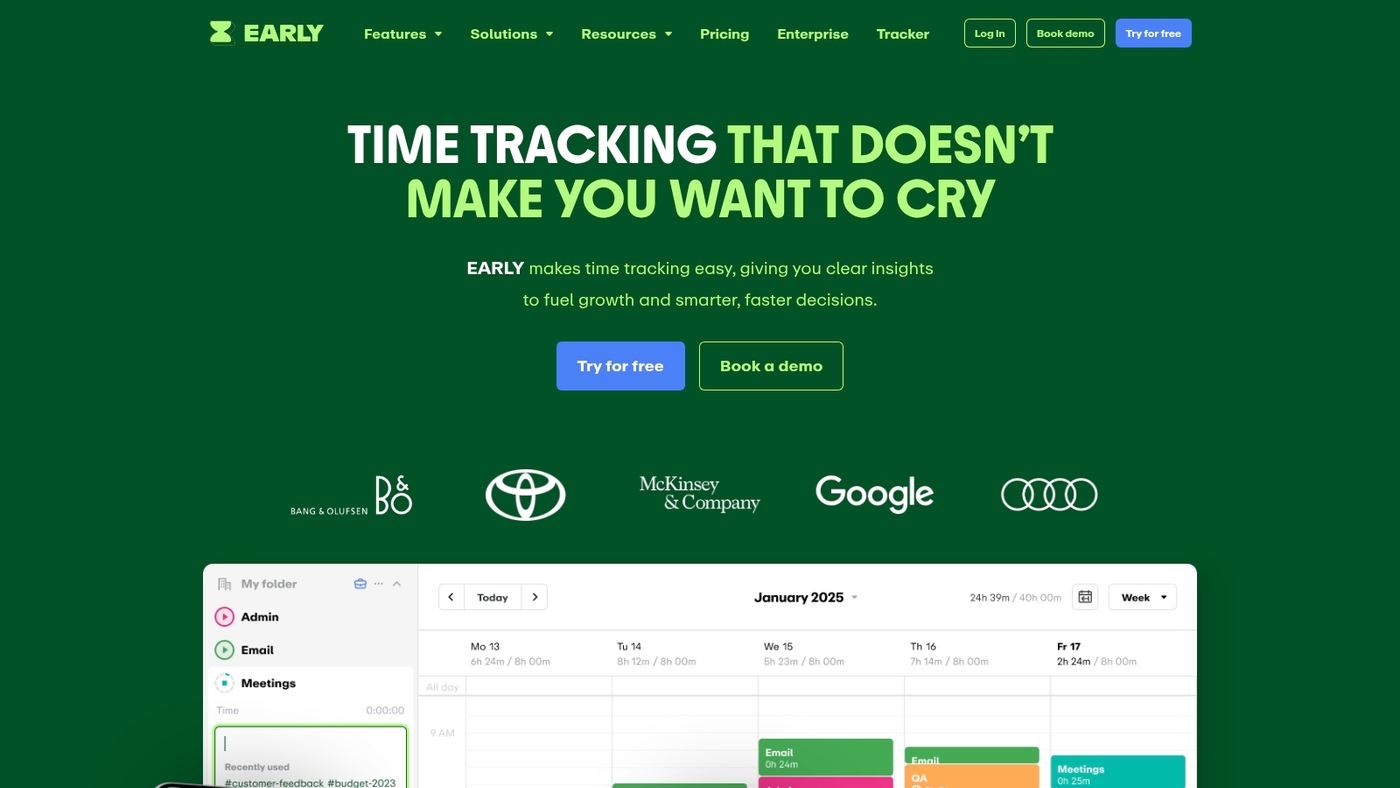
Timeular stops time guessing with fast, reliable tracking.
Timeular pairs a small physical tracker with an app to log tasks and app usage.
It maps calendar events, projects, and billable work. Use it to measure focus blocks, spot time sinks, and improve estimates. The device makes single taps to switch tasks. The app shows charts and exports for invoicing and reports.
The simple hardware speeds adoption across teams. This tool fits alongside project management tools and productivity apps. It helps you link time to tasks in to-do list apps, calendars, and time management tools.
The setup takes minutes and syncs across desktop and mobile. Expect clearer daily routines and more accurate billing from tracked sessions.
Pros
-
Automatic time-tracking tool that reduces manual logging
-
Easy exports for billing and team reporting
Cons
-
Physical tracker adds hardware cost
-
Some advanced reports require a paid plan
For who?
Freelancers, consultants, and small teams who need precise billable hours and time-based productivity insights.
Pricing
Free trial available. Subscription plans cover individuals and teams with advanced reporting and integrations. Check the homepage for current rates.
Grammarly
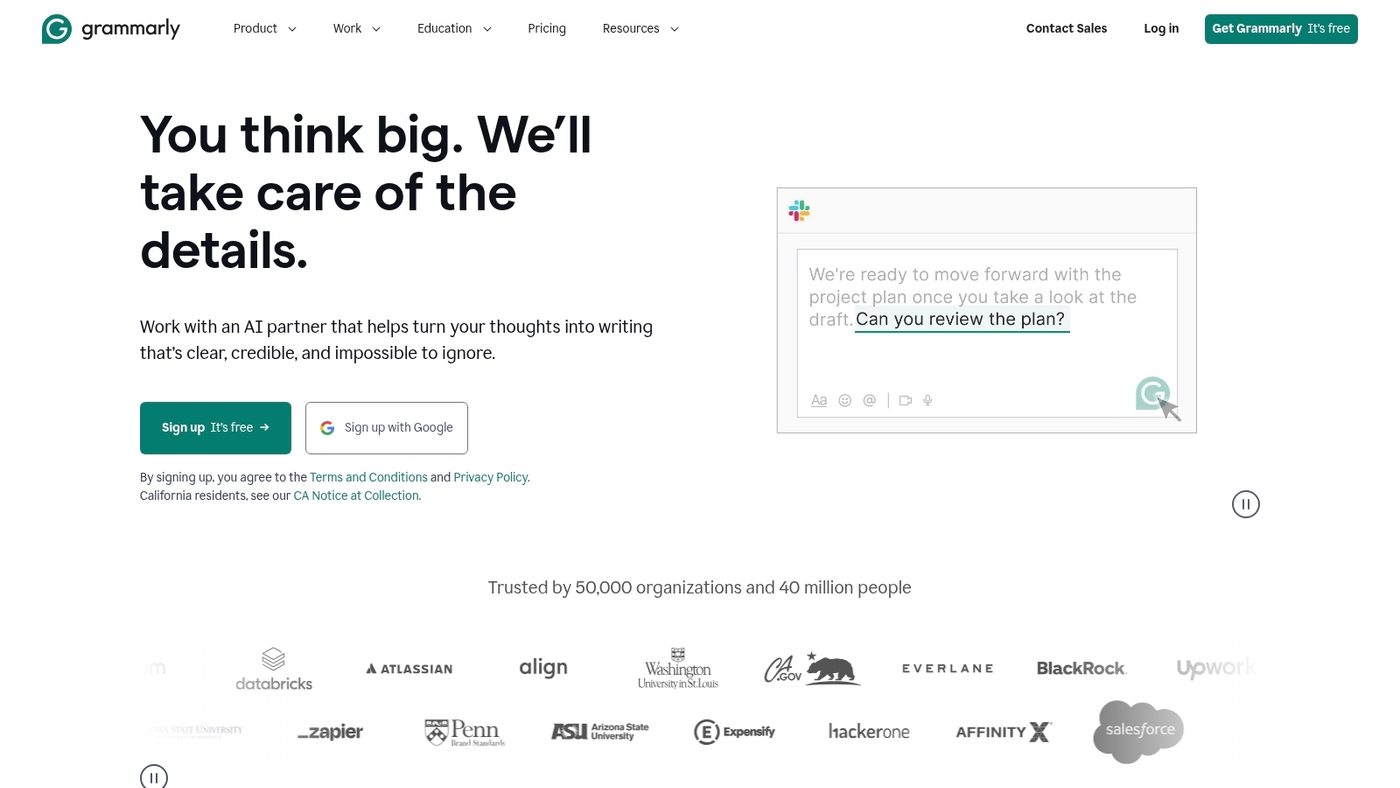
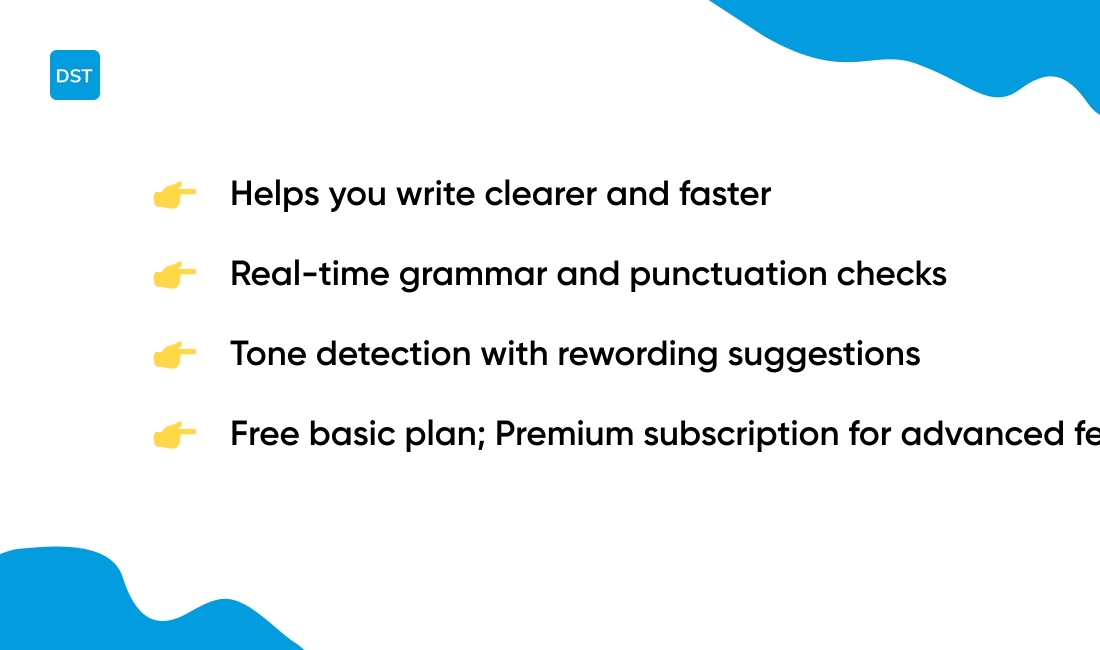
Grammarly helps you write clearer and faster.
You get real-time grammar and punctuation checks. Tone detection aligns suggestions with your audience.
The editor offers rewording suggestions and short explanations. It integrates with Chrome, Edge, Safari, Microsoft Office, and desktop apps. Premium adds advanced grammar rules, genre-specific style checks, and plagiarism detection.
You can set goals for formality, intent, and tone. I personally use the browser extension daily. It catches errors before I send drafts and saves editing time.
The interface shows simple fixes and quick alternatives. Use Grammarly for emails, reports, social posts, and content drafts to keep your communication sharp and consistent.
Pros
-
Real-time grammar and punctuation fixes
-
Tone detection plus rewording suggestions
-
Wide browser and app integrations
Cons
-
Premium features require a subscription
-
Accuracy can drop with niche technical jargon
For who?
Writers, professionals, students, and teams that need faster, clearer communication.
Pricing
Free plan for basic checks. Premium starts at about $12 per month billed annually. Business plans start at $15 per user per month.
Read also: Top 10 Best Project Scheduling Tools
What are the best productivity tools for work
Here’s a quick comparison table to help you match tools to your workflow:
|
Tool |
Best For |
Key Feature |
Starting Price |
|---|---|---|---|
|
monday.com |
Visual project tracking |
Timelines + automations |
~$9/user/mo |
|
ClickUp |
All-in-one workspace |
Custom views & docs |
~$7/user/mo |
|
Pocket Informant |
Calendar-first planning |
Weather-aware scheduling |
Free + Pro tiers |
|
Todoist |
Simple task lists |
Natural language input |
~$4/mo |
|
Notion |
Notes + databases |
Flexible workspaces |
~$8/user/mo |
|
Asana |
Team projects |
Dependencies & workload |
~$10.99/user/mo |
|
Zapier |
Workflow automation |
AI agents + integrations |
~$19.99/mo |
|
Perplexity |
Research |
Cited answers |
Free + paid tiers |
|
Timeular |
Time tracking |
Physical tracker device |
Free trial |
|
Grammarly |
Writing clarity |
Tone detection |
~$12/mo |
You’ll cut missed deadlines by centralizing planning. Try monday.com for visual timelines and automations.
You’ll gain flexible workflows and fewer context switches. Try ClickUp for custom views and docs.
Actually, the best tool depends on your specific workflow. Here’s what works for different needs:
-
Asana — team project tracking. You see deadlines, dependencies, and workload at a glance.
-
Notion — flexible workspace. You centralize notes, databases, and simple project boards. Notion fits teams that need content plus tasks in one place.
-
Zapier — workflow automation. You link apps and cut repetitive work by up to 70% on simple flows.
-
Todoist — simple task lists. You keep daily focus with priorities and natural language input.
-
Grammarly — writing assistant. You improve clarity and speed up email drafting.
-
Timeular — automatic time tracking. You get accurate time reports for project billing and estimates.
Chez Daily Social Tips, we favor tools that reduce meetings and centralize work. For teams on a budget, check our roundup of free planning software.
You’ll also like: Top 10 Best Resource Planning Tools
How to choose the right productivity tool for your needs
You should pick a tool that fits your workflow to save time and reduce context switching.
Chez Daily Social Tips, we use a simple framework to match needs to tools quickly.
-
Match your workflow — map core tasks and the handoffs you repeat daily. Use that map to shortlist productivity tools and productivity apps.
-
Team size matters — choose lightweight to-do list apps for solo work and scalable project management tools for teams of 5+. Costs rise with seats.
-
Assess integration needs — verify sync with calendar apps, email productivity tools, and workflow automation tools to avoid manual work.
-
Calculate total cost — include license fees, onboarding hours, and automation credits. Aim for a payback in 3 months via time saved.
-
Trial with real tasks — track time with a time management tool or Pomodoro timer app and measure task completion rates.
Running a two-week pilot with real projects reveals hidden friction fast.
Use metrics to decide: hours saved, fewer status meetings, and faster task completion. Pick tools that reduce clicks and centralize work.
You’ll see ROI when automation removes repetitive steps and your team stays aligned.
You might also like: Top 12 Best Task Management Tools