That moment when your team juggles ten apps and nothing moves forward is all too familiar.
Task management tools bring tasks, deadlines, and ownership into one place so teams can prioritize and track real progress.
Without a consistent system, priorities blur, deadlines slip, and people spend more time asking for status updates than doing work.
This guide compares the best task management tools so you can pick the right fit for your team’s size, workflow, and budget.
You’ll discover strengths, key features, and ideal use cases (from solo freelancers to cross-functional teams) to make a confident choice.
Plus, quick tips will help you implement the tool without derailing current work.
What are task management tools
Task management tools are software that help you capture, organize, and track work. They turn scattered to-dos into clear action items you can assign and measure.
Here’s what they typically include:
-
Task assignment: assign owners, set due dates, add dependencies.
-
Deadlines and scheduling: calendar views, reminders, and time estimates.
-
Progress monitoring: status updates, dashboards, and simple reports.
-
Collaboration features: comments, file sharing, mentions, and notifications.
-
Views and boards: kanban boards, lists, calendars, and timelines.
-
Automations and integrations: reduce manual work and centralize tools.
These tools help individuals and teams prioritize work, reduce friction, and save time. Good platforms cut status confusion and make ownership transparent.
We moved core workflows into a single task system and halved our meeting time. Centralizing tasks and automations frees time for higher-value work.
Pick a tool that matches your team size and workflow. Look for clear task ownership, easy views, and integrations with your calendar and chat. Try one with a free plan and measure adoption over 30 days.
Task tracking software and task assignment software both aim to streamline daily work and boost team focus.
Task management vs project management software
We separate daily task apps from full project platforms so you choose faster.
Task management tools help you organize short work items, assign owners, and set deadlines. They work as lightweight task tracking software for individuals and small teams. You get quick checklists, Kanban boards, and mobile access to keep daily work visible.
Project management software manages larger scopes, timelines, and resources across teams. It supports Gantt charts, capacity planning, budget tracking, and cross-project reporting. Read more about mature platforms at project management software.
Pick task apps when daily execution and low setup time matter. We moved to a shared task board and reduced status meetings by 40% while keeping accountability transparent.
Here’s a quick breakdown:
-
Task management tools: rapid setup, task assignment, priority labels, simple notifications.
-
Project management software: timeline control, resource allocation, advanced reporting, dependency mapping.
Choose by outcome. Pick a task planner app for personal task manager needs or small teams. Move to work management software when you need cross-team visibility, formal timelines, and resource balancing.
Key features to look for in task management software
Task assignment and prioritization
Good task management tools enable clear task ownership, set deadlines, and flag priorities.
Task tracking software shows dependency mapping visibility and prevents blocked work. You see who does what, when work is due, and what to focus on.
Assigning single owners for each task improves accountability. My team reduced missed deadlines by 35% after strict ownership and clear deadlines.
Tools give priority level clarity with color flags and score sorting. Look for a kanban task board, due date views, and automated reminders.
Pick task assignment software that shows owner history and edit logs. Enable task scheduling software features like recurring dates and buffer times.
Set simple priority rules such as high, medium, and low with numeric scores. You’ll reduce meetings, centralize updates, and make team task management transparent.
We moved our operations to ownership-driven tools and cut status meetings significantly.
Collaboration and communication features
We recommend task management tools that centralize team communication inside tasks. They cut context switching and keep work visible.
Look for a built-in commenting system, secure file sharing, @mentions, and real-time notifications.
Comments keep decisions and history next to each task. I’ve seen teams cut weekly meeting time by half after centralizing comments and mentions.
Integrate with Slack or Google Workspace to surface alerts without leaving your task app. Set a 24-hour response goal for mentions to keep momentum.
Turn notifications on for task owners only and use digest settings to reduce noise. These practices reduce friction, centralize context, and save time for teams using task management software.
Visual task boards and views
Visual views help you see work in the format you prefer.
Kanban boards show flow, limit work in progress, and speed handoffs. List views make backlog grooming fast and let you triage tasks quickly.
Gantt charts reveal dependencies and timelines for multi-step work. Use calendar view to spot deadline clashes and plan sprints without guesswork.
Switching views reduces context switching and saves valuable hours each week. Start with two views and measure cycle time for four weeks to see gains.
Try Kanban for daily flow, list view for inbox clearing, and Gantt for roadmaps. Check the best free Kanban software to test boards quickly and cut setup time.
We recommend hybrid setups that centralize work, reduce friction, and keep your team transparent.
Integrations with productivity tools
We prioritize integrations when evaluating task management tools.
Connect Slack, Google Workspace, Microsoft Teams and other apps to centralize your workflows. Good integrations sync comments, attachments, due dates and statuses in real time.
We cut app switching by 30% after linking Slack and Google Calendar for task updates. Automations save teams at least one hour per week on repetitive work.
Sync a kanban task board with your calendar to prevent overbooking and missed deadlines. Enable two-way sync and set simple triggers to auto-update tasks and assign owners.
Integrations streamline notifications, reduce friction, and make reporting transparent and scalable. Try enabling these connections in your task management software this week to save time.
Small setups yield big gains for team task management and task tracking software adoption.
Top 12 task management tools to consider
Monday.com
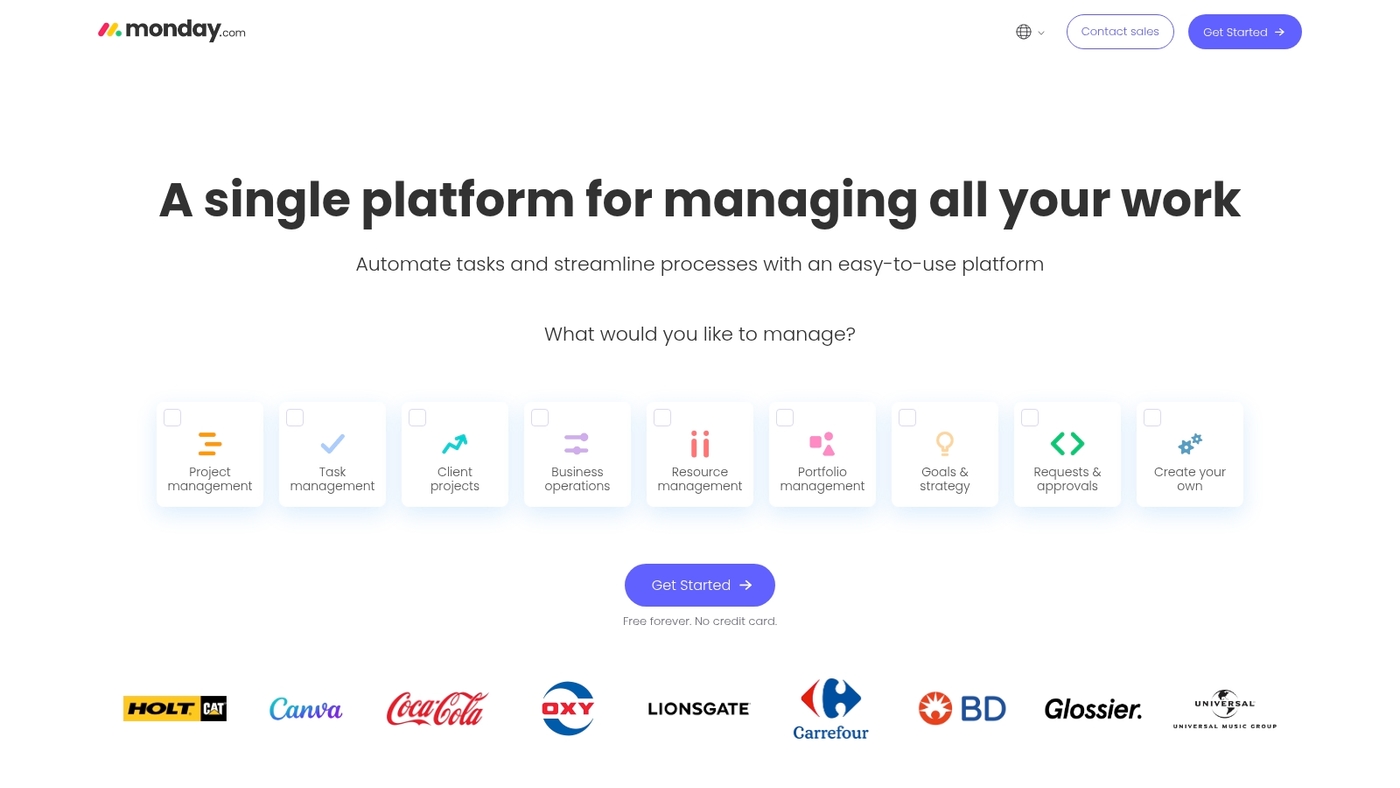
We use Monday.com to manage client work and sprint tasks. The platform uses color-coded boards and ready-made templates that simplify task tracking.
Assign owners and set deadlines. View work as boards, timelines, calendars, or charts. Automations reduce repetitive updates.
Integrations with Slack, Google Workspace, and Teams centralize communication. Its visual layout helps teams spot bottlenecks fast. The tool scales from small teams to enterprise.
It supports custom fields, dashboards, and time tracking. Consider it one of the best task management tools for visual teams.
Pros
-
Visual boards make task status instantly clear.
-
Templates and integrations speed team onboarding.
Cons
-
Advanced features raise costs for larger teams.
-
Deep customization requires time to learn.
For who?
Teams that prioritize visual organization, customization, and scalable workflows.
Pricing
Free tier available; paid plans scale per user with added automations and dashboards.
ClickUp
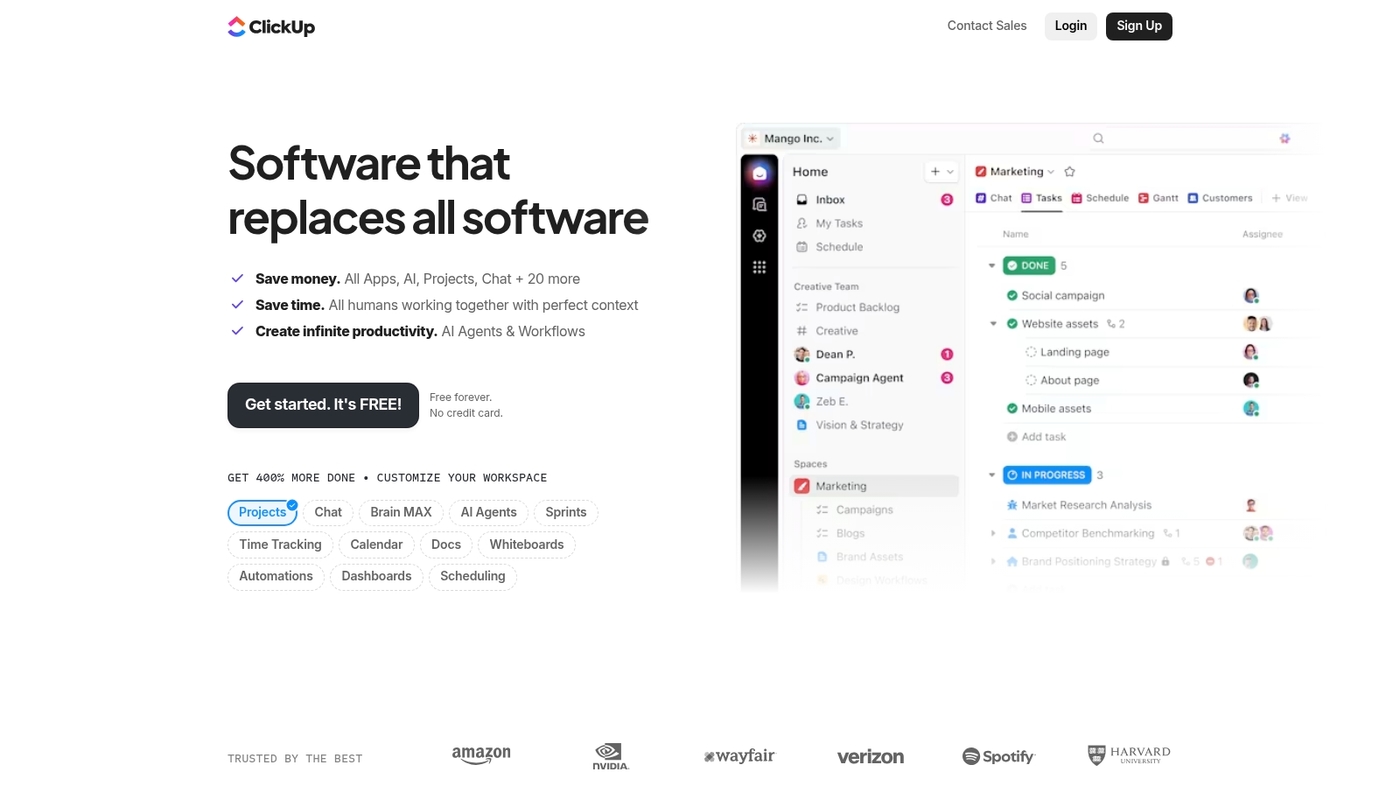
We recommend ClickUp as an all-in-one task management platform that centralizes tasks, docs, goals, and team chat.
The interface offers customizable dashboards, templates, automations, and multiple views like Kanban, list, calendar, and Gantt. Teams assign tasks, set priorities, and track progress in real time.
ClickUp integrates with Slack, Google Workspace, and Microsoft apps to centralize workflows. The platform supports nested tasks and robust automation to reduce repetitive work.
I’d say ClickUp saves teams significant time through automation and templates. I’ve used it for cross-functional task management and sprint work. It suits teams that need scalable work management software without high costs.
Pros
-
Feature-rich platform with deep automation and multiple view options
-
Strong integrations that centralize tools and reduce context switching
Cons
-
Steeper learning curve for new users compared to simple task apps
-
Advanced features can feel overwhelming without setup time
For who?
Teams that need a scalable, flexible task management tool with automation and reporting.
Pricing
Free plan available. Paid plans start at $5 per user per month billed annually. Business plan at $12 per user per month. Enterprise offers custom pricing and support.
Asana
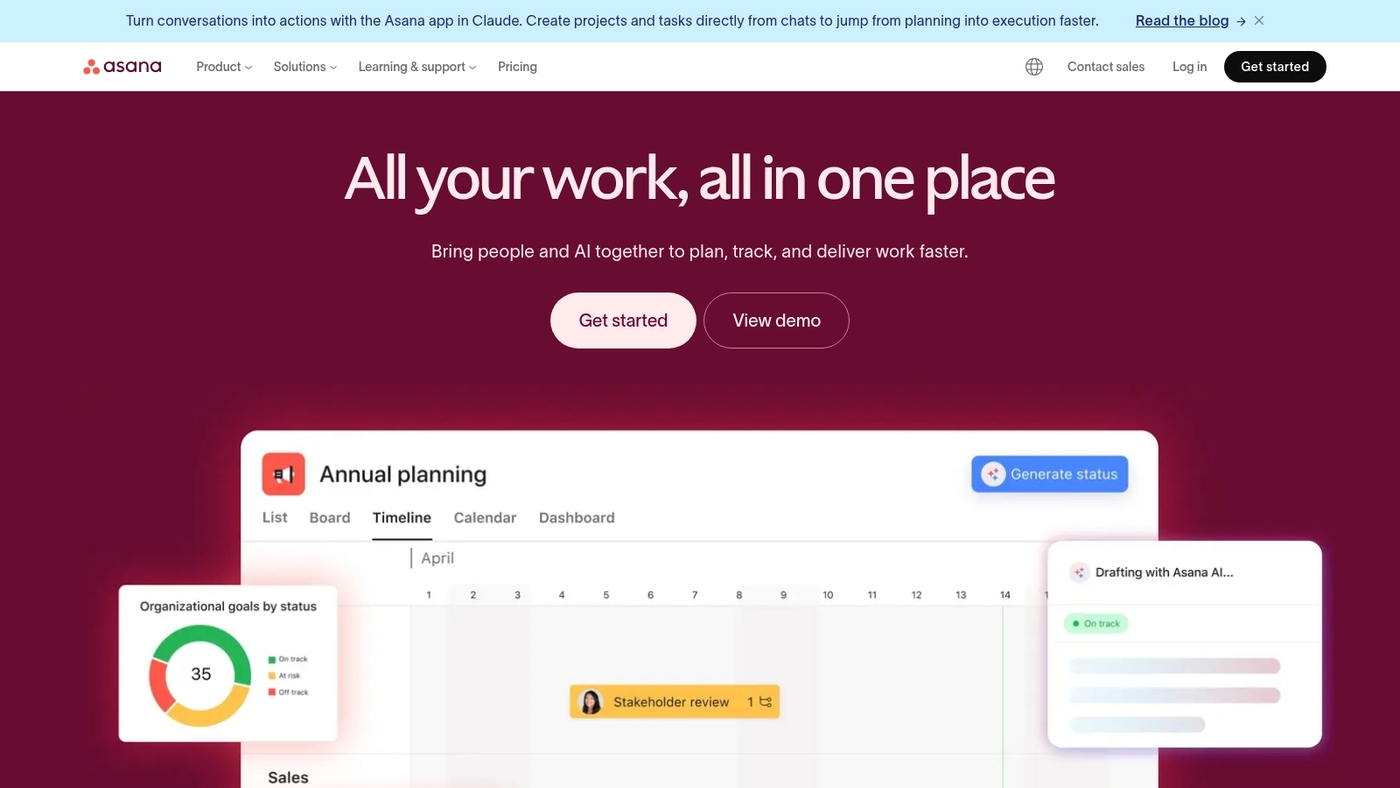
We recommend Asana for mid-sized teams managing cross-functional work. Asana offers a clean interface and multiple views that map to real workflows.
You get list views, boards, timeline and boards, and custom fields. Automations scale with rule builders and integrations.
The tool handles task assignment, dependencies, and clear due dates. Asana reduces friction for teams that need transparent task tracking.
Use templates to speed setup and built-in reporting to keep stakeholders aligned. The mobile apps keep work visible on the go. Expect a moderate learning curve for advanced rules and large portfolios.
Try Asana if you want a scalable, visual task manager that centralizes work across teams.
Pros
-
Intuitive UI with multiple views for different workflows
-
Powerful workflow management with reusable templates
-
Robust automation rules and many integrations
Cons
-
Advanced features require time to learn
-
Costs grow as team size and feature needs expand
For who?
Mid-sized teams running cross-functional projects, product teams, marketing teams, and agencies needing clear task ownership and timeline planning.
Pricing
Free tier available. Paid plans start at $10.99 per user per month for Premium when billed annually.
Trello
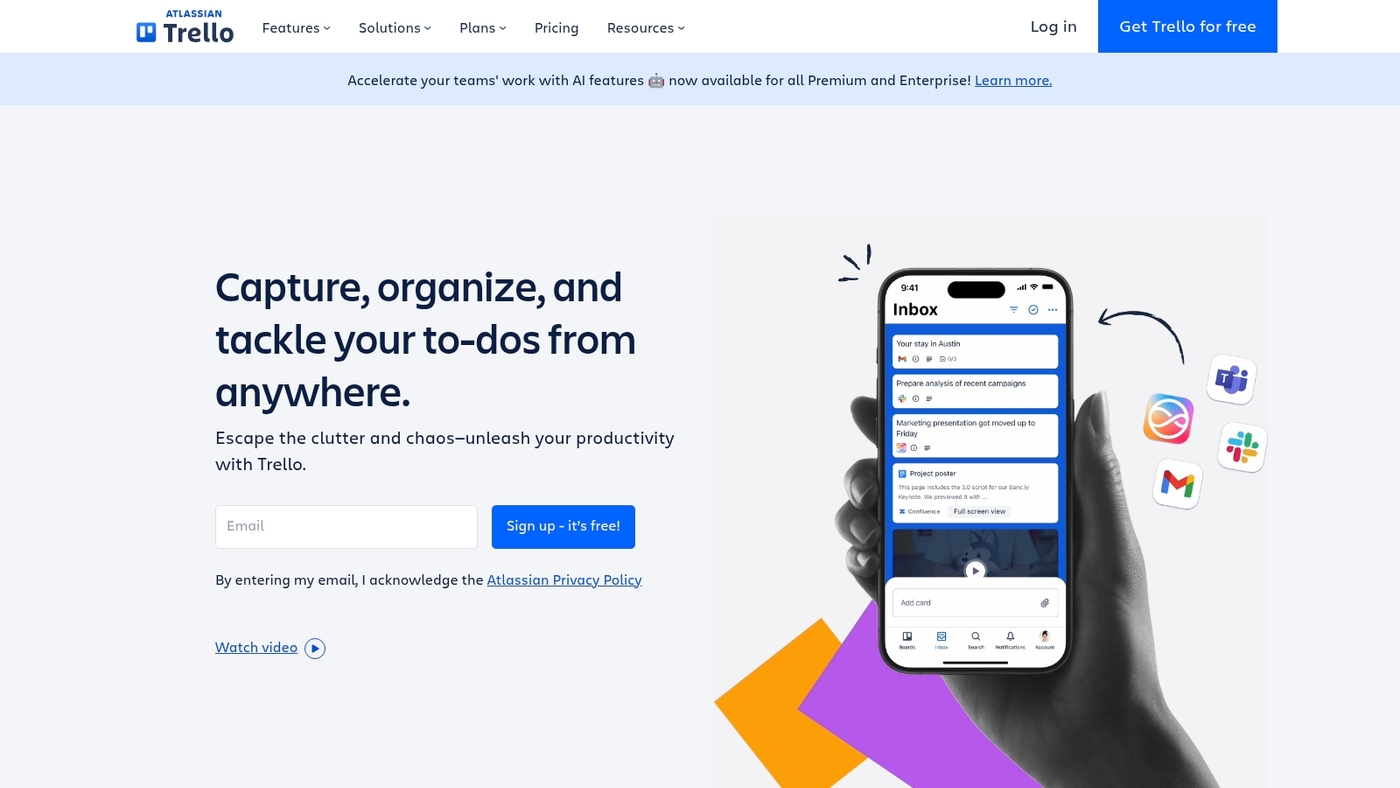
We recommend Trello for small teams and straightforward projects. It uses a Kanban board for visual task management.
You move cards between lists as drag-and-drop cards. You assign members, set due dates, add checklists, and attach files.
Power-Ups add calendars, automations, and integrations with Slack and Google Workspace. The free plan supports unlimited boards and 10MB attachments per file.
Millions of users rely on Trello for simple task flows and quick onboarding. Trello shines when tasks stay simple. The interface keeps work visible and easy to scan.
Use Trello to centralize short-term tasks and reduce meeting time.
Pros
-
Small team friendly interface that teams adopt fast
-
Flexible Power-Ups and broad third-party integrations
Cons
-
Limited depth for complex, multi-phase projects
-
Advanced automation and reporting require paid plans
For who?
Small teams, startups, freelancers, and anyone who wants a simple kanban task board for daily work.
Pricing
Free plan available for basic boards. Paid plans start at about $5 per user per month when billed annually.
Todoist
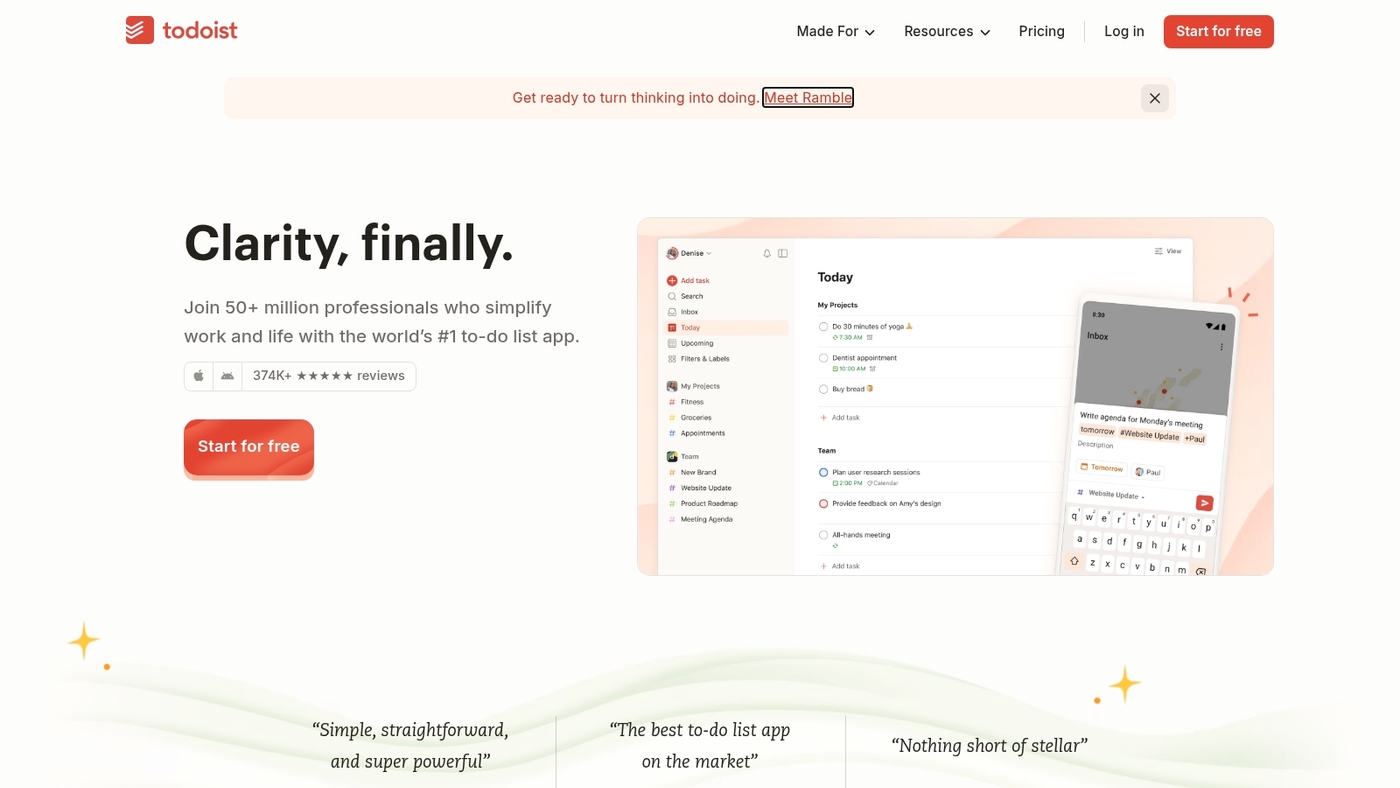
Todoist is a clean to-do list app built for fast task capture and clear organization.
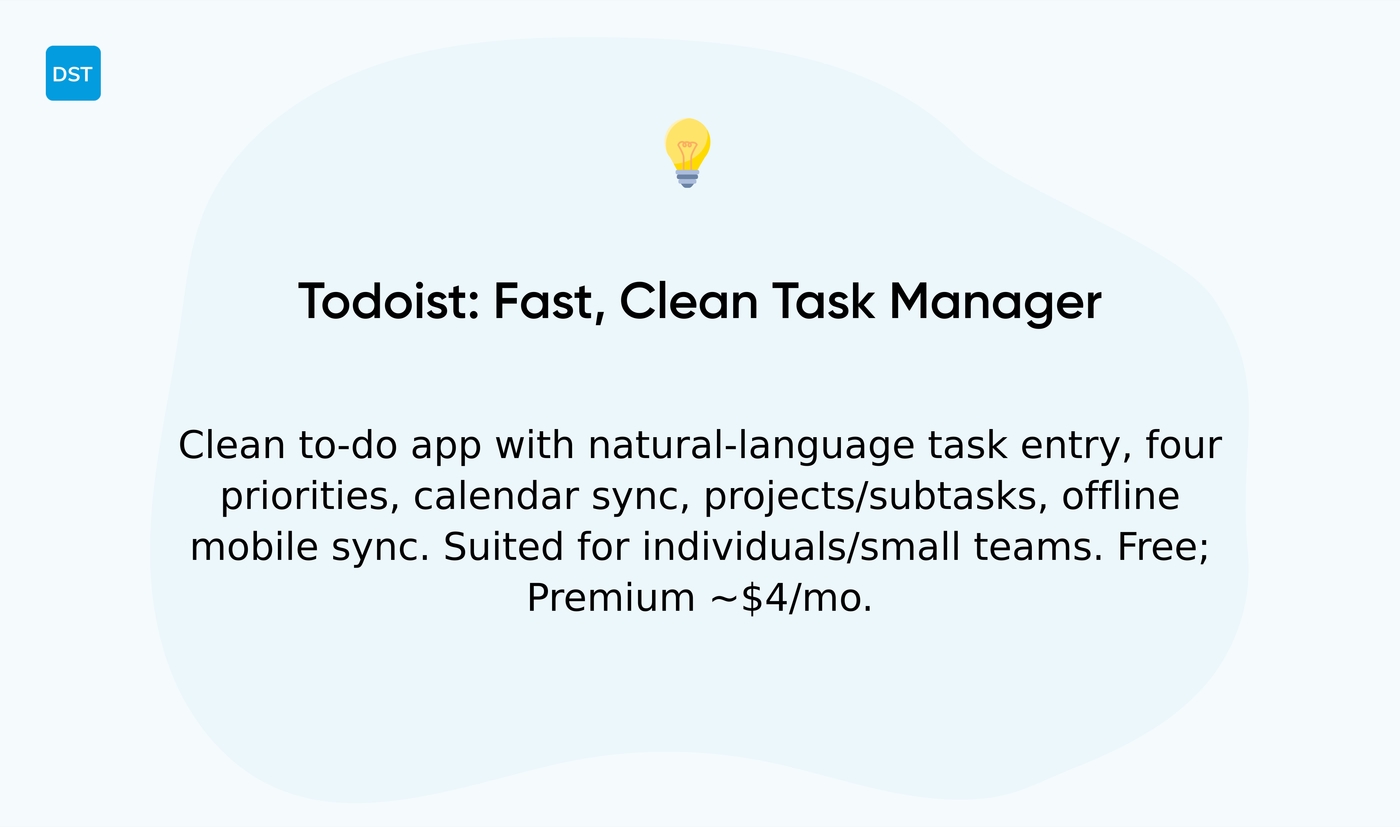
It accepts natural-language input so you type “meet Sarah tomorrow 9am” and a due date appears. Smart prioritization uses four priority levels with color cues.
Calendar integration syncs with Google Calendar and Outlook. You can create projects, subtasks, labels, filters, and recurring tasks. The mobile apps work offline and sync quickly.
Among task management tools, Todoist stands out for lightweight personal workflows and simple team handoffs. It fits users who want a focused personal task manager that scales to small teams.
I use it for daily checklists and recurring reminders because it reduces friction and saves time.
Pros
-
Fast task entry with natural language dates
-
Clean UI, four priority levels, and calendar sync
Cons
-
Limited advanced project planning features
-
Some automations require a paid plan
For who?
We recommend Todoist for individuals and small teams needing a simple to-do list app for daily work.
Pricing
Free plan available. Premium about $4/month billed annually. Business about $6/user/month billed annually.
TickTick
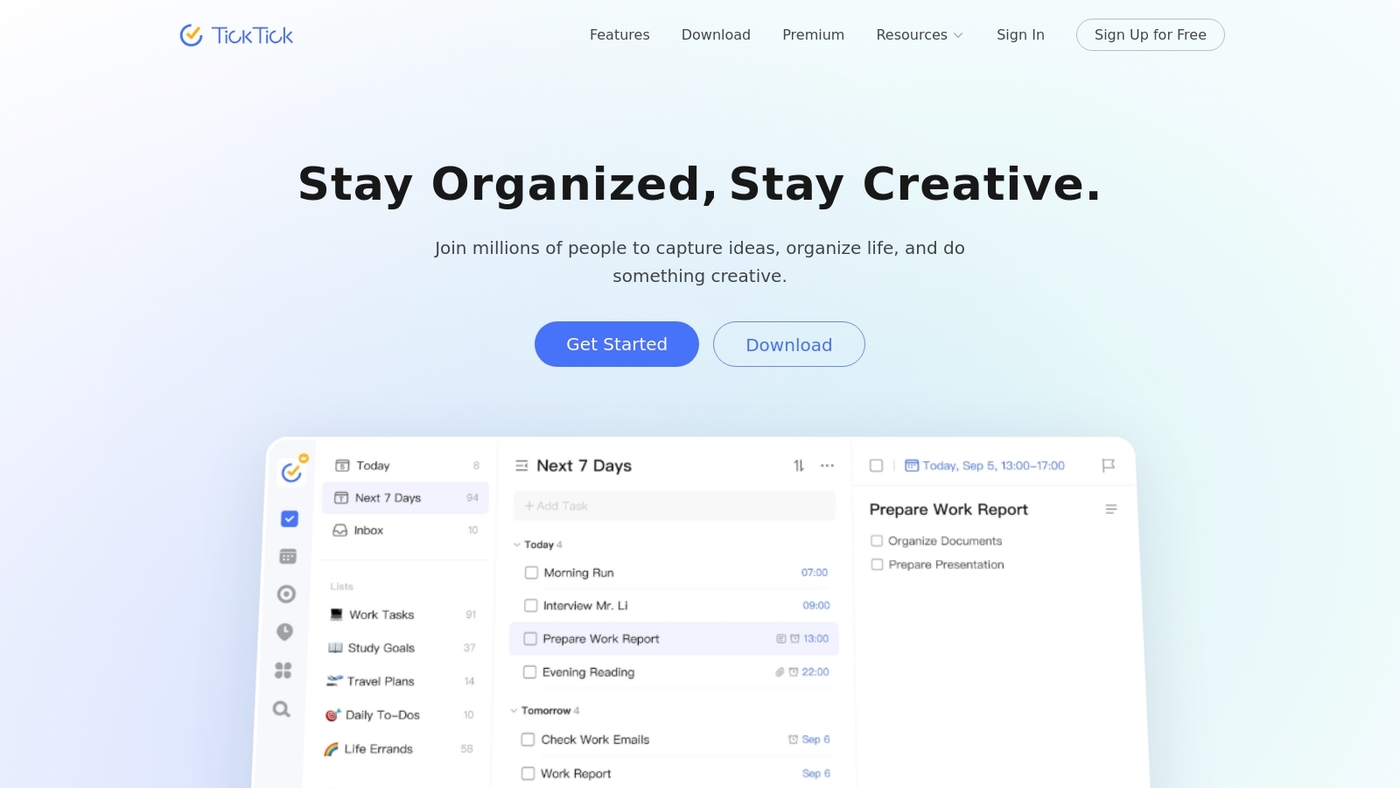
We recommend TickTick as a compact, feature-rich option among task management tools.
TickTick combines a kanban task board, calendar views, a Pomodoro timer, and habit tracking in one app. You can create smart lists, set priorities, attach files, and sync with Google Calendar.
The mobile and desktop apps stay fast and responsive. The Pomodoro timer and habit features help you build routine and reduce context switching.
The tool fits a personal task manager role and supports light team task management. It helps you centralize planning and execution so you save time when you schedule and do focused work.
Pros
-
Clean interface with multiple views: list, kanban, calendar.
-
Built-in Pomodoro timer and habit tracking boost focus.
-
Smart lists and tags speed up task organization.
Cons
-
Team collaboration features stay basic compared to full PM suites.
-
Advanced automation options remain limited.
For who?
Individuals and small teams who want a task planner app that blends time-blocking, habit tracking, and straightforward task tracking.
Pricing
Free plan available. Premium costs about $2.79/month or $27.99/year for full features and increased limits.
Notion
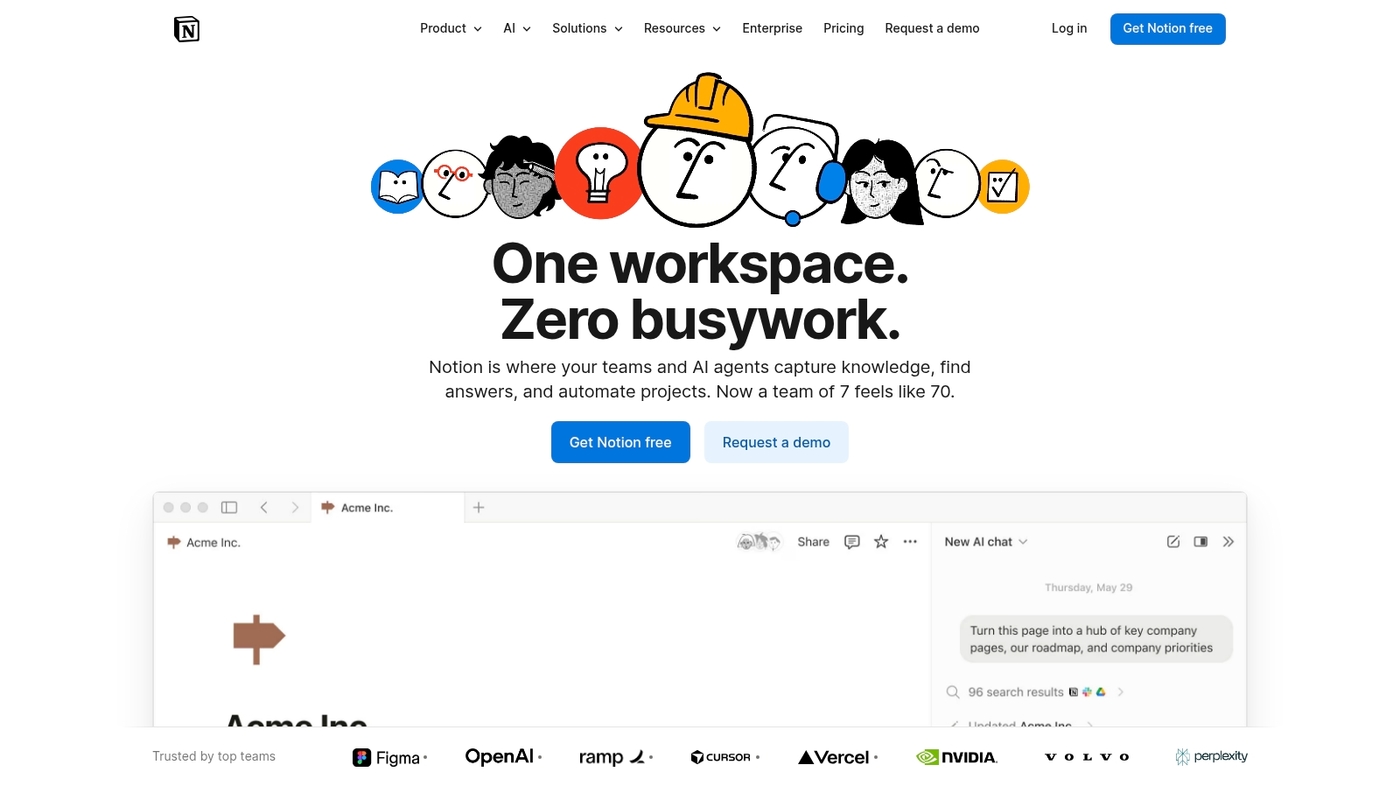
Notion is a flexible all-in-one workspace that merges tasks, wikis, databases, and notes into a single interface.
You can build custom databases for tasks with properties like priority, due date, assignee, and status. Views include kanban boards, lists, calendars, and tables so you can match your team’s workflow.
Notion links documentation to tasks with relational databases and templates. The tool works as a personal task manager and a team task management hub for shared knowledge.
It supports integrations and embeds of calendars and files so work stays central. The platform scales from solo users to teams and supports simple automations and API access for deeper workflows.
Notion shines when you need strong documentation paired with task tracking and searchable knowledge base workflows. We moved our editorial planning into Notion and cut coordination time by about 30%.
Pros
-
Highly customizable databases and templates for varied workflows
-
Strong link between tasks and documentation for centralized knowledge
Cons
-
Steeper setup for complex workflows compared to simple task apps
-
Offline support and advanced automation remain limited
For who?
Teams that need to centralize documentation with task tracking and users who want a scalable workspace.
Pricing
Free plan available; paid plans start around $8 per user per month for teams, billed annually.
Microsoft Planner
Microsoft Planner offers straightforward task management within the Microsoft 365 ecosystem.
It sits in Teams and Outlook for seamless task creation. You get buckets, labels, checklists, due dates, and basic progress views. The interface stays simple for non-technical users.
Integrations centralize notifications and reduce app switching. You can switch between board and list views for flexible organization.
Planner lacks advanced dependencies, robust reporting, and Gantt charts. It scales for departments that already use Microsoft 365.
Planner wins when teams need straightforward, reliable tracking. We used it with a five-person marketing team. Status update overhead dropped about 30% compared to spreadsheets. It pairs well with SharePoint and OneDrive for file storage.
Pros
-
Deep integration with Teams and Outlook for centralized task workflow
-
Simple UI that speeds adoption and reduces training time
Cons
-
Limited reporting and no advanced task dependencies
-
Basic automation compared to full-featured work management software
For who?
We recommend Planner for organizations standardized on Microsoft 365, small functional teams, and educators wanting easy visual boards and clear task assignment.
Pricing
Included with Microsoft 365 Business and Enterprise plans. Planner is available with Office 365 subscriptions rather than as a separate paid app.
Jira
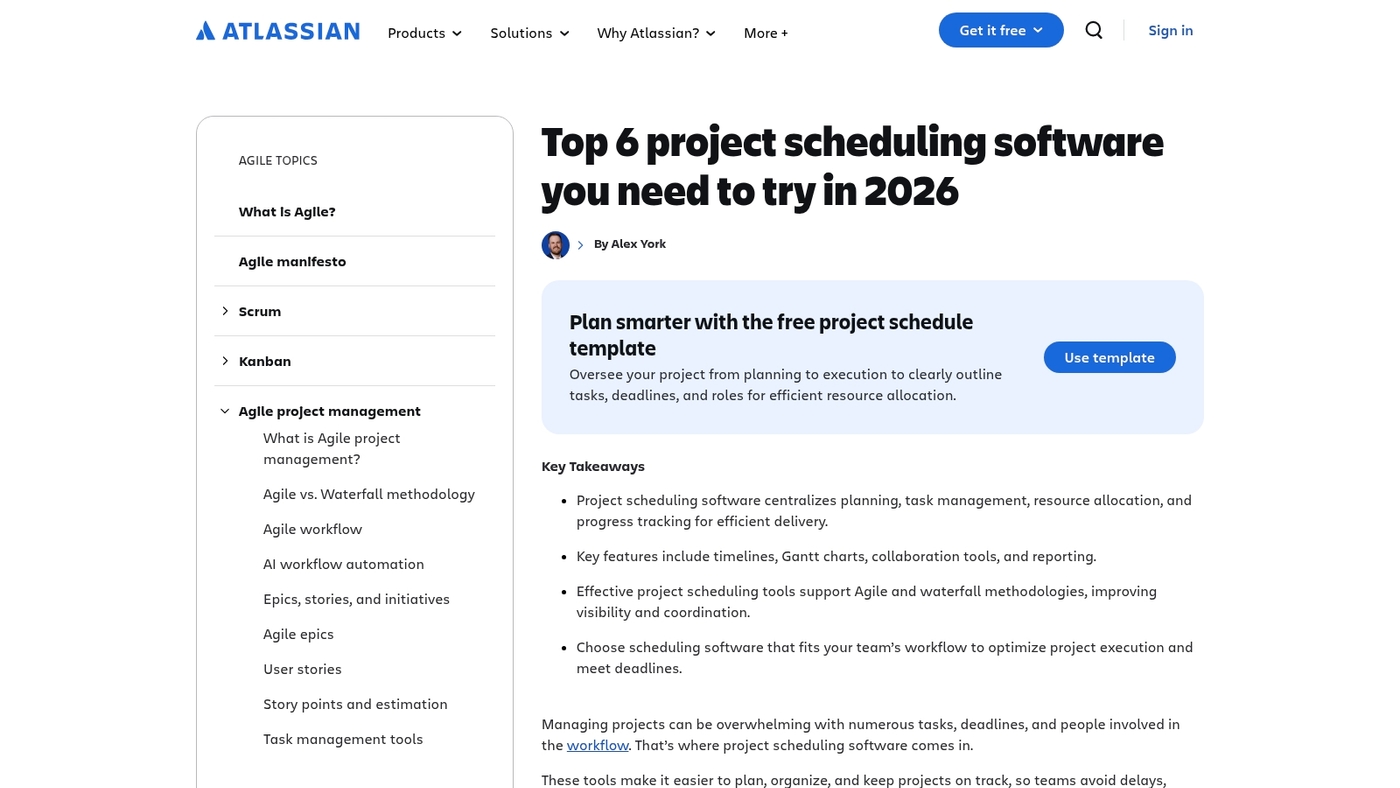
We rely on Jira for engineering task tracking and agile workflows.
Jira provides sprint planning, backlog grooming, and advanced issue tracking. You get Kanban and Scrum boards, custom workflows, and detailed reports.
The tool integrates with Git, CI pipelines, and major dev tools. It scales from small teams to large engineering orgs. You can automate repetitive steps and enforce release processes.
Jira shines on complex projects that need traceability and audit logs. Use its filters to surface blockers and overdue tasks.
See our guide on project management software for developers for setup tips and migration ideas.
Pros
-
Powerful issue tracking and reporting
-
Extensive integrations with Git, CI, and dev tools
Cons
-
Steep learning curve for new users
-
Overhead for simple to-do lists and non-dev teams
For who?
For software teams that need agile task management and detailed issue tracking.
Pricing
Free for up to 10 users. Paid plans start around $7.50 per user per month.
Wrike
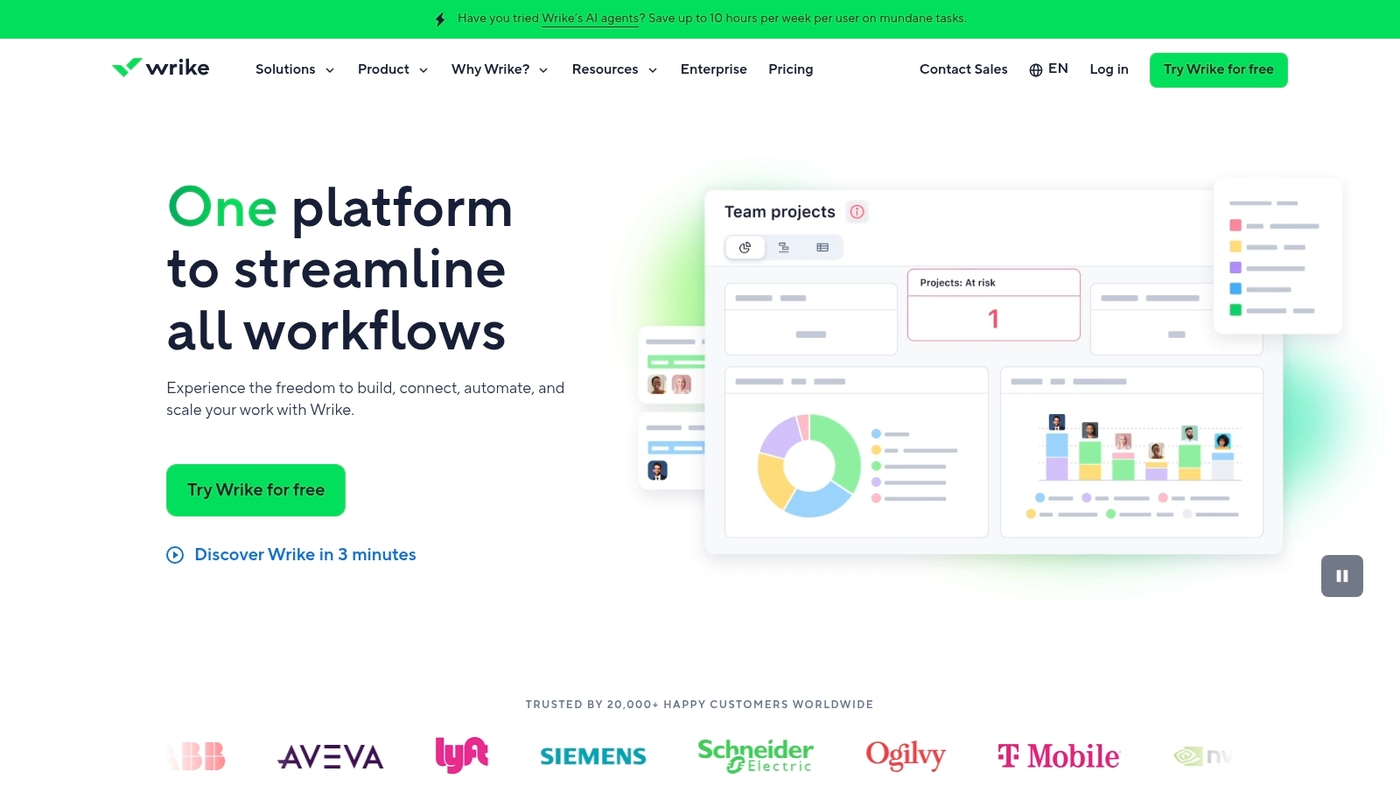
We recommend Wrike as a scalable work management solution for teams that need structure and visibility.
Wrike packs custom workflows, time tracking, and resource management with Gantt charts, Kanban boards, and real-time dashboards. You can centralize tasks, reduce friction between departments, and track progress with advanced reporting tools.
Integrations include Slack, Google Workspace, and Microsoft Teams to keep work connected. Wrike fits organizations that demand tight control over workloads and budgets.
I used Wrike to centralize cross-team reporting and cut redundant status updates by about 30 percent. Expect setup and training time for complex configurations. The platform scales well for large teams and enterprise needs.
Pros
-
Custom workflows and strong automation
-
Detailed reporting and real-time dashboards
-
Built-in time tracking and resource allocation
Cons
-
Steeper learning curve for small teams
-
Pricing grows with user count and advanced features
For who?
Large enterprises, product teams, marketing ops, and agencies that require cross-departmental visibility and scalable task tracking.
Pricing
Free tier available. Paid plans add reporting, resource tools, and enterprise controls. Contact Wrike for custom enterprise pricing.
Sunsama
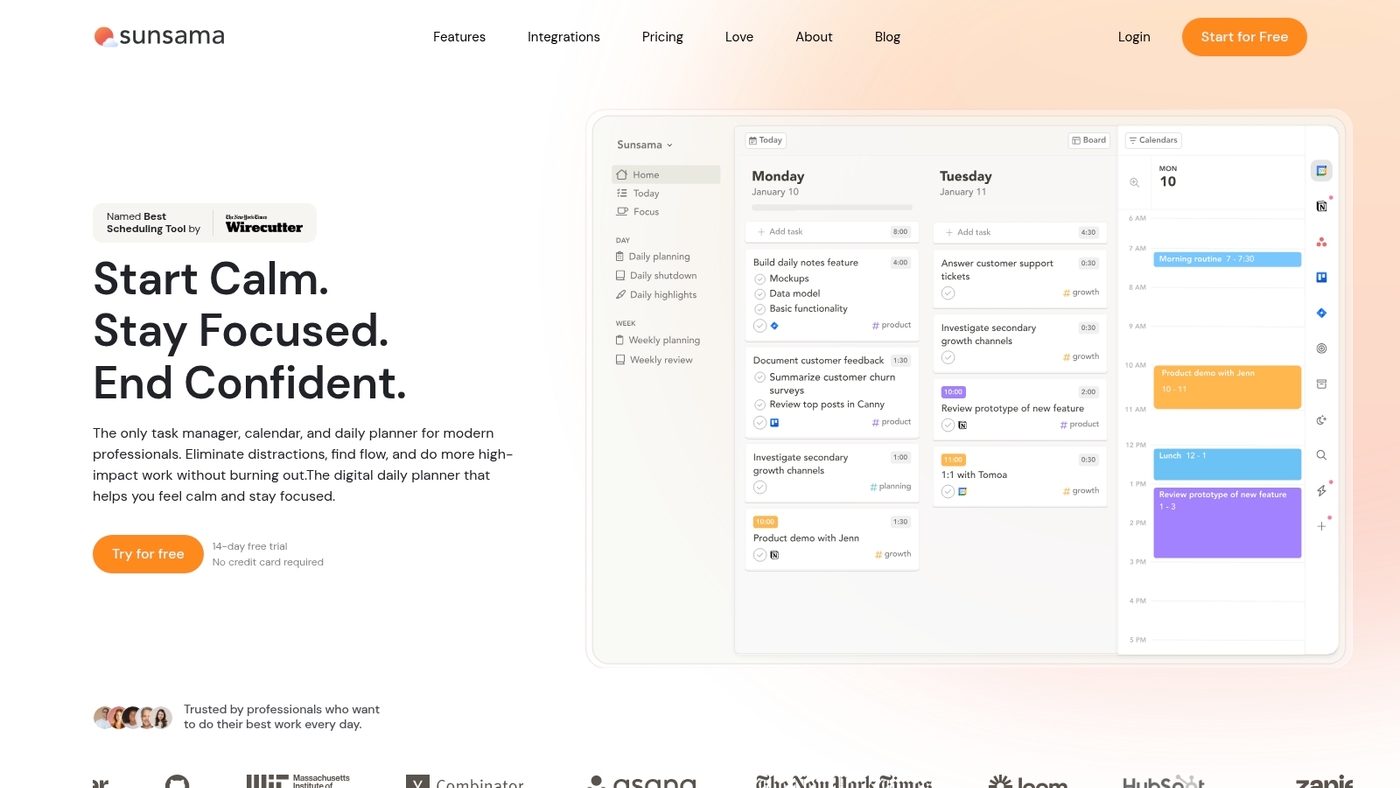
We use Sunsama as a focused daily planner that ties tasks directly to your calendar.
It fills free windows with work and lets you set strict focus blocks. The app highlights time-boxing and smart scheduling so your day stays intentional.
It prompts a short end-of-day note for daily reflection and surfaces what you completed. It connects with Google Calendar and common task management tools to centralize your plan.
Sunsama reduces context switching and helps you hit priority tasks more often. I use it to plan six focused blocks per day and to keep work-life balance visible. The interface stays clean while supporting recurring tasks and quick rescheduling.
Pros
-
Automatic calendar scheduling that saves setup time.
-
Built-in reflection prompts to improve daily planning.
-
Strong focus tooling for work-block discipline.
Cons
-
Limited project-level features compared to full PM suites.
-
Subscription costs higher than many free task management tools.
For who?
Professionals and knowledge workers who want a task planner app for intentional daily goals and better work-life balance.
Pricing
Free 14-day trial available. Plans start at $20 per user per month.
SelfManager.ai
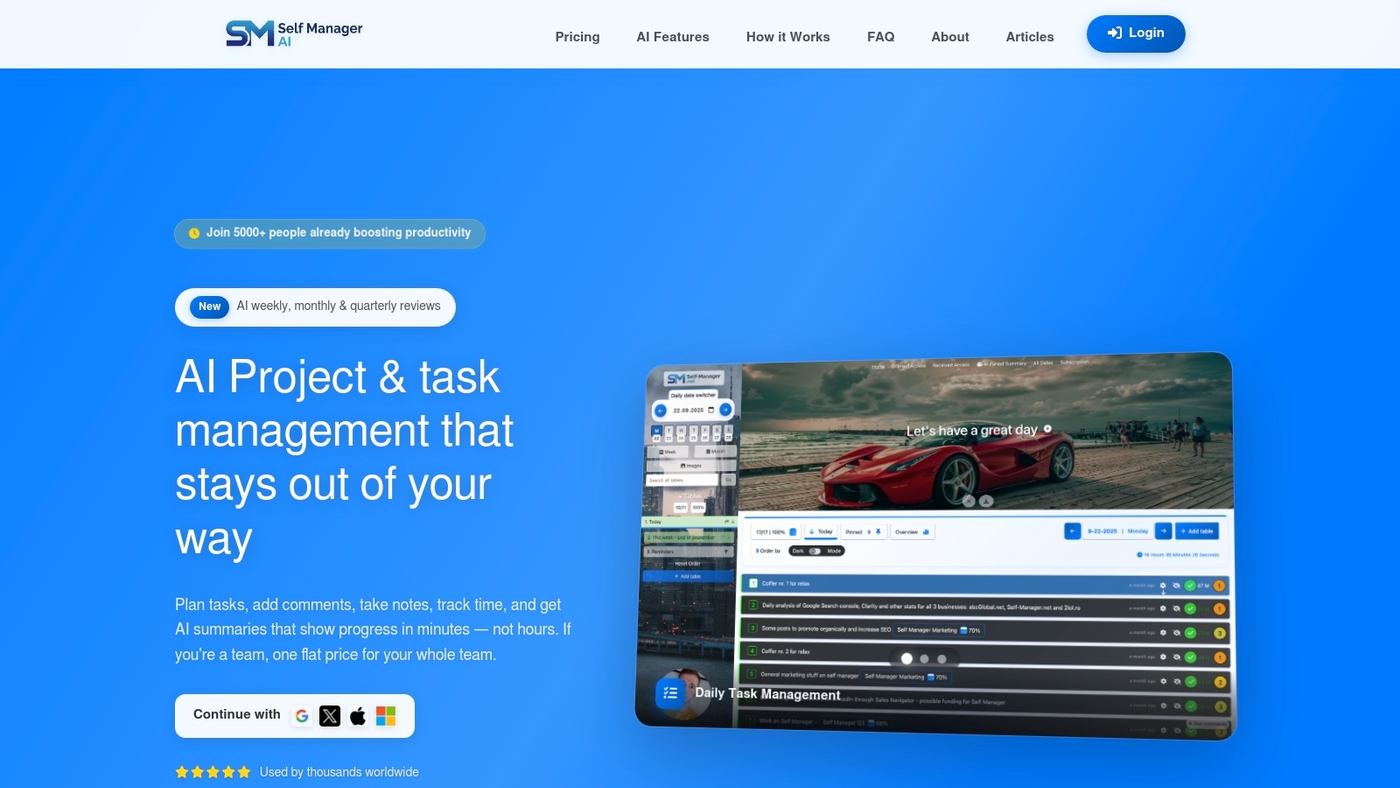
SelfManager.ai is an AI-powered task manager that runs tasks by date, triggers automated reviews, and closes accountability loops.
The app moves items into your day based on deadlines and priorities. You get a clear daily plan and automated prompts to reflect on progress. The interface links tasks with calendars and supports simple task assignment.
We tested the review flow and the accountability loops improve focus and follow-through. The tool works as personal task manager and as lightweight task tracking software for small teams.
Pros
-
Smart date-based execution that keeps your day realistic
-
Accountability loops that prompt regular reviews
-
Simple integrations with calendars and reminders
Cons
-
Limited advanced project planning features
-
Smaller app ecosystem than major platforms
For who?
Individuals and solo founders who want an intelligent daily planner and light team task management.
Pricing
Offers a free tier and paid plans for added automation and team features; check the site for current rates.
How to choose the right task management tool for your team
For small businesses and startups
We recommend a simple, scalable task management tool that reduces friction for small teams.
Pick software that’s affordable and quick to adopt. Aim for clear task ownership and easy priority settings.
Look for a free tier or plans under $10 per user per month. Prefer tools with mobile apps, calendar sync, and Slack or Google Workspace integrations.
Try a 14-day trial and measure adoption. Track percent of tasks completed and time spent in status meetings. We moved our team to a visual board and cut weekly status meetings by half.
A focused setup will save more time and reduce onboarding friction. Keep workflows lean and standardize one or two views.
Monitor usage for 30 days, drop unused features, and choose tools that scale with ease.
For remote and distributed teams
We recommend task management tools that focus on real-time team collaboration, time zone support, and asynchronous team communication.
Pick software that syncs edits instantly and shows presence indicators. That reduces friction and cuts status meetings by up to 50% for many teams.
Mobile apps are non-negotiable for on-the-go task management. Choose apps with offline mode, push notifications, and quick task capture to keep work flowing across devices.
Use this quick checklist before you buy:
-
Live editing and comments for shared tasks.
-
Automated scheduling that respects global calendars.
-
Threaded messages and clear read receipts for async updates.
-
Lightweight mobile UI with offline task creation and sync.
Start by trialing a tool that centralizes tasks, messages, and calendars to see measurable gains within two weeks.
For freelancers and individuals
We recommend a lean personal task manager that focuses on simplicity and cross-platform access.
Choose task management tools that sync across devices and offer time tracking and client management or easy integration with payment apps.
Pick a clean UI with offline access and keyboard shortcuts for faster entry. Simple workflows reduce friction more than feature bloat.
Use a kanban or checklist to plan daily work. If you bill hourly, track billable time and aim for 80% utilization on client tasks.
Start on a free plan and upgrade when you need reporting or automation. Keep monthly costs under $10 for most freelancers.
For curated tool lists and comparisons see project management software for freelancers. Try a free plan and measure time saved over two weeks.
Free vs paid task management tools
You can start with free task management tools to test workflows and onboarding speed. Free plans work well for single users and tiny teams.
Paid plans pay off as your team grows, needs automation, or must meet compliance requirements. We moved a six-person team from a free plan to a paid tier and cut manual status updates by 60%.
|
Feature |
Free Plans |
Paid Plans |
|---|---|---|
|
User limits |
3–5 users typically |
Unlimited or higher caps |
|
Storage |
Limited file storage |
Increased or unlimited storage |
|
Automations |
Basic or none |
Advanced automation rules |
|
Reporting |
Basic dashboards |
Custom reports and analytics |
|
Admin controls |
Minimal |
SSO, audit logs, permissions |
Upgrade trigger points
-
Need for automation that saves hours per week.
-
More than five active users or frequent guest collaborators.
-
Requirement for audit logs, SSO, or advanced permissions.
-
Workload that needs advanced views like Gantt or custom reporting.
Best value picks
-
Monday.com — great for visual planning and integrations.
-
ClickUp — deep features and strong automation at low cost.
-
Trello — simple Kanban boards for small teams and personal task planners.
-
Todoist — lightweight to-do list app for individuals and freelancers.
Start free, track time saved, and upgrade when paid features reduce friction more than their cost. See our guide to the best free task management software for solid free options.
Try a 14-day paid trial to measure ROI before committing.
You might also like: Top 10 Best Project Scheduling Tools
How to track employee tasks effectively
Make work visible and predictable with a simple task tracking routine.
We assign an owner and deadline for every task card. Here’s what works:
-
Set clear expectations — define outcomes, deadlines, and deliverables for each task.
-
Status updates daily — use brief updates in the task card or a shared channel.
-
Progress reviews weekly — run short reviews to catch blockers and reassign work.
-
Use status fields in your task management tools to show real-time task stages.
-
Limit meeting time. Use task tracking software to replace long status meetings.
-
Balance oversight with autonomy by checking blockers, not micromanaging steps.
Short daily updates save time and cut confusion for teams. Choose a task management tool that centralizes assignments, deadlines, and comments.
Measure adoption with simple metrics: percentage of tasks with owners, overdue rate, and update frequency. Start by naming owners and adding a status field to your task planner app.
You might also like: Top 10 Best Resource Planning Tools
Implementing task management software successfully
We roll out new tools with a four-step plan. It keeps adoption high and disruption low.
-
Run a pilot with 5–10 users from different teams.
-
Build a team training plan: 30-minute demos, role checklists, and short how-to videos.
-
Migrate spreadsheets in waves: import tasks, map fields, archive old sheets.
-
Set clear workflows: statuses, owners, SLAs, and simple automation rules.
-
Use a kanban task board for visibility and fast feedback.
-
Track measure adoption metrics like 30-day adoption rate, task completion rate, and time saved per person.
-
Aim for 75%+ active users within 30 days and a 20% faster task completion rate.
-
Reduce status meetings by relying on real-time updates and dashboards.
Starting small prevents overload and speeds results. Assign clear owners and set deadlines the day of rollout.
This approach works with any task management tools and integrates with email or chat platforms.
You might also like: Top 12 Best Collaboration Platforms For Teams