That sinking feeling when tasks pile up and deadlines slip is all too common.
Free task management software can fix that without costing a dime, but not all free tools are equal.
Picking the wrong free task manager wastes time, duplicates work, and leaves teams frustrated.
This guide reviews the top free task management software options so teams and individuals can find tools that fit their workflow.
You’ll discover each tool’s strengths, free plan limits, ideal use cases, and practical tips to get started fast.
You’ll also learn when to upgrade or consider open‑source and self‑hosted alternatives for more control.
What is free task management software
Free task management software helps you and your team organize, track, and finish work without paying. These tools centralize tasks, deadlines, and priorities in one place.
Common features include task creation, due dates, labels, and basic comments. Users often get simple notifications and mobile sync.
Teams rely on views like lists, boards, and calendars to plan and visualize work. Many free plans include basic task assignment and collaboration tools.
Some free tiers add simple automation, reminders, and time tracking. Integrations with email, Google Workspace, and Slack appear on several platforms.
Limits appear as storage caps, restricted users, and gated advanced views or automations. You may face daily API limits or reduced reporting on free tiers.
We suggest testing a short list of apps before committing. Try a real project for one month to see fit and friction.
Free plans often cover single users and small teams well. Growing teams usually upgrade once needs outgrow free limits.
Pick a tool that matches your workflow, not a feature list. If you want a quick comparison, check our roundup of task management tools for more detail.
Try a free plan. Track one project. Decide with data.
What features should I expect in a free task management tool
Task organization and views
We value flexible views that match your workflow. Free task management software gives you lists, Kanban boards, calendar view, and timeline view to visualize tasks clearly.
Lists work for quick to-dos and personal task tracking. You can scan priorities fast and mark items done.
Kanban boards show flow and reveal bottlenecks. Use free Kanban board software to move tasks across stages and limit work in progress. Kanban boosts team clarity. We tried a board-plus-calendar setup and saw a 20% drop in overdue tasks within a month.
Calendar view lets you place due dates and balance capacity. Timelines map work across weeks for release planning and cross-team handoffs.
Switch views based on the task type. Use lists for small chores, Kanban for flow, calendars for deadlines, and timelines for long projects. Try different views until one reduces friction for your team.
Team collaboration capabilities
We value clear team collaboration features for fast alignment.
Task assignments let you own work and track responsibility. Comments and mentions keep context close to tasks.
File attachments store proof, assets, and specs on tasks. Attach PDFs, images, and short videos.
Real-time updates sync task status in seconds. You avoid duplicated work and missed handoffs.
Integrations connect Slack, email, and calendars. Use automations to assign recurring tasks and send reminders. See recommended collaboration platforms for teams for tool picks.
These features define great free task management software for teams. Keep visibility high and handoffs clear.
Fast mentions and threaded comments save hours weekly. Set clear owners and deadlines for every task.
Limit comments to status and blockers to reduce noise. Keep attachments under 10MB where possible. Choose tools that match your team size.
Automation and integrations
We recommend enabling automations early. They cut manual work and prevent missed deadlines.
Many free task management software plans include simple rules. You get triggers that create tasks, set reminders, and assign owners.
Free plans often support recurring tasks and basic workflow automation. They connect to Google Workspace, Slack, and email platforms so data flows where you work.
We tested three free task managers and saved about 90 minutes weekly on repetitive work. Automations repay setup time within a week.
Automate one recurring task and add two integrations. Track time saved for two weeks and iterate.
Time tracking and reporting
We value built-in timers and simple reports for every team.
Many free task management software plans include timers, manual time entry, and a basic dashboard. These features let you measure work and bill clients.
Use timers to capture hours per task. Review completion rate, average time per task, and billable versus non-billable hours. Weekly reports reveal 10–25% time waste you can fix.
Start by enabling timers on active tasks and adding time estimates. Export a CSV and compare planned versus actual hours to spot slow tasks.
Time tracking plus clear reports let you prioritize what matters. Run a short audit every two weeks. Productivity metrics guide faster adjustments and reduce overdue tasks.
I used a free task manager with timers for three months. Time logs became 40% more accurate and overdue tasks fell by 18%.
Top 10 best free task management software to consider
monday.com
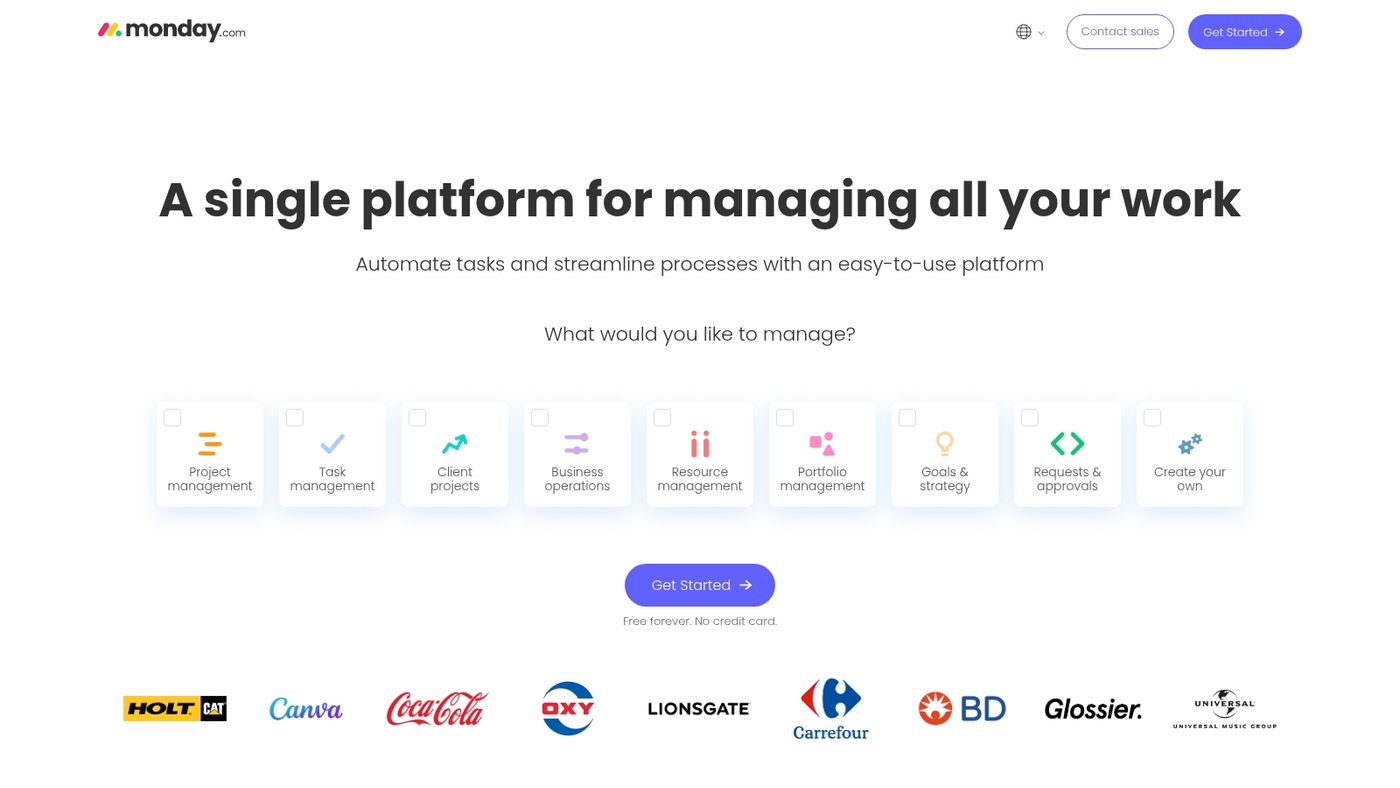
We recommend monday.com for teams hunting a free task management software that scales. The free plan gives custom workflows, basic AI features, and visual boards that make task status obvious.
Automation setup feels simple and reduces repetitive work. The interface suits business teams that prefer clear visuals over dense lists. The AI helpers speed up small planning tasks and cut meeting time.
You can compare pricing and long-term fit on our best project management software guide. The upgrade path starts at $9 per user monthly, so teams can grow without sudden cost shocks.
Pros
-
Strong visual boards for fast task clarity
-
Free custom workflows and starter AI features
-
Easy automation with scalable paid plans
Cons
-
Advanced features require paid plan
-
Can feel feature-heavy for solo users
For who?
Small to mid-sized business teams that need visual project views and simple automations.
Pricing
Free plan available. Paid plans start at $9 per user monthly.
ClickUp
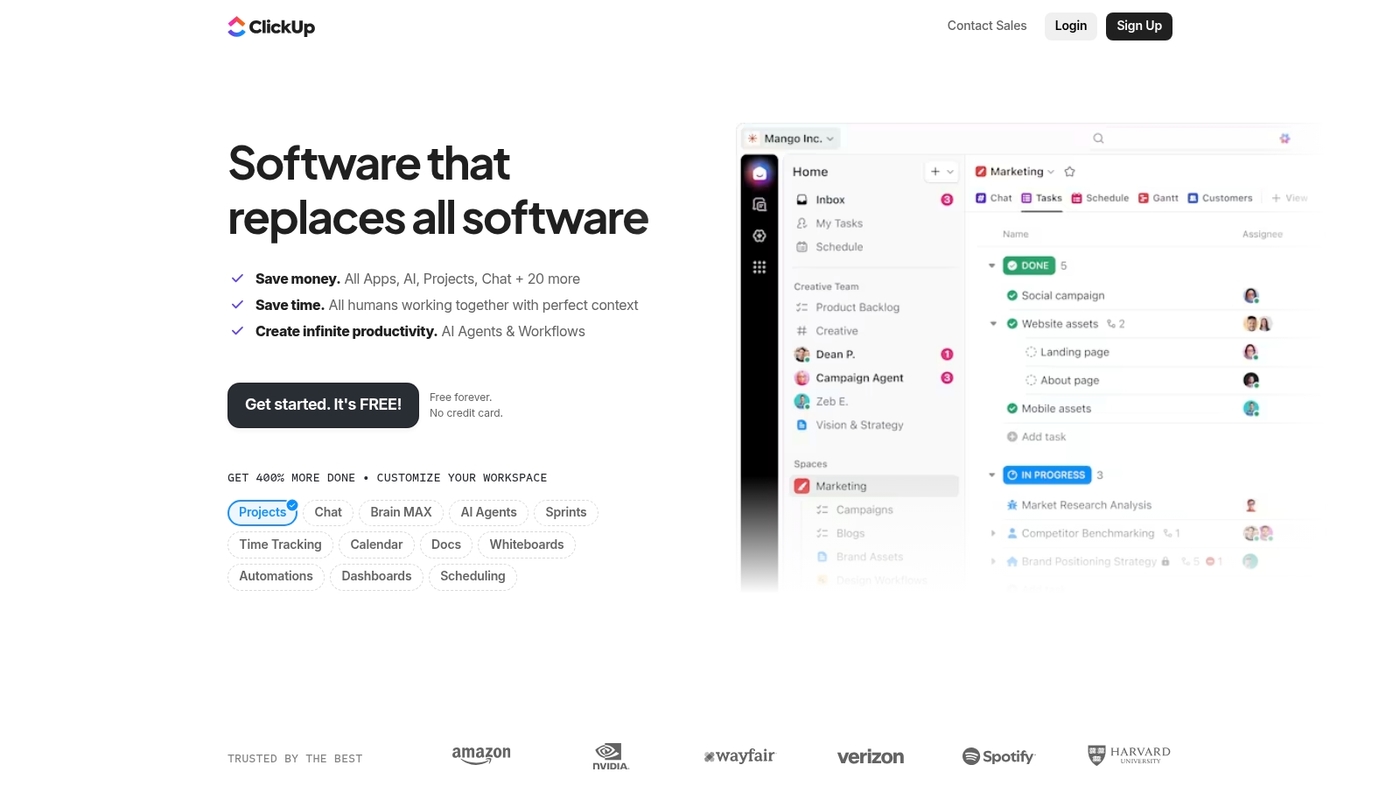
We recommend ClickUp for teams that need a flexible free task management software. The free plan gives 13+ task views and unlimited users and projects.
You get customizable dashboards, subtasks, built-in time tracking, and over 1,000 templates. The interface packs many features into one app. The free plan offers unmatched flexibility for small teams and power users.
The range of views helps different workflows stay visible. WebsitePlanet lists ClickUp among top task management tools for 2026. Sign up today.
Pros
-
13+ task views support lists, Kanban boards, calendars
-
Unlimited users and projects for growing teams
-
Built-in time tracking and 1,000+ templates
Cons
-
Steeper learning curve for new users
-
Advanced automations and storage scale require paid plans
For who?
Teams that need deep customization and many views. Good for power users, product teams, and agencies that want free task manager features with time tracking.
Pricing
Robust free plan available. Paid plans start at about $5 per user per month billed annually for more automation and storage.
Trello
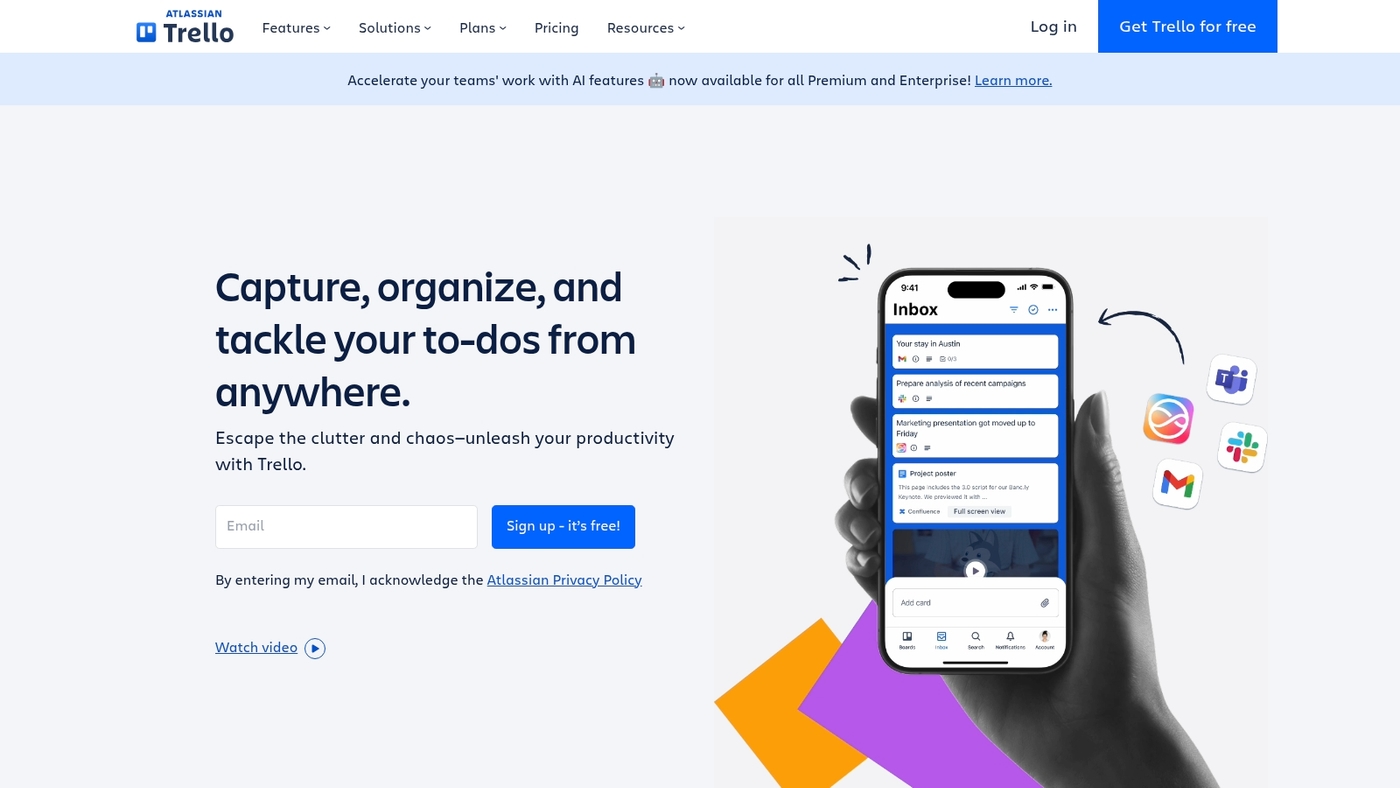
We recommend Trello for visual Kanban board management. It uses a clean, card-based layout that keeps tasks visible.
You get visual Kanban board views, checklists, due dates, and labels. The drag-and-drop interface makes reprioritizing fast. The free plan supports unlimited Power-Ups for calendar and basic automation.
This tool works well as free task management software for individuals and small teams. The board view speeds task triage and reduces setup time. Trello syncs across web and mobile with real-time updates.
Integrations include Slack and Google Workspace. One trade-off is limited reporting and advanced permissions on the free plan. Setup takes minutes, which helps you start organizing tasks immediately.
Pros
-
Simple visual workflow that shortens onboarding time
-
Flexible Power-Ups for calendars and automations
Cons
-
Advanced reporting and permissions require paid plans
-
Large projects can feel flat without custom fields
For who?
Individuals, freelancers, and small teams that prefer a visual Kanban-style free task manager.
Pricing
Free plan available. Paid tiers add advanced features and start at roughly $5 per user monthly.
Jira
We recommend Jira for small teams and startups up to 10 users. It ranks well among free task management software for teams that need issue tracking and Agile workflows.
The free plan supports unlimited tasks and includes 100 daily emails to keep stakeholders updated. Teams can build custom workflows and use a custom automations feature to remove repetitive work.
Jira offers Agile boards, issue types, and basic reporting. It links with common dev tools, Slack, and Confluence for smoother handoffs. Its automations save several hours per week on manual updates.
The initial setup takes time, but the payoff is clearer processes and fewer missed tasks. The platform scales cleanly when you need paid roadmaps or advanced analytics.
Pros
-
Unlimited tasks across projects
-
Robust Agile boards and issue tracking
-
Powerful automations to reduce manual work
-
Integrates with developer and collaboration tools
Cons
-
Free plan capped at 10 users
-
Advanced reports and roadmaps require paid plans
For who?
Small engineering teams, Agile squads, and startups that need issue tracking and automation without upfront cost.
Pricing
Free for up to 10 users. Paid plans start around $7.75 per user per month for added features and support.
Wrike
We use Wrike. It serves mid-sized teams that need structured task tracking and quick setup. It supports unlimited projects with a 200 active tasks cap on the free tier.
The interface feels spreadsheet-friendly and helps teams edit in bulk. Wrike adds basic AI for task summaries and suggestions. Paid plans unlock interactive Gantt charts and advanced reporting.
The upgrade price stays competitive for timeline needs. I like the spreadsheet view for fast bulk edits. See our best free Gantt software roundup for alternatives.
Pros
-
Unlimited projects on free plan
-
Spreadsheet-style bulk editing and basic AI
Cons
-
200 active tasks limit on free tier
-
Gantt charts require paid upgrade
For who?
Mid-sized teams and managers who prefer grid views and fast bulk edits.
Pricing
Free plan available with limits. Paid plans add timelines and reporting, starting near $9.80 per user per month.
SmartTask
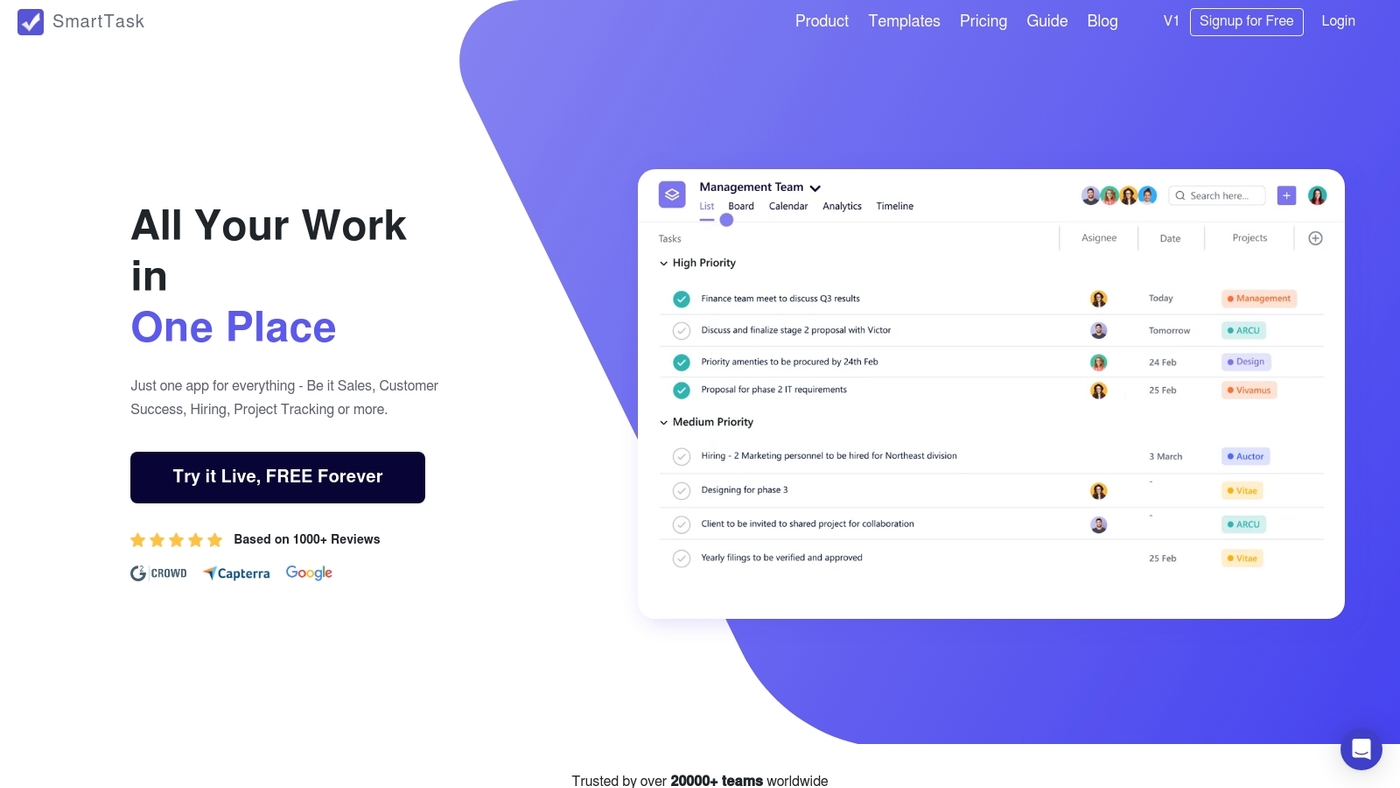
We highlight SmartTask as a solid free task management software option for teams that need unlimited projects, tasks, and users. It supports recurring tasks, dependencies, reminders, multiple views like Kanban and lists, time tracking, and built-in video chat for quick check-ins.
The free plan limits storage to 100MB, which forces teams to pair SmartTask with external file storage. I use it for task tracking and time logs while storing large files elsewhere.
The interface stays focused and fast. You can assign work, track progress, and run recurring workflows without seat limits. Paid plans raise storage and unlock advanced automations and integrations.
Pros
-
Unlimited projects, tasks, and users on the free tier
-
Built-in time tracking and video chat with task dependencies and reminders
Cons
-
Free plan capped at 100MB storage
-
Advanced automations and integrations require paid tiers
For who?
Small teams and startups that need unlimited seats and robust task features but have low file storage needs.
Pricing
Free plan available with 100MB storage. Paid plans increase storage and add advanced features; check the SmartTask homepage for current pricing.
Todoist
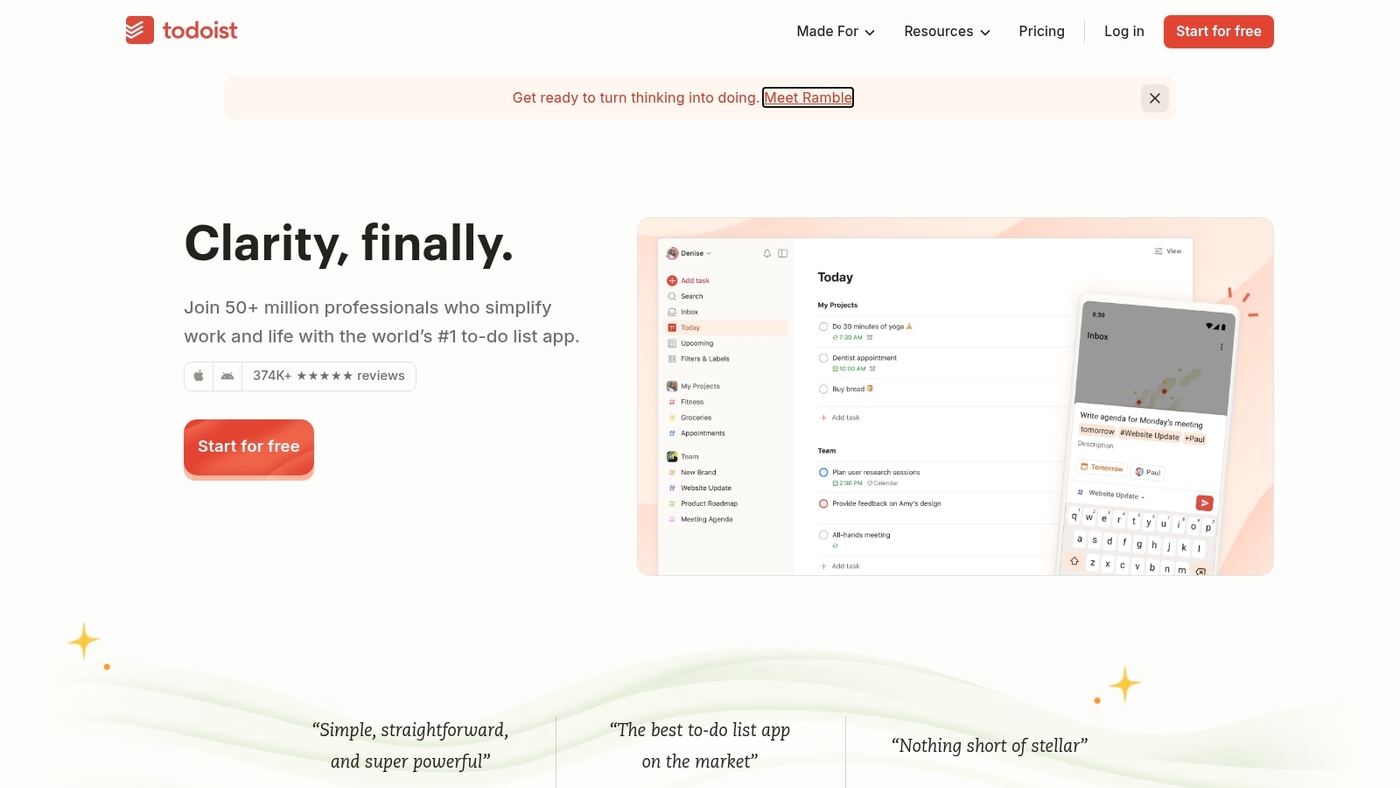
We recommend Todoist for personal task management. It offers smart task lists with prioritization, recurring tasks, labels, and natural language input.
The free plan works well for single users and syncs across web, mobile, and desktop. You can set priorities, create recurring to-dos, and filter with labels to stay focused. The layout stays clean as your list grows.
Todoist’s simplicity helps you complete more daily work. We tried it for weekly planning and found clearer task flow and fewer missed items. The free tier lacks advanced team features and some reminder options, so it fits solo users best.
Pros
-
Clean, fast interface that speeds task entry
-
Powerful natural language parsing for quick task creation
-
Cross-platform sync keeps lists up to date
Cons
-
Limited team collaboration on the free plan
-
Some advanced features sit behind paid tiers
For who?
Individuals, freelancers, students, and anyone seeking a reliable free personal task manager.
Pricing
Free plan available. Premium and Business add reminders, labels, activity log. Premium starts around $4/month billed annually; Business has per-user billing for teams.
TickTick
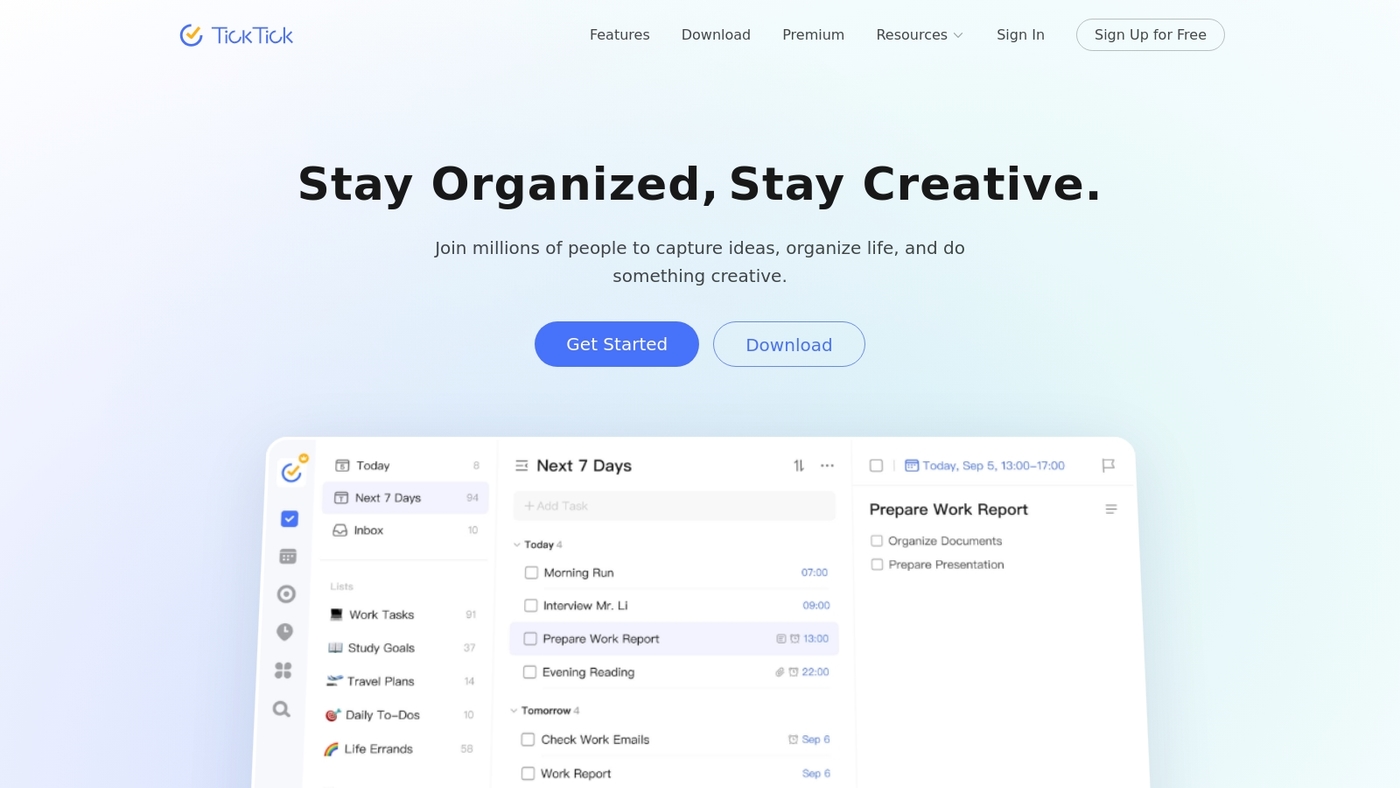
We recommend TickTick as a solid free task management software choice. The free tier packs voice input, email-to-task conversion, and recurring tasks. Location-based reminders alert you at places that matter.
You can share lists, assign tasks, and collaborate with basic comments. The app syncs instantly across web, mobile, and desktop. It offers calendar view, simple Kanban, and a Pomodoro timer.
I’ve used TickTick for weeks and its quick capture speeds task entry. The habit tracker helps keep daily routines on track. The free plan limits advanced views and storage compared to premium.
Small teams and individuals get excellent value from this free task management app. Try TickTick if you want a compact, feature-packed free task manager that stays easy to use.
Pros
-
Rich free features like voice input and email-to-task conversion
-
Cross-platform sync with calendar and Kanban views
-
Built-in Pomodoro and habit tracker for focus
Cons
-
Advanced views and storage capped on the free plan
-
Team admin controls are basic for larger teams
For who?
Individuals, freelancers, and small teams that need a powerful free task manager with simple collaboration.
Pricing
Free tier available. Premium unlocks more views, larger attachments, and advanced features from about $3 per month when billed annually.
Microsoft To Do
Microsoft To Do is a free task management software that syncs lists across web, mobile, and desktop and works offline when needed. The app uses a simple list-based layout with tasks, subtasks, reminders, recurring tasks, due dates, and quick notes to keep work visible.
It links with Outlook, Teams, and Microsoft 365 for basic sharing and simple collaboration. You can use a Microsoft or Google account to start, add tasks from email, and use widgets for fast capture.
It fits users who want a clean free task manager for daily lists and light team tracking, and I use it for fast personal task capture and reminders.
Pros
-
Completely free with Microsoft or Google account
-
Cross-platform sync on web, mobile, and desktop
-
Clean list-focused interface for fast task capture
-
Built-in Outlook and Teams integration
Cons
-
Limited advanced project features like timelines or Gantt
-
Basic collaboration compared to team-first platforms
For who?
We recommend this free to-do list app for individuals and small teams that need simple task tracking and reliable sync.
Pricing
Free to use with a Microsoft account. Microsoft 365 subscriptions include deeper integrations but don’t unlock core To Do features.
Notion
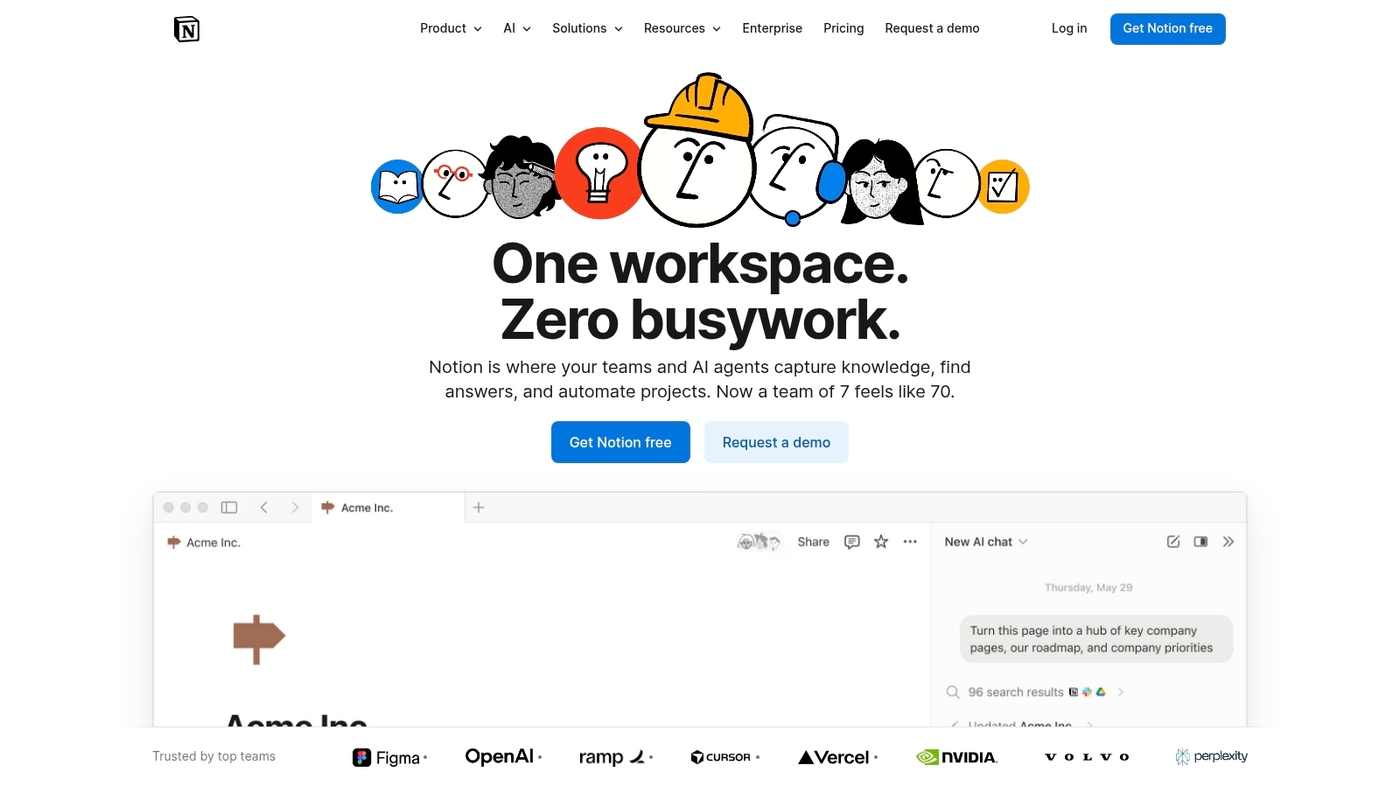
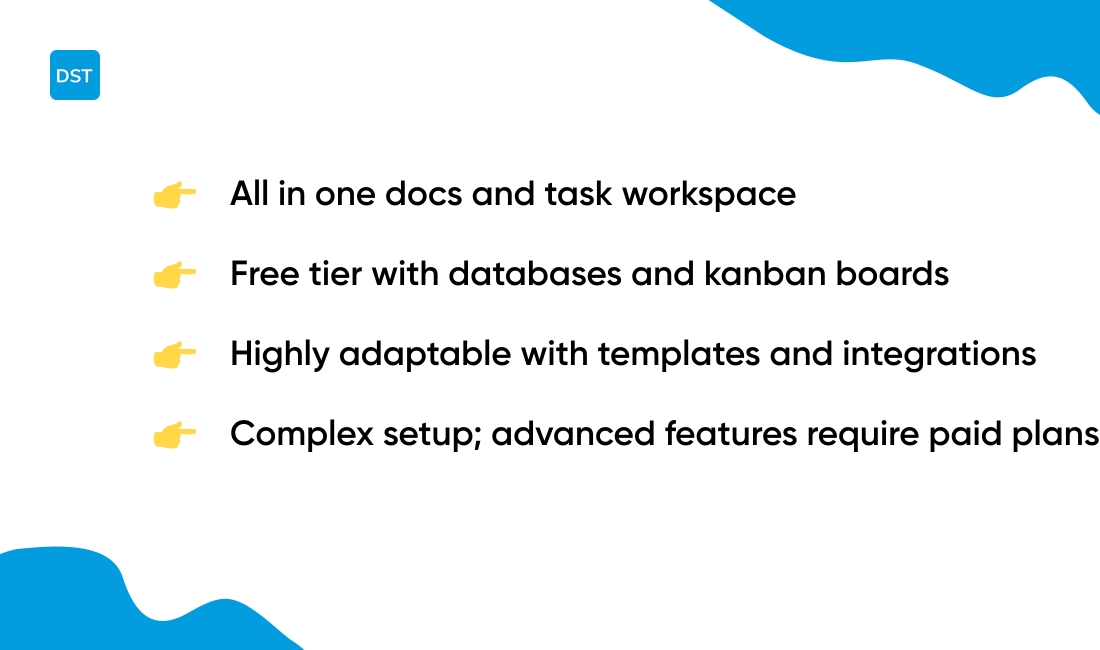
We recommend Notion for teams that want a single place for docs and tasks. The free tier offers customizable databases, task boards, and a flexible workspace that blends notes with action items.
You can build linked databases, kanban boards, and simple wikis with no code. The interface supports templates and an API for integrations. I use Notion to keep meeting notes and task lists side by side.
Expect a short setup time to map pages to your workflow. See our roundup of best productivity tools for alternatives and template ideas. Start with a workspace template and add databases as your needs grow.
Pros
-
Highly adaptable structure for notes, tasks, and databases
-
Rich templates and a clean editor for documentation and wikis
-
Integrates with many tools via API and third-party connectors
Cons
-
Setup feels heavy for users who want instant simplicity
-
Advanced permissions and automations require paid plans
For who?
Teams that need documentation and task tracking in one workspace. Freelancers who want a flexible personal task manager.
Pricing
Free tier available with core features. Paid plans add team controls and automation, starting around $8 per user per month.
You might also like: Top 14 Project Management Software For Agencies
What are the limitations of free task management tools
We monitor free task management software limits so you avoid surprises.
Free plans cut costs but impose practical limits. Expect limited file storage, active task limits, and advanced view access behind paywalls.
Many free tiers include low storage. Examples range from 100MB on some plans to 2GB on others. Platforms may cap active tasks at 200 or fewer. Some free accounts restrict users to ten seats or less.
Key features often gated are Gantt charts, advanced reporting, custom dashboards, and priority automations. Integrations with enterprise tools and single-sign-on typically require paid tiers.
How do you know when it’s time to upgrade? You hit storage limits repeatedly. Your task list stalls because of the active task cap. Your team needs more than ten seats.
You need advanced views for planning multiweek work. You require audit logs, security controls, or priority support.
Small teams can squeeze real value from free plans. Test a tool for two to four weeks. Track real usage numbers like storage used, active tasks created, and seats needed.
Decide to upgrade when those metrics regularly hit caps. Choose a paid plan that fits your team size and delivers the specific features you need. Try features first and scale when measurable limits slow your workflow.
You might also like: 12 Project Management Software For Developers
How do I choose a free task management app for a small business
We recommend starting with a tool that fits your current workflow.
Assess your team by headcount and roles. Small teams under ten need simple assignment and notification features. Larger teams need permissions and project views.
List must-have features. Look for task assignment, due dates, comments, and attachments. Prioritize time tracking if you bill hours. Pick a tool with multiple views if your work uses boards or calendars.
Check integration needs with tools you already use. Sync with email, Slack, and calendars to avoid extra work. Try one integration to confirm sync reliability before expanding.
Estimate growth and test scalability limits. Review user caps, storage quotas, and API access. Confirm upgrade costs for growth scenarios to avoid surprises.
Run a two-week pilot with real tasks and deadlines. Invite your core team and assign typical work. A short pilot exposes hidden friction quickly.
Measure success with simple metrics. Track task completion rate, missed deadlines, and time spent per task. Use those numbers to compare finalists objectively.
For freelancers and solo owners, check our guide to project management software for freelancers for lightweight options.
Choose the app that saves time, reduces email, and keeps your team aligned. Try tools with clear upgrade paths. Start smart.
You might also like: Top 10 Best Project Scheduling Tools
Are there open source task management software options
We recommend open source task management tools when you need full control over data and strong customization.
Self-hosted platforms give teams better privacy and long-term savings. Here’s a quick comparison of popular options:
|
Tool |
Best For |
Key Features |
Limitations |
|---|---|---|---|
|
OpenProject |
Mid-size teams |
Roadmaps, Gantt charts, formal tracking |
Requires server and DB setup |
|
Redmine |
Dev teams |
Flexible, extensible, plugins |
Dated UI |
|
Wekan |
Visual workflows |
Kanban-first, simple setup |
Lacks advanced reporting |
|
Kanboard |
Low-overhead installs |
Minimal, fast, scriptable |
Few native integrations |
|
Focalboard |
Mixed docs and tasks |
Modern UI, self-hosted |
Young plugin ecosystem |
Installation needs vary. Expect a Linux server, Docker or manual install, PostgreSQL or MySQL, 2+ CPU cores, 2–4GB RAM for small teams, and SSD storage for attachments.
Plan for HTTPS, a reverse proxy (Nginx), automated backups, regular updates, and user auth (LDAP or SSO) if you need enterprise control.
Maintenance costs include sysadmin time and patching. Choose self-hosted task managers when data ownership or compliance matters to your company. If you lack technical resources, a hosted free task manager may suit your team better.
Explore options that match your infrastructure skills and compliance requirements.
You’ll also like: Top 10 Best Workflow Automation Software