That sinking feeling when tasks pile up and the day disappears before anything’s finished?
Yeah, we’ve all been there.
A good task manager software can stop the chaos by organizing to-dos, deadlines, and team responsibilities in one place.
Without the right tool, teams waste hours switching apps, chasing updates, and duplicating work.
This round-up evaluates 12 top task manager software tools across usability, automation, integrations, and pricing so you can find the best fit.
You’ll learn which apps suit solo productivity, small teams, or enterprise needs and which features actually move the needle.
Expect clear comparisons, practical setup tips, and quick recommendations to help reduce busywork and keep projects on track.
Whether it’s a simple to-do list app or an enterprise workflow manager, this guide makes it easier to choose.
What is task management software
A task manager software organizes work for freelancers, small teams, and busy managers. It lists to-dos, assigns owners, sets deadlines, and tracks status.
You use boards, lists, or calendar views to visualize work. Good task management tools add recurring tasks and workflow triggers.
Strong team task management improves accountability and visibility. Typical benefits include faster handoffs and fewer emails. (And who doesn’t want fewer emails?)
-
Task creation — quick setup under one hour
-
Assignment and tracking — clear owners and due dates
-
Reminders and automation — recurring tasks and notifications
-
Integrations — sync with Slack, Google Workspace, and calendars
-
Reporting — simple dashboards for progress
-
Mobile access — manage tasks on the go
Have you noticed how visible tasks stop scope creep and lower stress?
Here’s a simple example: use a to-do list app to break projects into daily tasks. Many teams cut coordination time by 25% within thirty days of adoption.
Use a personal task manager for daily habits and errands. An online task manager centralizes team work and handoffs. Enterprise task management adds permissions, approvals, and advanced reporting.
Adoption often saves managers two hours per week on coordination.
-
Define five recurring tasks
-
Assign owners and due dates
-
Run a 15-minute weekly review
Try a free plan for two weeks to test your workflow.
What is the difference between task management and project management software
Choose a task manager software for daily to-dos and a project management platform for multi-phase, cross-team work.
If you handle personal tasks or run a small team, pick a task manager app. If you coordinate multiple teams, budgets, or timelines, pick full project management software.
Here’s the thing: teams often underestimate setup time. Simple task apps set up in under an hour. Project platforms often need days for configuration and permission setup.
-
Task manager software — tracks to-dos, due dates, reminders, and simple subtasks.
-
Project management platforms — add Gantt charts, resource planning, budgets, and advanced reporting.
-
Task apps fit individuals and small teams. Project platforms fit cross-functional programs and long timelines.
Key trade-off: task tools offer speed and low friction, main con is limited scope. Project platforms offer scale, main con is setup cost and learning curve.
For more on full-featured options, check project management software to compare capabilities and pricing.
Try a task manager free trial for two weeks to test daily gains. Expect clearer priorities and fewer missed deadlines within one week.
Key features to look for in task manager software
Task assignment and tracking capabilities
Choose a task manager that enforces clear owners, single deadlines, and visible dependencies. This setup fits small and mid-size teams and individual contributors who handle 20+ tasks weekly.
At Daily Social Tips, we prefer tools that show the owner in one click. They list overdue tasks on a dashboard.
Pro: faster accountability; Con: extra setup for dependency maps. Automated reminders halve meeting time and stop repeated status checks.
-
Task creation — quick templates and subtasks. Natural language input lets you add tasks in under 30 seconds.
-
Status updates — clear states, visual progress bars, and activity logs so you track progress without extra meetings.
-
Task dependencies — blocking rules and auto-reschedule so blocked work pauses downstream tasks and preserves timelines.
Run a two-week pilot with one team. You’ll see where work stalls and how accountability improves.
Workflow automation and reminders
Use workflow automation and reminders to cut manual follow-ups and keep tasks on track. Best for small teams and solo owners using task manager software.
We enable three automations by default: due-date reminders, recurring tasks, and status-change triggers. These saved our team about 35% of ad hoc status checks in two months.
Simple automations deliver fast wins. Set up rules that run in under 10 minutes and scale as you grow.
-
Automated notifications — trigger emails and app alerts when deadlines approach for timely task completion
-
Recurring tasks — schedule repeat work weekly or monthly without manual setup to automate recurring tasks
-
Workflow triggers — auto-assign owners or move cards on status change to cut handoffs and reduce manual effort
Try enabling two automations today and measure hours saved. Expect fewer follow-ups within 14 days.
Collaboration and team communication
Use task manager software with built-in communication to reduce email back-and-forth. Ideal for small teams, remote groups, and managers who need clear accountability.
-
Comments and mentions for threaded decisions and quick context
-
File sharing features with version control and attachments
-
Real-time updates that show status and edits instantly
-
Team task management that links tasks, owners, and due dates
-
Compare tools and integrations at collaboration platforms for teams
We prefer tools that cut meeting time and centralize work. Integrated comments and mentions speed approvals and reduce context loss.
Start a free trial for two weeks. Expect faster decisions and fewer email threads.
Integration with Slack and Google Workspace
Link Slack and Google Workspace to centralize task updates and cut context switching. This setup suits teams of 2–50 that use chat and email for daily work.
We route task alerts to a dedicated Slack channel and attach Drive links to tasks. Syncing comments and calendar events saves hours per week on manual updates.
-
Centralize task management — get task messages, file previews, and calendar reminders in one place. Setup under 15 minutes.
-
Reduce context switching — see task status without leaving Slack or Gmail. Pro: faster decisions; Con: noisy channels if you over-share.
-
Keep teams aligned — automatic assignee mentions and deadline nudges. Best for: small to mid-size teams using Google Workspace and Slack.
Try linking both tools for two weeks to measure fewer status check-ins and faster task closure.
Top 12 task manager software tools
Monday.com
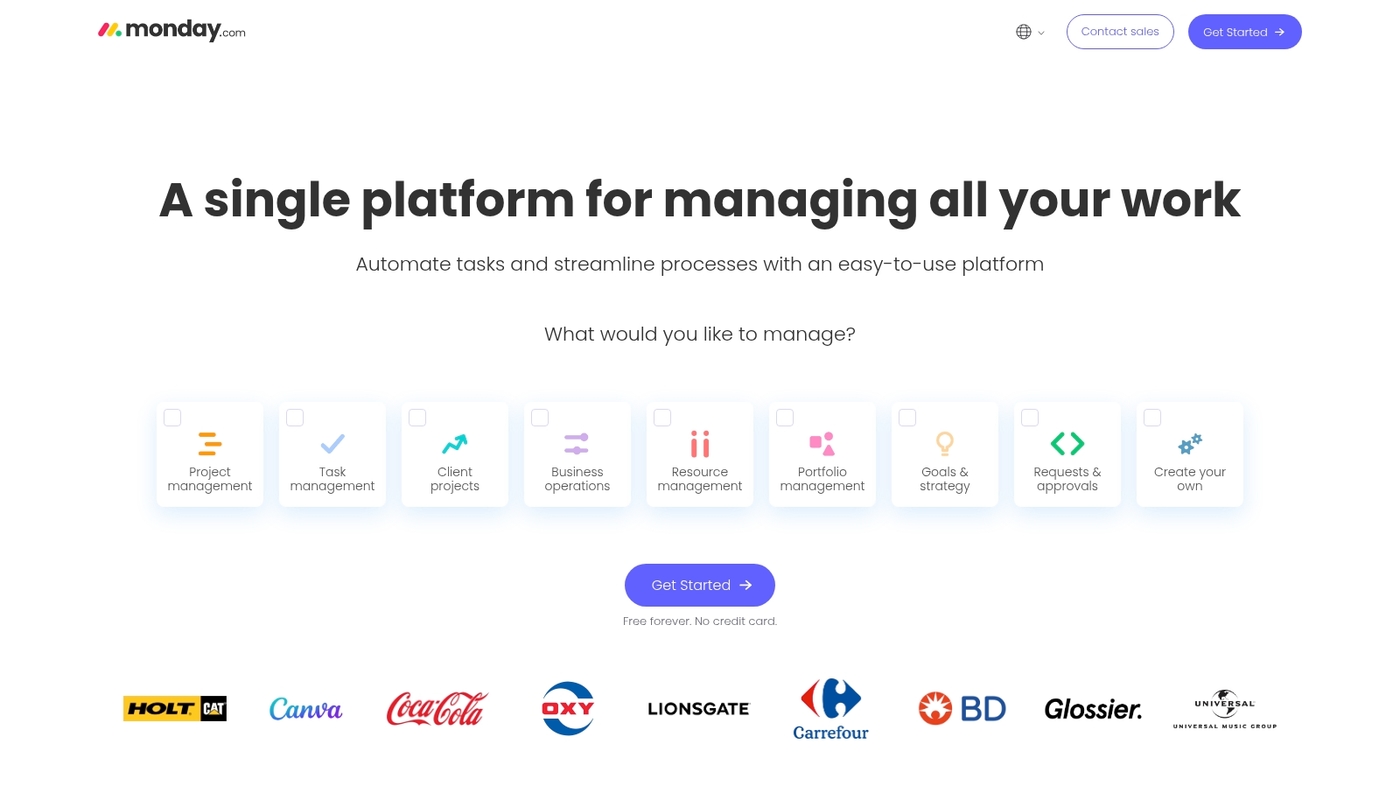
We recommend Monday.com for teams that want a visual, scalable task manager software with fast onboarding. The platform uses colorful boards, multiple views (kanban, timeline, table), and workflow automation to cut busywork.
You can assign tasks, set dependencies, automate status updates, and connect with Slack and Google Workspace. The boards speed team alignment; I set up a 10-person workflow in under 1 hour and reduced status emails by half.
The app supports mobile access, API integrations, and permission controls for larger teams. Use the templates to map recurring processes and deploy automations for reminders and approvals.
Expect a gentle learning curve for basic boards and deeper setup time if you build complex automations or many custom fields.
Pros
-
Visual boards and multiple views for clear task tracking
-
Strong automation and integration options with popular apps
-
Scales from small teams to enterprise with permission controls
Cons
-
Advanced customizations add setup time
-
Higher tiers needed for full reporting and security features
For who?
Teams of 5–200 that need visual task planning, cross-department collaboration, and ready-to-use templates.
Pricing
Plans start around $8 per user/month billed annually; standard, pro, and enterprise tiers add automations, integrations, and security controls.
ClickUp
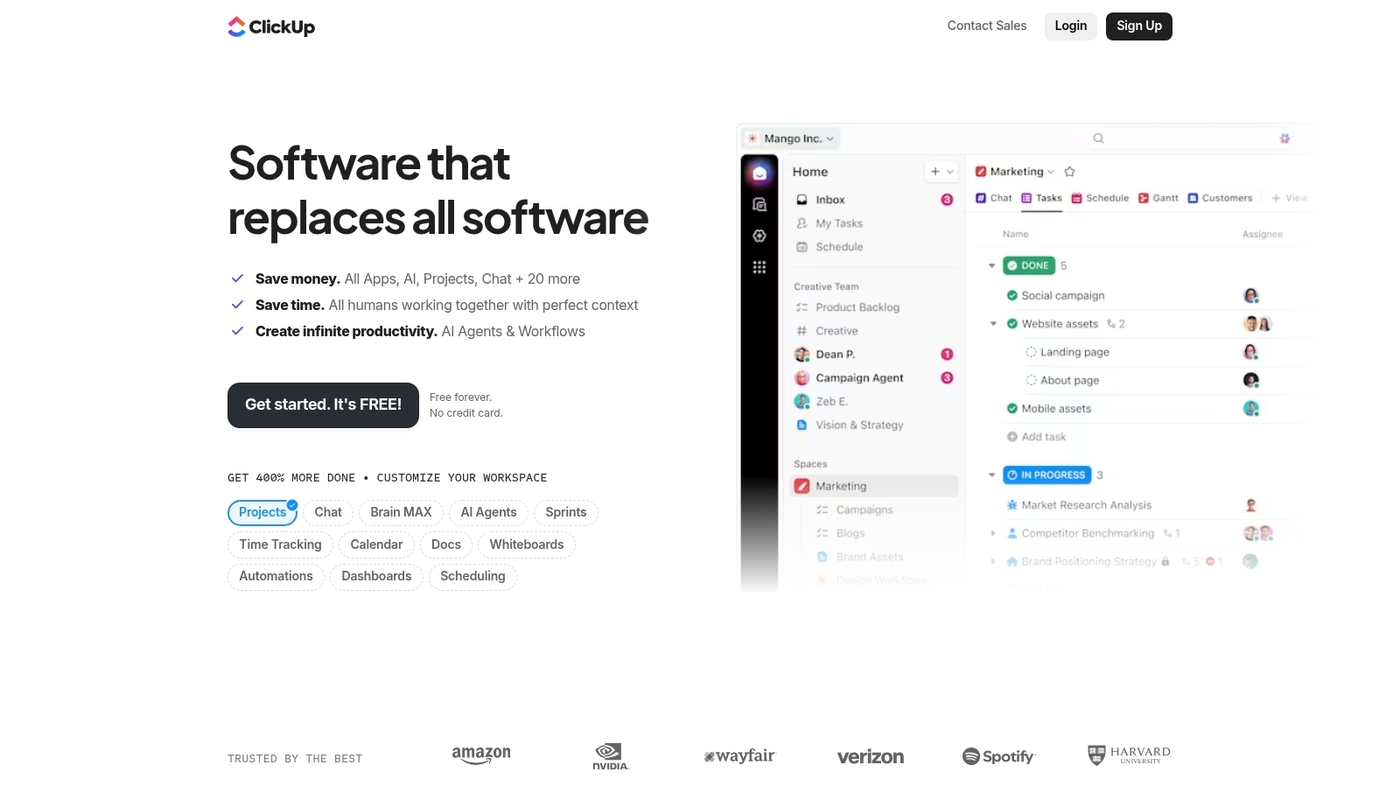
Use ClickUp if your team needs a single task manager software with deep customization. ClickUp offers list, board, calendar, and Gantt views.
AI scheduling suggests dates and priorities. Built-in time tracking logs hours per task. Automations handle recurring work and simple workflows.
It integrates with Slack and Google Workspace. You can set nested task hierarchies and custom fields. I personally use ClickUp to consolidate team to-dos and sprint tasks.
Main pro: broad feature set in one app. Main con: setup and cleanup take time. It scales from solo users to mid-sized teams.
Use ClickUp when you need detailed task planning and flexible task tracking.
Pros
-
Multiple views and deep customization for complex workflows
-
AI scheduling plus integrated time tracking and automations
Cons
-
Steeper learning curve for admins and power users
-
Some advanced features sit behind paid tiers
For who?
Ideal for product teams, agencies, and teams that require nested task hierarchies and varied views. Good when you want an online task manager that replaces several single-purpose tools.
Pricing
Free plan available. Paid plans start around $5 per user per month, with Business and Enterprise tiers for larger teams.
SmartSuite
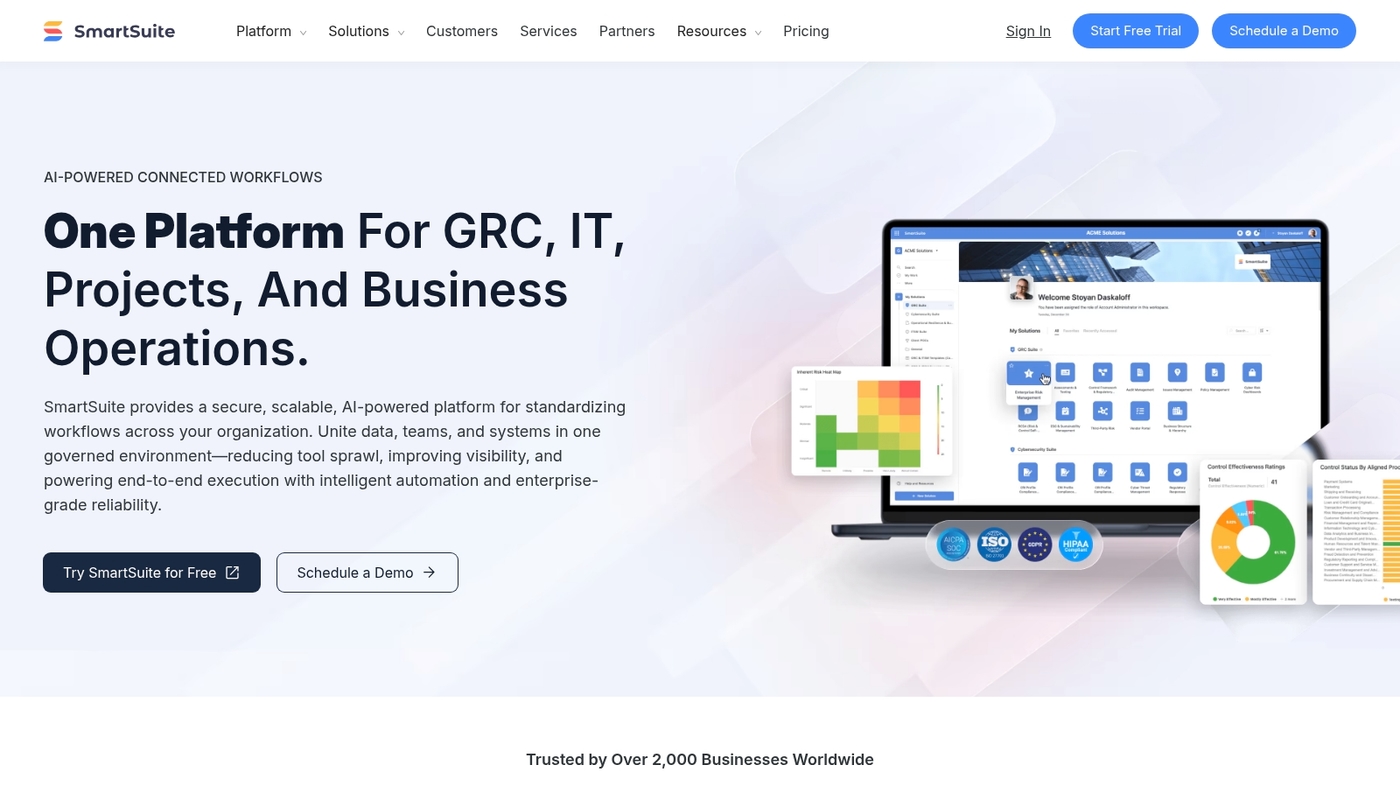
We recommend SmartSuite if you need a flexible, configurable task manager software for teams. SmartSuite offers customizable workflows, Kanban and Gantt views, form-driven task intake, and robust API integrations.
The free plan covers many team needs and the platform scales to enterprise task tracking. The templates cut setup time to under an hour for common workflows.
Main pro: strong workflow automation and flexible dashboards. Main con: advanced customization has a learning curve.
We tried SmartSuite with a 6-person content team and cut status updates by half.
Pros
-
Flexible views and templates for diverse workflows
-
Generous free plan with core automation features
Cons
-
Advanced features require time to learn
-
Some mobile features lag behind web version
For who?
Teams that need adaptable task management tools. Good for marketing, ops, and small product teams that want mix-and-match views.
Pricing
Free tier available. Paid plans start around $10 per user per month for advanced features. Enterprise pricing on request.
Todoist
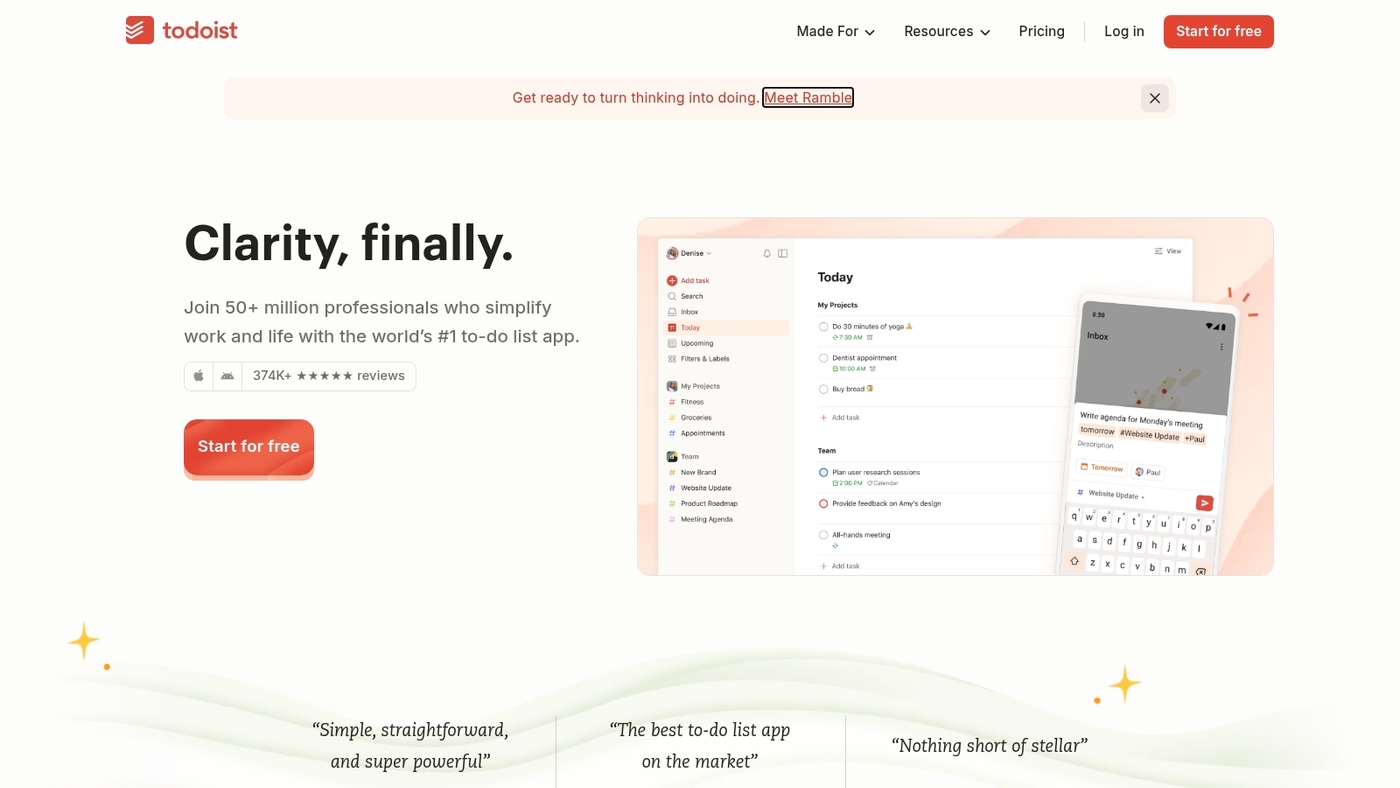
Use Todoist if you need a fast, minimalist task manager software for daily to-dos. It fits daily to-dos and recurring work.
The app accepts natural language input for quick task entry. The free plan includes labels, filters, and basic reminders. Sync works across devices and with calendars.
It supports integrations via Zapier and IFTTT. Power users can create templates and use filters.
It lacks advanced reporting on lower tiers and misses built-in time tracking. I personally use Todoist for quick capture and daily routines. Setup takes under 15 minutes.
Main pro: clean interface that speeds task entry. Main con: limited advanced reporting without an upgrade.
Pros
-
Fast task entry with natural language input
-
Generous free plan with labels, filters, and reminders
-
Cross-device sync and calendar integrations
Cons
-
Advanced reporting requires a paid plan
-
No built-in time tracking without third-party tools
For who?
Individuals and small teams who want a simple personal task manager and quick task capture. Good fit for users who prioritize speed over heavy reporting.
Pricing
Free plan available. Premium starts at about $4/month billed annually. Business plans start near $6/user/month billed annually.
Asana
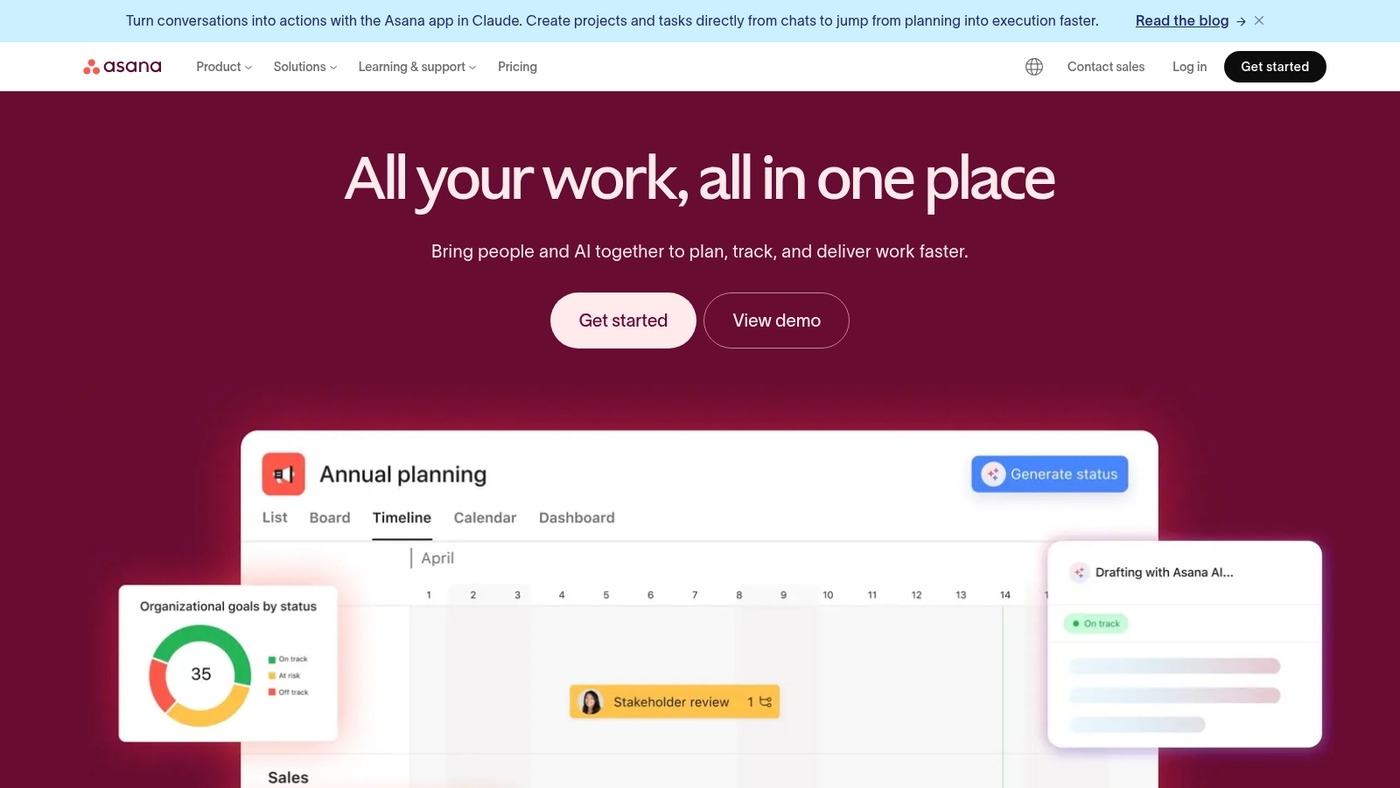
We recommend Asana for mid-sized teams that need timeline views and task dependencies. Asana is an intuitive team task management software built for tracking complex workflows and visual planning.
You can create tasks, link dependencies, set milestones, and view progress in a timeline or list. Setup for a basic project often takes 30–60 minutes.
The timeline reduces missed handoffs and speeds status checks across teams. Main pro: clear timeline and dependency handling. Main con: less deep customization compared to heavyweight tools.
Asana helps teams keep task-level work visible and accountable. Visit our roundup of project management tools for comparisons and integrations.
Many teams use Asana as their primary task manager software for mid-sized operations.
Pros
-
Timeline view for visual planning
-
Task dependencies and milestones
-
Strong integrations with Slack and Google Workspace
Cons
-
Limited deep customization on lower plans
-
Advanced reporting sits behind higher tiers
For who?
Mid-sized teams and managers coordinating cross-functional work. Teams that need visual timelines and clear task ownership. Not ideal if you require heavy customization or complex automation.
Pricing
Free tier available. Premium from about $10.99 per user/month billed annually. Business from about $24.99 per user/month. Enterprise pricing on request. Prices vary by billing choice and region.
Trello
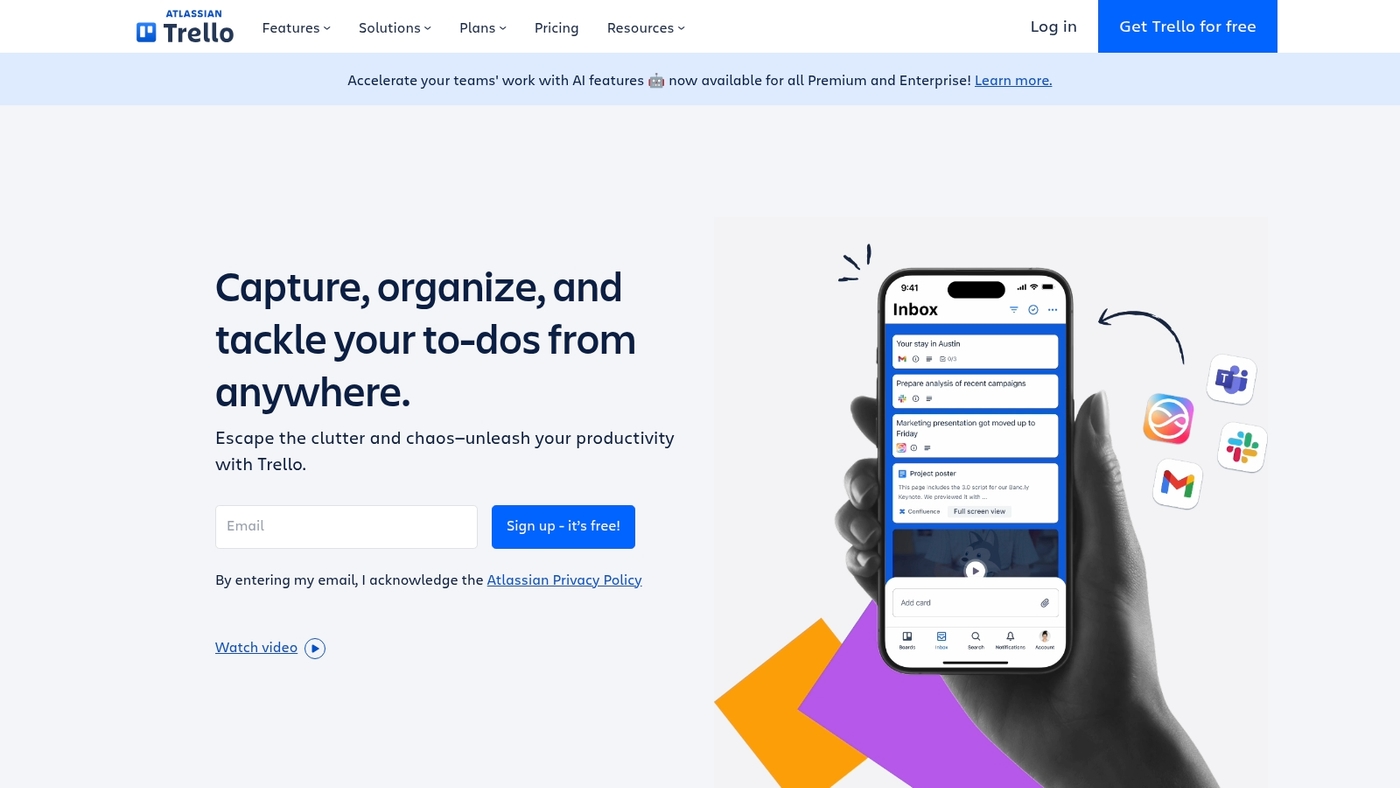
I recommend Trello for small teams that need a visual task manager. It uses Kanban boards with drag-and-drop cards for task tracking and clear prioritization.
Pro: simple boards and fast setup; Con: limited advanced reporting and automation on lower tiers.
You can compare Trello with other kanban board software to find a closer fit. I personally use Trello for short editorial sprints and client task lists.
Setup often takes under 30 minutes for a five-person team. The view keeps tasks visible and reduces meeting time.
We apply Trello templates for content calendars. We save about 2 hours weekly on coordination.
Pros
-
Intuitive Kanban view with drag-and-drop cards
-
Free plan supports up to 10 collaborators
Cons
-
Limited built-in reporting and analytics
-
Advanced automations require paid plans
For who?
Small teams, freelancers, and simple project workflows that need fast visual task management.
Pricing
Free plan for up to 10 collaborators. Paid tiers add automation, power-ups, and larger team limits.
Jira
Jira fits agile teams that manage complex backlogs and need formal sprint control. Main pro: deep agile features and flexible issue types; main con: steeper setup for non-technical teams.
The tool offers Kanban boards, sprint planning, resource views, and advanced reporting to track velocity, cycle time, and SLA metrics.
You can set up a basic board in under an hour and scale to multi-team programs. Jira shines when you need strict issue histories and custom workflows.
Use the built-in reports for burndown charts and sprint review. See dedicated guides on sprint planning software to match Jira to your cadence.
We recommend testing Jira with a single team before a full rollout. We tried it on a 6-person dev squad and cut planning time by about 20%.
Pros
-
Robust agile features and workflow customization
-
Strong issue tracking and audit trails
Cons
-
Steep learning curve for admins and new users
-
Can feel heavy for simple to-do lists
For who?
Agile software teams, product managers, and engineering organizations that need sprint control and detailed reporting.
Pricing
Free tier for small teams with limited features; Standard, Premium, and Enterprise plans add scale, admin controls, and support. Check the Jira site for current per-user pricing and enterprise quotes.
GoodDay
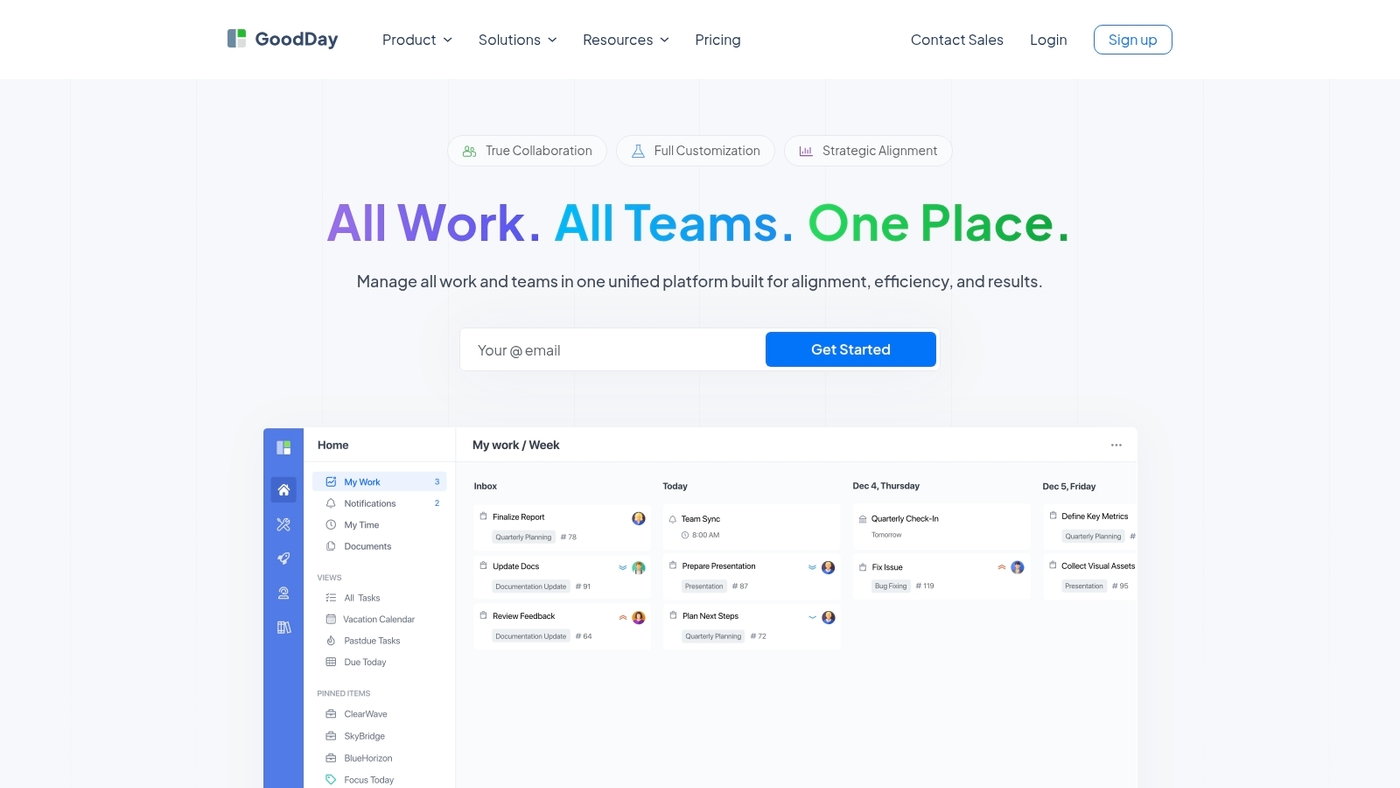
We recommend GoodDay for small teams needing task planning. It combines work management, goal tracking, and team collaboration in a single app.
You get unlimited free projects for up to 15 users. The UI supports lists, Kanban boards, and timeline views.
You can link tasks to goals and monitor progress with simple reports. Integrations include calendar sync and common productivity apps for smoother workflows.
Setup for basic teams usually takes under an hour with templates. The free tier offers strong time-to-value for early teams.
Pros
-
Generous free plan — unlimited projects for up to 15 users
-
Built-in goal tracking that links tasks to objectives
-
Multiple views: list, Kanban, and timeline
Cons
-
Advanced automations are limited versus larger platforms
-
Reporting lacks deep custom analytics for enterprise needs
For who?
Teams of 3–15 people focused on task planning, goal alignment, and simple collaboration.
Pricing
Free plan for up to 15 users. Paid tiers add advanced features and larger teams; check GoodDay for current pricing details.
Notion
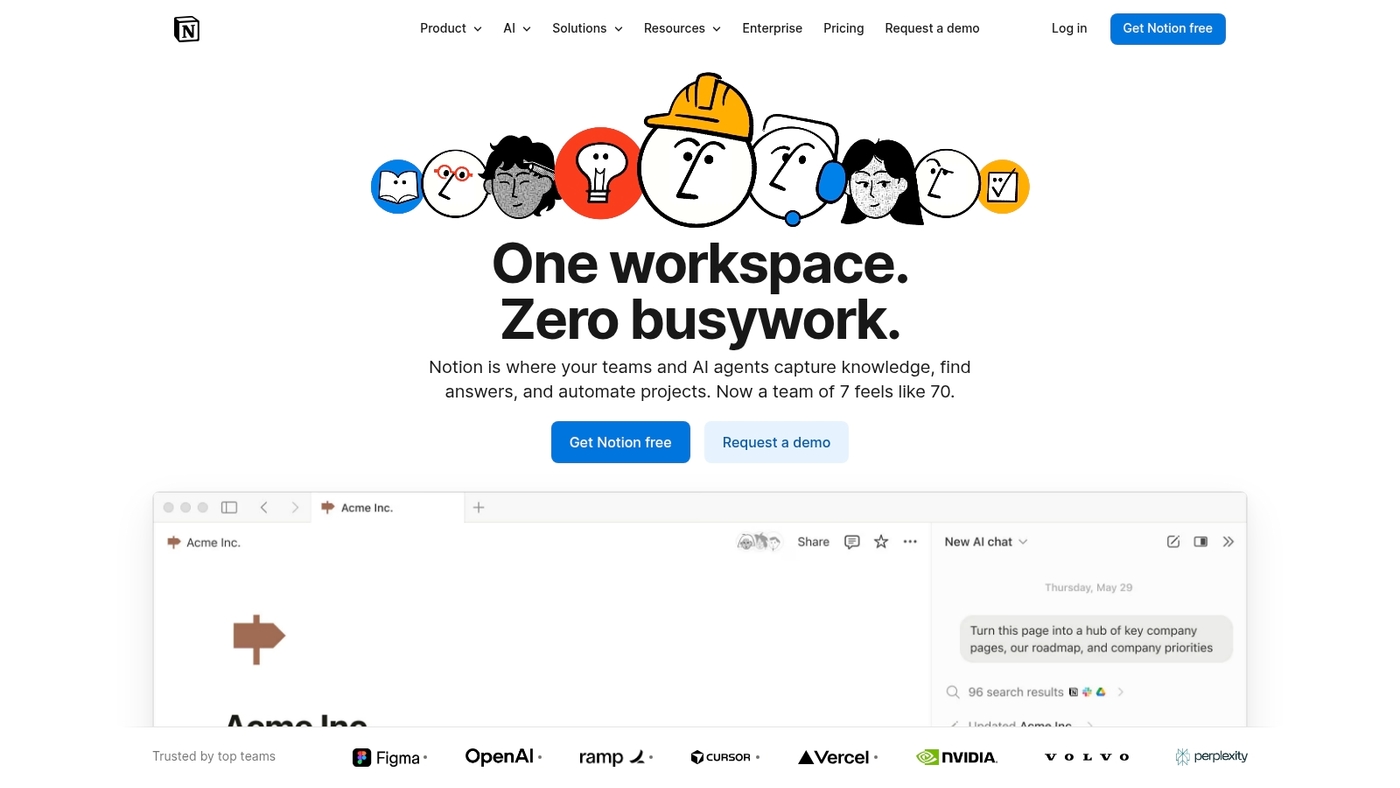
Notion is my recommendation for teams that need a flexible workspace linking tasks with documentation. It works as a task manager software and a living wiki.
You get databases that store tasks, notes, and specs in one place. Views include list, board, table, and calendar.
Templates speed setup and basic layouts often take under one hour. Notion lowers friction by keeping tasks next to the documents they reference.
I use it for personal task tracking and simple team handoffs. Integrations include native apps, Zapier, and an API for custom automation.
Permissions let you control who edits or views pages. Inline comments and backlinks make accountability visible. This tool fits teams that want task planning, knowledge capture, and shared reference in one app.
Pros
-
Flexible databases that link tasks, docs, and pages
-
Multiple views: list, board, table, calendar
-
Free personal plan for single users and basic use
Cons
-
Complex databases require time to design and test
-
Fewer native automations compared to dedicated workflow tools
For who?
We recommend Notion for small to mid-size teams and solo creators who need combined team task management and documentation in one app.
Pricing
Free plan for personal use. Team plans start at around $8 per user per month billed annually. Enterprise plans available on request.
Motion
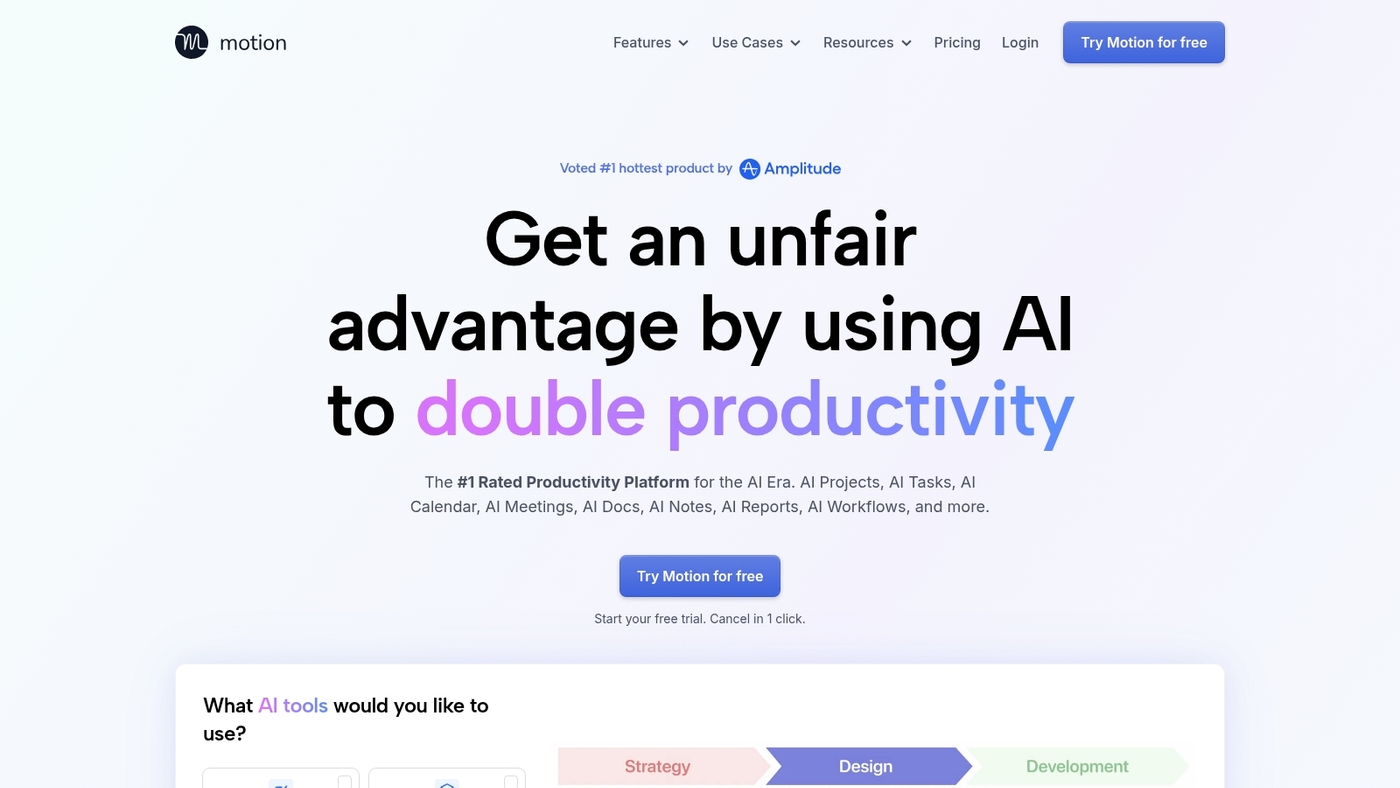
Use Motion if you want AI that schedules your day automatically. The Motion app fills your calendar with focused time blocks.
It moves tasks into slots based on deadlines, priorities, and available time. You set task durations, buffers, and preferred work hours.
The scheduler balances meetings and deep work without manual dragging. It syncs with Google Calendar and Outlook.
Its AI reschedules tasks when priorities change or meetings shift. Motion cuts planning friction and keeps daily goals visible.
I use it to slot writing and research, saving planning minutes weekly. The interface stays simple while offering automatic task scheduling and time blocking.
Pros
-
Automated scheduling saves planning time
-
Syncs with Google Calendar and Outlook
Cons
-
Limited free plan for heavy users
-
Advanced preferences need setup time
For who?
Freelancers, managers, and knowledge workers who want an AI task scheduler app.
Pricing
Free trial available; paid plans start around $19 per month.
Wrike
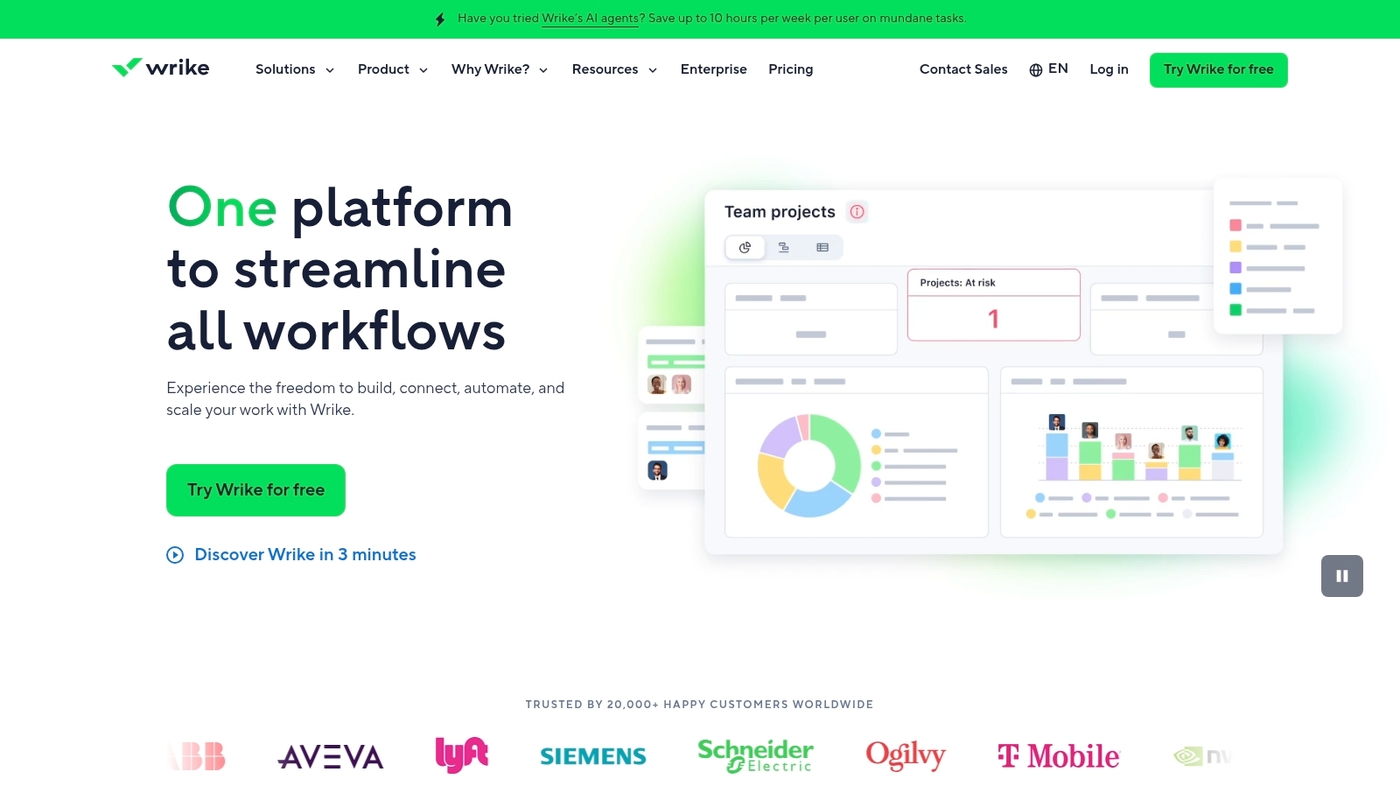
We recommend Wrike for large teams needing enterprise-level task manager software. It handles complex approvals, dependencies, and heavy resource planning.
The platform bundles time tracking, capacity charts, templates, and automation. It excels at enterprise task management. It offers custom request forms and granular permissions.
I’ve used Wrike with enterprise clients. Its request forms shorten approval cycles.
You can view workload per person and per team. Setup varies with complexity and can take several hours. Admins can enforce rules, lock fields, and audit changes.
See our resource planning tools guide for comparison.
Pros
-
Scales to large teams with complex workflows
-
Built-in time tracking and capacity views
-
Strong permissions and request form capabilities
Cons
-
Steep setup for non-technical teams
-
Higher per-user cost for advanced features
For who?
Enterprise product teams, operations, marketing ops, and agencies that need approvals, resource planning, and compliance controls.
Pricing
Free plan available. Paid plans start around $9.80 per user per month. Enterprise pricing requires a sales quote.
Sunsama
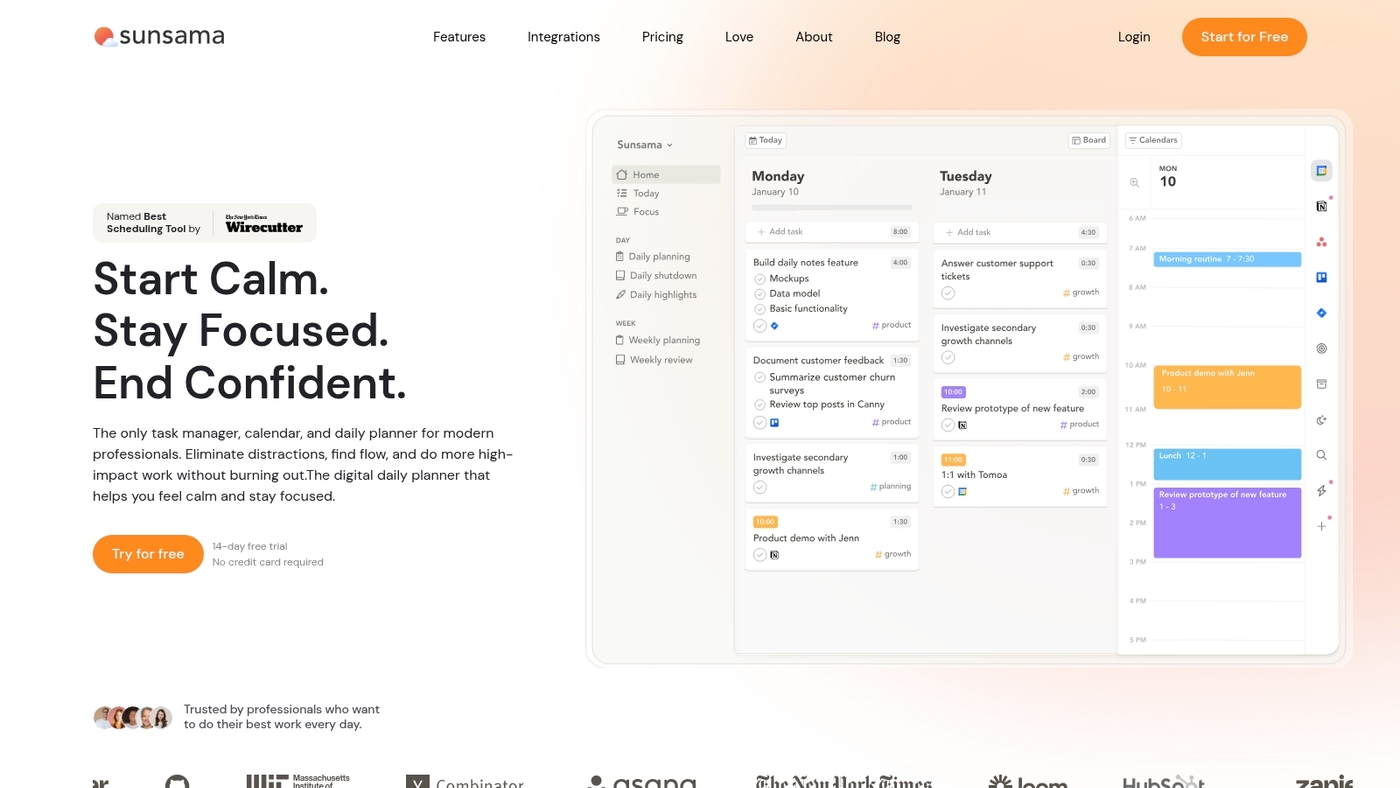
Sunsama is a daily planner built to stop overcommitment. It fits solo professionals and small teams who need focused daily work.
The app ties tasks to calendar slots so you plan realistic time. It blends a task manager software approach with guided planning prompts.
This task management app imports tasks from email, calendars, and other task apps. Task tracking stays simple, with clear daily lists and progress metrics.
Sunsama helps you prioritize three meaningful outcomes per day. Pro: guided daily planning limits your open tasks. Con: fewer advanced reporting and enterprise features.
The interface feels calm and supports work-life balance habits.
Pros
-
Guided daily planning reduces overload
-
Calendar task sync makes scheduling realistic
Cons
-
Limited advanced reporting
-
No built-in resource management for large teams
For who?
We recommend Sunsama for individuals and small teams focused on daily outcomes and honest time blocking.
Pricing
Paid plans with monthly and annual billing. Free trial available.
Read also: 12 Project Management Software For Developers
How to choose the right task management tool for your business
Choose a task manager software that matches your team size and workflow complexity.
|
Factor |
Guidance |
|---|---|
|
Team size |
Solo: lightweight to-do list app, setup under 15 min. Small (2–10): simple collaboration and free plans. Medium (11–50): role permissions and basic reports. Large (50+): SSO, admin controls, SLAs. |
|
Workflow complexity |
Simple lists: kanban or to-do app. Multi-project with dependencies: task hierarchy and Gantt views. Agile teams: sprint planning and backlog features. |
|
Budget |
Free plans limit users or integrations. Paid tiers: $5–$20 per user/month for core features and reporting. |
|
Integrations |
Confirm native connectors for Slack, Google Workspace, calendar. Check open API and 100+ integrations if you use many apps. |
|
Use case |
Personal: speed. Team: assignment, comments, tracking. Enterprise: approvals and resource views. |
We tested five task manager software setups across marketing and dev teams. Prioritizing integrations cuts setup time by half.
See our roundup of best productivity tools for common stacks.
Next step: try a 14-day trial of two shortlisted tools and expect full onboarding in under one week.
Read also: Top 13 Project Management Software For Freelancers
What is the best task management software for small teams
Pick Trello for tiny teams that need fast setup and low cost, or pick Asana for teams that need structure and clear task dependencies.
Who this fits: teams of 2–15, startup squads, and small business units that value quick onboarding and predictable pricing.
Key options and trade-offs:
-
Trello — Strength: simple onboarding. Caveat: limited advanced reporting. Best fit: visual teams using kanban boards.
-
Asana — Strength: clear task dependencies and timelines. Caveat: some features sit behind paid tiers. Best fit: teams tracking milestones and deadlines.
-
Todoist — Strength: fast to-do capture and recurring tasks. Caveat: limited team views. Best fit: small teams focused on task lists.
-
Notion — Strength: combines docs with tasks. Caveat: setup requires templates. Best fit: teams that need docs plus task tracking.
We tested Trello and Asana with 3–8 person teams. Setup took under 30 minutes for Trello and about 60 minutes for Asana. Trello gets you value fastest.
What’s your team’s biggest task tracking pain point?
Practical pick: start with Trello free plan to validate workflow in a week. Expect clearer task ownership, faster standups, and fewer missed deadlines.
Try Trello to see immediate gains and scale to Asana if your workflow needs task dependencies.
You might also like: 11 Best Project Management Software For Individuals
Free vs paid task management software
Start with a free task manager software for solo work and small teams; pay once you need automation, security, or more integrations.
Free tiers let you test interfaces, basic task tracking, and simple kanban boards. They often cap users, projects, file storage, or integrations.
Trello and Todoist offer generous free features for personal task planning and light team use.
Paid plans add paid plans ROI through advanced automations, unlimited projects, permissions, and audit logs. Main pro: faster workflows and fewer manual steps. Main con: recurring per-user cost.
Paid plans pay off when automation saves 1–2 hours per week per person. If each hour is worth $25, a five-user team can recoup a $50 monthly plan in weeks.
Pick free for personal task planning, trial sprints, or simple to-do list apps. Choose paid for team task management, enterprise task tracking software, or complex workflow management.
We track time saved during trials and compare feature gaps before upgrading.
Try a two-week paid trial to measure time savings versus current workflows. Expect clear benefits if automations cut repetitive work and integrations centralize notifications.
You might also like: Top 10 Best Workflow Automation Software