Finding the right free online collaboration software can feel like hunting for a needle in a haystack.
Small teams end up juggling scattered chats, duplicate documents, and overdue tasks because tools don’t line up with workflows.
This guide highlights 12 standout free tools that cover team chat, real-time document editing, video meetings, visual whiteboards, and task tracking.
You’ll learn which free collaboration tools fit small teams, agencies, or hybrid setups and what trade-offs to expect.
Expect clear comparisons on storage limits, message history, integrations, and security so choosing a stack is faster and less risky.
By the end you’ll be able to shortlist a few free platforms and pair them into a practical workflow for remote or in-office collaboration.
What is online collaboration software
Online collaboration software keeps distributed teams aligned and productive.
It centralizes communication, file sharing, task management, and real-time editing. Teams use these tools to chat, run video meetings, and keep searchable message history.
They include real-time collaboration tools that let multiple people edit documents with instant syncing and version control. Cloud storage provides access from any device, permission controls, and backup history for audits.
Task boards assign owners, set due dates, and display progress at a glance. Integrations connect calendars, email, video, and automation so work moves between apps without copy-paste.
Many free plans limit storage or integrations—for example, 15 GB storage or 10 app connections on common suites. Starting with chat plus shared docs cuts status meeting time and reduces duplicate files.
Explore practical options and comparisons on collaboration platforms for teams to find a fit for your workflow.
What is the difference between collaboration software and project management tools
Collaboration platforms center on quick communication and shared documents. Project management tools center on task ownership, timelines, and progress visibility.
Communication and files: Collaboration apps give real-time chat, channels, file sharing, and basic task lists. They cut email and speed decisions.
Task tracking: Project managers use task assignment, dependencies, Gantt charts, and workload views. These features show who does what and when.
Workflow coordination: Collaboration tools keep conversations and files in one place. Project tools enforce process, deadlines, and handoffs.
Collaboration vs project management—when to choose:
-
Choose collaboration tools for fast feedback and document co-editing.
-
Choose project management when you need clear deadlines and deliverables.
-
Choose both if you need daily chat plus formal tracking.
Pairing a chat-first app with a lightweight PM tool works well as projects scale. If your work needs clear ownership and timelines, try project management software for structured tracking.
Starting with a free collaboration tool lets teams move faster. Try one for two weeks and add a PM tool when tasks slip through the cracks.
Key features to look for in free collaboration software
Multiple people can edit documents, spreadsheets, and presentations at once. Real-time document editing reduces back-and-forth emails and speeds approvals.
Automatic version history prevents lost work and makes audits simple. Instant version control tracks who changed what and when, so you can roll back mistakes in seconds.
Presence indicators show who’s editing live, so edits rarely collide. Comment threads attach feedback to text, speeding approvals by up to 30 percent.
These features make free collaboration tools practical for remote teams. They power free online collaboration software for work without the hefty price tag.
Explore document management systems for secure file control and archiving. Start with a two-week test and measure review time—you’ll likely see fewer email threads and faster sign-offs.
Team communication and chat functionality
Choose structured chat with channels, direct messages, searchable history, and threads. This reduces noise, preserves context, and speeds decisions.
Many free online collaboration software suites include searchable chat history. They must support threaded conversations to keep replies organized and prevent context loss.
Slack’s free tier keeps 10,000 searchable messages. Google Workspace gives 15GB storage and built-in chat. Both work well for small teams that need quick answers.
Give your team simple rules:
-
Use clear channel names like “team-announcements” or “proj-alpha”.
-
Enable threads for replies and pin important messages.
-
Teach search shortcuts to find past decisions fast.
Start with one channel per project and review it weekly. Try a free team chat app and measure time saved—you’ll cut meeting minutes and email clutter.
File sharing and cloud storage
Cloud-based file management lets teams upload, share, organize, and access documents from anywhere. Prefer tools that sync in real time, enforce permissions, and keep version history.
This capability sits at the heart of free online collaboration software because it stops file duplication and speeds approvals. Free plans usually cap storage between 2GB and 15GB—Google Workspace gives 15GB per account as a useful benchmark.
Set roles like viewer, commenter, and editor. Enable link expiration and password protection for sensitive shares. (Your legal team will thank you!)
Test a shared folder for a month to measure actual use. Try a free account and set one owner per project to keep files tidy and access documents anywhere.
Task management and workflow coordination
Built-in task features in free online collaboration software make ownership clear and cut context switching. Task assignment, progress tracking, and workflow automation give visible status.
They can cut update meetings by up to 50%. Automation saves teams two to four hours weekly on repetitive updates.
Start with a simple kanban board. Explore task management tools and make one rule: every card needs an owner and a due date.
Integration with other tools and platforms
Choose collaboration software that connects your core apps so your team stops hunting for context. Pick options that link calendars, file storage, chat, and meeting tools to reduce handoffs and duplicate work.
Free online collaboration software often limits integrations to about 2–10 connectors. Expect restricted API access, fewer automation runs, and limited third-party app support on free plans.
Video conferencing tools and cloud drives matter most for live work and file syncing. Map three priority workflows before you sign up—test integrations for two weeks and measure time saved.
-
Map calendar → meetings → recordings
-
Link chat → document storage → sharing
-
Track one automation for 14 days
Try a short pilot with your top tools to validate the productivity app integrations and deliver a smoother unified workflow experience.
Top 12 free online collaboration software to consider
monday.com
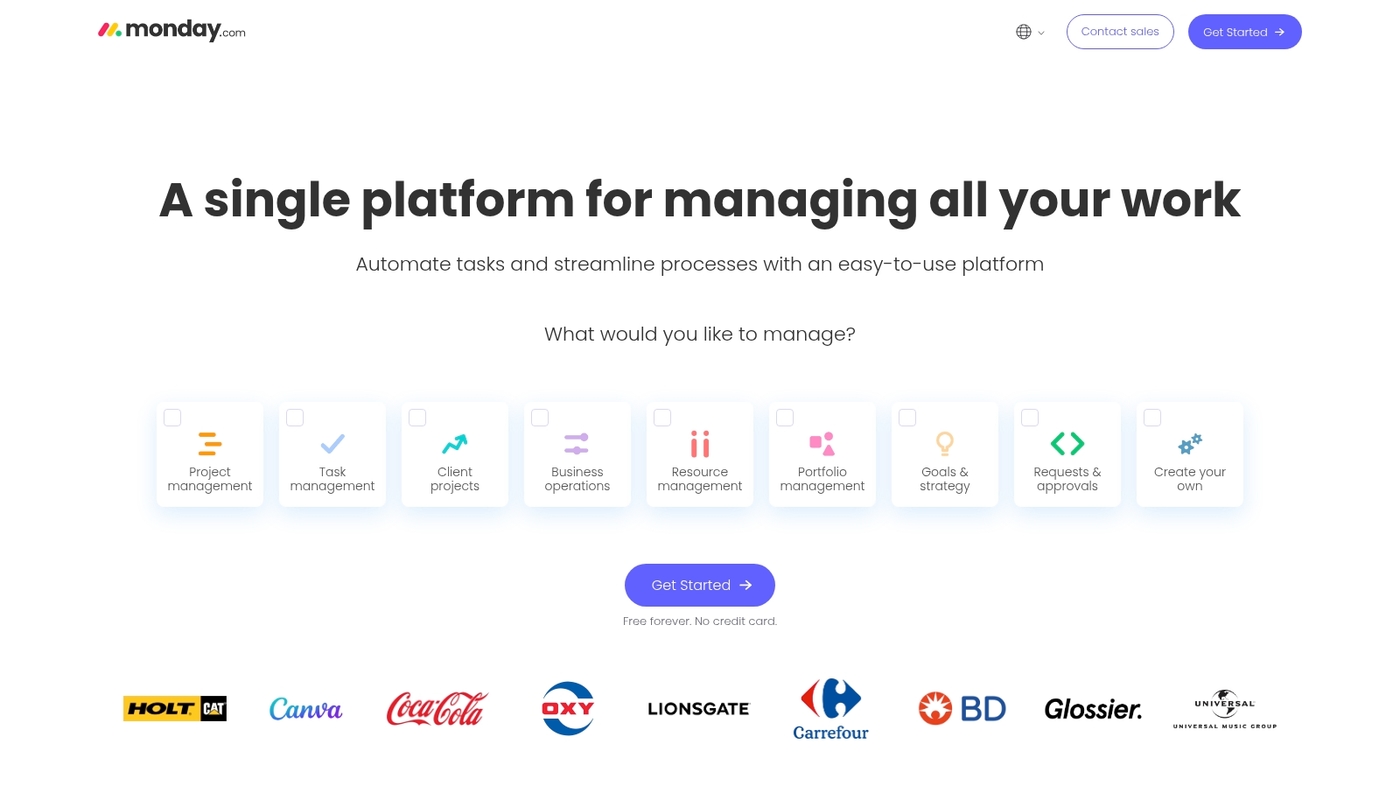
Choose monday.com for visual workflows and polished dashboards. It’s a visual work management platform that uses colorful boards and flexible views to map work.
You assign owners, set timelines, and track progress with clear labels. The product adds AI that prioritizes tasks and creates short summaries—perfect for teams drowning in updates.
The free tier includes basic automations and a handful of integrations. You get comments, file attachments, and real-time updates on items. The interface suits teams that prefer visual status and low-friction setup.
The AI task prioritization and summaries help cut meeting time. Weekly board templates save review time and keep everyone aligned.
Pros
-
Colorful boards for quick visual planning
-
AI task prioritization and summaries
-
Basic automations on the free tier
-
Multiple views for different workflows
Cons
-
Automation runs are limited on free plan
-
Storage and guest limits for larger teams
For who?
Small to mid-size teams that want visual status, simple setup, and light automation. Good for product, marketing, and operations teams that need clear ownership.
Pricing
Free plan available with core features. Paid tiers unlock advanced automations, dashboards, and more storage.
ClickUp
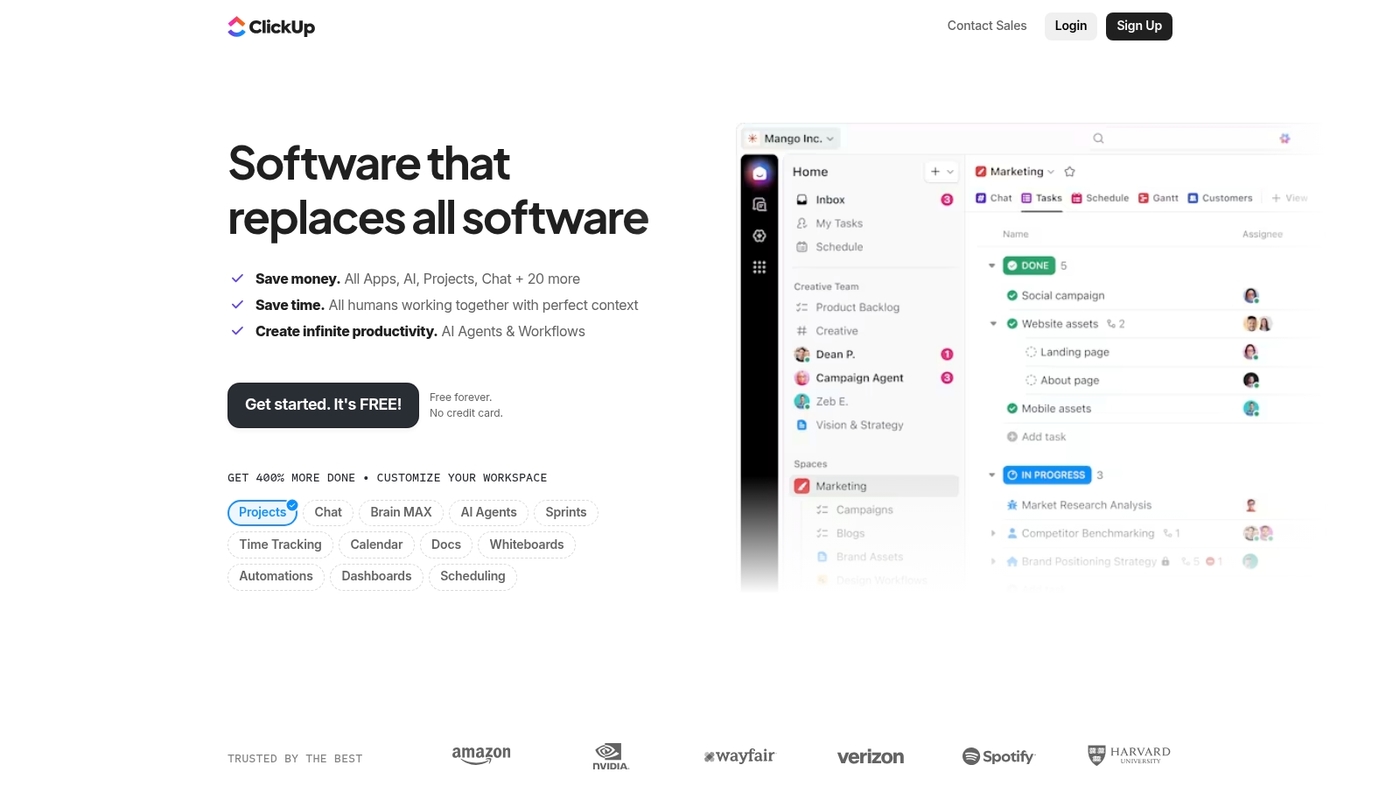
ClickUp offers a free forever plan with unlimited tasks and members—which is rare in this space. It supports nested subtasks, custom workflows, and extensive integrations.
You can build views, set automations, and monitor progress with real-time dashboards. The deep task hierarchy helps teams reduce context switching and keep related work together.
The mobile and desktop apps sync instantly, making it solid free online collaboration software for remote teams. You get file sharing, comment threads, whiteboard features, and basic time tracking.
Use it when you need both task management and collaborative docs in one place. Try small pilots with two teams before rolling it out company-wide.
Pros
-
Unlimited tasks and users
-
Flexible task hierarchies
-
Wide native integrations
Cons
-
Steeper learning curve for new users
-
Some advanced features require paid plans
For who?
Small to mid-size teams and startups that need deep customization and free team collaboration software.
Pricing
Free forever plan available. Paid plans start around $5 per user per month for added storage and advanced features.
Slack
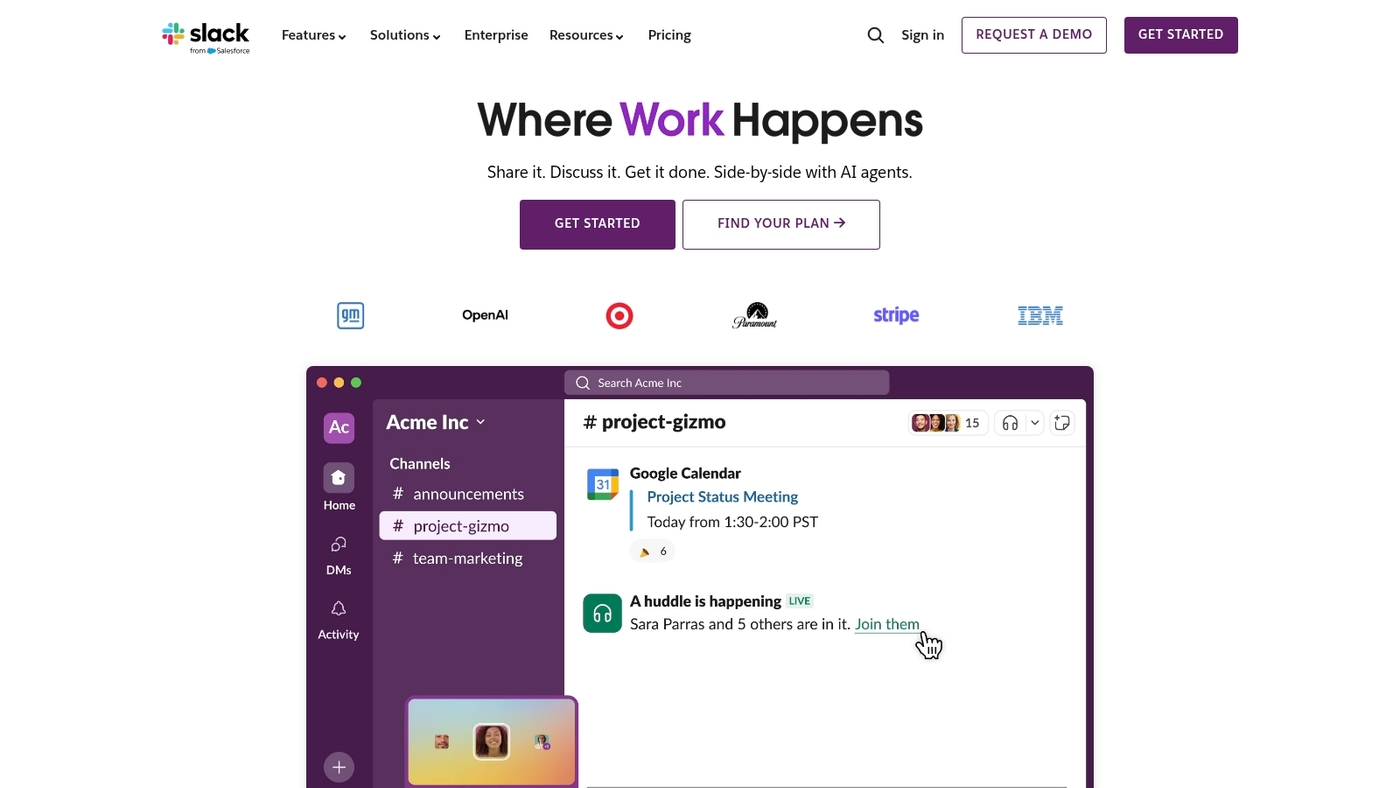
Slack offers 10,000 searchable messages and up to 10 app integrations on the free tier. Channels keep topics organized and threads reduce noise—no more endless email chains.
File sharing syncs across devices and supports quick feedback. Slack fits free online collaboration software needs for small remote teams that prioritize messaging and real-time collaboration tools.
Slack’s search and channel structure cut response time and lower meeting load. Pair Slack with a task manager to cover timelines and dependencies.
Pros
-
10,000 searchable messages on free plan
-
Organized channels and threaded conversations
-
Simple file sharing and quick sync
-
Connects to popular apps (up to 10)
Cons
-
Message history cap after 10,000 items
-
Limited integrations on free tier
-
Not built for full project management
For who?
Small remote teams, support squads, and startups that need fast team chat and basic file sharing.
Pricing
Free plan available. Paid plans start around $6.67 per user per month for more history, storage, and integrations.
Asana
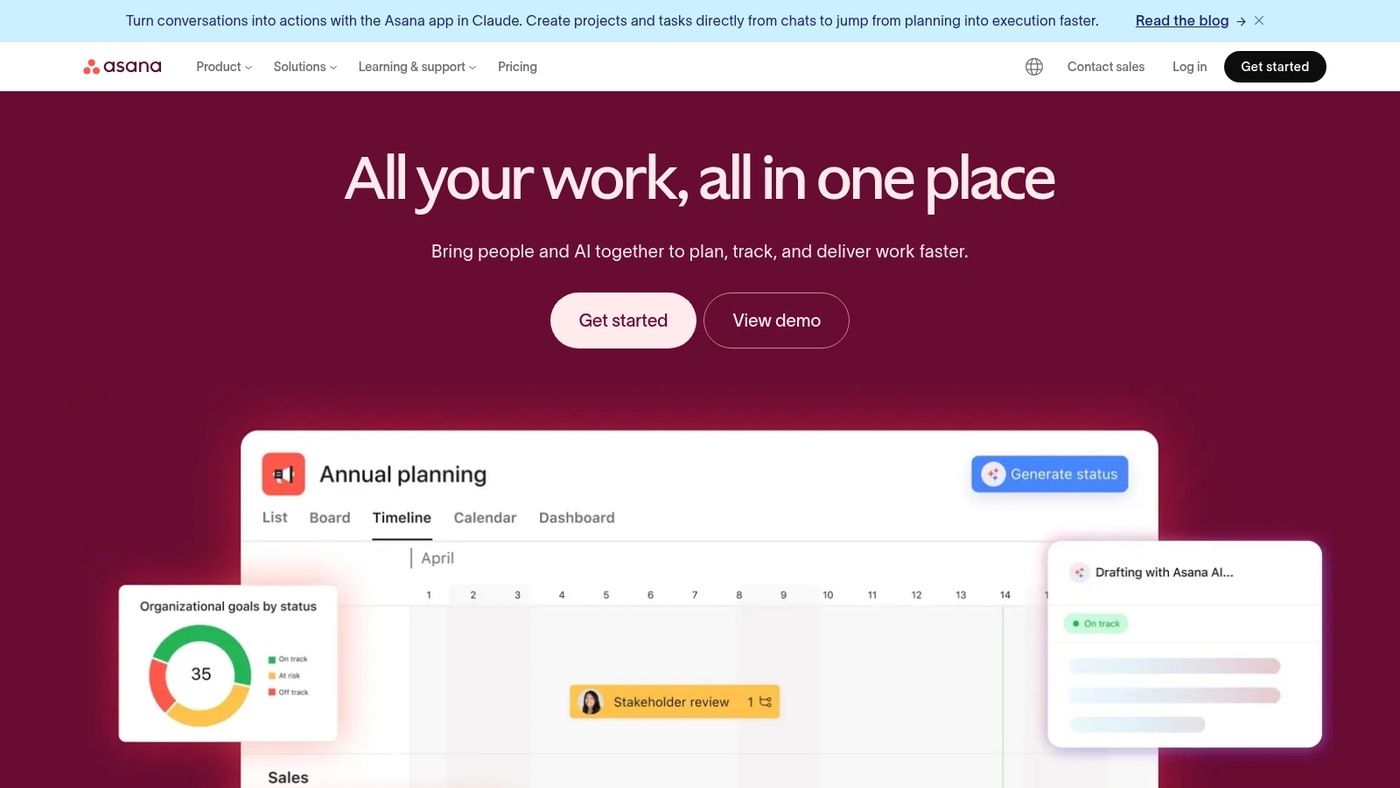
Asana helps teams assign tasks, follow progress, and centralize comments and files. It ranks among free online collaboration software for task-driven teams.
It supports shared projects, subtasks, due dates, and basic automation. You can connect Slack and Zoom to sync updates and run standups without switching tabs.
Asana suits managers who need clear ownership and visible timelines. It balances simplicity and depth for small teams—the free plan supports core work without cost and links with many apps.
Use its task tracking features to reduce status meetings. Use its real-time collaboration tools for quick feedback cycles.
Pros
-
Clear task ownership
-
Strong integrations with Slack and Zoom
-
Free plan for small teams
Cons
-
Limited advanced reporting
-
Free plan caps features for larger teams
For who?
Teams that need simple task workflows and visible ownership. Use Asana if you want structured boards and clear assignees.
Pricing
Free tier available for teams up to 15 members. Paid plans start around $10.99 per user per month billed annually.
Trello
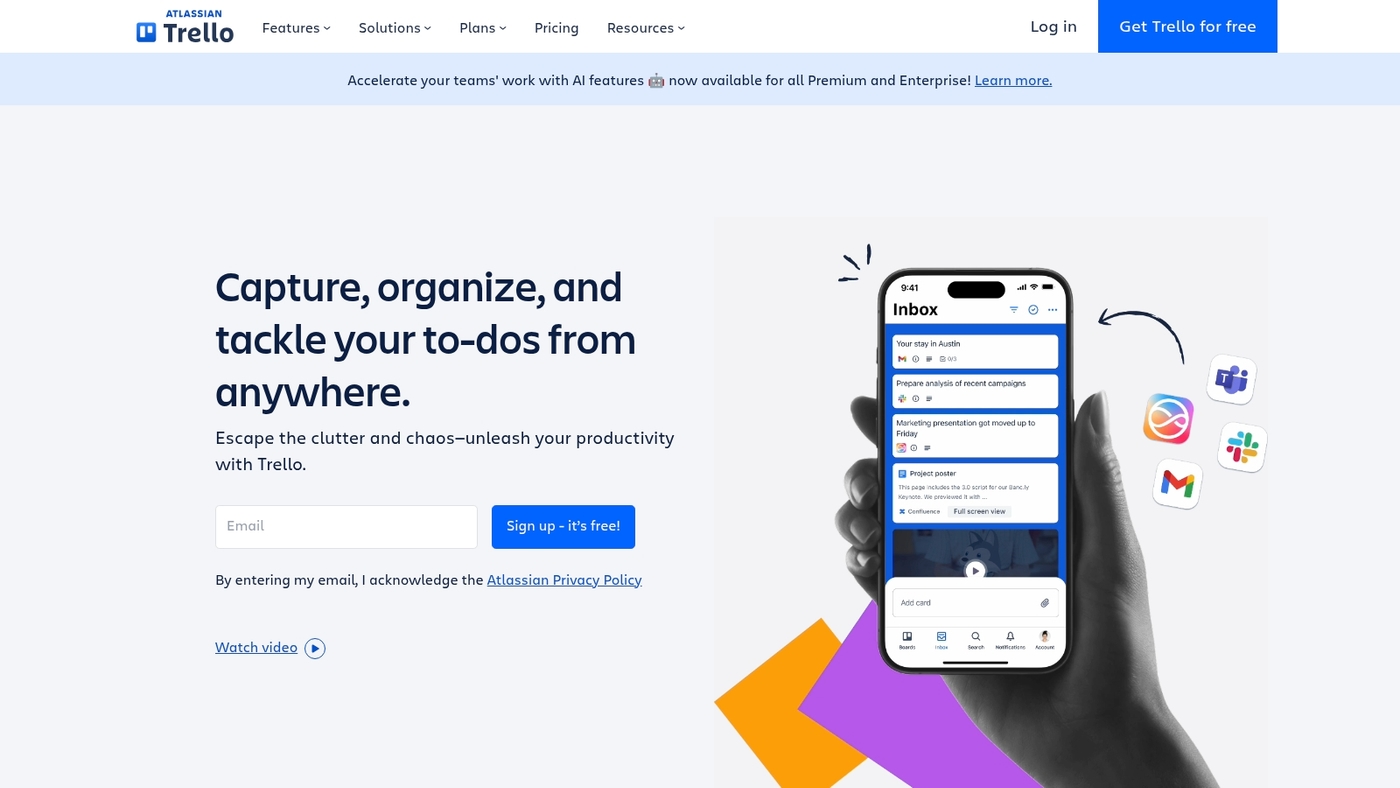
Trello is a visual kanban board for clear task tracking. It acts as free online collaboration software for small teams that need simple workflows.
The interface uses boards, lists, and cards you drag and drop. The free plan supports unlimited cards and up to 10 boards per workspace—plenty for most startups.
Cards hold checklists, attachments, due dates, and comments. Power-Ups add integrations with Slack and Google Drive. Trello works best for simple workflows and task visualization.
The visual kanban board speeds onboarding. Simple workflow visualization reduces meeting time and fits students and small teams perfectly.
Pros
-
Easy visual task tracking
-
Unlimited cards on free plan
-
Wide app integrations via Power-Ups
Cons
-
Free plan limits boards per workspace
-
Advanced automations require paid plans
For who?
Small teams, freelancers, students, and remote teams needing simple task boards.
Pricing
Free plan available. Paid plans start at about $5 per user per month.
Google Workspace
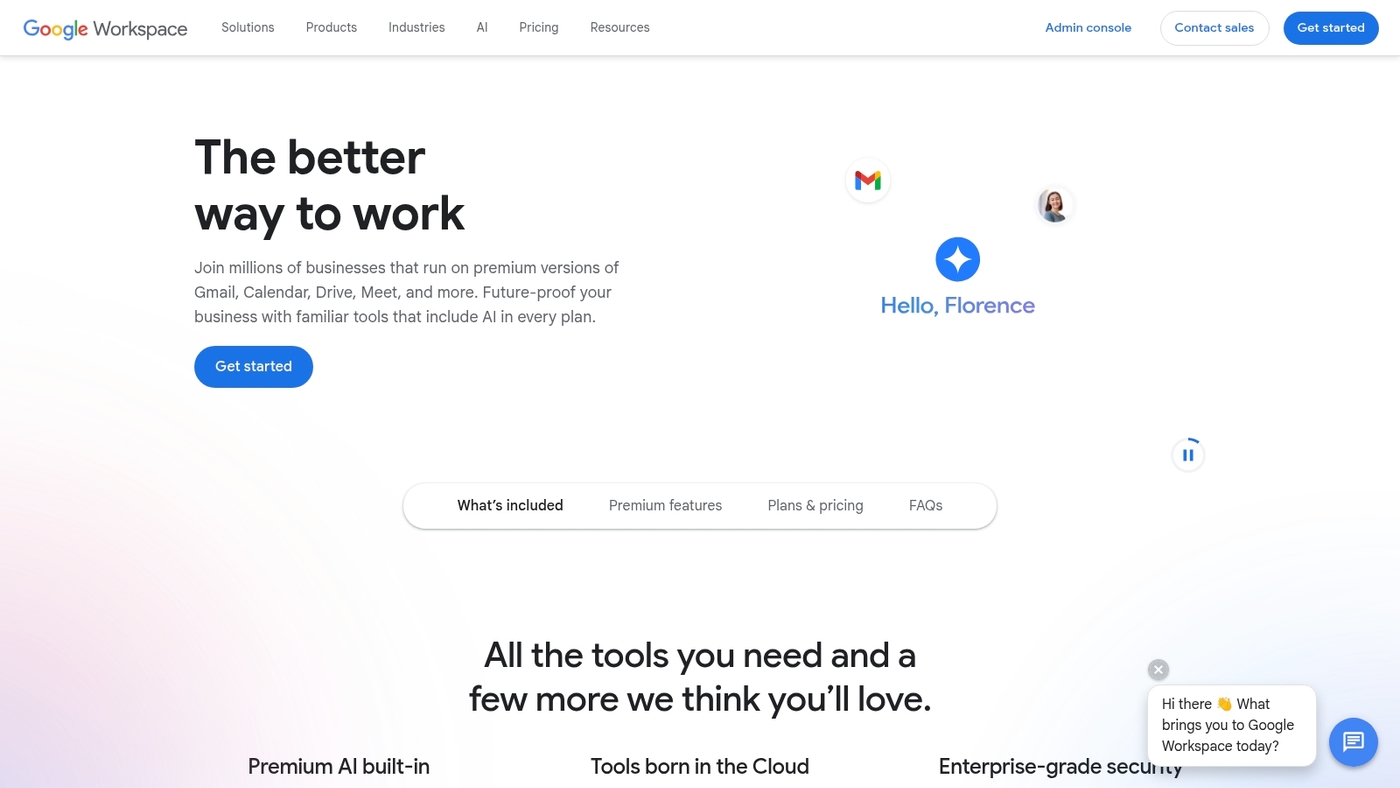
Google Workspace bundles Docs, Sheets, Slides, Drive, and Meet. It’s a leading pick among free team collaboration software for remote work.
You get 15 GB of storage on the free tier. It delivers real-time document editing with instant save and version history—edits appear live, which speeds client drafts and internal reviews.
The suite provides seamless file sharing across phones, tablets, and desktops. Built-in Meet starts video calls from files or calendar events, and search finds emails and files fast.
It reduces app switching and speeds approvals. Admins get basic security controls and two-step verification to protect shared documents.
Pros
-
Real-time editing across Docs, Sheets, Slides
-
Integrated video calls and calendar
Cons
-
Only 15 GB free storage shared across apps
-
Advanced admin controls require paid plans
For who?
Small teams, educators, and freelancers who need reliable file sharing and real-time collaboration.
Pricing
Free tier with 15 GB per account; paid plans start at $6 per user per month for Business Starter.
Zoom
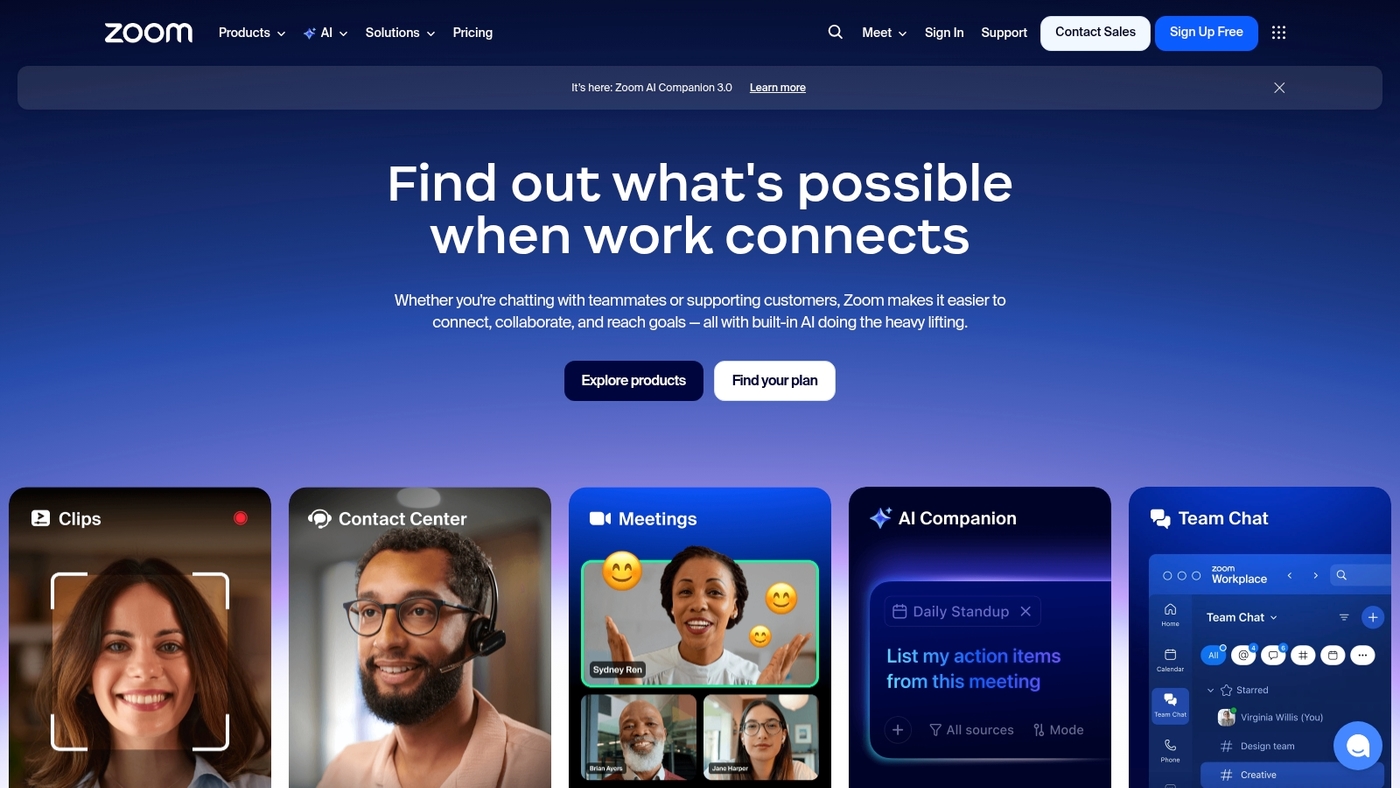
Zoom is a popular video conferencing platform that offers free meetings with screen sharing, chat, and basic local recording. It integrates with Slack and Google Workspace and works with many free collaboration tools.
Free users get unlimited one-on-one calls and a 40-minute limit on group meetings. Zoom also supports async video updates via video messages your team can watch later—great for distributed teams.
It covers live calls, breakout rooms, scheduling, and basic webinar features. Zoom pairs well with free video conferencing, real-time collaboration tools, and free team collaboration apps to fill calling gaps.
Zoom fits teams that need reliable calls and simple integrations. Run a two-week pilot and measure meeting time saved to see impact.
Pros
-
High audio and video quality
-
Screen sharing and breakout rooms
-
Easy integrations with other apps
Cons
-
40-minute limit on free group meetings
-
Advanced features require paid plans
For who?
Remote teams, educators, freelancers, and small businesses that need dependable video calls and lightweight async video.
Pricing
Free plan available with 40-minute group limit and unlimited one-on-one calls. Paid plans start at approximately $149.90 per year per user for Pro features and cloud recording.
Miro
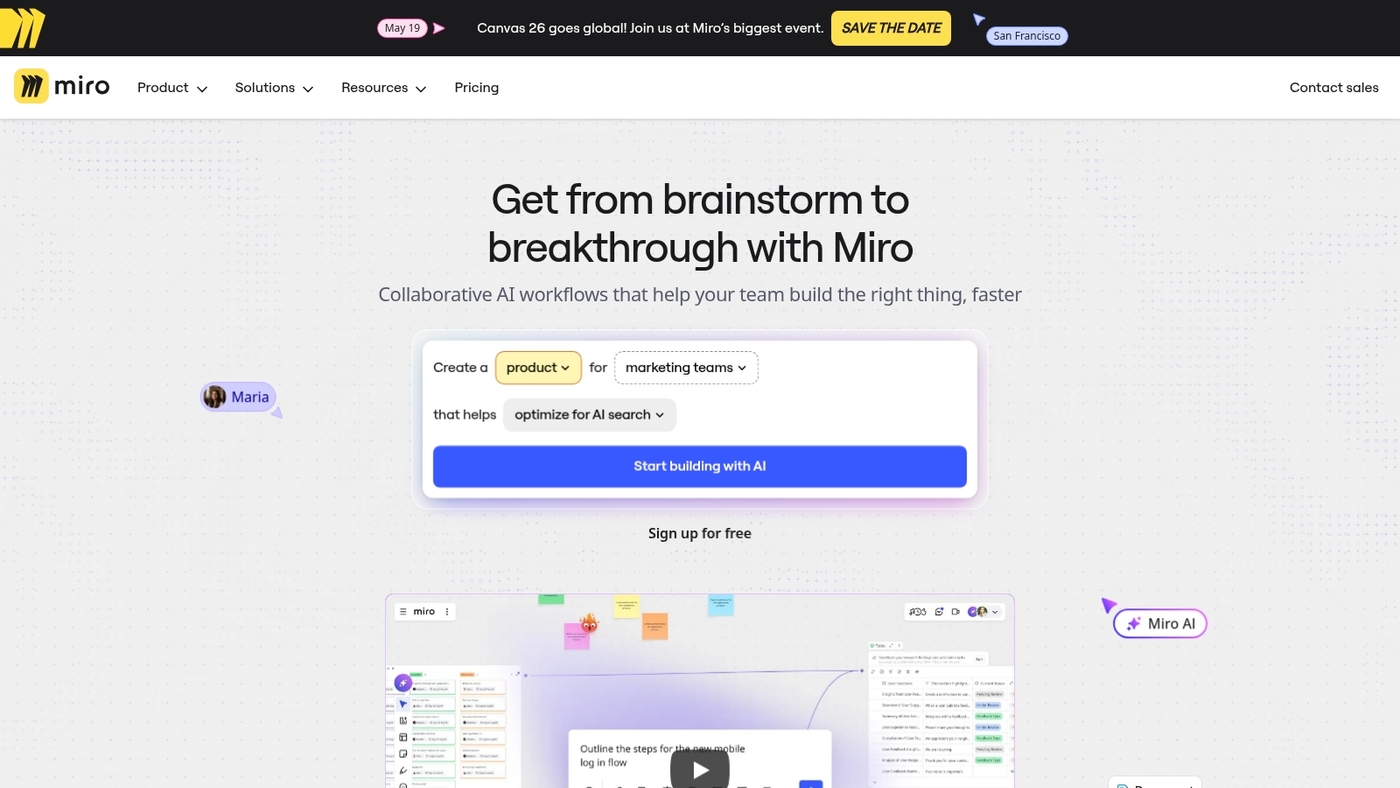
Miro is a digital whiteboard for teams. It offers unlimited boards for visual brainstorming—perfect for workshops and strategy sessions.
You get templates for workshops and strategy sessions. The canvas handles sticky notes, diagrams, mind maps, and timers. Live cursors show collaborators for real-time collaboration.
Integrations include Slack, Google Workspace, Zoom, and Figma. The free plan gives core tools for remote work collaboration tools and teaching.
Miro speeds up ideation and makes decisions clearer. Use it for short workshop sprints and async handoffs. Explore related options in our guide to collaborative whiteboard tools.
Pros
-
Unlimited boards for visual work
-
Rich workshop and template library
-
Real-time editing with live cursors
-
Wide app integrations
Cons
-
Advanced governance needs paid plans
-
Large boards can affect performance
For who?
Teams running workshops and visual planning. It reduces meeting time, makes ownership visible, and supports remote collaboration.
Pricing
Free plan available with core features. Paid plans start around $8–10 per user monthly for paid tiers with admin controls and advanced features.
Notion
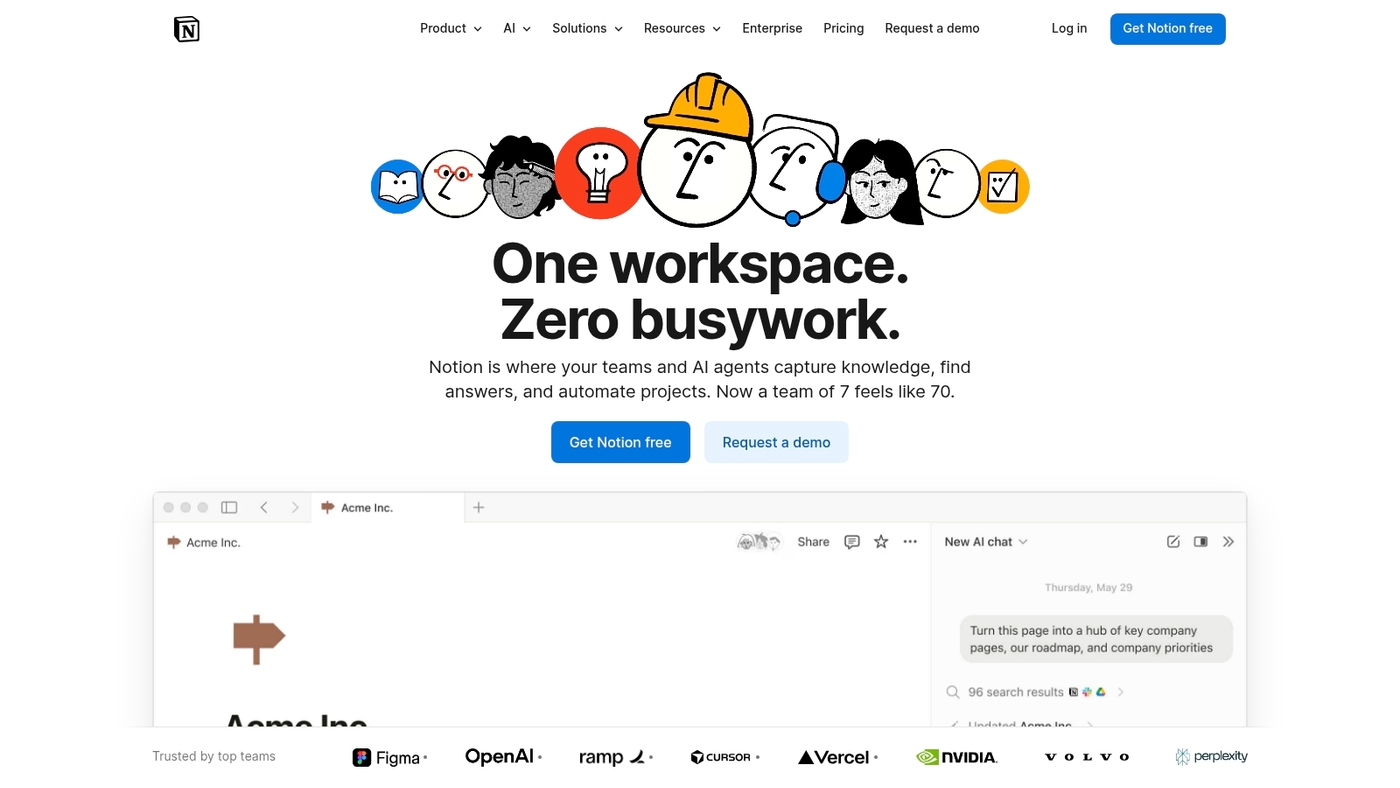
Notion is a flexible all-in-one workspace for teams that need notes, databases, wikis, and task lists. It combines them with real-time collaboration and inline comments.
The free tier offers unlimited blocks, customizable templates, embeds, and basic permissions. This makes Notion a strong option among free collaboration tools and free online collaboration software for work or study.
You can create shared docs, lightweight databases, kanban boards, and simple project trackers. The wiki features work well for team knowledge bases and documentation—connect apps and files to keep context in one place.
Learn how to use it as a company wiki in our corporate wiki software guide.
Pros
-
Flexible page and database building
-
Unlimited blocks on the free plan
-
Rich templates and embeds
Cons
-
Limited advanced access controls on free tier
-
Offline features are basic
For who?
Small teams, startups, students, and remote teams that want a single source of truth and lightweight task tracking.
Pricing
Free personal plan with unlimited blocks. Team plan starts around $8 per user per month billed annually. Enterprise plans available on request.
Wrike
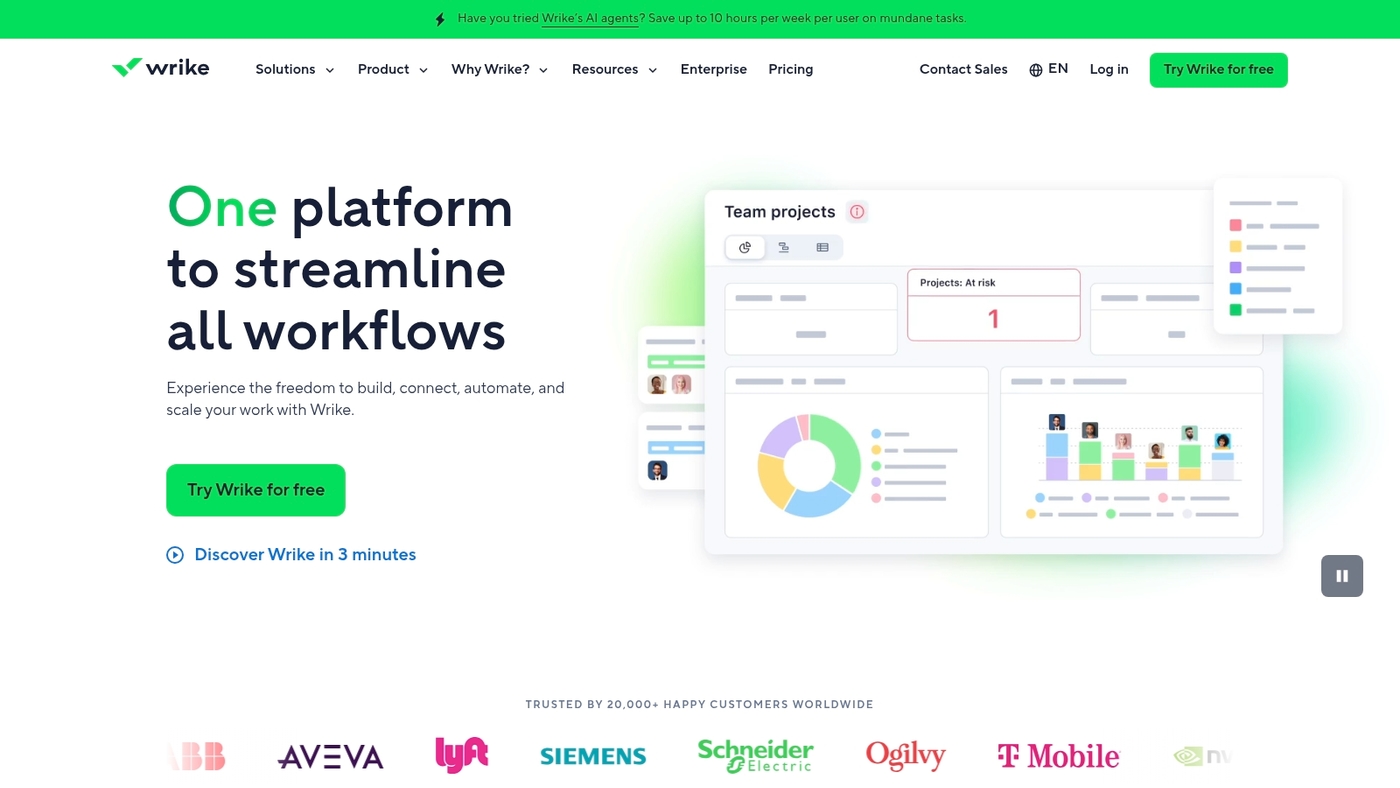
Wrike offers advanced project management with a usable free tier. It provides a free plan that supports up to five users and covers basic task management, file uploads, and a real-time activity feed.
The interface lets you assign tasks, set due dates, and track progress in one place. The platform connects with common apps and keeps updates searchable so your team stays aligned.
Wrike suits small teams that need structure and clear ownership. It speeds coordination and cuts email clutter for short projects—try it if you want a solid cloud option among free online collaboration software.
Pros
-
Clear task ownership
-
Searchable activity stream
-
Integrates with common apps
Cons
-
Free tier limited to five users
-
Advanced features require paid plan
For who?
Small teams that need structured task tracking and file sharing without upfront cost.
Pricing
Free plan available for up to five users. Paid plans start at about $9.80 per user per month.
Teamwork.com
Teamwork.com targets agencies and client projects. It combines task lists, milestones, time tracking, and client collaboration in one place.
The platform adds AI for concise task notes and smart summaries. Its dashboard highlights overdue work and resource gaps—you can track time per task and bill clients from the same app.
The free plan supports small teams and basic project needs and fits teams sampling free online collaboration software. The task summarization AI saves meeting minutes and keeps focus.
Use it for agency client work because it couples AI summaries with time tracking and billing. I’ve used it on agency sprints and saw clearer handoffs.
Pros
-
Time tracking accuracy
-
AI-generated task summaries
-
Milestone management tools
-
Free plan for small teams
Cons
-
Advanced AI features sit behind paid tiers
-
Per-user costs rise with team size
-
Some setup needed for complex workflows
For who?
Agencies, client services teams, and consultants who track billable time and manage multiple clients.
Pricing
Free plan available. Paid tiers add advanced AI and time features and are billed per user.
ProofHub
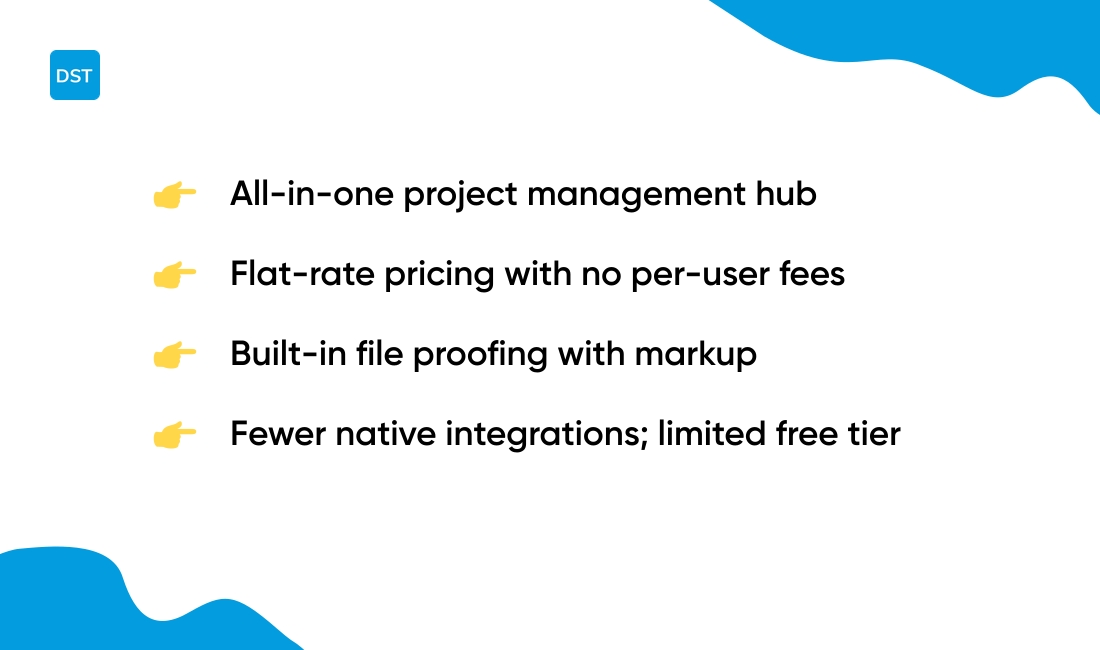
ProofHub is for teams that want a single hub and flat-rate pricing. It combines task boards, threaded discussions, file proofing with markup, time tracking, and centralized project views.
You get all-in-one project management without per-user fees, which keeps costs predictable as teams grow. The flat-rate model reduces billing headaches and speeds approvals.
Use its proofing tools to cut review cycles by making comments and versions visible on the file. You can set task owners, track time per task, and keep conversations tied to work items.
Try workflow templates to standardize repeat projects and reduce planning time. Start with a free trial to test file proofing and time tracking on real projects.
Pros
-
Flat-rate pricing without per-user fees
-
Built-in file proofing and version comments
-
Simple time tracking per task
Cons
-
No extensive free tier for large teams
-
Fewer native integrations than some rivals
For who?
Teams and agencies that want predictable billing and consolidated project workflows.
Pricing
Flat-rate paid plans with no per-user charges; free trial available to test features.
How to choose the right free collaboration software for your team
Match a tool to your team size and key integrations. Pick a simple option that reduces context switching and speeds onboarding—it saves time and prevents wasted upgrades.
|
Criteria |
What to Check |
|---|---|
|
Team size |
Choose a plan that supports current members and growth without steep per-user fees. |
|
Remote work needs |
Verify video, async options, and mobile access for distributed teams. |
|
Communication style |
Prefer threaded chat for organized discussions and channels for teams. |
|
Integrations |
Confirm connections to your calendar, storage, and main apps. |
|
Storage and security |
Check storage caps, encryption, and export options on free tiers. |
Test two tools on one real project. Try a two-week pilot and measure message history limits, file quota, and workflow gaps. A short pilot reveals practical limits faster than spec sheets.
Use the virtual collaboration software guide to compare features and fit: virtual collaboration software.
You’ll also like: Top 10 Best Workflow Automation Software
What are the limitations of free collaboration tool plans
Use free online collaboration software to validate workflows, but plan to upgrade once limits slow your work. Free tiers let you start fast, save cash, and test features. Upgrade when limits block daily work or create friction.
-
Limited storage quotas — many plans cap storage between 5 GB and 15 GB.
-
Restricted message history — Slack free keeps 10,000 messages searchable; archives vanish beyond that.
-
Limited third-party integrations — common caps let you connect 3–10 apps only.
-
Feature locks — SSO, audit logs, advanced permissions, and APIs often sit behind paywalls.
-
User and board limits — some tools cap boards, projects, or guest users on free plans.
-
Meeting limits — many video tools force 40-minute or attendee caps on free calls.
Test free tiers to spot real constraints fast. Message history and storage limits cause the hardest headaches for growing teams.
Track three metrics weekly: active users, storage used, and integration count. If any metric hits 80%, start a paid plan trial.
You might also like: Top 10 Best Kanban Board Software
How secure is free online collaboration software for business use
Free online collaboration software can be secure for routine business work if you verify encryption, certifications, and admin controls first.
-
Data encryption — TLS in transit and AES at rest.
-
Access controls — MFA, role-based access, and SSO available.
-
Backup policies — regular snapshots and export options.
-
Compliance badges — SOC 2 or ISO 27001 indicate stronger controls.
-
Privacy protections — clear data residency and processing rules.
Free collaboration tools often limit logs, retention, and advanced auditing. Message history caps commonly sit between 30 and 90 days. Single-tenant encryption and dedicated key management usually require paid plans or self-hosting.
Small teams can rely on free team collaboration software for non-sensitive projects. Avoid storing regulated data on free plans.
Run a short security checklist before rollout:
-
Enable MFA for all accounts.
-
Confirm TLS and server-side encryption.
-
Check for SOC 2 or ISO certification.
-
Set retention and export policies immediately.
Run a 15-minute pilot with your real workflows. This reveals gaps in free file sharing and collaboration, real-time collaboration tools, and free team chat apps. Move to a paid plan when you need longer retention, enterprise SSO, or guaranteed SLAs.
Read also: 7 best free Gantt software
Best free collaboration tool combinations for remote teams
Slack plus Asana works for fast setup. Google Workspace plus Trello fits teams that need shared files and visual boards. Slack plus Asana covers chat, task ownership, and searchable history on free plans.
Pairings work when each tool handles one core need: communication, task tracking, or files.
-
Free collaboration tools: Slack + Asana — threaded channels, 10,000 searchable messages, task owners and due dates.
-
Free team chat: Google Workspace + Trello — 15GB storage, live co-editing, visual kanban for workflows and sprints.
-
Free file sharing: Zoom + Notion — meetings plus a shared wiki and docs for async handoffs and notes.
Pick one pairing that maps to your biggest pain point. If status updates slow you down, choose Slack plus Asana. Which workflow eats most of your time right now?
Try a short pilot. Run it for two weeks and measure meeting minutes and task throughput.
-
Set one owner per task.
-
Limit channels to three core topics.
-
Keep files in a single shared folder for two weeks.
Explore more workflow ideas in our best productivity tools guide and start a focused trial this week.
Read also: 7 Best Free SCRUM Tools for Agile Project Management