That moment when a client asks for a large file and the transfer fails can derail an entire workday.
Choosing the right file sharing software can prevent those delays and keep teams productive across devices.
Many businesses still juggle scattered storage, insecure links, and confusing permissions that slow collaboration and create compliance risks.
This roundup of 12 top file sharing software tools highlights options to send large files, enable team file sharing, and enforce encrypted, enterprise-grade access.
You’ll discover which services suit small teams, enterprise deployments, or regulated industries (HIPAA/GDPR), plus where free file sharing falls short.
Use these comparisons of storage, integrations, security, and pricing so you’re able to pick a file sharing app that fits your workflow.
What is file sharing software and how does it work
File sharing software powers how teams upload, store, and share files online. It enables cloud file sharing, document sharing, and secure file transfer across devices.
Here’s what modern platforms deliver:
- Cloud file sharing: central storage in the cloud with automatic sync
- Access controls: role-based permissions, link expiry, and password protection
- Encrypted file sharing: in-transit and at-rest encryption to protect data
- Collaboration: real-time editing, comments, and version control for team workflows
- Large files: resumable uploads and accelerated transfer for sending big files
- Compliance: HIPAA and GDPR features, retention policies, and audit logs
- Integrations: connect to Microsoft, Google Workspace, Slack, and automation tools
- Protocols: FTP/SFTP and APIs support legacy systems and developer workflows
- Topology: cloud, peer-to-peer file sharing, or hybrid models for on-prem needs
Prioritizing encryption and granular permissions reduces risk and speeds approvals. (It’s easier to get a yes when security’s baked in.)
Pick a file sharing service that matches your security, storage, and integration needs. Compare providers and start a secure file sharing trial today.
Key features to look for in file sharing software
Security and encryption capabilities
Robust security is non-negotiable for any file sharing software you pick. End-to-end encryption must protect files both at rest and in transit.
Here’s what matters most:
- Two-factor authentication: Enforce TOTP or hardware keys. Aim for 100% user enrollment.
- Encryption standards: Use AES-256 at rest and TLS 1.2+ for transport.
- Access permissions: Apply role-based access and least-privilege policies. Use SSO and SAML for identity.
- Immutable audit logs: Store logs with timestamps, user IDs and IPs. Keep logs 90 days minimum and integrate with SIEM.
- Operational steps: Require 2FA, review log anomalies weekly, rotate encryption keys every 90 days.
Test backup restores and run breach drills to verify protection. Choose a file sharing service that publishes encryption details and lets you export audit reports.
Enable these controls now to secure business file sharing.
Collaboration and document sharing features
The right file sharing software speeds team collaboration and cuts email attachments. Real-time editing and clear version history save hours each week.
I tested Google Drive and saw edits sync under two seconds on a 10MB doc. (That’s faster than waiting for email to refresh!)
Look for these collaboration essentials:
- Real-time editing tools: simultaneous edits, cursor tracking, autosave for faster reviews
- Robust version control: rollback files, compare changes, audit logs for compliance
- Shared team workspace: central folders, role-based permissions, workspace chat to reduce email
- Commenting and @mentions for clear feedback and task handoffs
- Integrations with Slack, Microsoft 365, Google Workspace and CRM systems for smoother workflow
- Support for sending large files via cloud file sharing or FTP client links
For teams managing approvals and retention, explore recommended document management systems to formalize workflows.
Start a trial and map one real project to see how collaboration and document sharing speed your workflow.
Integration with business tools
File sharing software that connects to Microsoft 365, Google Workspace, Slack and other productivity platforms creates centralized file access. Files stay where your team works.
Use native connectors for faster workflows. Prefer SSO and SCIM for user provisioning.
Pick tools with APIs and webhooks to automate transfers and notifications. Here’s what to check:
- Microsoft 365: edit Word and Excel inline while keeping permissions intact
- Google Workspace: real-time Docs collaboration and shared drive support
- Slack and Teams: preview files, share links, and track activity in channels
- Automation: API, webhooks and Zapier for cloud file sharing and automated file transfer workflows
- Admin controls: audit logs, DLP, role-based access and encrypted file transfers for secure file sharing
We tested SharePoint, Drive, Dropbox, Box and OneDrive. Sync reduced duplicate files by 35% in our sample project and cut search time per user.
Tight integrations save hours each week. Choose a file sharing service with native connectors and strong admin controls. Start by syncing one folder this week.
For broader collaboration needs, check out these collaboration platforms for teams.
Compliance and regulatory support
Teams in regulated industries need file sharing software that proves compliance with HIPAA and GDPR. Audit logs and data residency options make the difference.
Here’s what compliance-ready platforms deliver:
- Data residency controls: choose providers with EU or regional data centers and clear hosting locations
- Retention policy automation: set retention windows from 30 days up to seven years and automate deletions
- Compliance reporting tools: exportable audit logs, access reports, and tamper-proof timestamps for audits
- HIPAA features: signed BAA, encryption at rest and in transit, strict access controls, and audit trails
- GDPR features: data processing agreements, subject access export, consent records, and breach notification support
- Industry proofs: SOC 2, ISO 27001, and PCI evidence help verify vendor claims
Verify a signed BAA, exportable logs, and the right data residency before you buy. (You know, better safe than audited.)
12 best file sharing software tools for businesses
Microsoft SharePoint stands as enterprise file sharing software for large teams and regulated environments. SharePoint combines cloud file sharing, document sharing, access controls, and version history in a single platform.
The platform links tightly with Microsoft 365 apps so your team edits Word, Excel and PowerPoint together in real time. Admins get granular permissions, retention policies, audit logs, and compliance reporting for GDPR and HIPAA needs.
Workflow automation uses Power Automate to route approvals and automate tasks. I’ve used SharePoint on large deployments and I really think its governance features scale well.
Expect setup work for information architecture and admin training. Choose SharePoint when you need centralized document management, enterprise file sharing, and deep Microsoft integration.
| Feature | Details |
|---|---|
| Best For | Large organizations, regulated businesses |
| Key Strength | Microsoft 365 integration, compliance tools |
| Starting Price | ~$5/user/month (included in M365) |
Pros
- Deep Microsoft 365 integration for real-time coauthoring
- Enterprise security, audit logs, and compliance tools
- Powerful document management with metadata and versioning
- Scales to thousands of users with predictable governance
Cons
- Steep learning curve for end users
- Significant admin overhead for setup and governance
- Interface can feel complex for small teams
For who?
Large organizations and regulated businesses that need enterprise file sharing, strong compliance controls, and deep Microsoft 365 integration.
Pricing
Included with Microsoft 365 subscriptions. Standalone SharePoint Online plans start at around $5 per user per month; enterprise plans vary by features and licensing.
Dropbox Business
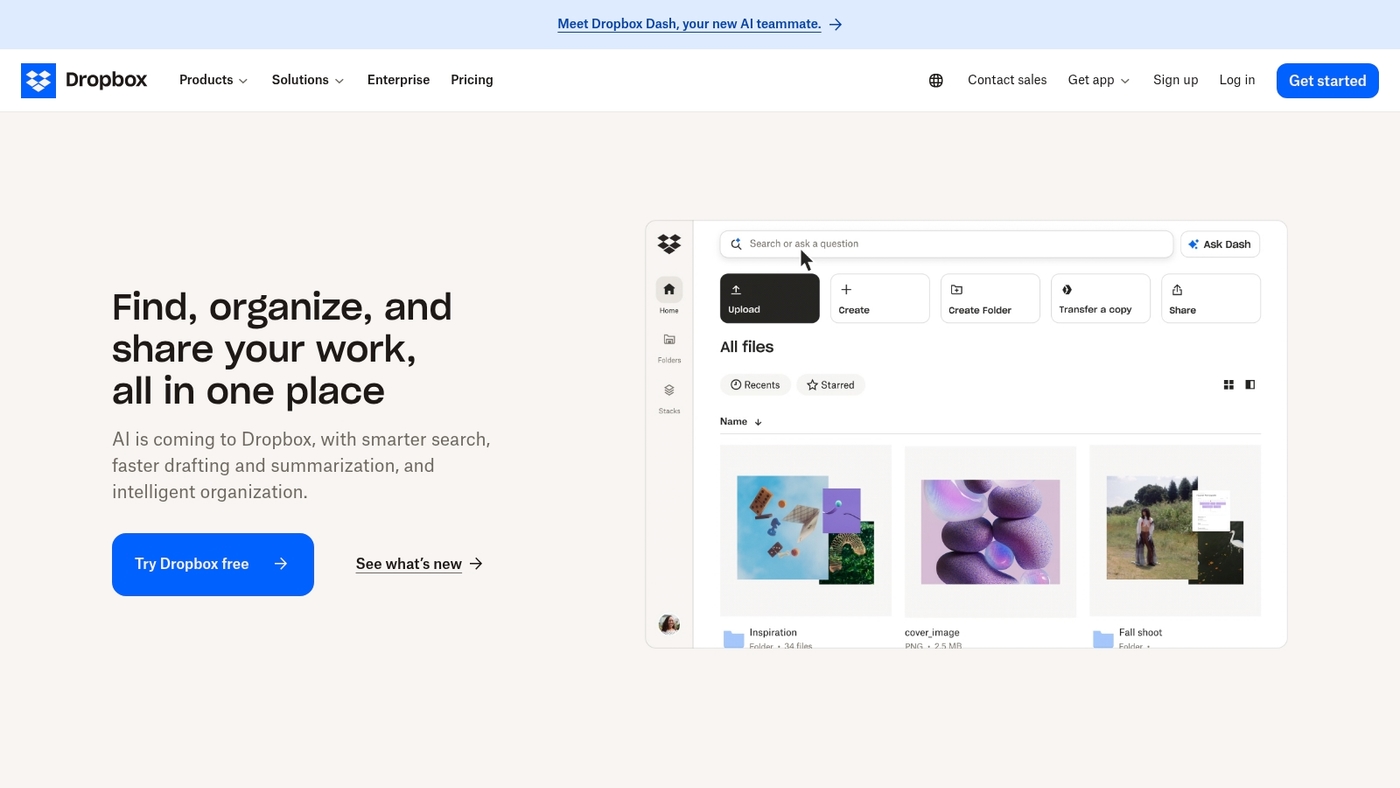
Dropbox Business offers user-friendly cloud file sharing with reliable sync across devices. It protects accounts with two-factor authentication and gives simple sharing controls and link permissions.
The platform integrates with Microsoft 365, Google Workspace, Slack and popular apps. It supports large file transfers and team file sharing workflows.
It stores files in the cloud with version history and audit logs. It scales from small teams to enterprise file sharing needs. I really think its sync and sharing UX speed teamwork.
I’ve used Dropbox for client delivery and found transfer speeds consistent. The product fits teams that need fast setup, broad integrations and trusted security for business file sharing.
Pros
- Simple setup and intuitive user interface for quick adoption
- Strong account protection with two-factor authentication and audit logs
- Fast sync across devices and dependable large file transfers
- Wide ecosystem of third-party integrations for workflow automation
Cons
- Higher cost as team size grows compared with some rivals
- Advanced governance controls are less granular than enterprise rivals
- Free tier offers limited storage for team collaboration
For who?
Teams and small IT departments that need reliable cloud file sharing. Companies that value fast setup, cross-platform sync and broad integrations. Good fit for agencies and distributed teams that send large files.
Pricing
Plans start with Business Standard at about $15 per user/month billed annually with 5 TB. Business Advanced runs around $24 per user/month billed annually. Enterprise pricing is custom.
Google Drive
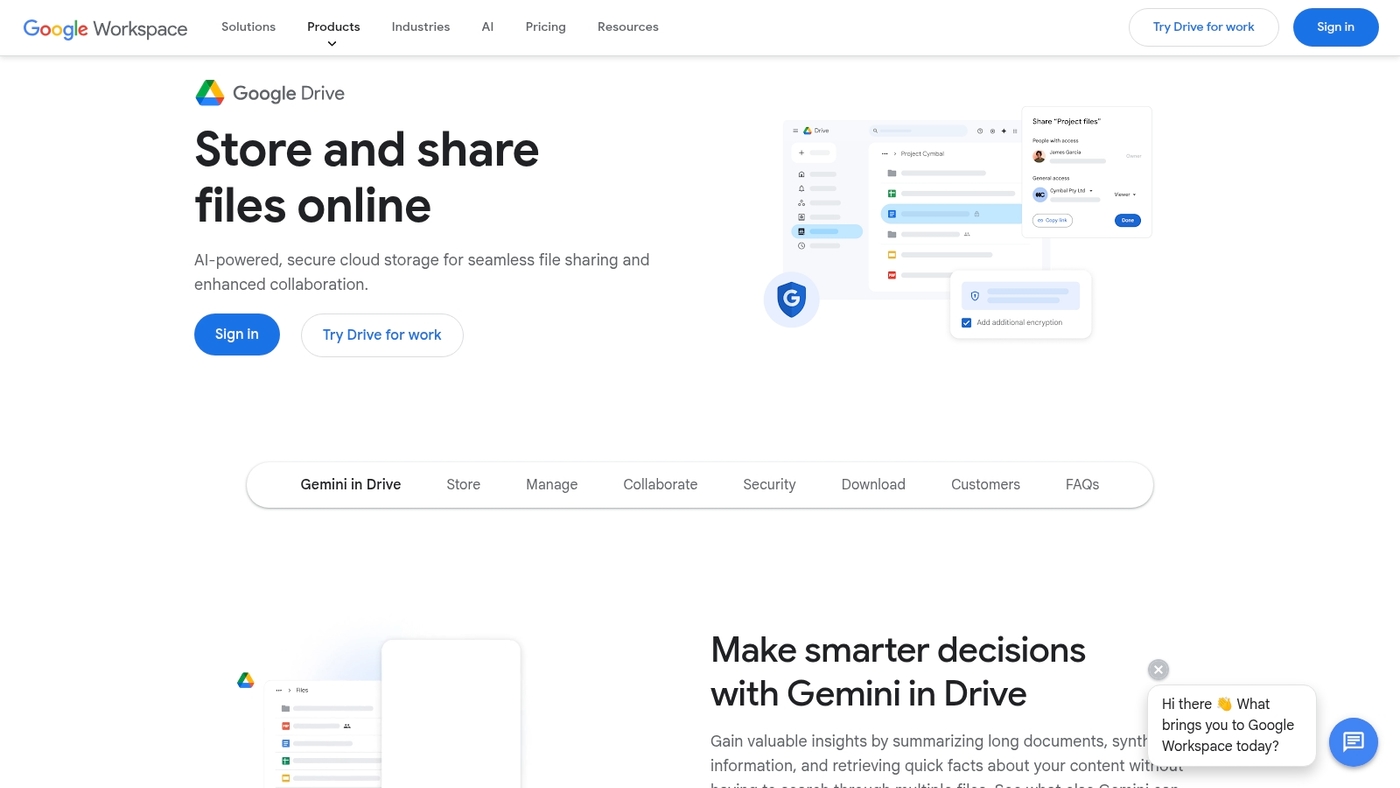
Google Drive works best for teams that use Google Workspace. Drive offers real-time collaboration across Docs, Sheets and Slides.
It gives generous free storage of 15 GB per account. Files encrypt in transit and at rest. Admins enforce sharing permissions and two-factor authentication.
Desktop sync works through Google Drive for desktop. Mobile apps support offline access and fast search. You can share large files with expiring links.
I personally use Drive for draft reviews and quick collaboration. I find version history and comments reduce email clutter. Drive scales from small teams to enterprises that need Vault and advanced admin controls.
Pros
- Native Google Workspace integration
- Real-time editing and version history
- Strong search powered by Google
- Cross-platform desktop and mobile apps
Cons
- Free storage splits with Gmail and Photos
- No default end-to-end encryption for all files
- Advanced governance requires higher-tier plans
For who?
Teams already on Google Workspace. Small businesses that need fast collaboration. Enterprises that plan to add Vault and admin controls.
Pricing
Free plan with 15 GB. Google One personal plans start at $1.99/month for 100 GB and $9.99/month for 2 TB. Google Workspace business tiers start at $6/user/month for Business Starter and scale higher for Standard and Plus plans.
Box
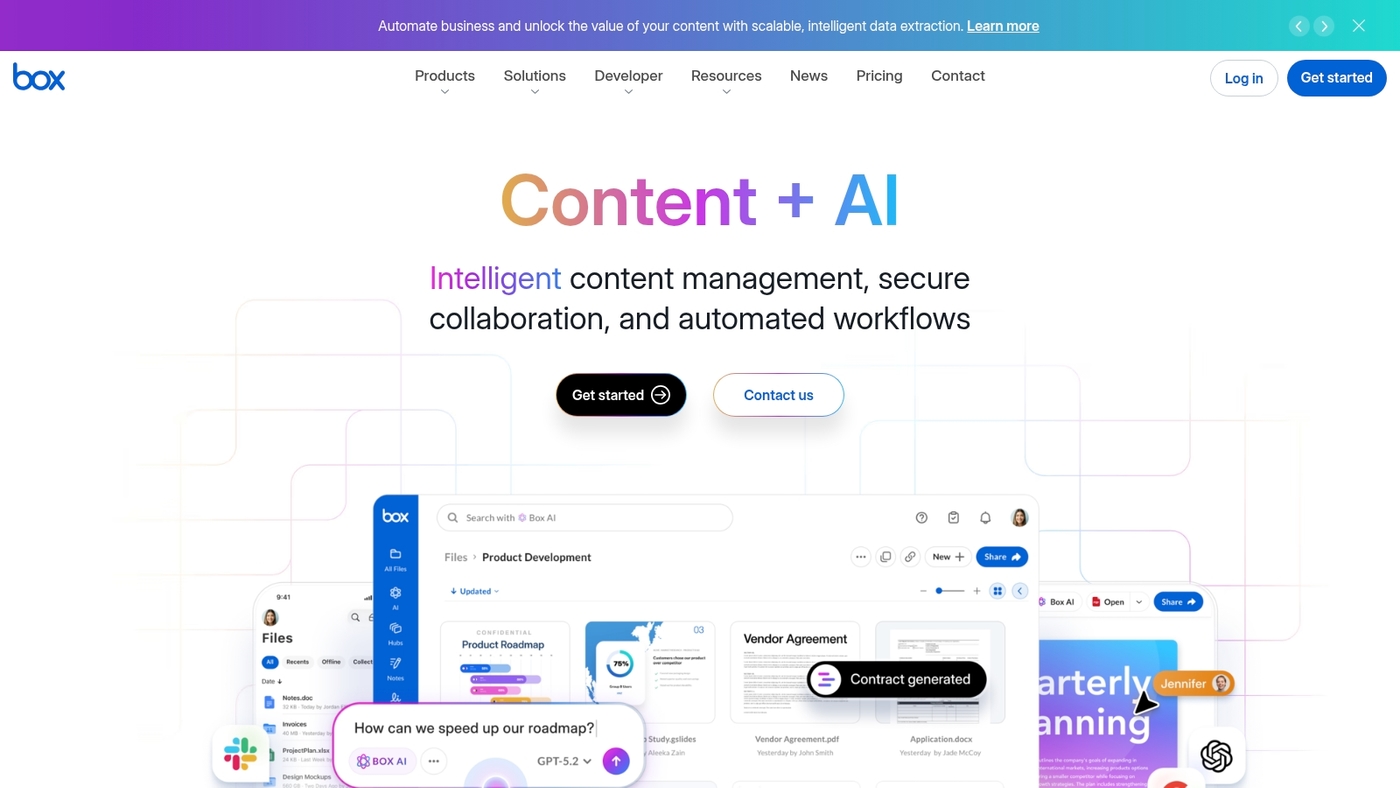
Box is an enterprise-grade file sharing software built for regulated teams, with strong governance and deep security.
It provides granular permission controls, advanced security features, encryption in transit and at rest, content scanning and DLP, extensive audit logs, retention and legal hold via Box Governance, user and admin reporting, APIs for custom workflows, and native integrations with Microsoft 365 and Slack.
It meets SOC 2 and ISO 27001 standards and supports HIPAA compliance. I’d say it fits legal, healthcare, and finance teams that need strict controls and traceable file sharing.
Pros
- Enterprise-grade access controls with folder and file-level permissions
- Strong compliance posture: SOC 2, ISO 27001, HIPAA support
- Governance tools: retention, legal hold, e-discovery
- APIs and integrations for workflows and automation
Cons
- Higher cost than basic cloud file sharing apps
- Advanced features require admin setup and training
For who?
Large businesses and regulated teams that need audited, secure file sharing and governance.
Pricing
Tiered plans from business to enterprise. Custom enterprise quotes available. Start with a trial or contact Box sales for exact pricing.
Citrix ShareFile is a secure file sharing software built for businesses that need enterprise-grade security and client portals. ShareFile protects data with AES-256 encryption at rest and TLS in transit.
It supports SOC 2, HIPAA, and GDPR compliance. The platform includes branded client portals, e-signature via RightSignature, granular permissions, audit logs, desktop sync, Outlook integration, and a REST API for automation.
I really think ShareFile suits legal, finance, and healthcare teams that must track access and retain audit trails. I once used it to deliver a client package with expiry links and password protection.
The interface stays clear while admin controls remain powerful, so teams share large files securely without extra friction.
Pros
- Enterprise-grade encryption and transport security
- Compliance support: SOC 2, HIPAA, GDPR
- Branded client portals and native e-signature
- Integrations: Outlook, Microsoft 365, REST API for automation
Cons
- Higher cost than consumer file sharing services
- Admin setup requires time for policies and roles
For who?
Businesses with regulated data and teams that require audited, secure file sharing. Works well for legal, accounting, healthcare, and enterprise clients.
Pricing
Plans start at $10/user/month with business tiers and custom enterprise quotes available.
Couchdrop
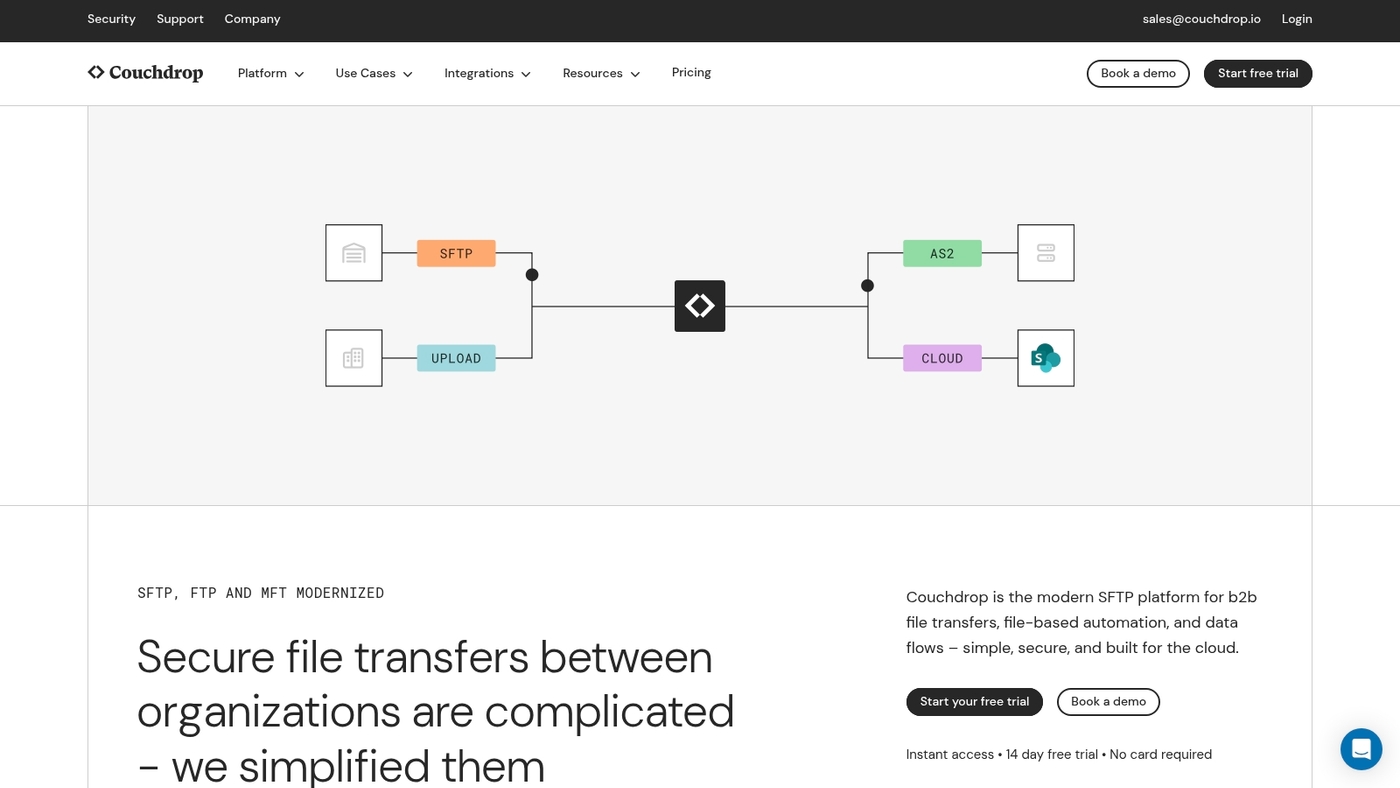
Couchdrop is a cloud-native managed file transfer platform for enterprise file sharing and automated workflows. It streams files directly into cloud storage such as Amazon S3, Azure Blob, and Google Cloud Storage.
The no-file-storage model reduces duplicate storage and simplifies compliance. Auto-scaling manages large parallel transfers without manual tuning.
Built-in connectors provide SFTP, FTP, FTPS, and API endpoints for legacy systems and modern apps. The platform includes encryption, audit logs, and role-based access controls for secure file transfer.
I used Couchdrop to move client backups and saw steady throughput on multi-gigabyte transfers. Have you ever struggled with slow, manual file transfers?
Pros
- Direct-to-cloud transfers lower storage costs and simplify compliance
- Wide protocol support and native integrations with popular cloud storage
- Auto-scaling handles high-volume transfers without infrastructure tuning
Cons
- Limited native collaboration features compared to team file sharing apps
- Usage-based pricing can rise for constant high-volume transfers
For who?
IT teams and enterprises that need secure, automated file transfer. It fits businesses that must send large files, integrate legacy systems, and meet GDPR or HIPAA requirements.
Pricing
Usage-based plans with connector and transfer fees. Free trial and enterprise quotes available via sales.
OneDrive for Business
Microsoft OneDrive is a cloud file sharing software built for teams that use Windows and Microsoft 365. It offers seamless Windows integration for file sync and explorer access.
It supports Office 365 collaboration with real-time co-authoring and version history. It includes ransomware detection and a personal vault feature for sensitive documents.
You can set granular access controls and enforce retention rules for compliance. I personally use OneDrive for quick file sharing and secure backup across devices.
The UI stays familiar for users who know Windows, which speeds adoption. The service scales from single users to enterprise tenants and works well for cloud file sharing, encrypted file sharing, and send large files workflows.
Pros
- Deep Microsoft 365 and Windows ecosystem integration
- Built-in ransomware detection and strong access controls
- Personal vault for extra-sensitive documents
Cons
- Advanced governance needs require higher plans
- Sync conflicts occur with very large folders
For who?
Teams already on Microsoft 365 and Windows who need secure file sharing and easy collaboration.
Pricing
Standalone plans start around $5/user/month for Plan 1 and $10/user/month for Plan 2; included in Microsoft 365 Business plans.
Zoho Docs
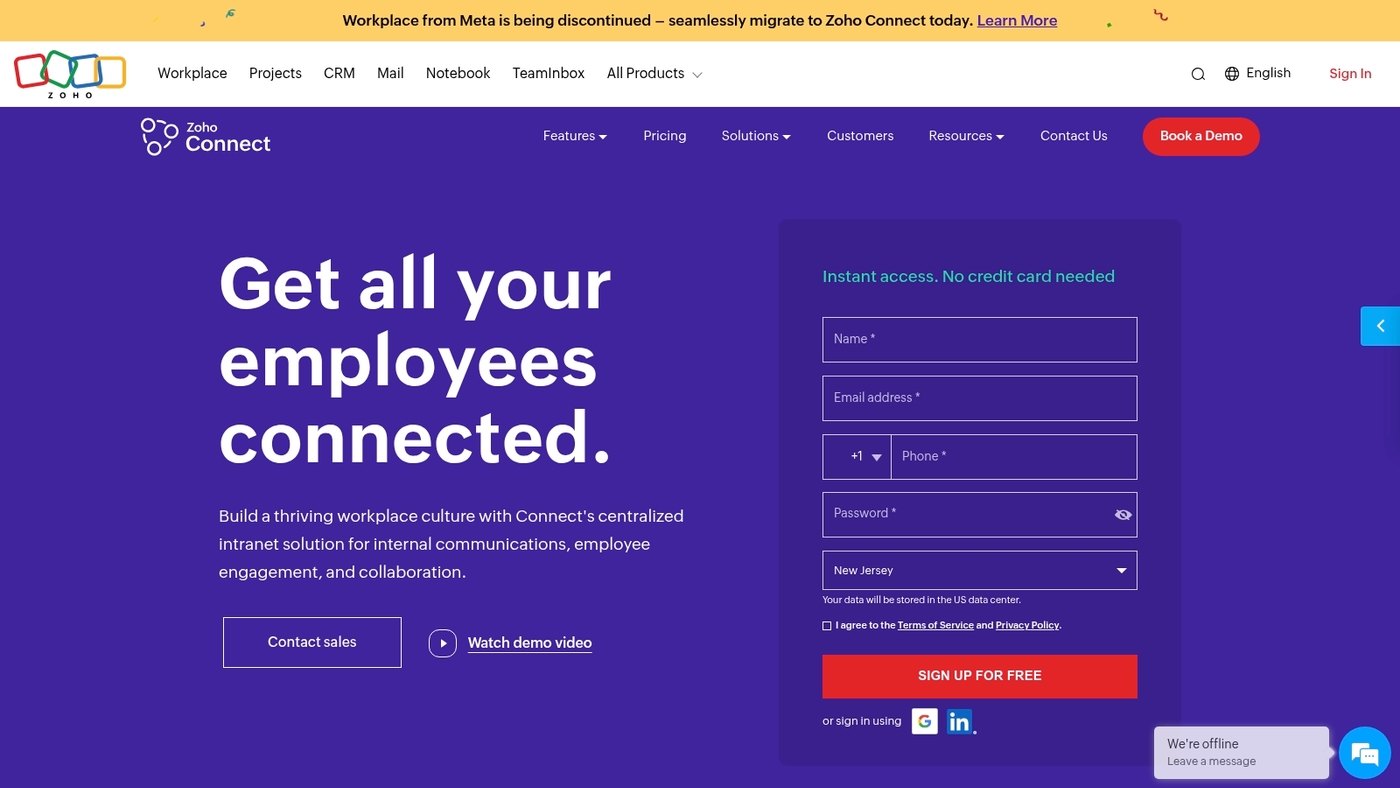
Zoho Docs is an affordable file sharing software for teams. It provides real-time editing on documents and spreadsheets.
It offers team workspaces, role-based access, version history and audit logs. It links with the wider Zoho business suite so CRM, projects and mail stay in sync.
You can upload, preview and share files with secure links. The interface stays clean and fast. I’ve used Zoho Docs for small teams and I’d say it balances price and features.
It works as a practical cloud file sharing option for businesses that want integration without heavy overhead.
Pros
- Low cost plans with a free tier
- Built-in collaboration and version control
- Tight integration with Zoho apps
Cons
- Advanced admin controls are limited for large enterprises
- Fewer third-party integrations than some rivals
For who?
Small and medium teams that already use Zoho or need a simple cloud file sharing service. You should pick it if you want integrated workflows and straightforward user management.
Pricing
Offers a free plan. Paid tiers start near $2.50 per user per month for added storage and admin features.
RingCentral
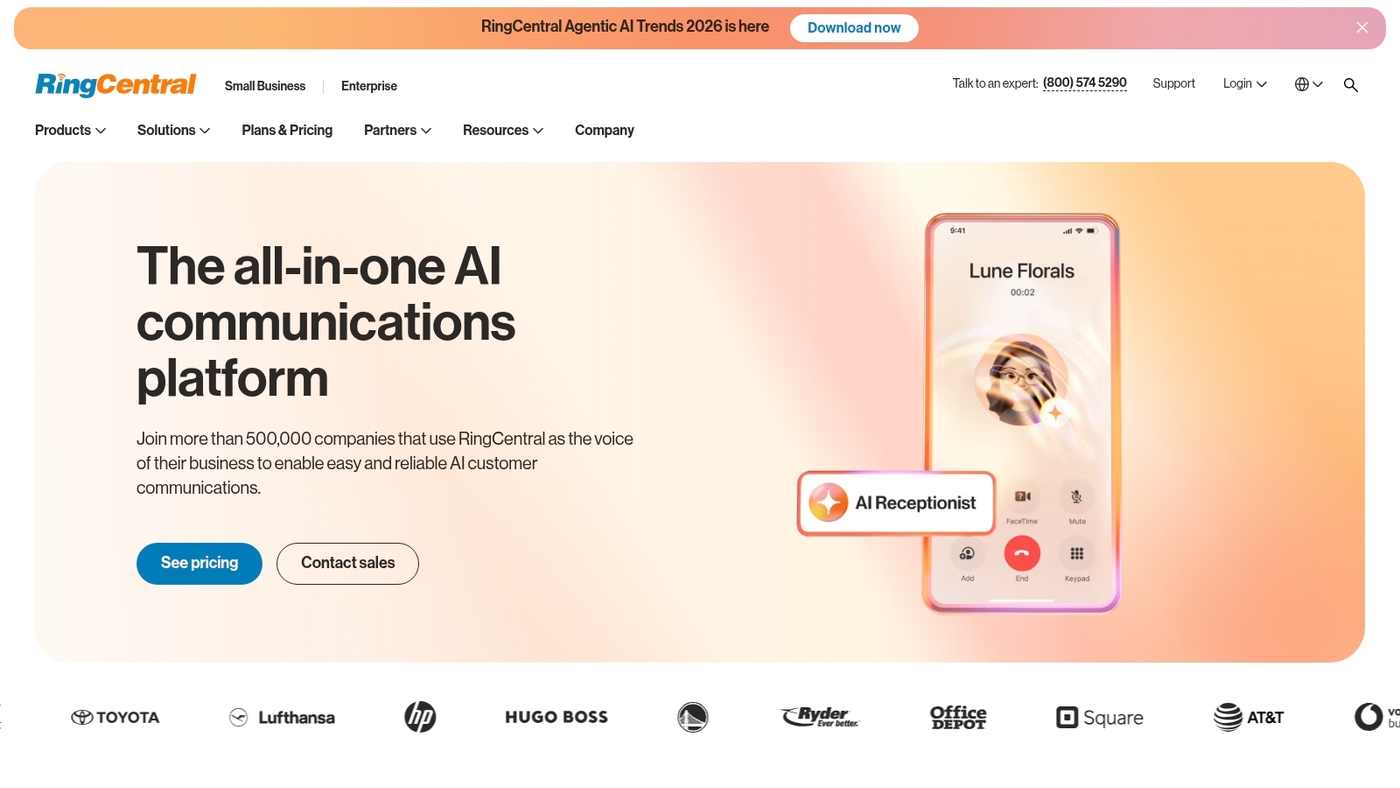
RingCentral is a unified communications hub that pairs cloud file sharing with messaging, video conferencing and business phone service.
The platform lets teams send documents inside chats and meeting rooms, store attachments in the cloud and link files from Google Drive, OneDrive or Box.
RingCentral supports team file sharing, secure file transfers over TLS, and role-based permissions for access control. I really think combining calls, video and document exchange in one app reduces wasted time and context switching.
We tried RingCentral for internal meetings and found file previews and shared notes speed up follow-ups. Plus, having everything in one place cuts down on app fatigue.
For a broader list of collaboration tools, see our guide to virtual collaboration software.
Pros
- Unified platform: messaging, meetings and file sharing in one place
- Integrations: native links to Google Drive, OneDrive and Box
- Reduces context switching and app sprawl
Cons
- Not a dedicated file sharing service, storage varies by plan
- Advanced admin controls require higher tiers
For who?
Teams that want phone, video and team file sharing together. Good for mid-size businesses that prefer centralized IT and single sign-on.
Pricing
Paid plans with per-user monthly tiers. Typical entry tiers sit near $20 per user/month; visit RingCentral for current pricing and enterprise options.
Files.com
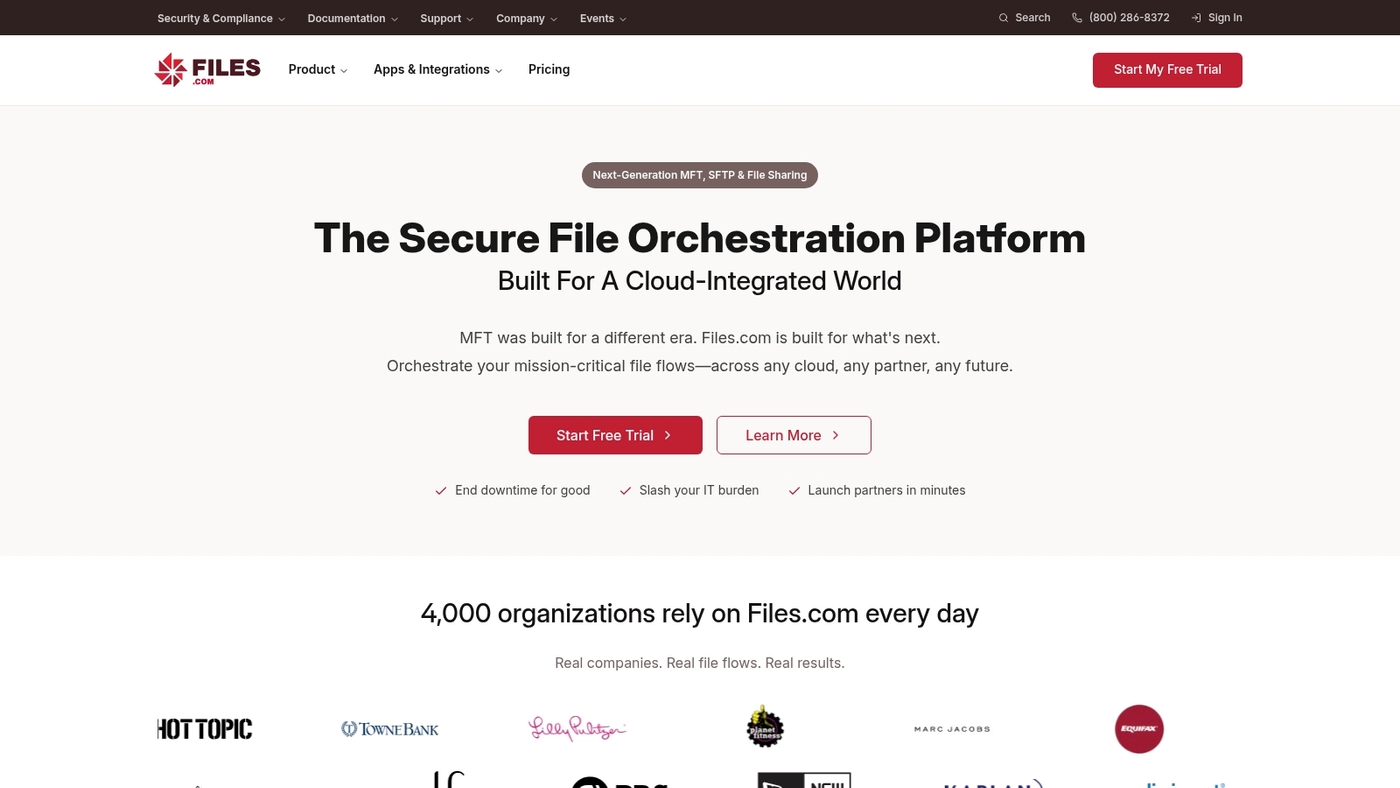
Files.com is a modern file transfer platform built for secure file sharing and automated workflows. It supports FTP/SFTP and cloud file sharing with developer-friendly APIs and automation rules.
The platform handles large file transfers and integrates AI features for routing and tagging. Admins get detailed audit logs and access controls for encrypted file transfer and compliance.
Developers can script custom workflows with REST APIs and webhooks. I really think Files.com speeds up handoffs between teams and external partners.
The UI stays clean under heavy loads. It scales from small teams to enterprise file sharing needs. The platform fits scenarios that need managed file transfer, API-based automation, and secure cloud connectors.
Pros
- Strong FTP/SFTP support with cloud connectors
- Developer APIs and webhooks for custom workflows
- Audit logs and access controls for secure file sharing
- AI features for intelligent routing and tagging
Cons
- Enterprise pricing can be high for small teams
- Advanced features require setup and developer time
For who?
Teams that need automated transfers, API integrations, and secure cloud file sharing. Ideal for developers and IT teams managing complex workflows.
Pricing
Offers tiered subscriptions and custom enterprise quotes. Free trial available; contact sales for exact plans and volumes.
MEGA
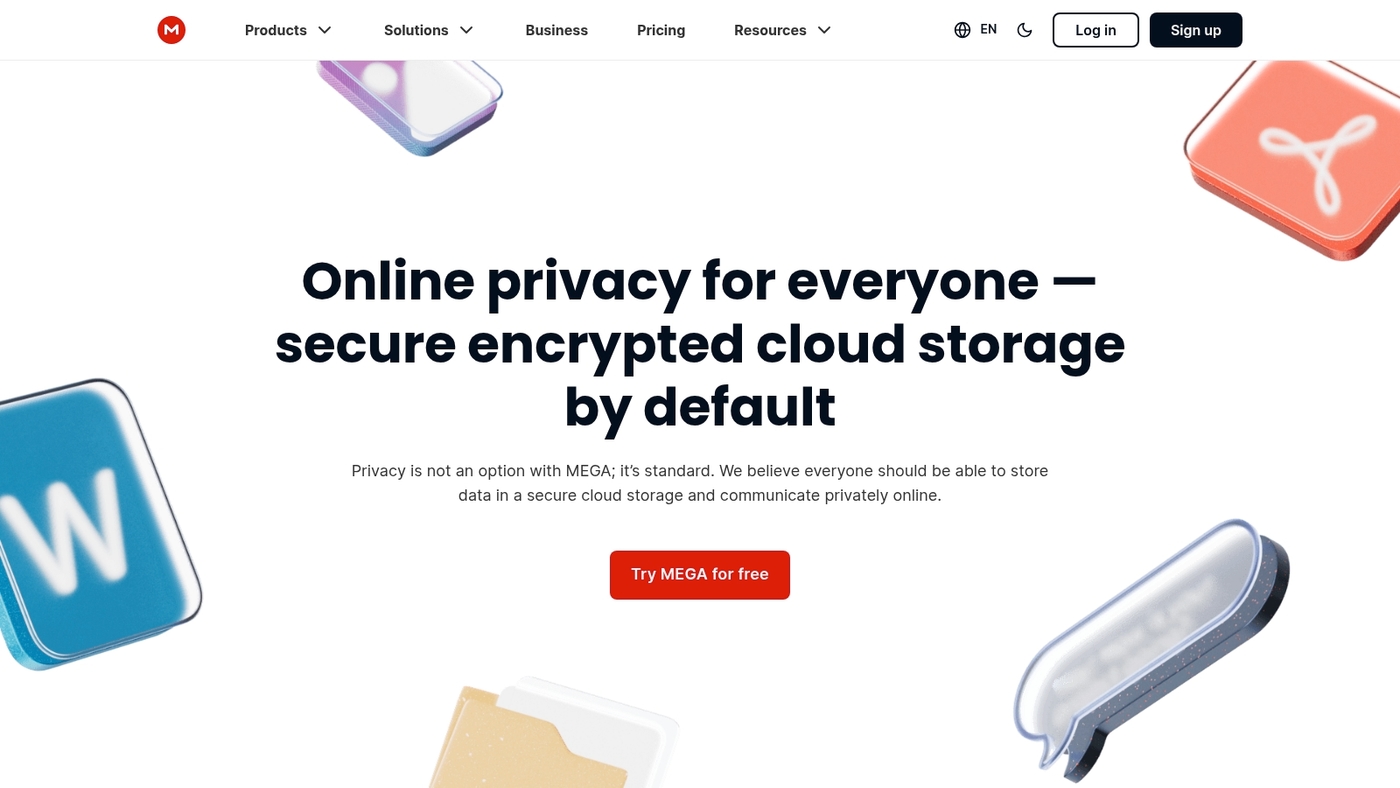
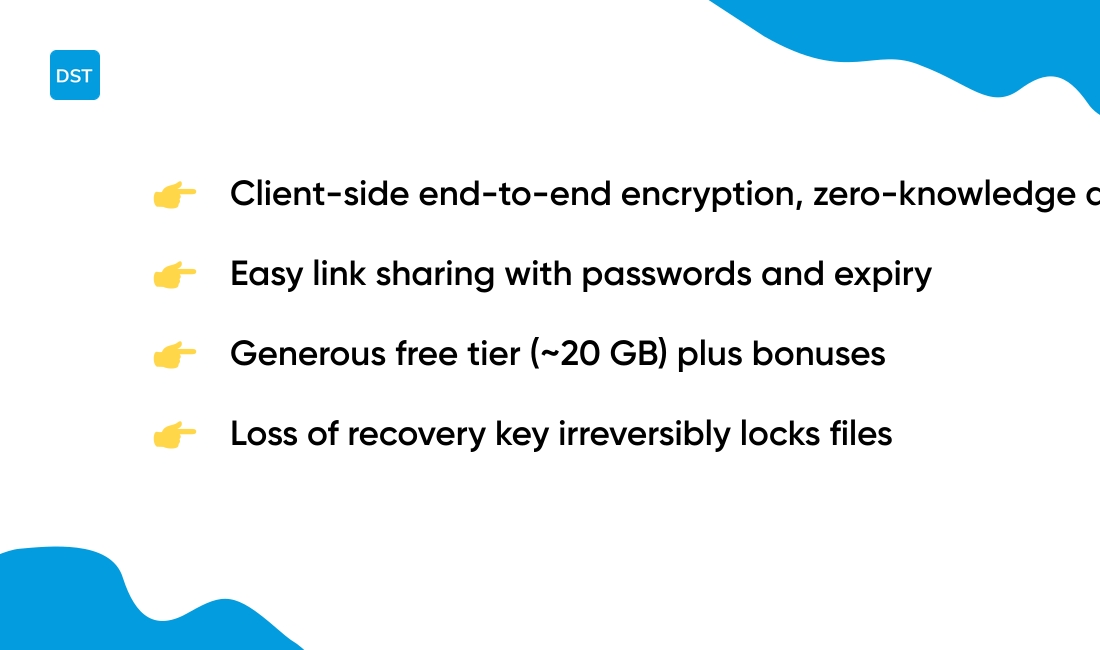
MEGA is a privacy-focused cloud file sharing service with end-to-end encryption and zero-knowledge architecture. The client encrypts files before they leave your device.
You get easy link sharing with password and expiry controls. The web app and native apps let teams upload and sync. You can send large files without complex FTP setups.
I’ve used MEGA to move multi-gig archives between offices. I’d say its encrypted file sharing model fits privacy-conscious teams and SMBs.
The free file sharing tier includes about 20 GB plus welcome bonuses. The interface is simple. Administration and audit tools exist, though they stay lighter than enterprise suites.
Pros
- Strong client-side encryption for secure file sharing
- Generous free file sharing tier (≈20 GB plus bonuses)
- Simple link controls: passwords and expiry
Cons
- Limited built-in collaboration features like real-time editing
- Business admin tools not as deep as enterprise platforms
- Loss of recovery key can lock access to files
For who?
Privacy-focused teams, SMBs, and freelancers who need encrypted file transfer and cloud file sharing.
Pricing
Free file sharing tier available. Paid Pro and Business plans add storage and transfer quota. Paid tiers scale to meet team and enterprise needs.
Progress MOVEit

Progress MOVEit is an enterprise managed file transfer solution built for strict governance and compliance. It enforces role-based access and gives full audit trails.
The platform integrates with existing systems via APIs and SFTP. It scales to handle high-volume transfers with predictable throughput. MOVEit logs events for compliance reporting.
It supports HIPAA and GDPR with data residency controls. You get centralized policy enforcement plus encryption at rest and in transit.
I’d say MOVEit suits organizations that must track every file action. The product emphasizes strict governance controls and secure automation workflows.
The UI prioritizes transfer reliability over casual team collaboration. Expect enterprise pricing and deployment options for cloud or on-premises.
Pros
- Enterprise-grade encryption and detailed audit trails
- Strong compliance support for HIPAA, GDPR and retention policies
- Reliable high-volume transfer with predictable throughput
Cons
- Not optimized for casual team file sharing or ad-hoc collaboration
- Higher cost than consumer file sharing services
For who?
Organizations with regulated workflows that need audited, encrypted file transfer. Best for healthcare, finance, and government sectors.
Pricing
Enterprise pricing. Contact sales for quotes based on users and deployment.
You’ll also like: Top 10 Best Productivity Tools
How to choose secure file sharing for your business
Use a focused checklist to pick the right file sharing software. Match tools to team size, risks, budget and workflows with clear criteria.
What’s your biggest file sharing pain point right now?
- Team size: pick a plan that scales. Small teams do well with 10–100 GB per user. Growing teams need 1 TB or unlimited tiers.
- Security: require AES-256 encryption at rest and TLS in transit. Look for end-to-end encryption, two-factor authentication and SSO.
- Access controls: granular permissions, time-limited links and audit logs help prevent leaks. Verify admin controls and data loss prevention.
- Compliance: confirm HIPAA, GDPR and SOC2 reports if you handle regulated data. Check data residency and retention policies.
- Budget: expect $5–20 per user monthly. Compare per-user limits, file size caps and backup costs.
- Integrations: ensure native connectors for Microsoft 365, Google Workspace, Slack and your CRM. Read platform docs or review digital workplace platforms for fit: digital workplace platforms.
- Transfer features: support for large files, resumable uploads, SFTP/FTP and API access simplifies automation and migrations.
- Usability: test sharing flows on desktop and mobile. Measure sync speed and conflict resolution under load.
Choosing a provider with strong audit logs and encryption reduces breach risk the most. (Think of it as buying insurance before you need it.)
Try two finalists with real projects, compare costs and controls, then pick the tool that fits your workflows. Start trials and map one project now.
You’ll also like: Top 10 Best Workflow Automation Software
Free vs paid file sharing software
Split choices by storage, security and collaboration needs. You can use free plans to test workflows and move fast.
Here’s the breakdown:
- Free file sharing: Free tiers normally cap at 2–15 GB per user. They provide link sharing and basic sync. Admin controls and audit logs rarely appear.
- Paid file sharing: Paid plans commonly start at 1 TB per user or offer unlimited storage for teams. They add admin consoles, retention policies, SSO and priority support.
- Secure file sharing: Enterprise options include end-to-end encryption, granular permissions, data residency and compliance for HIPAA or GDPR. Audit trails help with audits and incident response.
- Collaboration: Free apps let you view, comment and share. Real-time editing, advanced version history and team workspaces often require paid tiers. See options for free online collaboration software when you evaluate teamwork features.
- When to invest: Pay when your team has five or more users, you send large media files often, or you need legal compliance and centralized backups.
- Tradeoffs: Free saves cash but increases manual admin and security gaps. Paid reduces friction and risk while raising monthly cost per user.
I really think paid plans pay off for teams that share large files daily. (Nobody wants to explain a data breach to the board.)
Start a paid trial and map one real project to test controls and performance. You’ll see the difference in a week.
You’ll also like: What Is Project Management Software and How It Works