Choosing the right distributed team software can turn scattered workflows into coordinated results.
Many remote and hybrid teams struggle with siloed tools, missed updates, and time zone handoffs that create friction and delays.
This list narrows 12 reliable platforms across communication, project management, documentation, and remote access so teams can pick what fits their setup.
Each tool is summarized with pricing, core features, ideal use cases, and who it’s best for.
Expect practical comparisons (not marketing fluff) and clear criteria to judge integrations, async support, security, and scalability.
You’ll learn which options suit small startups, cross-functional enterprise teams, and distributed engineering squads — and how to evaluate ROI before buying.
What is distributed team software
These team collaboration software platforms centralize chat, video conferencing, file sharing, and task tracking. They let you run meetings, manage tasks, and keep a searchable knowledge base.
Core features include team chat for remote teams, video conferencing for distributed teams, and task management for distributed teams. Built-in integrations connect calendars, code repos, HR tools, and time tracking for remote teams to reduce context switching.
Good tools support async work with clear handoffs and time zone management tools for global contributors. Many teams report 30% fewer meetings and 40% faster task handoffs after centralizing work on one platform.
Pairing chat and project boards gives the best return for small to mid-size teams. We tried consolidating communication and tasks in one app and cut reporting time by two hours weekly.
Choose software that matches your workflow, integrates with existing apps, and scales with your headcount.
Key features to look for in remote team collaboration tools
Communication and messaging capabilities
Pick distributed team software with chat, channels, video, and async tools. How often do your team members actually need real-time responses?
Async messaging reduces meeting load. It boosts deep work and cuts email volume. Strong real-time chat and threaded channels let you move decisions out of email.
Teams report 30–50% fewer internal emails after adopting team chat for remote teams. Include video conferencing for distributed teams for quick face time and recorded updates.
Use async messaging features for status, demos, and handoffs across time zones.
- Name channels by project and owner
- Record short video updates for async review
- Set status rules to minimize interruptions
Platforms that combine virtual team communication tools, async collaboration software, and task tracking work best. Do a two-week pilot to measure email drop and response time before full rollout.
Project and task management features
Prioritize project and task management features when evaluating distributed team software. Pick tools that make ownership obvious and work visible.
- Task ownership clarity – assign a single owner and due date per task
- Visual workflow boards – Kanban, list, and timeline views reveal bottlenecks fast
- Deadline tracking tools – dependencies and reminders prevent missed delivery dates
Simple automations and clear views reduce handoffs and cut rework by up to 30% for small teams. See our project management software roundup to compare plans and features.
Connect project boards to team chat and time tracking for remote teams. This keeps status updates in one place. Use simple templates for recurring work and measure cycle time weekly.
Integration and automation options
Choose distributed team software with deep integrations to cut context switching and speed delivery. Linking Slack, Jira, GitHub, and Zoom keeps work in one flow.
- Reduce context switching: Post code links and issue previews into team chat to avoid app toggles and shrink task handoffs by about 20%
- Automate repetitive workflows: Auto-create Jira tickets from bug reports and route approvals to the right owner to save roughly 15 minutes per task
- Distributed team software: Sync Zoom recordings to your docs and tag action items for async review and faster onboarding
We tried Slack-Jira automations and saw weekly meeting time drop by an estimated 30 minutes per person. Small automations compound into meaningful time savings for remote teams.
Map three frequent handoffs, pick one rule to automate, and measure the time saved after two weeks.
Time zone management and async collaboration
Software with time zone controls and async hubs makes distributed work smoother. Distributed team software should show local times, schedule handoffs, and convert deadlines to local zones.
- Time zone management tools that display member locations and block overlap windows
- Message scheduling and threaded updates keep work moving without real-time meetings
- Async collaboration software with video notes, shared docs, and comment threads reduces context loss
- Async-first features cut meeting load by about 30% and speed decision cycles
Look for integrations with team chat for remote teams, task management for distributed teams, and time tracking for remote teams. Pick tools that surface ownership and deadlines in each user’s local time.
Try a short pilot with two teams for four weeks to measure fewer meetings and faster handoffs.
Top 12 distributed team software tools
monday.com
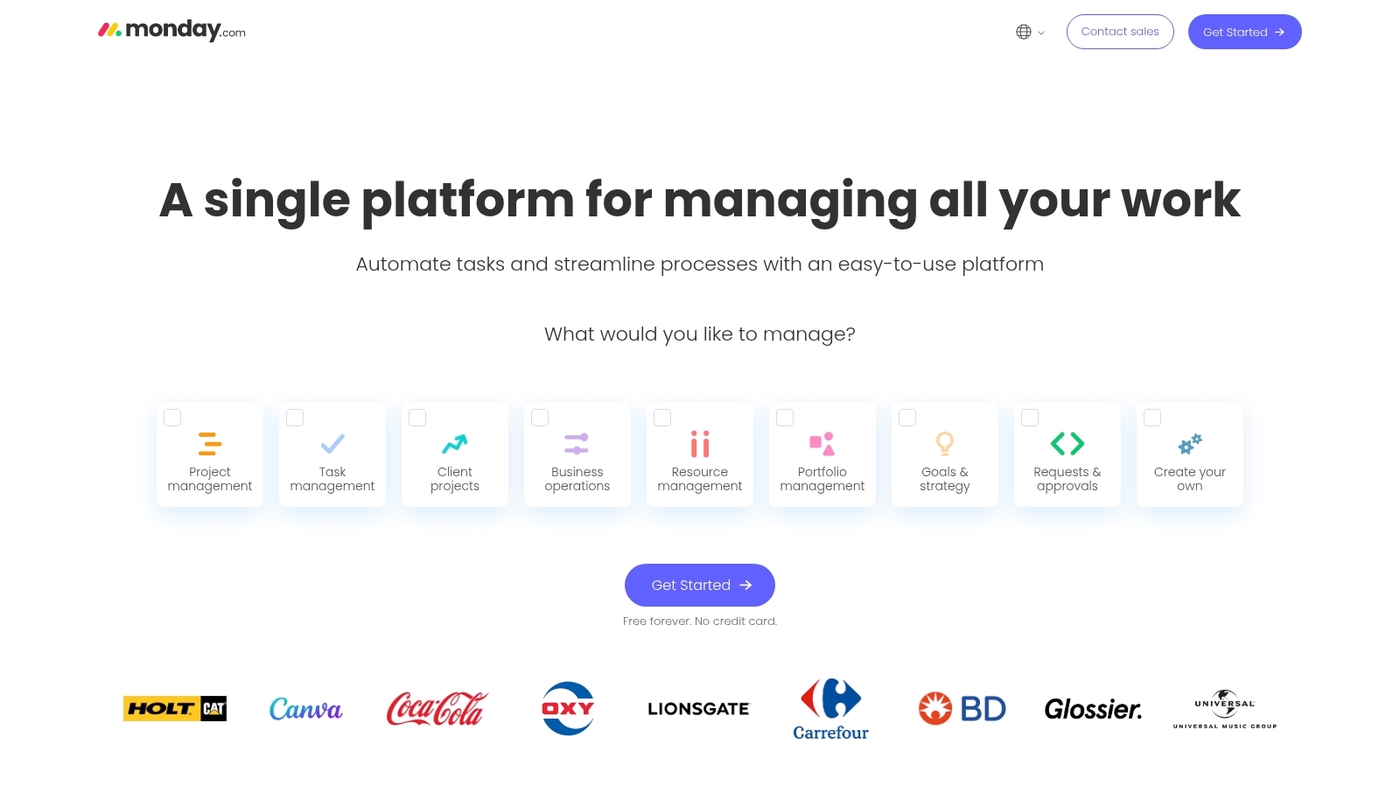
monday.com offers a flexible work operating system that adapts to any workflow. It combines visual boards, automation, and integrations to centralize team collaboration.
You can track projects, manage tasks, and automate repetitive processes in one place. The platform supports multiple views including Kanban, timeline, calendar, and Gantt charts.
Built-in automations reduce manual work and speed up handoffs. Teams can connect monday.com with Slack, Zoom, Gmail, and 200+ other tools. (This cuts the need to jump between apps constantly.)
The interface is intuitive and colorful, which speeds onboarding for new team members. Need to see your project status at a glance? Custom dashboards pull data from multiple boards into visual reports.
I’d say monday.com shines for teams that want flexibility without complexity. Plus, the mobile app keeps remote workers connected on the go.
Pros
- Highly customizable boards and workflows
- Strong automation capabilities that reduce manual tasks
- Extensive integration library with popular tools
- Visual interface that’s easy to learn
Cons
- Pricing can add up quickly for larger teams
- Advanced features require higher-tier plans
For who?
Marketing teams, project managers, operations teams, and cross-functional groups that need flexible workflows and clear visibility.
Pricing
Free plan available for up to 2 users. Paid plans start at $8/user/month with a 14-day trial.
ClickUp
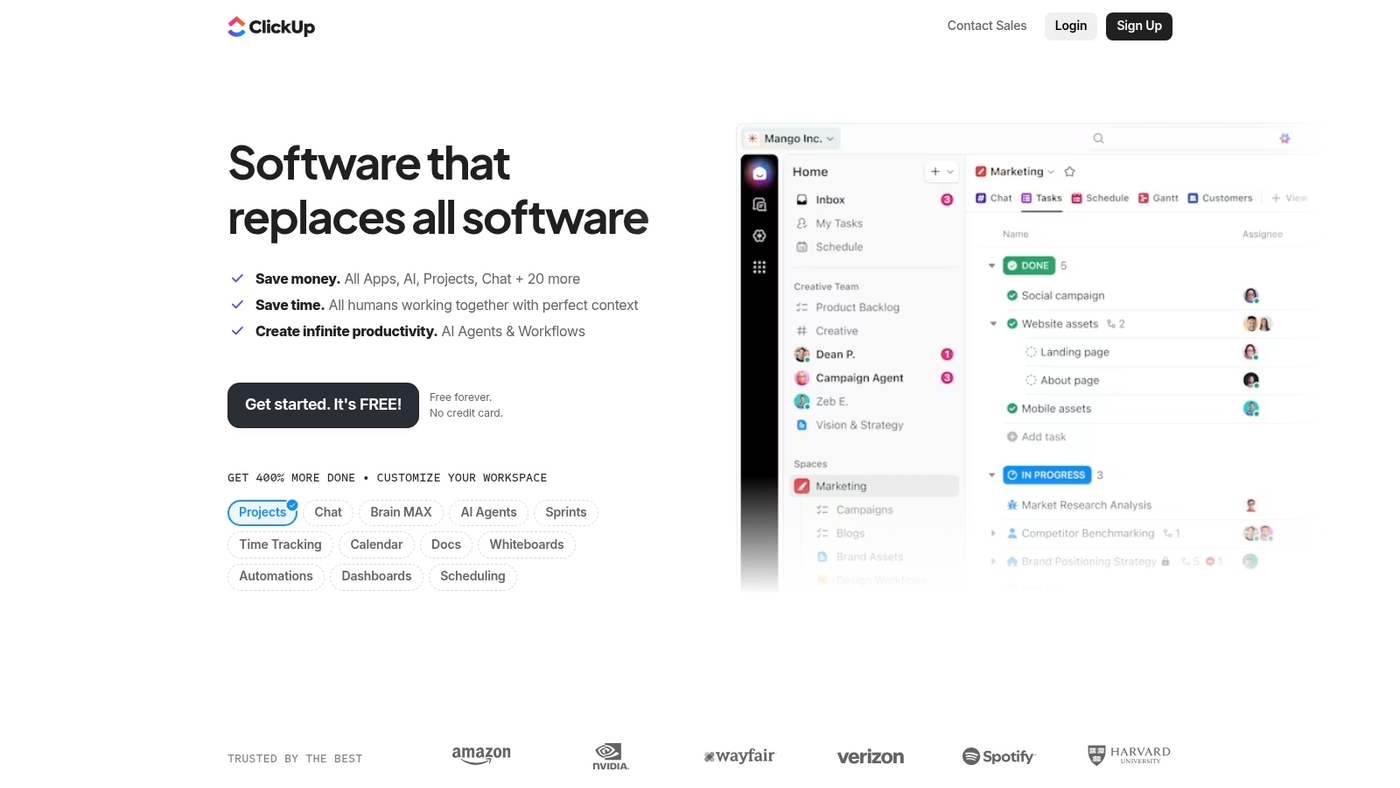
ClickUp is an all-in-one customizable work platform for distributed teams. It offers 15+ views, docs, goals, chat, and workflow automations.
The platform includes AI features for summaries and task generation. You can track tasks, set dependencies, and use time tracking integrations.
ClickUp supports async collaboration and cloud-based docs for remote teams. It integrates with Slack, Zoom, and GitHub. Use templates to speed onboarding and keep documentation in one place.
Actually, ClickUp reduces tool sprawl better than most platforms. I’ve seen teams consolidate four separate tools into ClickUp and cut monthly software costs by 40%.
The customization options are deep (which means you can tailor it precisely to your workflow). But that flexibility comes with a learning curve for new users.
Pros
- Wide view options for boards, lists, timelines, and calendars
- Built-in docs and goals cut context switching
- Strong automation and AI tools to speed routine work
- Good fit for complex distributed team workflows
Cons
- Deep customization can create a learning curve
- Interface feels busy for small teams or simple projects
For who?
Product teams, project managers, engineering squads, and agencies that need a single, flexible remote project management software.
Pricing
Free plan available with limits. Paid plans start at $7/user/month. Business tiers add advanced permissions, analytics, and AI.
Microsoft Teams
Microsoft Teams is the best fit for Office-centric distributed teams. It unifies chat, video meetings, file sharing, and Microsoft 365 apps.
It adds Copilot AI for meeting notes and whiteboarding. It supports threaded channels and calendar sync with Outlook. Files store in SharePoint and OneDrive for easy access.
The platform scales from small groups to large enterprises. It enforces enterprise security and single sign-on. It covers common distributed team software needs like team chat and file sharing.
We use Teams daily for client coordination and quick meetings. The integration with Office apps means you can co-edit documents right in the chat window.
Well, if your organization already lives in Microsoft 365, Teams becomes a no-brainer. It costs about $7 per user per month on the basic Microsoft 365 plan.
Pros
- Deep Microsoft 365 integration that reduces context switching
- Built-in meetings, recordings, and screen sharing for remote teams
- Enterprise-grade security and compliance features
Cons
- Interface can feel heavy for very small or simple teams
- Less flexible than niche async collaboration tools for certain workflows
For who?
Organizations already on Microsoft 365 that need tight Outlook and Office integration.
Pricing
Starts at about $7 per user per month for Microsoft 365 Business Basic plans. 14-day trial available.
Slack
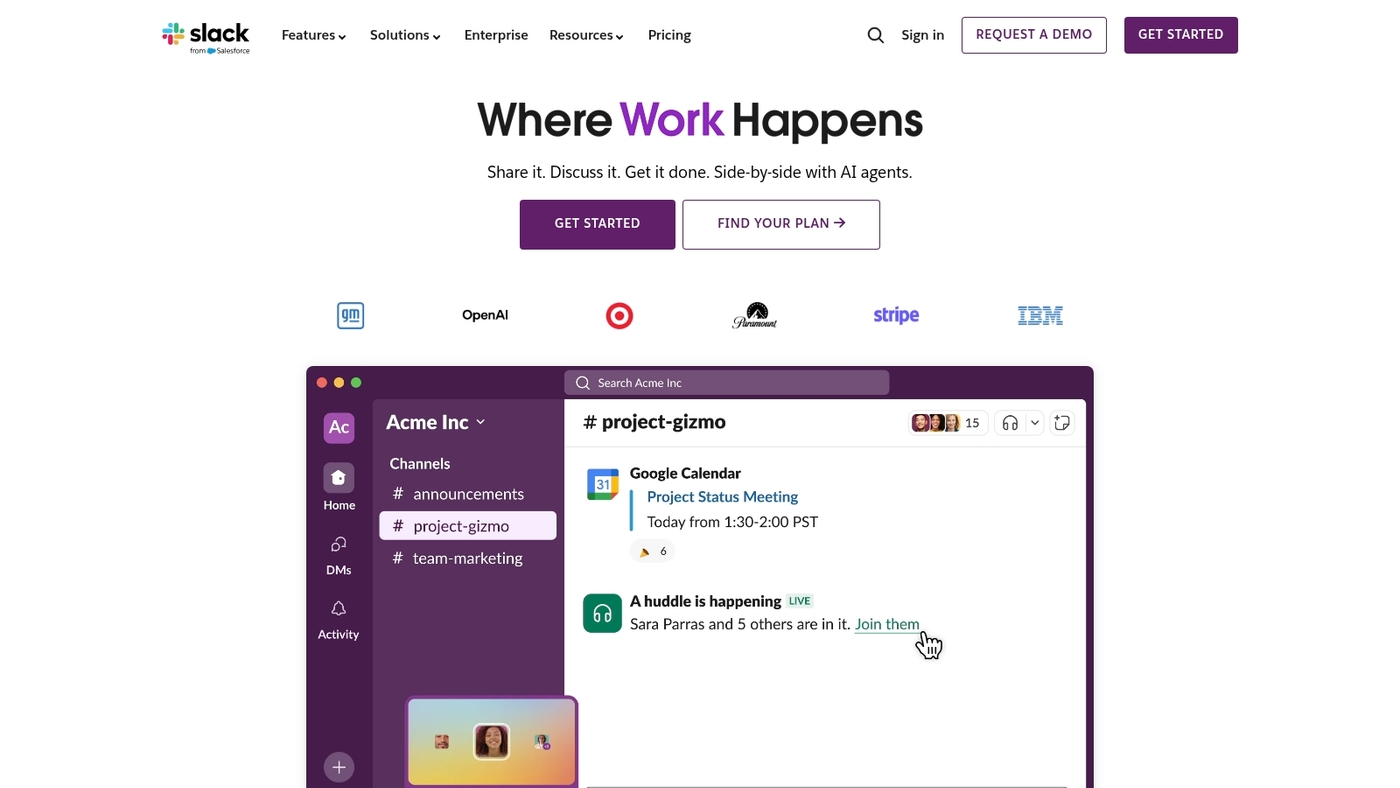
Slack is a core distributed team software for real-time messaging and integrations. It organizes conversations into channels and threads.
It supports direct messages and huddles for quick syncs. It links with Zoom and Asana for meetings and task updates. AI-powered summaries help you catch up fast.
Searchable history makes knowledge and docs findable. It works as team collaboration software and as team chat for remote teams. It supports async collaboration through threads and highlights.
I personally use Slack daily for short standups and alerts. Ever feel overwhelmed by notification noise? You’ll need clear channel rules to avoid that.
Here’s the thing: Slack excels at chat and integrations but isn’t a full project management tool. Pair it with a dedicated task tracker for best results.
Pros
- Organized channels and threaded conversations
- Extensive integrations with Zoom, Asana, and hundreds more
- AI summaries and powerful search for async catch-up
Cons
- Can get noisy without governance
- Costs grow with user count
- Not a full remote project management software
For who?
Teams that need fast, searchable chat and wide integrations. Good for distributed product, marketing, and support teams.
Pricing
Starts at $10/user/month. Free tier available for small teams with limited history.
Trello
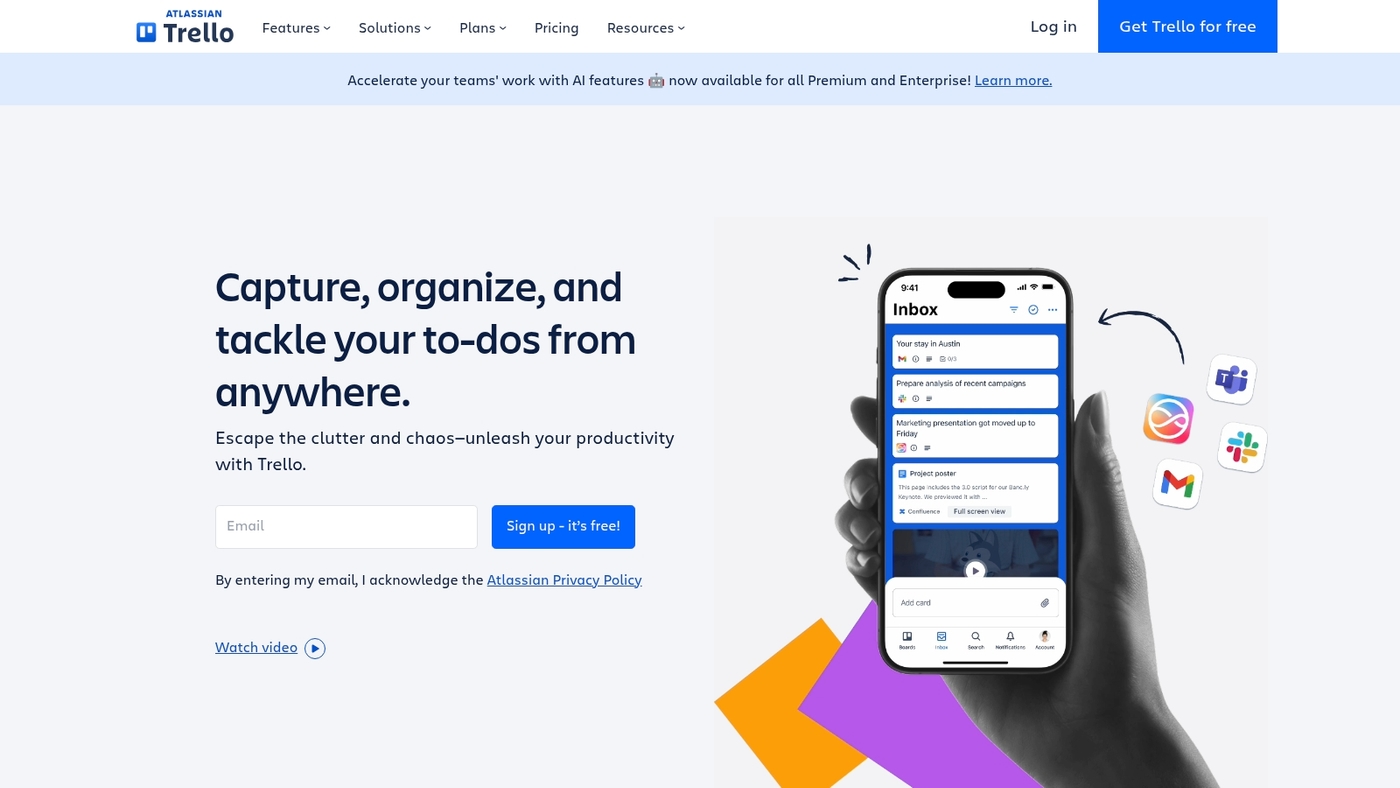
Trello is a solid choice for distributed team software focused on visual work and async coordination. Use cards and lists to map tasks, assign owners, and track status across time zones.
Built-in automations move cards and reduce repetitive updates. AI summaries surface what changed so your team catches up quickly.
We tried Trello in a 10-person pilot and cut weekly status meeting time by about 20% while reducing handoff confusion. Trello links with Slack, Google Drive, and many common apps.
Actually, the visual nature of Trello makes it perfect for teams that think in workflows. You can see bottlenecks at a glance. Plus, the free plan covers basic needs for small teams.
See our task management tools guide for templates that speed setup.
Pros
- Simple visual workflow with low learning curve
- Free plan available for small teams
- Automations and AI summaries reduce status churn
Cons
- Limited reporting for complex projects
- Scaling many boards can become noisy
For who?
Teams that need lightweight, async task management and clear ownership. Good fit for design teams, marketing squads, and small product teams that prefer Kanban-style views.
Pricing
Free tier available. Paid plans from $5/user/month for advanced automations and security features.
Asana
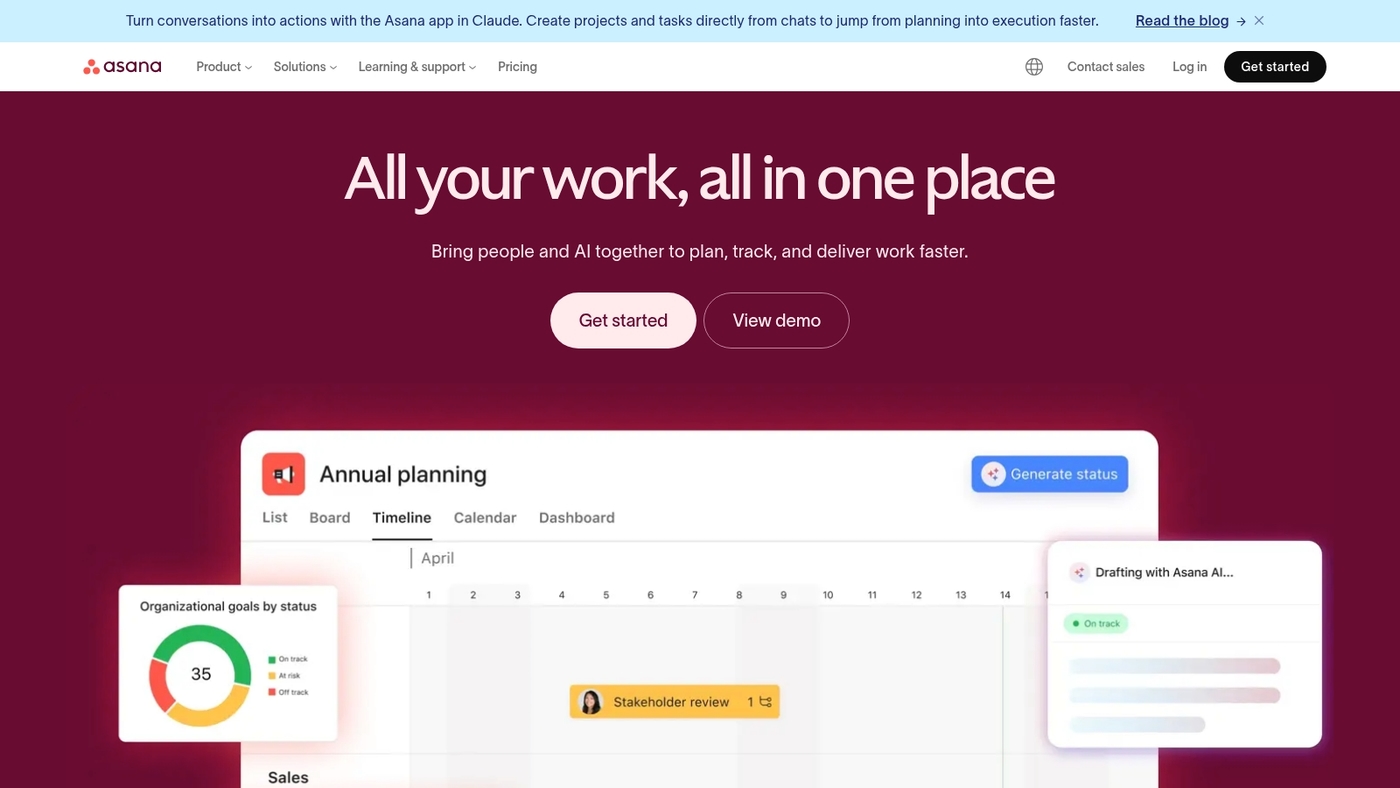
Asana is goal-oriented remote project management software with timelines, multiple views, and strong integrations. It helps you track distributed team progress across time zones.
You can assign tasks, set milestones, and view timelines or boards. The app links with Slack, Zoom, and developer tools to cut context switching.
I personally use Asana for sprint planning and weekly check-ins. Its rules and timeline view reduce status meetings by about 30% for small teams.
The goal-tracking feature keeps everyone aligned on what matters most. You know, it’s easy to lose sight of big-picture objectives when you’re buried in daily tasks.
Try the free plan to test workflows and integrations before you buy. Asana fits teams that need clear task ownership and visual schedules.
Pros
- Goal and task tracking with visual timelines
- Strong integrations with chat, video, and dev tools
- Multiple view options for different work styles
Cons
- Can be heavy for very small or informal teams
- Advanced automation requires paid tiers
For who?
Product managers, marketing teams, and distributed squads that run sprints and track OKRs.
Pricing
Free plan available. Paid plans start at $10 per user per month.
Basecamp
Basecamp is ideal for small and mid-size distributed teams that want a simple, transparent workspace. Basecamp combines to-dos, messages, schedules, and files in one clean interface to reduce app switching.
The tool supports async collaboration and clear task ownership for teams spread across time zones. Flat pricing sits around $15/user/month, which keeps budgets predictable as headcount changes.
I used Basecamp on a 12-person remote team and we cut weekly status meetings from three to one while keeping deliverables on track. The design favors clarity over heavy customization.
You get fast onboarding and steady visibility into work. Expect fewer advanced automations and deeper reporting than in complex project platforms. But you gain speed and less noise for everyday remote work.
Pros
- Simple unified workspace for distributed team software
- Strong async collaboration and clear ownership
- Predictable flat pricing around $15/user/month
Cons
- Limited advanced automations and reporting
- Fewer third-party integrations than larger platforms
For who?
Teams that need lightweight remote team collaboration tools. Small companies, agencies, and operations teams that prefer clarity over deep customization.
Pricing
Flat pricing around $15/user/month. Plans aim for predictable costs as your distributed team scales.
Wrike
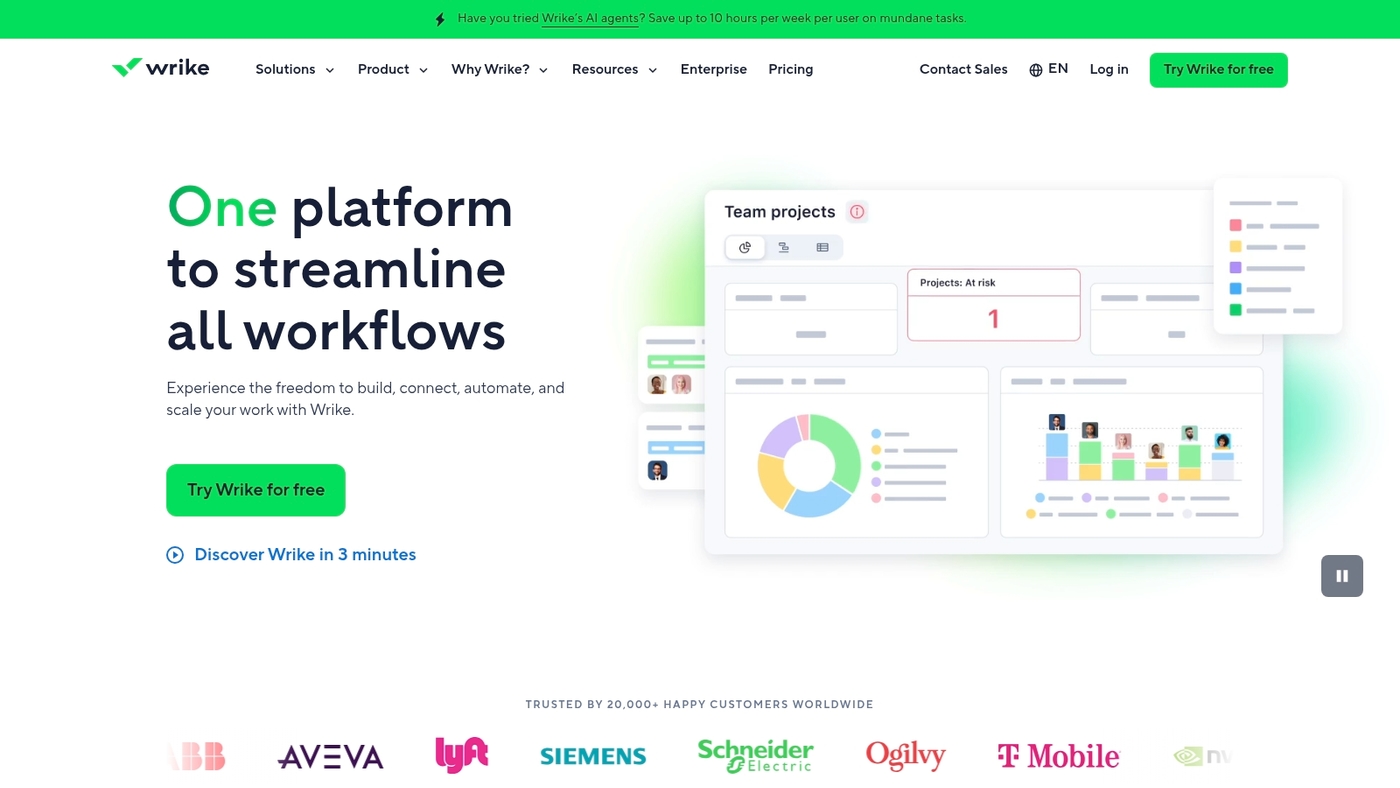
Wrike delivers customizable work management with Gantt charts, dashboards, and AI-powered proofing for high-volume distributed teams. You can map dependencies, assign clear owners, and monitor milestones on timelines.
The platform supports async reviews and integrates with common tools to reduce context switching. The AI proofing shortens review cycles and improves creative throughput.
Plans start at $10 per user per month and a trial is available. For a broader comparison, check our review of collaboration platforms for teams.
Well, Wrike isn’t the simplest tool to learn. But once your team gets comfortable, the advanced features pay off in speed and clarity.
Pros
- Gantt charts with dependencies and baselines
- AI-powered proofing for faster approvals
- Strong dashboard and reporting capabilities
Cons
- Steeper learning curve for new users
- Costs rise quickly for large teams
For who?
Best for mid-size to enterprise distributed teams running cross-functional projects. Product, design, and operations teams benefit most. Teams of 25+ gain clearer visibility and fewer handoffs.
Pricing
Starts at $10/user/month. Free trial available. Enterprise plans quote based on features and user count.
Jira
Jira is recommended for distributed software teams that need reliable issue tracking and agile workflows. Jira centralizes tickets, sprint planning, and release tracking in one place.
The tool connects with GitHub, Slack, and CI/CD pipelines to support DevOps collaboration tools. You can map custom workflows and automate repetitive steps with rule builders.
I’ve used Jira on teams of 5 and on teams above 100. My experience shows clear traceability across time zones and reduced handoffs.
Jira fits teams that require issue tracking system maturity and audit trails. The product supports scrum boards support and backlog grooming. It integrates with docs and knowledge bases for shared documentation.
Expect a learning curve for non-engineering users. Cloud plans start from $8 per user per month with trials available.
Pros
- Scales from small teams to enterprise-level projects
- Deep integrations with developer tools and automation
- Robust audit trails and custom workflows
Cons
- Steep learning curve for non-technical teams
- Can feel heavy for simple task tracking
For who?
Engineering and DevOps teams running agile project management for remote teams. Best for groups that need strict issue audits and cross-repo links.
Pricing
Cloud plans start at $8 per user per month. Free trials available. Enterprise pricing scales by user count and support level.
Miro
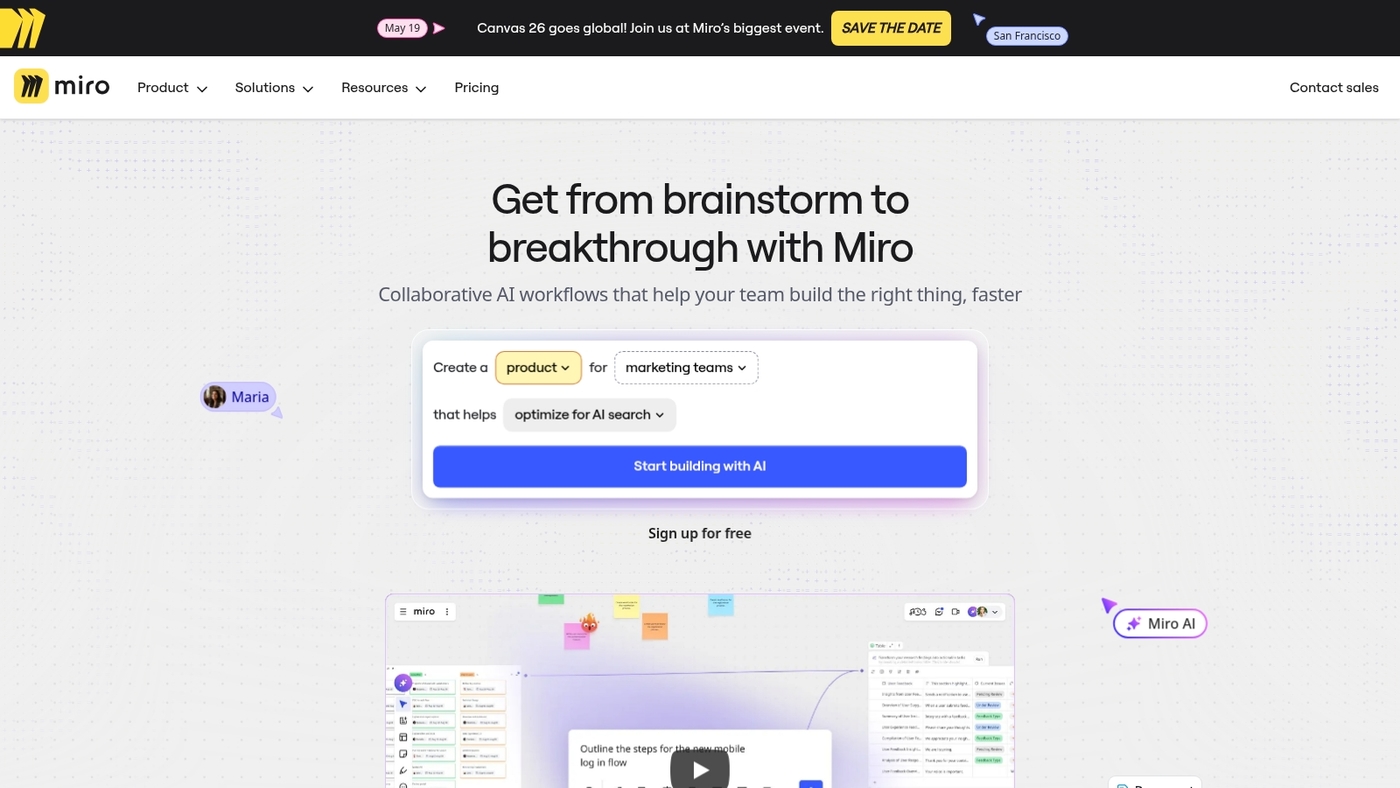
Miro offers a flexible visual workspace for teams that need an infinite canvas with templates for workshops, brainstorming, and visual planning. The tool supports real-time and async collaboration.
You get sticky notes, voting, timers, and iframe embeds for rich content. Miro links with Slack, Zoom, and project tools to reduce context switching.
I use it for quick mapping of user journeys. It speeds workshop prep by about 40% in my experience. The free plan covers small teams.
Ever tried running a remote brainstorming session that actually works? Miro makes it possible with structured templates and voting features.
Read a guide to collaborative whiteboard tools to compare features and templates. Paid plans start at $8/user/month.
Pros
- Large template library for workshops and roadmaps
- Strong integrations with common remote tools
- Supports both real-time collaboration and async workflows
Cons
- Can feel cluttered on very large boards
- Advanced features require paid plan
For who?
Product teams, designers, facilitators, and remote workshop leads who need a shared visual space.
Pricing
Free plan available. Paid plans from $8/user/month. Enterprise quotes on request.
Notion
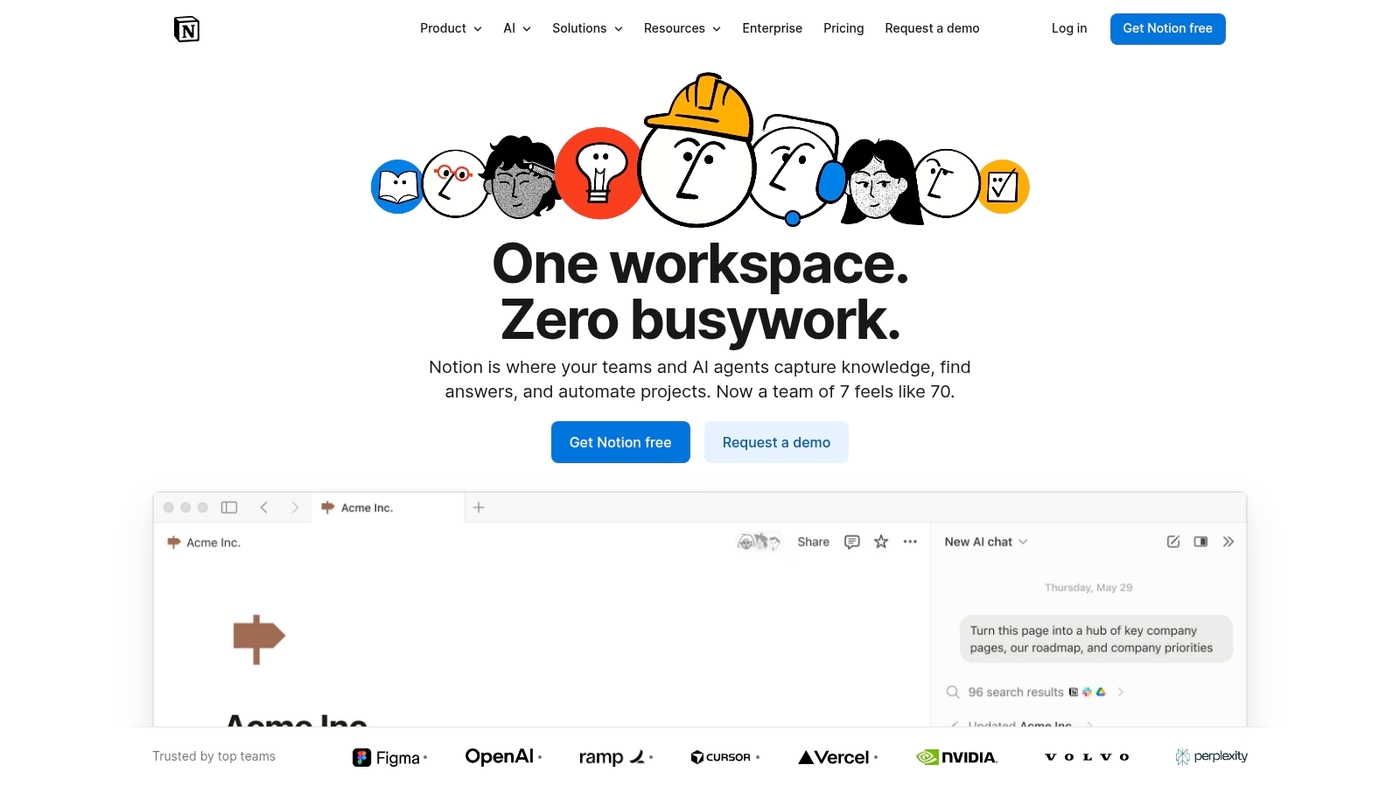
Notion is recommended for distributed teams that need a flexible knowledge base and simple project tracking. It blends docs, databases, kanban boards, and wikis into one workspace.
You can build custom dashboards and link records across pages. Teams comment on pages and work with async collaboration features across time zones.
The free plan covers personal and small-team use. Paid tiers start at $8 per user per month for team features and admin controls.
Notion scales well for teams that centralize documentation and SOPs. I used it for a small services team and found faster access to key resources.
Plus, the flexibility means you can build almost any workflow you imagine. (Though that same flexibility can lead to over-engineering if you’re not careful.)
For a deeper wiki roundup, see best corporate wiki software.
Pros
- All-in-one pages and databases for diverse workflows
- Flexible templates that speed setup
- Strong page sharing and permission controls
Cons
- Performance can lag with very large databases
- Limited native time tracking and advanced reporting
For who?
Teams needing lightweight documentation, shared wikis, and simple task views. Good for product, marketing, and support teams.
Pricing
Free plan available. Paid plans start at $8/user/month. Enterprise pricing on request.
Zoho Projects
Zoho Projects is ideal for distributed teams that need affordable, AI-powered project planning. It offers AI-powered scheduling and resource management.
You get Gantt charts, task lists, and time tracking for remote teams. Integrations cover Slack, GitHub, and calendar syncing. The platform supports async collaboration and shows time zone visibility.
It functions as distributed team software and remote project management software. Security controls and role-based permissions protect sensitive projects. Startups and agencies scale it from small teams to enterprise deployments.
Reports surface workload imbalances and help reduce meeting load. I use its customizable reports to balance work across locations.
We often pilot Zoho Projects with teams of five to fifty people. The AI scheduling can reduce planning time by up to 30%.
Pros
- AI scheduling that can reduce planning time by up to 30%
- Built-in time tracking for remote teams and workload visibility
- Strong integrations with common dev and communication tools
Cons
- Steeper learning curve for advanced automation
- Mobile app misses some desktop features
For who?
Teams that need structured planning, resource balancing, and async collaboration. Product teams, agencies, and distributed engineering teams benefit most.
Pricing
Plans start at $5/user/month. Free trial available. Enterprise quotes on request.
Read also: Top 10 Best Project Scheduling Tools
Splashtop Remote Access

Splashtop Remote Access is a practical remote desktop tool for distributed team software needs. It gives workers secure, direct access to office machines from any location.
The product supports multi-user access, file transfer, and session recording. It scales with affordable bulk licenses and offers strong device compatibility.
Setup takes minutes per device with clear admin controls. Its simple setup speeds IT onboarding and reduces support tickets. The tool fits teams that need workstation-level access rather than browser-based collaboration.
You can pair it with your remote project management software to run legacy apps and heavy tools on office hardware. Support includes business-grade security, multi-factor authentication, and encrypted sessions for safe remote work.
Pros
- Low-cost bulk licensing for teams
- Fast, easy setup for endpoints
- High-performance streaming for graphics apps
Cons
- No built-in project management features
- Relies on host machine uptime
For who?
IT teams, designers, engineers, and support staff who need full access to office desktops. Best for teams that run heavy local apps remotely.
Pricing
Custom pricing with team discounts. Volume licenses lower per-seat cost. Contact sales for a quote and bulk license options.
Read also: Top 10 Best Kanban Board Software
How to choose the right distributed team software
Choosing distributed team software that fits your team size and workflows reduces tool sprawl and speeds onboarding. What’s your biggest workflow pain point right now?
| Team Size | Recommended Features | Typical Budget |
|---|---|---|
| Under 10 users | Simple Kanban, basic chat, free plans | $0–$5/user/month |
| 10–50 users | Task management, integrations, automations | $7–$12/user/month |
| 50+ users | Enterprise security, SSO, advanced reporting | $10–$15+/user/month |
- Team size matters. For under 10 users pick simple Kanban apps. For 10–50 pick feature-rich platforms with task management for distributed teams. For 50+ choose enterprise-grade security and single sign-on.
- Pick integrations early. Map your core apps like Slack, GitHub, Zoom, and HR tools. Check available APIs and native connectors before you buy. See our virtual collaboration software list for integration examples.
- Workflow complexity matters. Use boards for simple flows. Use timelines and automations for cross-functional work. Ask vendors for sample setups that mirror your processes.
- Budget per user. Compare per-user costs, flat-rate plans, and add-on fees. Expect $5–15 per user per month for common options. Include onboarding and training in forecasts.
- Prioritize async collaboration software and time zone management tools. Look for scheduled messages, shared docs, and timestamped activity feeds to cut meeting load.
We run two-week pilots with a 5-point checklist. Pilots reveal integration gaps faster than demos. Start small, measure cycle time, and extend the tool only when you see a 10–20% productivity gain.
You might also like: Top 10 Best Workflow Automation Software
Distributed team software pricing and cost comparison
Choose paid plans when a tool delivers measurable time savings or clearer ownership for your distributed teams. I’d say that sticker price hides integrations, storage, and advanced security fees.
Free tiers work for trialing chat and basic task boards. Paid tiers add history, automation, single sign-on, and priority support.
- Free plans: Good for up to 5–10 users. Limited message history, file storage, and integrations.
- Per-user pricing: Typical range $5–$15 per user per month. Expect add-ons for guest access, advanced reporting, and security.
- Flat-rate options: Monthly fees from $50 to $500 for unlimited users. Best for small teams that want predictable billing.
- Enterprise tiers: Custom pricing. You pay for SLAs, dedicated support, and compliance features.
Use a simple ROI test. Measure hours saved per user per week. Multiply by an hourly rate. Compare monthly savings to subscription cost.
Example: 10 users save 2 hours/week at $30/hour equals about $2,400 saved per month. A $200 monthly plan yields clear ROI.
Prioritize tools that reduce meetings, cut tool sprawl, and give audit logs. Start with a free trial. Track time and outcomes for 30 days. Then scale to the plan that matches your measured gains.
You might also like: Top 10 Best Resource Planning Tools