Blank grids and scattered notes are killing many remote teams’ momentum.
A collaborative whiteboarding tool can solve that, but it’s tricky to find one that fits your workflow and budget.
These visual collaboration platforms let teams work together on an infinite canvas with sticky notes, templates, integrations, and real-time cursors.
They also make it easier to convert ideas into tasks, run retrospectives, or map systems without juggling multiple apps.
This roundup compares the top 10 online whiteboard apps by features, ease of use, and pricing so you won’t waste time trying every option.
You’ll learn which collaborative whiteboarding tool suits teams that need templates, integrations, AI assistance, or generous free plans.
- Intuitive visual dashboards
- Powerful automation & workflows
- Perfect for teams of any size

- All-in-one productivity platform
- Highly customizable views
- Great value for growing teams
- Best online whiteboard tool
- Ideal for brainstorming & workshops
- Remote-team friendly
What is a collaborative whiteboarding tool
A collaborative whiteboarding tool is a visual collaboration platform that lets distributed teams brainstorm, plan, and ideate together in real time.
Teams use an infinite canvas to map ideas without page limits. They add digital sticky notes, drawings, images, and links. Live cursors show who’s editing for true real-time collaboration.
These virtual whiteboards power sprint planning sessions, agile retrospective work, Kanban board setups, and mind mapping exercises. Templates speed setup and cut meeting prep to minutes.
At Daily Social Tips, we look for platforms with fast load times, solid integrations, and export options to PDF or PNG.
A focused whiteboard session makes ownership clear and reduces follow-ups. (We’ve seen teams run 45-minute workshops that produced prioritized backlogs ready for execution.)
Pick a whiteboard app that links to your task tools and cloud storage. Check for multi-user limits and offline access if your team travels.
Start a board for your next brainstorming session. Try a template for sprint planning or a simple mind map to align the team quickly.
Key features to look for in digital whiteboard software
Real-time collaboration and sharing capabilities
Pick a collaborative whiteboarding tool that shows live cursors and updates instantly.
Live cursors help you track contributions in real time. This makes handoffs clear. Teams we work with report 30% faster alignment and 20% fewer status calls.
Instant updates prevent edit conflicts and keep everyone on the same frame. Presence indicators and version history restore lost content when needed.
Sharing must be simple. Use shareable link access with permissions and expirations to make distribution safe. Link your virtual whiteboard to Slack or Teams to create follow-up tasks.
Enable live cursors and presence indicators
Use role-based permissions for external viewers
Export snapshots to PDF for documentation
Start a board, invite your team, and watch decisions move faster.
Templates for agile workflows and brainstorming
Pre-built templates for sprints and workshops speed setup and keep teams focused.
Use a sprint planning template to assign owners, set timeboxes, and list deliverables. Templates cut planning time by up to 40% for teams we’ve coached.
Try a Kanban board online to visualize flow and limit work-in-progress. A clear board reduces context switching and reveals bottlenecks.
A mind mapping whiteboard helps structure ideas fast. Starting with a loose map prevents scope creep.
Templates work across any online whiteboard or virtual whiteboard app. They speed alignment for remote teams and cut follow-up email volume.
Pick templates that include roles, acceptance criteria, and export options. Link board items to tasks in your project tools to keep progress visible.
Start a board, pick a template, set a 15-minute timer. Try one in your next sprint planning session.
Integrations with project management tools
Whiteboards that connect directly to task systems save hours every week.
Popular whiteboard apps push notes and cards to Slack and Jira. They sync files with Google Drive and surface boards inside Microsoft Teams.
Use integrations to convert ideas into tasks and assign ownership instantly. Pick a collaborative whiteboarding tool that creates automated tasks from notes. Choose one with an active real-time feed inside your PM apps.
See our project management software guide for connector details.
Linking boards to trackers reduces meetings and clarifies ownership. We’ve seen teams cut handoff time by about 30% after automating task creation.
Infinite canvas and export options
An infinite canvas whiteboard removes artificial page limits and keeps context in one place.
Unlimited space works best for complex projects and system design. Teams work faster when they map entire systems on one board.
Pick a collaborative whiteboarding tool that exports high-quality files. Save boards as PDF for documentation, PNG for slides, SVG for diagrams, and CSV for sticky notes.
When you export, set image resolution to 300 dpi for print. Use PDF output to share with stakeholders and PNG for presentations.
Start a board, test an export, and stitch outputs into your docs.
Top 10 collaborative whiteboarding tools to consider
monday.com
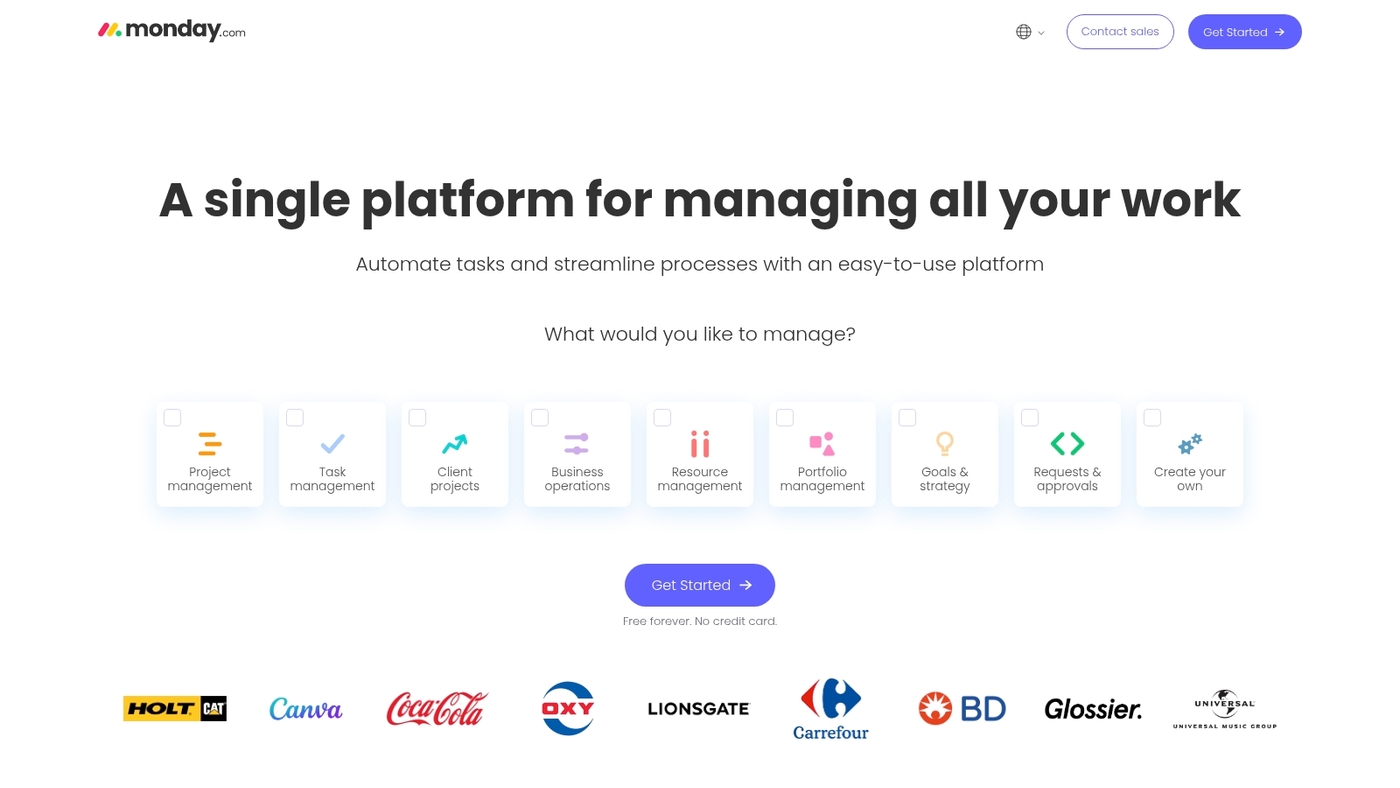
monday.com combines visual collaboration with powerful task management in one workspace. The platform gives teams a flexible canvas that links directly to project boards, timelines, and automations.
You can sketch ideas, add sticky notes, and convert whiteboard elements into trackable tasks without switching apps. The interface supports real-time cursors, comments, and file attachments.
Integrations with Slack, Google Drive, and Microsoft Teams keep work connected. Templates cover sprint planning, retrospectives, and strategic mapping.
I really think monday.com shines when you need to close the loop from brainstorming to delivery. Teams can assign owners, set deadlines, and track progress all from the same board.
The platform scales from small startups to enterprise teams with admin controls, SSO, and custom workflows.
Pros
Tight integration between whiteboard and task management
Strong automation and workflow customization
Clear ownership and deadline tracking
Cons
Can feel feature-heavy for simple whiteboarding needs
Paid plans required for advanced features and larger teams
For who?
Product teams, project managers, and remote groups that want one platform for ideation and execution.
Pricing
Free plan available. Paid plans start around $8 per user per month when billed annually, with tiered options for growing teams.
ClickUp
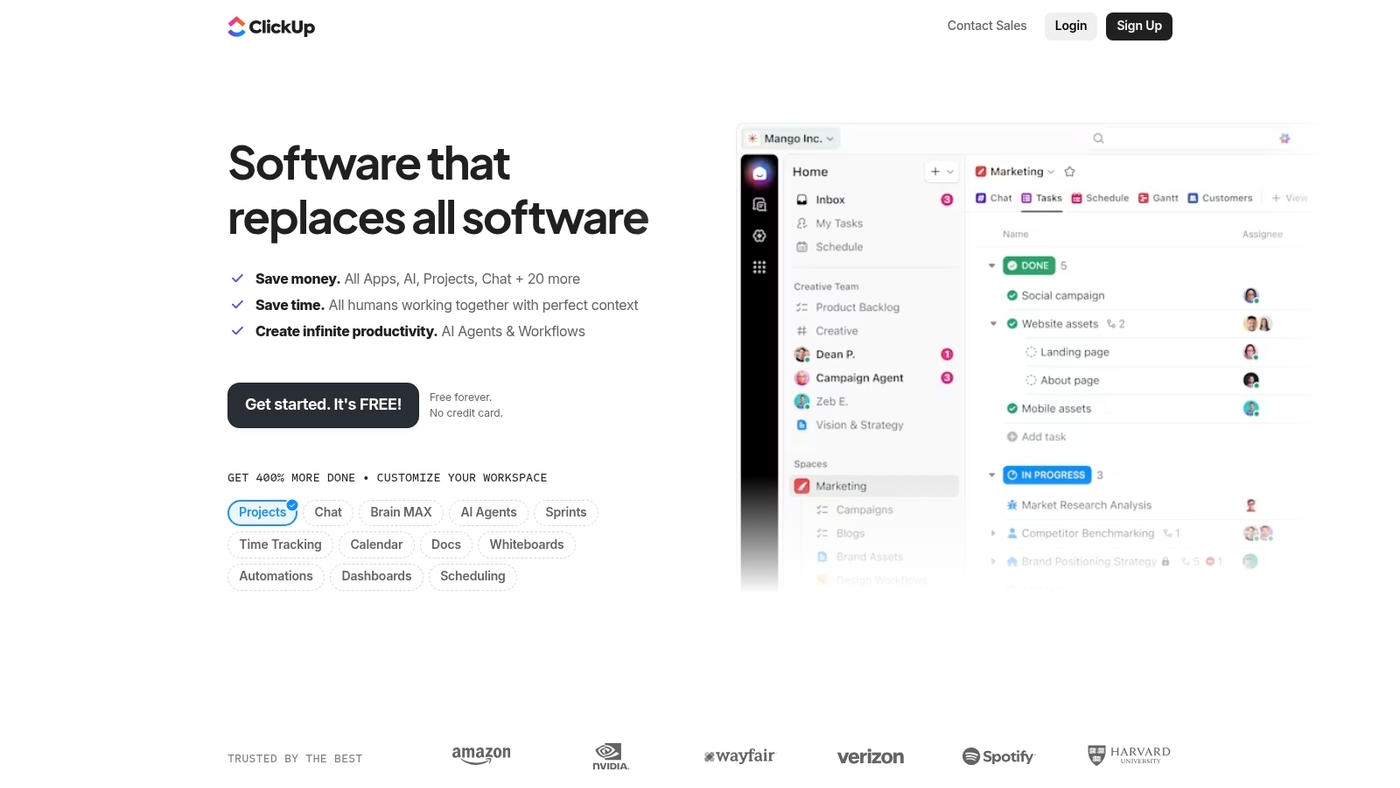
ClickUp offers an all-in-one platform that combines whiteboarding with task management, docs, and goals. Teams can link whiteboard elements directly to tasks and convert brainstorming into clear project plans.
The whiteboard offers an infinite canvas with sticky notes, shapes, and freehand drawing. You can map ideas to owners, set due dates, and track progress without leaving the board.
Templates support sprint planning, retrospectives, mind maps, and Kanban flows. Integrations sync with Slack, Google Drive, and calendar apps.
ClickUp speeds the handoff from idea to execution. Link your board to task management tools to reduce meeting time and make ownership obvious.
Pros
Link whiteboard items to tasks and assignees
Built-in templates for sprints, retros, and Kanban
Comprehensive workspace with docs and goals
Cons
Feature-rich interface can overwhelm new users
Advanced automation and views sit behind paid tiers
For who?
Product teams, project managers, designers, and ops who want one workspace for ideation and delivery.
Pricing
Free plan available. Paid plans start at about $5 per user per month when billed annually.
Miro
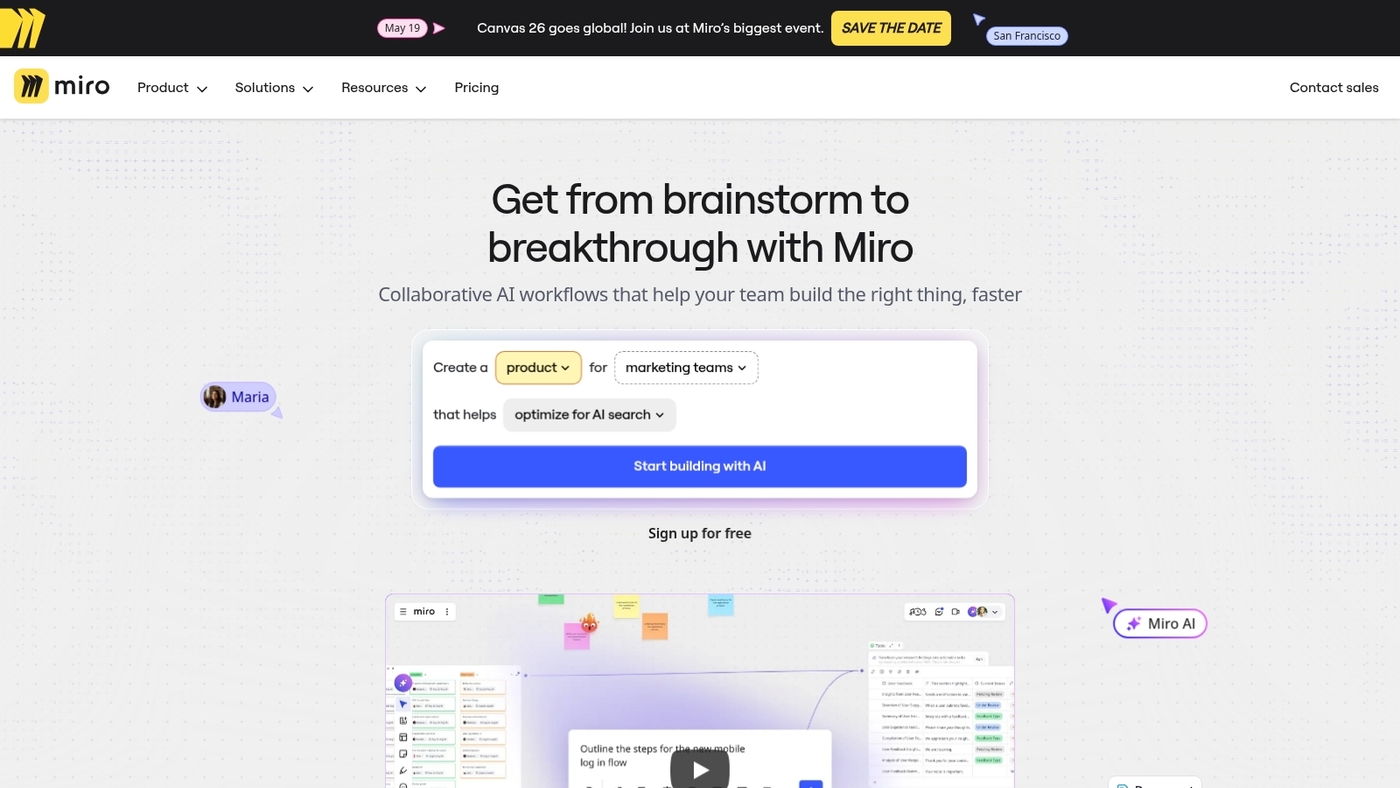
Miro is an industry-leading whiteboard for planning, design, and remote workshops. It uses an infinite canvas that scales without limits.
The platform supports over 100 app integrations and a deep template library for agile workflows. Features include built-in timers, live cursors, comment threads, and clear version history.
Boards work well for system design and strategic planning. We recommend Miro when you need a flexible visual collaboration platform with strong integrations.
Miro speeds up workshops and reduces meeting overload. (We’ve used it for sprint planning and cut handoff confusion by about 30%.)
Export options include PDF and PNG for easy documentation. The template library has sprint planning, Kanban, and retrospective boards.
You can link boards to Jira, Slack, Google Drive, and Teams. Enterprise plans add SSO, advanced security, and admin controls.
Pros
Rich template library for agile workflows
Strong integrations with major apps and tools
Scales from small teams to enterprise
Cons
Steeper learning curve for advanced features
Paid plans needed for large teams and enterprise controls
For who?
Product teams, UX designers, agile squads, remote teams, and enterprise planners who need a scalable visual collaboration platform.
Pricing
Free plan available. Paid plans start at roughly $8 per user per month for small teams, with tiered pricing for Business and Enterprise.
Mural
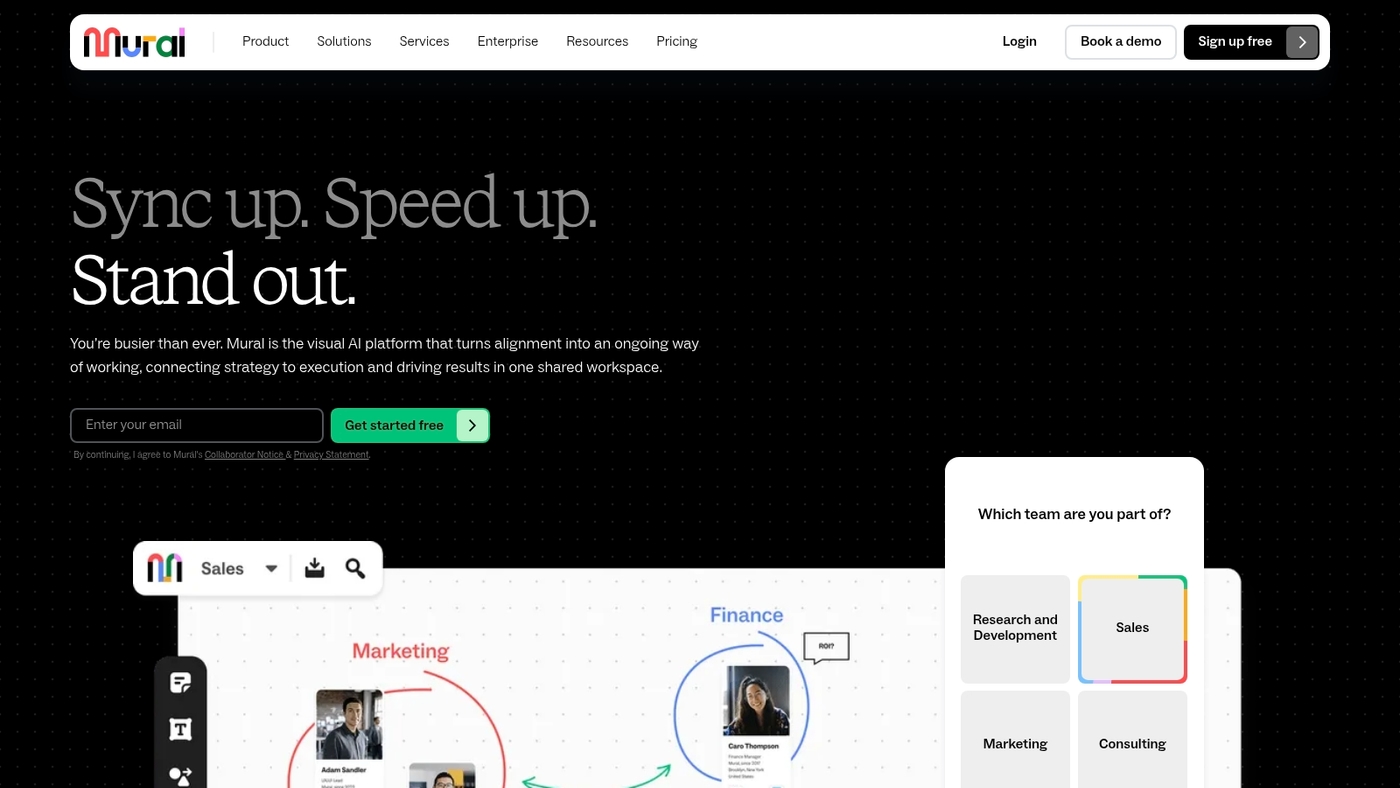
Mural is a professional visual collaboration platform built for client workshops and design thinking. It supports remote and hybrid teams with an infinite canvas and rich template library.
Teams run structured workshops with timers, voting, and facilitation cues. You export boards to PDF or PNG for stakeholder decks.
The app connects to Slack, Google Drive, and Microsoft Teams so work stays in context. Mural’s templates cut workshop setup time and make outcomes easier to present.
Use it as a digital whiteboard software, a real-time whiteboard, or an online whiteboard for teams that need presentation-ready outputs.
Pros
Large template library for workshops and sprints
Strong facilitation features with voting and timers
Solid integrations with common productivity apps
Cons
Free tier limits active collaborators
Advanced admin controls require paid plans
For who?
Design teams, consultants, agencies, and product groups that run client workshops, design sprints, and structured brainstorming sessions.
Pricing
Free tier available with basic features. Paid plans start around $12 per user per month for team plans. Enterprise pricing is custom and includes SSO and admin controls.
Microsoft Whiteboard
Microsoft Whiteboard fits teams already on Microsoft 365 and Teams. It’s a zero-friction collaborative whiteboarding tool that works inside apps you use every day.
The app gives an infinite canvas, sticky notes, templates for sprint planning and retrospectives, and real-time collaboration with live cursors. It saves boards to OneDrive and links directly into Teams meetings.
It fits organizations that want a simple, secure whiteboard without extra subscriptions. The interface stays familiar if you use Office apps.
It works as a reliable free online whiteboard for remote teams that need a low-friction visual collaboration platform.
Pros
Seamless integration with Microsoft 365 and Teams
Included at no additional cost for many Microsoft accounts
Familiar interface for Office users
Cons
Fewer advanced facilitation features than some specialized tools
Smaller template library and fewer third-party integrations
For who?
Teams already using Microsoft 365, IT-managed organizations, educators using Teams, and groups that prefer a simple, secure whiteboard inside existing workflows.
Pricing
Free with a Microsoft account. Included in Microsoft 365 commercial and education subscriptions at no extra cost for most users.
FigJam
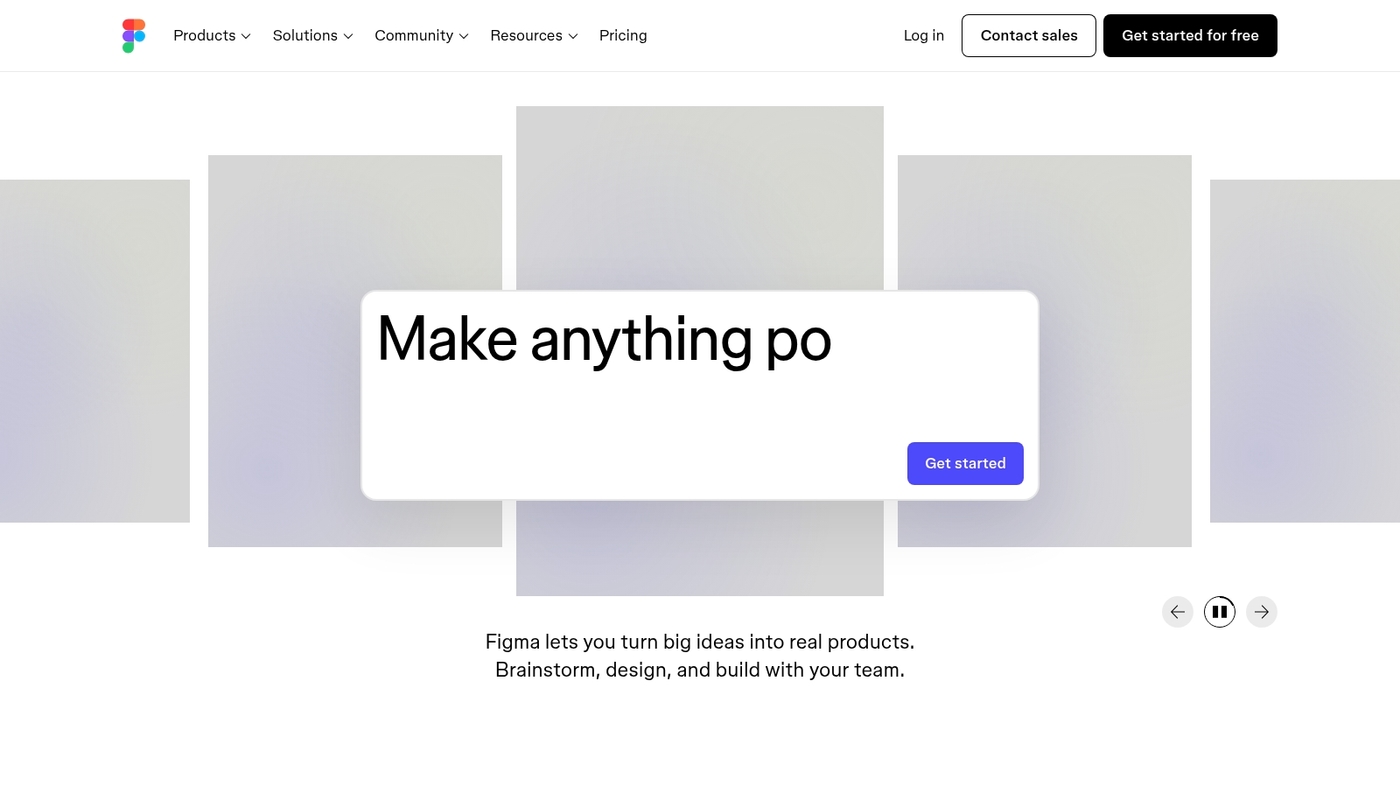
FigJam is a design-focused collaborative whiteboarding tool built for UX teams and creative sessions. The interface stays simple and fast.
You get sticky notes, freehand drawing, timers, and live cursors for real-time work. It links directly to design files so you move ideas into mockups without friction.
The canvas feels limitless and supports structured templates for sprint planning, retros, and mind maps. FigJam shines when teams need to turn sketches into polished screens.
It reduces handoffs and keeps context inside a single visual collaboration platform.
Pros
Seamless Figma integration for quick design handoff
Intuitive tools for brainstorming and facilitation
Supports infinite canvas workflows
Cons
Fewer advanced facilitation features than some rivals
Can feel light on enterprise admin controls
For who?
UX designers, product teams, and remote creative groups who value tight design workflow integration and fast ideation.
Pricing
Free tier available. Paid plans unlock more editors, project controls, and organization-level features via Figma’s Pro and Organization subscriptions.
Lucidspark
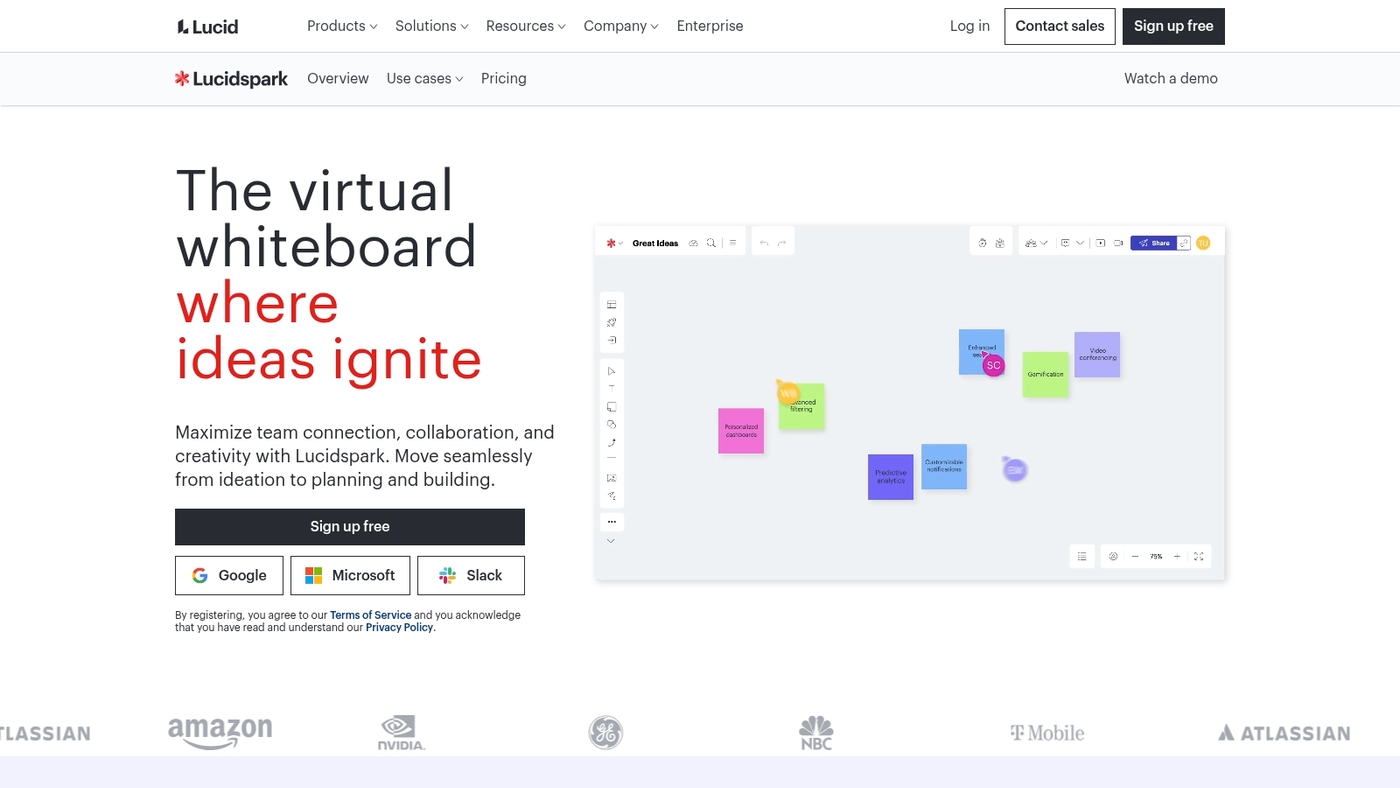
Lucidspark is a collaborative whiteboarding tool built for structured ideation and team alignment. The platform pairs an infinite canvas with flexible sticky notes and freehand drawing.
Teams vote in real time to surface top ideas and move them into clear plans. Templates cover sprint planning, agile retrospective boards, mind mapping, and Kanban workflows.
Board elements export to PDF and PNG for presentations and documentation. The UI supports timers, grouping, and simple facilitation controls that speed workshops.
The voting and templates turn messy sessions into presentation-ready strategic outputs fast. The tool works well as an online whiteboard for teams and as digital whiteboard software for distributed groups.
Pros
Strong facilitation features with voting and timers
Large template library and flexible export options
Clean interface for structured brainstorming
Cons
Advanced features require paid plans
Occasional performance lag on very large boards
For who?
Product teams, UX designers, and remote teams that need structured brainstorming and fast decision cycles.
Pricing
Free tier available. Paid plans start around $8 per user per month for individual and team tiers, billed annually.
Stormboard
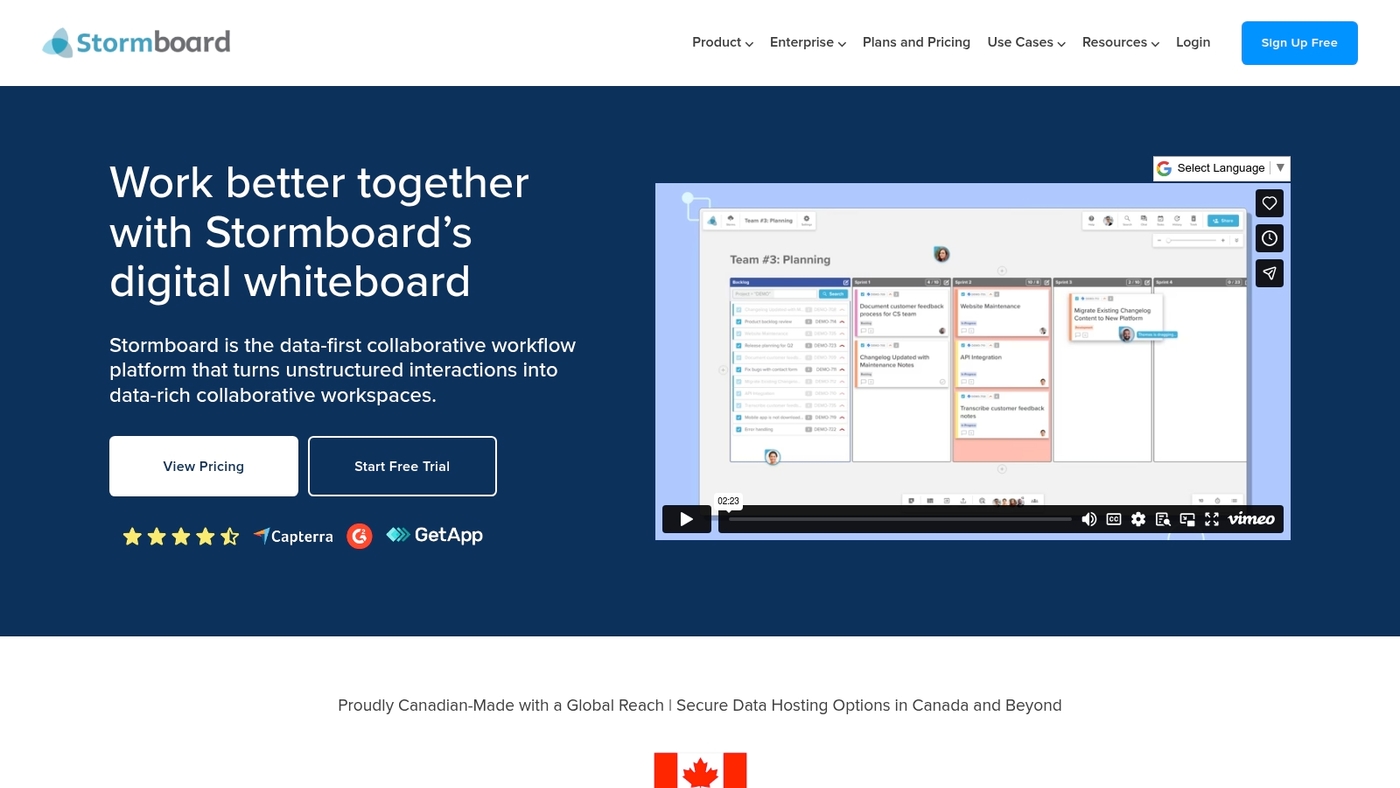
Stormboard is a sticky-note-based online whiteboard built for teams that plan and document decisions. It blends a visual canvas with templates, voting, and export-ready reports.
You can group notes, tag owners, and turn ideas into structured entries for follow-up. The interface supports freehand drawing, shape tools, and live cursors for real-time editing.
The platform captures metadata so managers see clear owners and timelines. Integrations with Microsoft 365 and Slack move items into workflows.
The tool suits strategic planning, retrospectives, and meeting facilitation. Its reporting features cut meeting time and reduce email follow-ups.
At Daily Social Tips, we use Stormboard for client workshops and sprint retros. Notes export to Excel for tracking.
Pros
Structured note capture with owner tags and status
Built-in reporting and exports for follow-up
Strong metadata tracking for business use
Cons
Canvas can feel rigid for freeform design work
Advanced features sit behind paid plans
For who?
Teams that run strategic planning, retrospectives, or client workshops. Business users who need clear decision logs.
Pricing
Offers a free tier with limits. Paid plans start around $10–$15 per user per month for business features.
Vibe Canvas
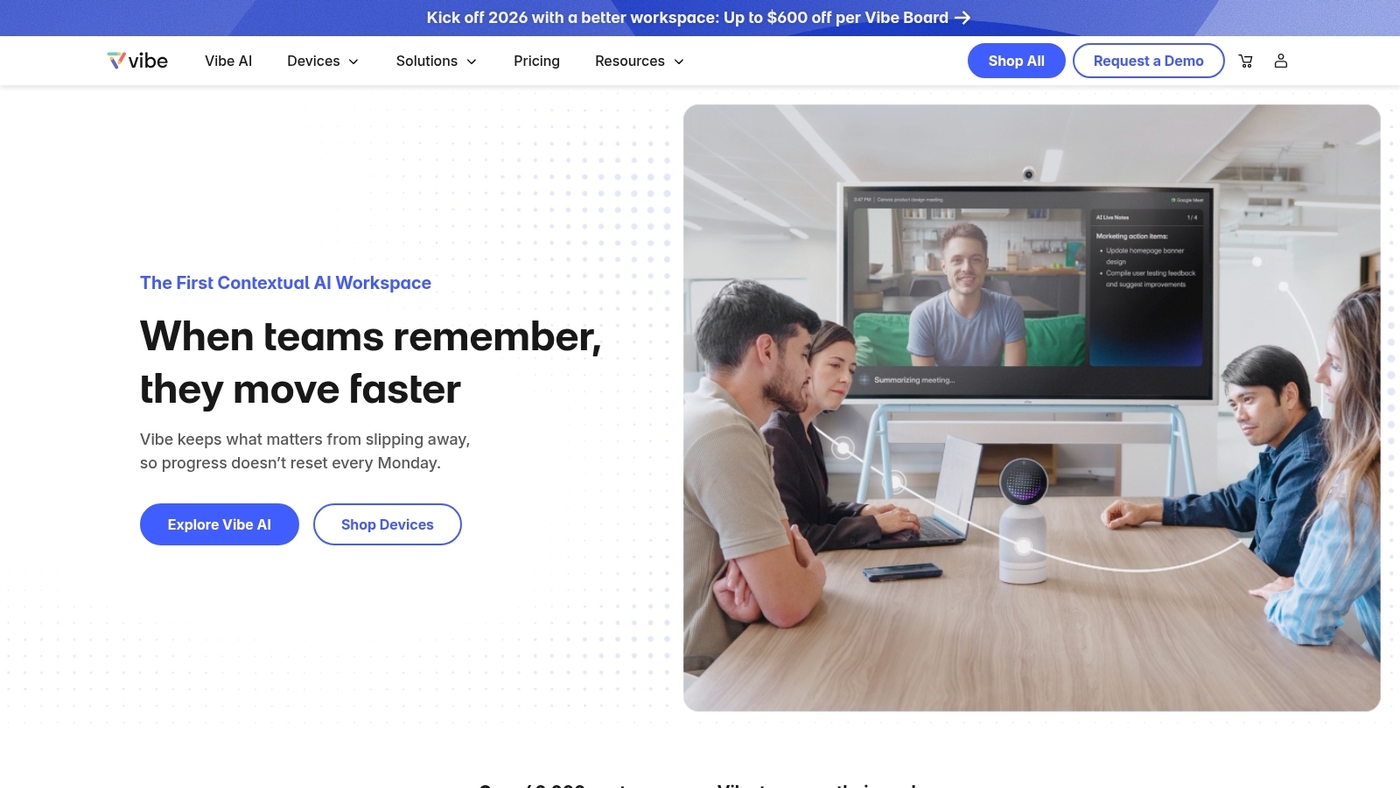
Vibe Canvas is a simple, reliable collaborative whiteboarding tool for teams that need a fast setup and low learning curve. The app offers an infinite canvas whiteboard with live cursors and smooth zoom.
You can annotate PDFs directly on the board and save files to cloud storage. The interface stays clear for non-technical users and tools load quickly on web and desktop.
PDF annotation speeds up review rounds and reduces meeting time. Vibe Canvas works well as a virtual whiteboard for brainstorming, sprint planning, and mind mapping.
It exports boards to common formats and scales to large sessions without lag. The free tier covers small teams while paid plans add admin controls and advanced exports.
Pros
Easy interface for all skill levels
PDF annotation and cloud sync
Fast performance on large boards
Cons
Fewer advanced templates than some rivals
Limited native integrations on the free plan
For who?
Teams that want a straightforward online whiteboard for remote workshops and quick ideation.
Pricing
Free plan available. Paid plans start at modest per-user rates with extra export and admin options.
Boardmix
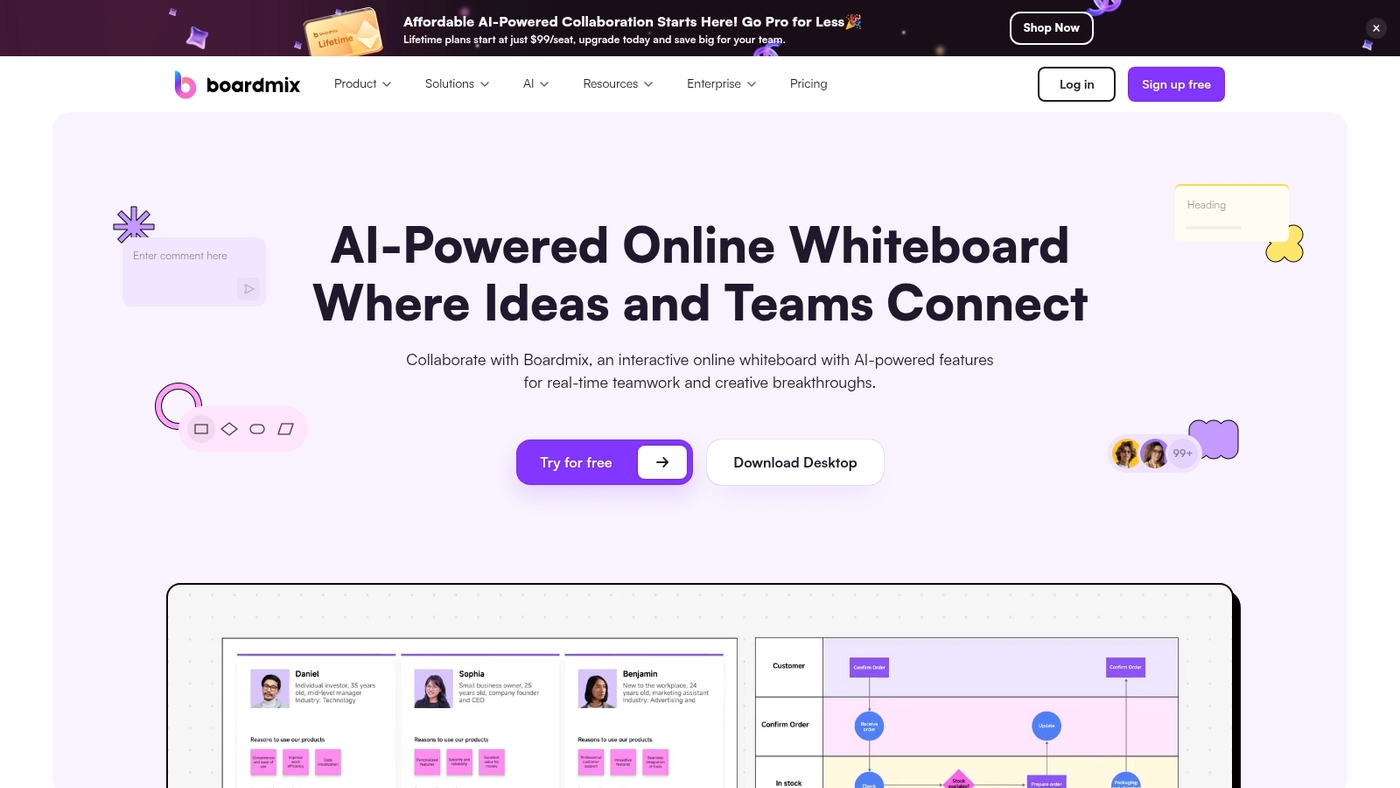
Boardmix is an AI-powered collaborative whiteboarding tool built for small teams. We recommend Boardmix for those who want a low-friction online whiteboard with AI help.
The canvas feels fast. The app includes templates, sticky notes, and voting. The free tier offers many capabilities and lets teams start without immediate cost.
The editor adds built-in AI features that summarize meetings and generate ideas from prompts. (The AI summary can turn a 30-minute brainstorm into a clear action list.)
Premium plans remain affordable for growing teams. They add admin controls, extra storage, and drive integrations.
The platform fits remote teams. It gives a clean visual collaboration platform and an infinite canvas for mapping complex ideas.
Pros
Generous free plan with core features
AI meeting summaries and idea generation
Affordable premium plans for scaling teams
Cons
Fewer third-party integrations than some competitors
Advanced admin controls require paid plan
For who?
Small teams and startups that need a practical online whiteboard for remote collaboration with AI assistance.
Pricing
Free plan available. Paid tiers start around $4 per user per month and unlock more storage, user management, and enterprise features.
Zoom Whiteboard
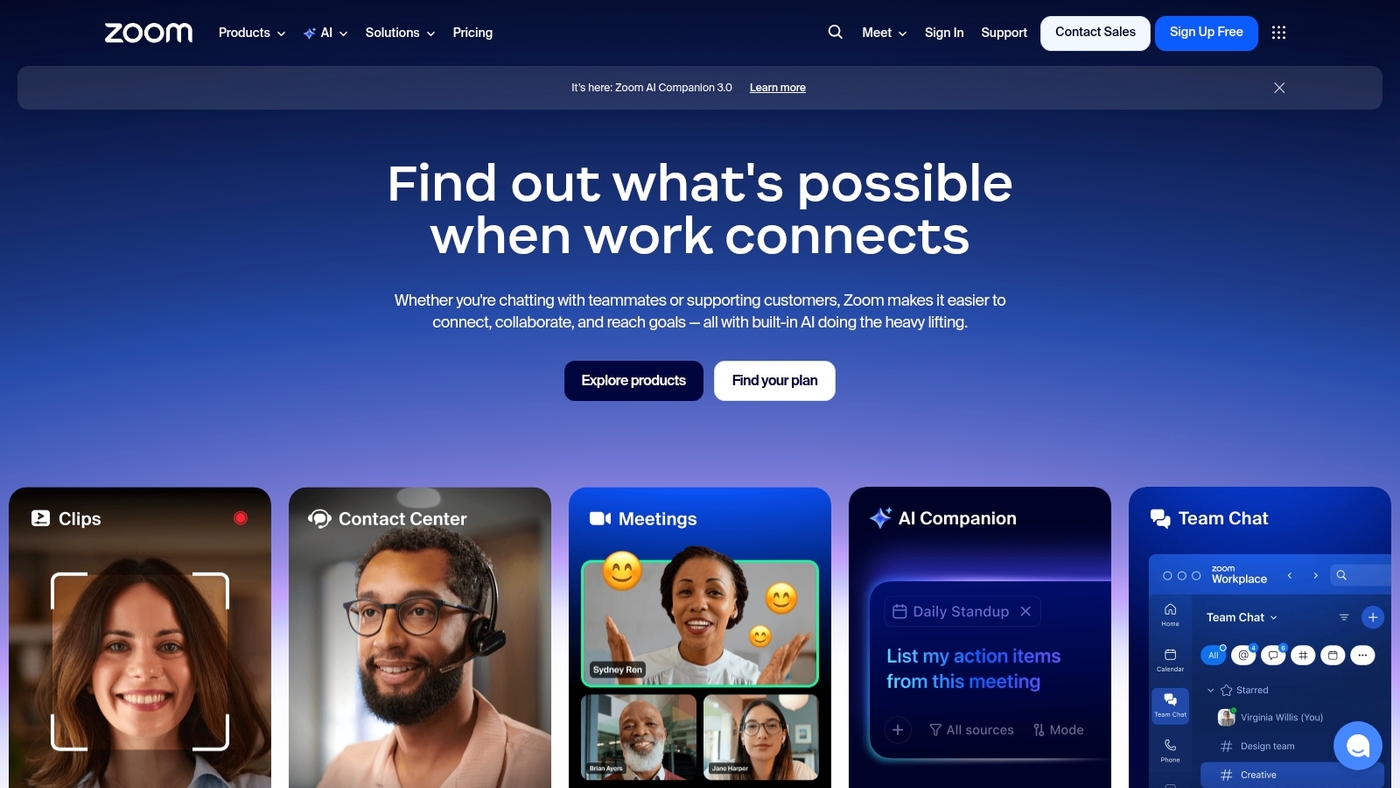
Zoom Whiteboard is a native option for teams already on Zoom. The tool gives an integrated canvas you can open before, during, or after a meeting.
It supports freehand drawing, sticky notes, and frames on an infinite canvas whiteboard. The feature set includes AI assistance that suggests content and clusters ideas so you spend less time organizing.
The board syncs with chat and meeting recordings for clear follow-up. You can use the board as an online whiteboard for teams that need low friction setup and fast adoption.
The AI prompts unblock stalled sessions and cut follow-up time. This is a practical collaborative whiteboarding tool for remote teams that prioritize speed and meeting continuity.
Pros
Native Zoom integration for quick access during calls
AI prompts to generate and organize ideas
Persistent boards for follow-up work
Cons
Smaller template library compared to dedicated whiteboard apps
Advanced export and workflow features require paid Zoom plans
For who?
Teams that run frequent Zoom meetings and want a low-friction visual collaboration tool. Educators and workshop hosts will find the persistent boards helpful.
Pricing
Basic whiteboard features appear on Zoom’s free tier. Pro and higher plans unlock advanced capabilities and larger boards.
How to run a brainstorming session on an online whiteboard
We favor structured templates and tight timeboxes for ideation.
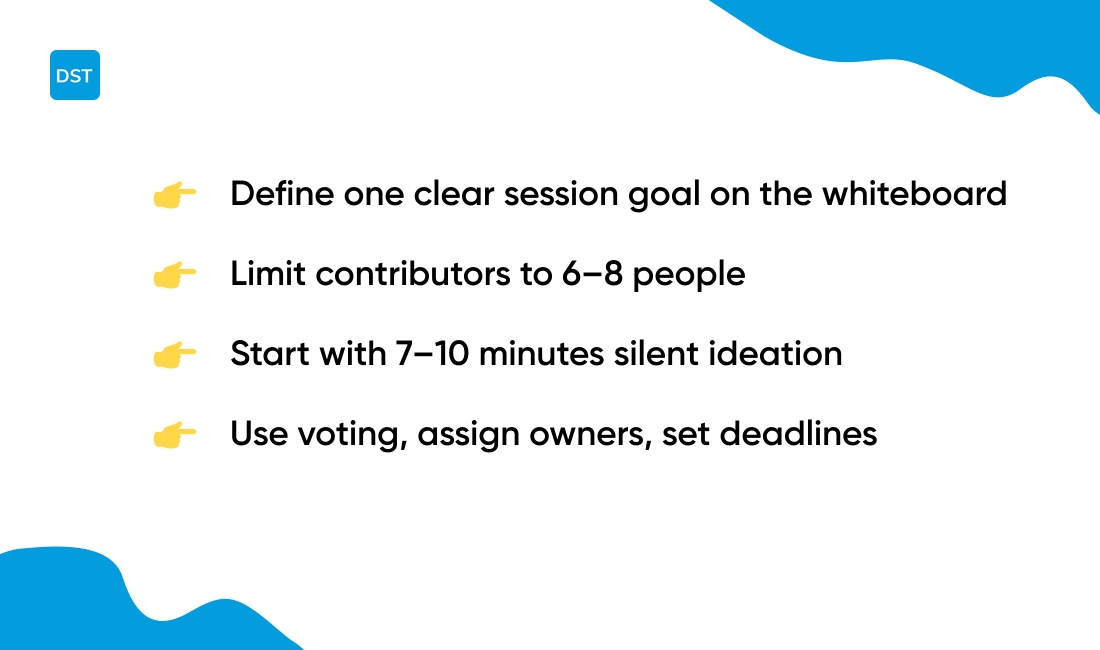
What’s the one outcome you need from this session? Define the goal and add a one-sentence prompt on your virtual whiteboard.
Invite the right people. Limit to 6–8 contributors for faster decisions.
Prep the board before the call. Add sections, sticky notes, and a timer. Pick a template from your digital whiteboard software.
Start with silent ideation. Give 7–10 minutes for individual notes. This removes early bias and equalizes input.
Run a round of clarifying questions. Keep each answer under 30 seconds to maintain momentum.
Use voting to prioritize. Try dot voting or ranked choices on the board to surface top ideas quickly.
Assign owners and deadlines. Convert top ideas into tasks immediately so nothing gets lost.
A 30-minute timebox keeps energy high and output sharp. To move ideas into work, export sticky notes or link tasks to a project tool.
Learn about compatible platforms in our guide to collaboration platforms for teams.
Try one structured session this week. Track results with simple metrics: ideas per person, votes per idea, and percent converted to tasks.
Free online whiteboard options worth using
Start with a free plan that fits your team size and workflow.
monday.com — Basic whiteboard views live inside your workspace. Good for small teams that want task linking and a simple canvas.
ClickUp — Whiteboards come on the free plan. You get editable boards and task conversion inside a single app.
Miro — Free plan limits to three editable boards. It gives an infinite canvas and broad integrations for design and product teams.
FigJam — Offers collaborative tools for designers and small groups. Free tier supports basic cursors and sticky notes.
Microsoft Whiteboard — Included with Microsoft 365 accounts. No extra cost for orgs already on Microsoft Teams.
Mural — Free tier is useful for workshops. Export and templates may sit behind paid tiers.
Lucidspark — Good for structured ideation. Free plan limits collaborators and export options.
Boardmix and Stormboard — Value-focused choices with generous free seats. Expect limits on storage and advanced exports.
Zoom Whiteboard and Vibe Canvas — Convenient if your team uses Zoom or needs PDF annotation features.
Miro and ClickUp cover most starter needs. Choose a free plan until you hit board or export limits.
Compare more free collaboration tools at our best free online collaboration software guide to pick the right match.
Read also: Top 10 Best Sprint Planning Software Tools
Best Miro and FigJam alternatives
We recommend monday.com for teams that need a collaborative whiteboarding tool tied directly to tasks. Set a board, link items to work, and cut handoffs by keeping context with every card.
ClickUp comes second for teams that want whiteboards plus docs and task management. ClickUp speeds execution and teams reduce follow-up meetings by about 30%.
Here’s the thing — other strong alternatives include:
Mural — Design workshops and facilitation tools for client sessions on a virtual whiteboard
Lucidspark — Structured ideation with voting and templates for sprint planning and retrospectives
Microsoft Whiteboard — Free with Microsoft 365 and tight Teams integration for fast adoption
Stormboard — Sticky-note capture and exportable reports for strategy and meeting records
Boardmix — AI meeting summaries and a generous free plan for small teams
Vibe Canvas — Clean infinite canvas with PDF annotation and cloud sync
Zoom Whiteboard — Built into meetings for quick capture and follow-up tasks
Try a free online whiteboard trial for one week to measure time saved and clarity gained.
Read also: Top 10 Best Project Scheduling Tools
How to choose the right whiteboard for your team
We recommend Miro if you need a flexible visual collaboration platform that scales from small design teams to large product groups.
Matching a collaborative whiteboarding tool to your workflow cuts meeting time and speeds handoffs.
|
Factor |
What to Look For |
|---|---|
|
Team size |
Pick a whiteboard that supports your active users. Small teams do well with free plans. Larger teams need admin controls and SSO. |
|
Primary use |
Choose a whiteboard for your main task. Use a digital whiteboard focused on brainstorming if ideation matters. Pick one with task links if you convert notes to work. |
|
Budget |
Compare per-user pricing and guest limits. Free online whiteboard options work for short projects. Paid plans make sense for recurring workshops. |
|
Tool ecosystem |
Verify integrations with Slack, Google Drive, and your PM tools. Check templates and links to planners. |
|
Specific needs |
Look for security, export options, and templates for retros and Kanban. An infinite canvas helps complex mapping and system diagrams. |
If you plan sprints, check templates and links to planners like the best free planning software.
Try one board for two weeks. Measure saved meeting hours and clearer ownership. Adjust based on those results and your toolset.
You’ll also like: Top 10 Best Resource Planning Tools