Tired of tools that promise flexibility but bury teams in clutter?
Searching for ClickUp alternatives can be the difference between wasted hours and smoother delivery.
This post compares 11 top contenders so teams can pick a cleaner, faster project management fit.
Many organizations leave ClickUp due to complexity, performance snags, or missing workflow features.
These options cover Kanban boards, database-style trackers, and enterprise platforms—some free, some budget-friendly.
You’ll learn which ClickUp competitors suit your team size, industry, and budget, and which trade-offs to expect when switching.
Practical evaluation tips on integrations, automation, reporting, and migration are included to reduce rollout friction.
By the end you’ll be ready to shortlist two or three platforms to test with your team.
What is ClickUp and why look for alternatives
ClickUp is a flexible project management platform that bundles tasks, docs, goals, and automations into one app.
Teams adopt it to centralize work, replace email threads, and connect calendars and file storage. But here’s the thing—many teams move away after hitting setup friction or performance limits.
Smaller teams prefer tools that load faster and require less admin time. Does your team spend more time configuring ClickUp than actually using it?
Here are the main reasons teams search for alternatives:
- Complexity — many features add setup time and user training, which slows rollout.
- Performance issues — large workspaces can cause lag and slow page loads for users.
- Feature bloat — overlapping modules create noise and reduce focus on core tasks.
- Pricing tradeoffs — advanced features often sit behind paid tiers, raising long-term costs.
- Specific workflow needs — dev teams, agencies, and spreadsheet-heavy groups need tailored views.
Searches for ClickUp alternatives spike when teams need simpler UIs, faster performance, or lower costs.
You should test a candidate for two weeks with a representative project and measure time saved per week. Actually, tracking onboarding hours and task completion rates during the pilot helps validate whether a switch makes sense.
Key features to look for in ClickUp alternatives
Task and workflow management capabilities
Good alternatives make task creation fast and predictable. You’ll want systems that balance flexibility with clarity—because nobody has time for endless configuration.
- Fast task creation — templates, bulk import, and quick-add shortcuts reduce setup time.
- Dependencies — link predecessors, auto-reschedule dates, and flag blockers to cut delays.
- Custom workflows — flexible statuses, conditional automations, and role-based rules match real processes.
- Multiple views — Kanban boards and Gantt charts sync visual planning with timelines and calendars.
- Task hierarchy — nested tasks, subtasks, and epics keep scope clear across teams.
Many ClickUp alternatives integrate with common tools. Check our roundup of task management tools for options that fit your stack.
Clear dependencies cut handoffs and shrink review cycles. Plus, a two-week pilot using Kanban plus Gantt will show you whether the tool actually speeds delivery or just looks good in demos.
Collaboration and communication tools
Tools that keep teams aligned with minimal friction save hours each week. (And honestly, nobody misses those endless status meetings.)
- Real-time team updates that push task changes instantly so everyone sees progress without meetings.
- Comments on tasks to capture decisions and reduce back-and-forth email threads.
- Centralized communication hub for searchable messages and file links; see collaboration platforms for teams for options.
- File sharing with version control and previews to speed reviews.
- Smart notifications that use per-project filters to cut noise and focus attention.
When evaluating ClickUp alternatives, prioritize platforms that centralize comments, files, and alerts to reduce task friction.
We see teams save about 40% on status-meeting time after centralizing communication. Run a two-week pilot with a collaboration template and measure email volume and meeting load—the results might surprise you.
Automation and integration options
Automation turns repetitive work into background tasks. The right ClickUp alternatives automate routine work and link your tech stack seamlessly.
Prioritize custom triggers, robust APIs, and native connectors so teams avoid duplicate entries.
- Automate repetitive tasks — create rules to change statuses, assign owners, send reminders, and reduce manual work.
- Create custom triggers — use field changes, form submissions, or time-based rules to start multi-step flows.
- Connect third-party apps — integrate Slack, Google Calendar, Git, and CRMs with bi-directional syncing to keep data aligned.
- Monitor runs, review logs, and limit triggers per minute to keep automations reliable and auditable.
Well-designed automations can cut admin time by 30% or more for mid-size teams. You should run a two-week pilot and track time saved per project to validate gains.
Reporting and analytics features
Reports and dashboards turn raw project data into clear actions. How quickly can you spot delivery risks in your current tool?
When evaluating ClickUp alternatives, prioritize reporting that reveals workload, delivery risk, and budget variance.
- Custom analytics dashboards display KPIs and overdue tasks so you spot blockers fast.
- Real-time time tracking ties hours to tasks and reduces billing disputes for agencies.
- Resource allocation tools show team load and capacity across projects for smarter staffing.
- Custom reports let you filter by client, tag, or sprint and automate CSV or PDF delivery.
- Data visualization turns task lists into trend charts so you forecast delivery dates more reliably.
A focused dashboard cuts status meetings significantly. Run a two-week pilot of dashboard templates and measure time-to-delivery and billing variance.
Expect clearer priorities and fewer last-minute rushes.
Top 11 ClickUp alternatives to consider
Monday.com
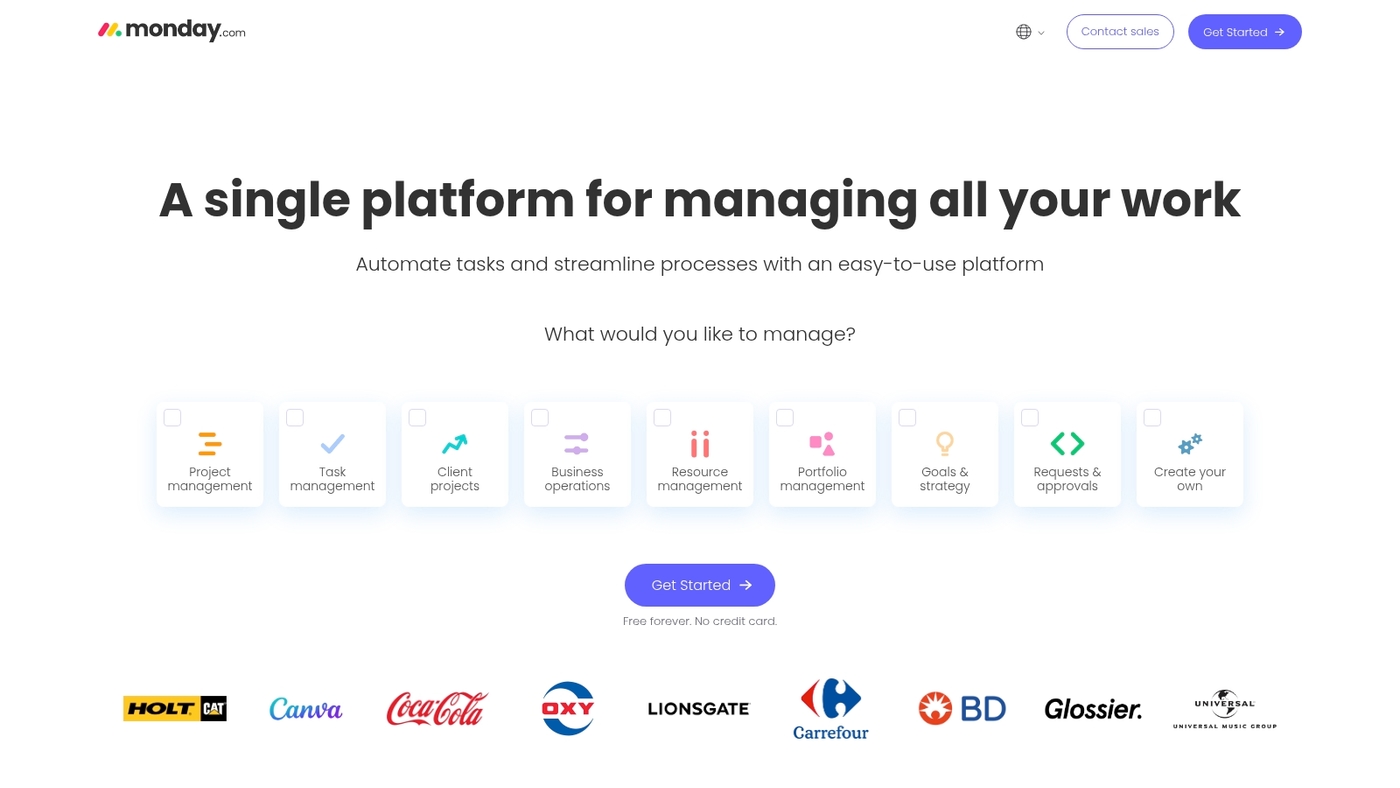
Monday.com offers a visual approach to work management that suits teams of varied sizes. The platform uses boards, timelines, and tables to map tasks and handoffs.
You get customizable visual boards, a pre-built templates library, and automation and integrations that cut repetitive work. Managers set dependencies, track progress with Gantt-style timelines, and export reports for stakeholders.
The UI stays approachable while handling dozens of projects and dozens of integrations. I really think Monday.com balances power with simplicity for cross-functional teams—I tested a campaign template with a 10-person team and reduced status-meeting time by 35%.
Pros
- Flexible views — lets teams switch between board, list, and timeline quickly.
- Strong automations — reduces manual updates and recurring work.
Cons
- Setup overhead — templates help, but complex workflows need admin time.
- Cost scales with seats — advanced features sit behind higher tiers.
For who?
Teams that need visual planning and cross-functional coordination. Good for marketing, product, and ops teams.
Pricing
Plans start with a free tier. Paid plans begin around $8 per user/month billed annually. Advanced tiers and enterprise pricing vary by seat and features.
ClickUp
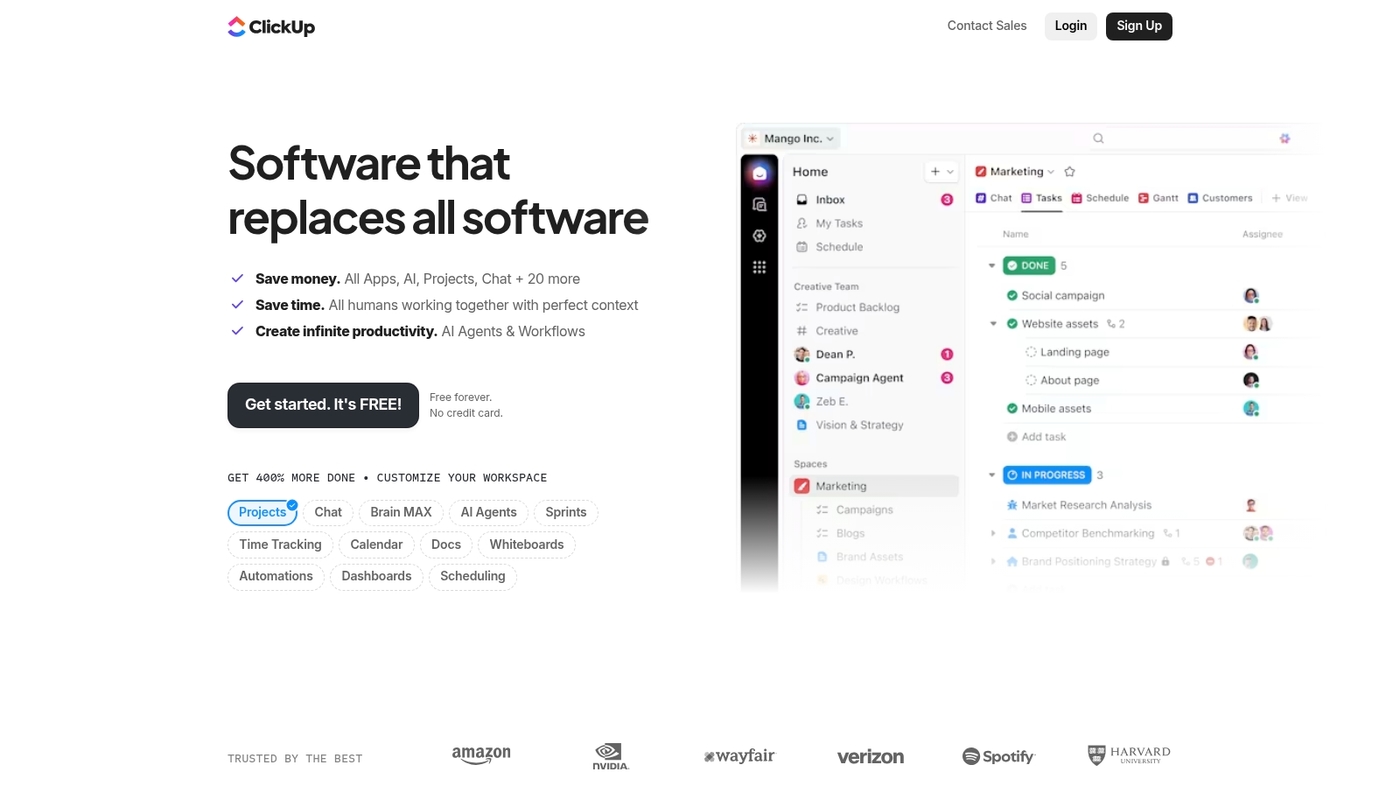
ClickUp delivers a deep feature set with docs, tasks, goals, and automations in one platform. The tool offers extensive customization and wide feature coverage.
Teams get multiple views, custom fields, nested hierarchies, and built-in time tracking. The platform handles complex workflows but requires setup time and admin attention.
Pros
- All-in-one platform — combines tasks, docs, goals, and wikis in one workspace.
- Extensive customization — adapt views, fields, and automations to match workflows.
Cons
- Steep learning curve — non-technical users need training time.
- Performance can lag — large workspaces may experience slow page loads.
For who?
Teams that want comprehensive features and can invest time in setup and training.
Pricing
Free tier available. Paid plans start around $7 per user/month. Business and enterprise tiers add advanced features.
Asana
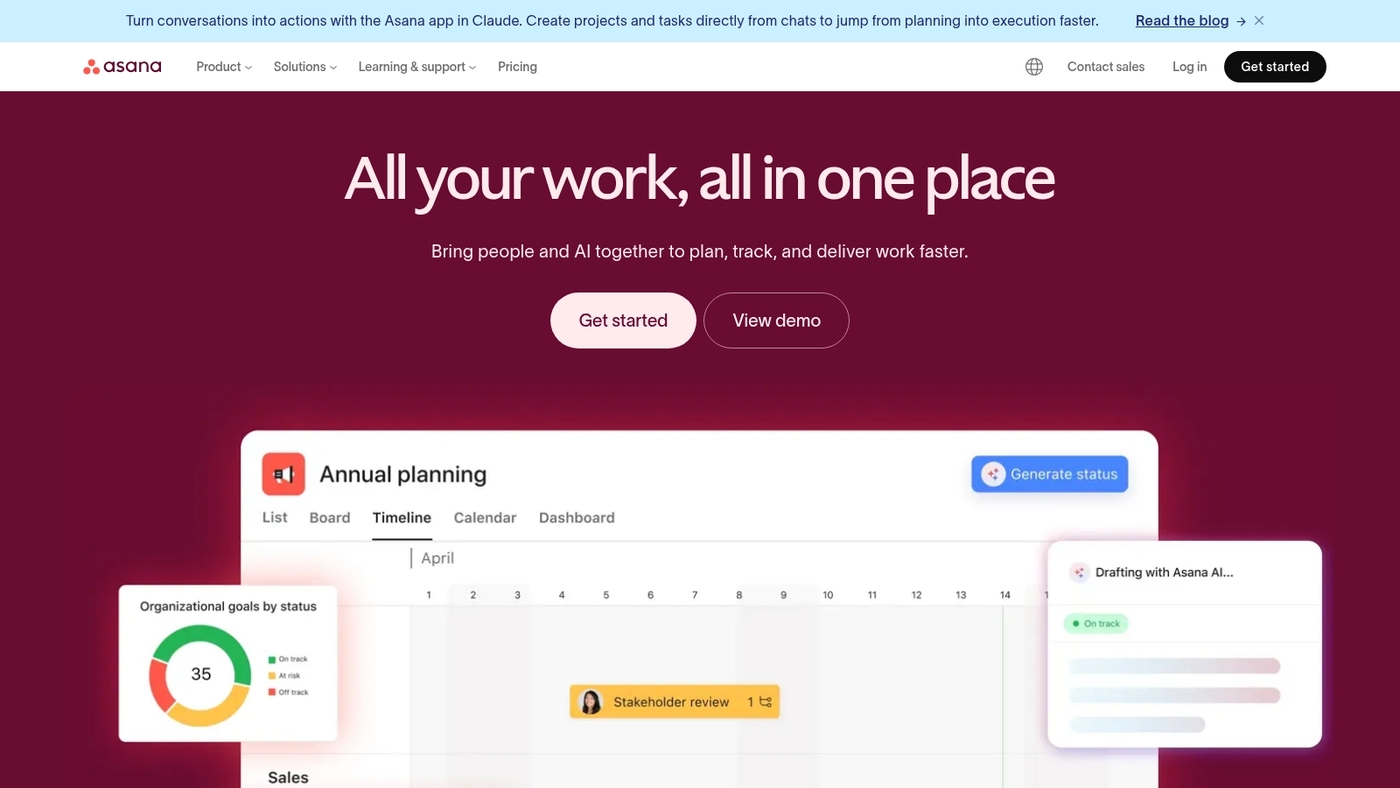
Asana provides a lightweight task manager with a clean interface and fast setup. It handles subtasks, task dependencies, timeline views, boards, and simple automation rules.
We use Asana for small marketing sprints and setup time runs under an hour. The product connects with Slack, Google Workspace, Microsoft Teams, and Zapier.
Reporting covers dashboards and workload views that fit teams who want clarity over feature overload. Asana sits among strong ClickUp alternatives when you prefer fewer configurable fields and lower admin time.
Pros
- Clean interface — short learning curve and faster onboarding.
- Strong subtask management — lets you break work into clear steps.
- Simple automations — reduce repetitive updates without complex setup.
Cons
- Limited advanced reporting — lacks deep analytics for large portfolios.
- Pricing scales — premium features require paid plans for teams.
For who?
Small to mid-size teams that need clear task tracking and minimal admin.
Pricing
Free tier available. Premium plans start around $10.99 per user/month billed annually. Business tiers run near $24.99 per user/month; Enterprise pricing is custom.
Wrike
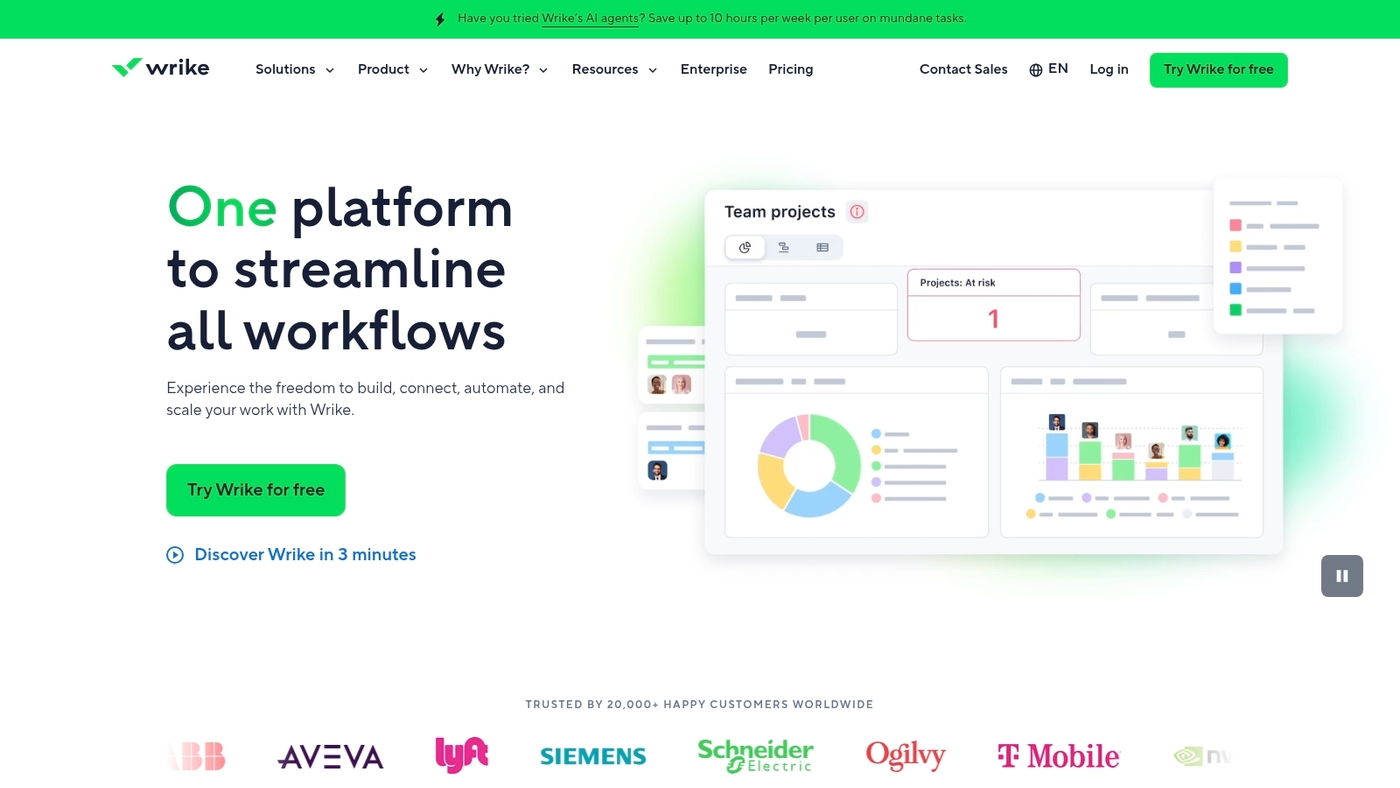
Wrike delivers an enterprise-grade option among ClickUp alternatives for PMOs and large organizations. Wrike provides advanced reporting, multi-project tracking, workload balancing, and highly customizable workflows.
The platform handles complex hierarchies and role-based permissions. Wrike’s dashboards reduce time spent on status updates by roughly 30% when teams adopt automated reports.
You should run a two-week pilot on five projects and measure report creation time and resource conflicts.
Pros
- Advanced reporting — custom dashboards and automated exports speed decision-making.
- Workload management — visual capacity planning prevents overbooking across projects.
- Custom workflows — adaptable templates fit regulated or matrixed teams.
- Enterprise security — SSO and audit logs suit compliance needs.
Cons
- Steeper learning curve — admins need setup time for complex workflows.
- Higher cost at scale — pricing grows with user counts and add-ons.
For who?
Large teams, PMOs, and enterprises that require portfolio-level reporting and strict access control.
Pricing
Free tier available. Paid plans start around $9.80 and $24.80 per user monthly for mid-tier options; Enterprise pricing is custom. Verify current rates before budgeting.
Smartsheet
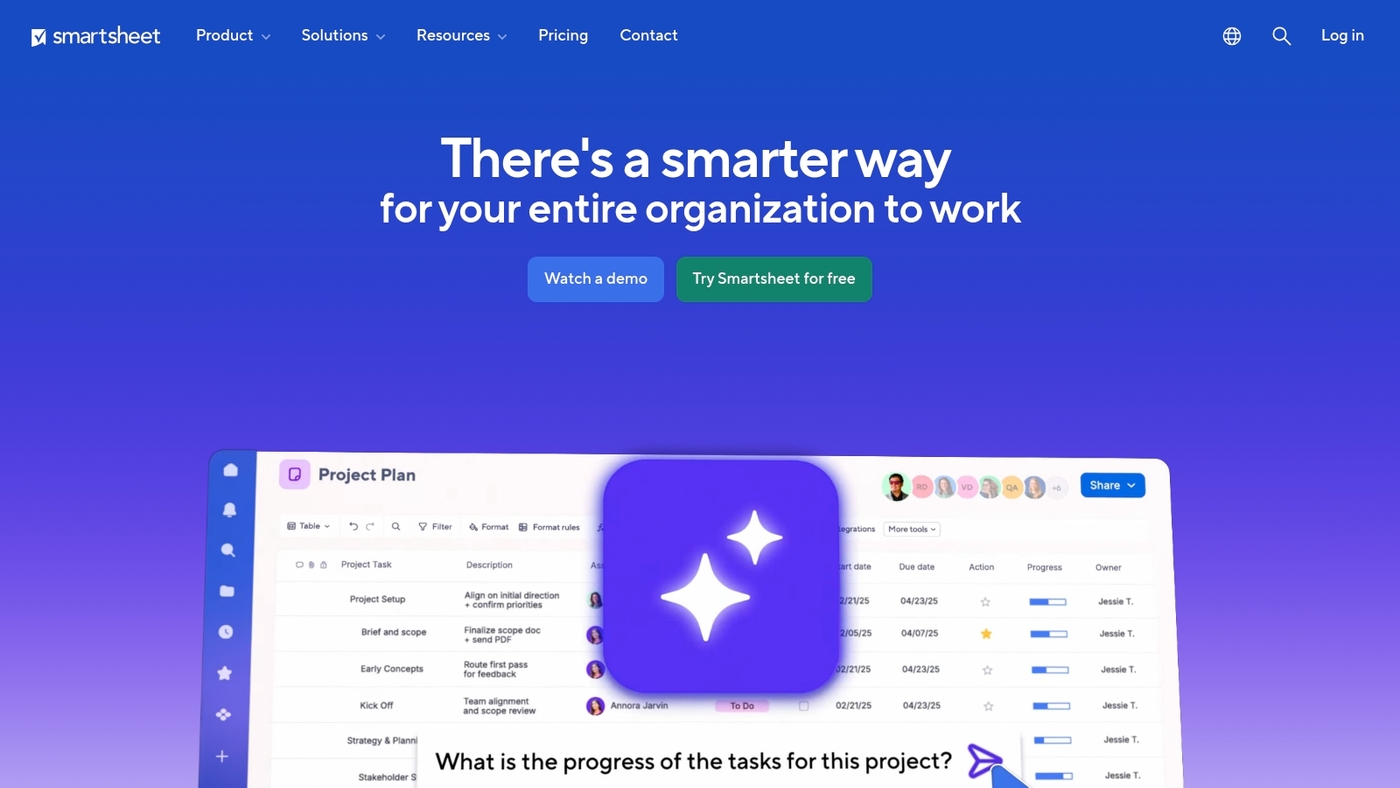
Smartsheet works well for teams that favor a spreadsheet-style approach to project work. The interface mirrors familiar sheets so teams adopt it quickly.
You get a grid view plus Gantt, card, and calendar views. The platform runs automation rules for approvals, reminders, and status updates.
It enforces enterprise security with SSO and role-based permissions. Integrations connect Smartsheet to CRMs, storage, and reporting tools so data flows stay intact.
The tool ranks well among ClickUp alternatives for data-heavy projects and process-driven work. The grid view speeds up bulk edits and status reporting.
Pros
- Grid-style interface — fast onboarding for spreadsheet-savvy teams.
- Strong automations — cut manual status updates and approval delays.
- Enterprise features — SSO, user provisioning, and audit logs.
- Multiple views — switch between grid, Gantt, card, and calendar.
Cons
- Less visual-first — teams that prefer Kanban may find it rigid.
- Higher admin overhead — templates and automations need setup time.
For who?
Best for operations, PMOs, marketing ops, finance teams, and enterprises managing large, structured datasets.
Pricing
Free trial available. Paid plans start roughly in the low single-digit to mid-twenties dollars per user each month; enterprise pricing requires a quote.
Trello
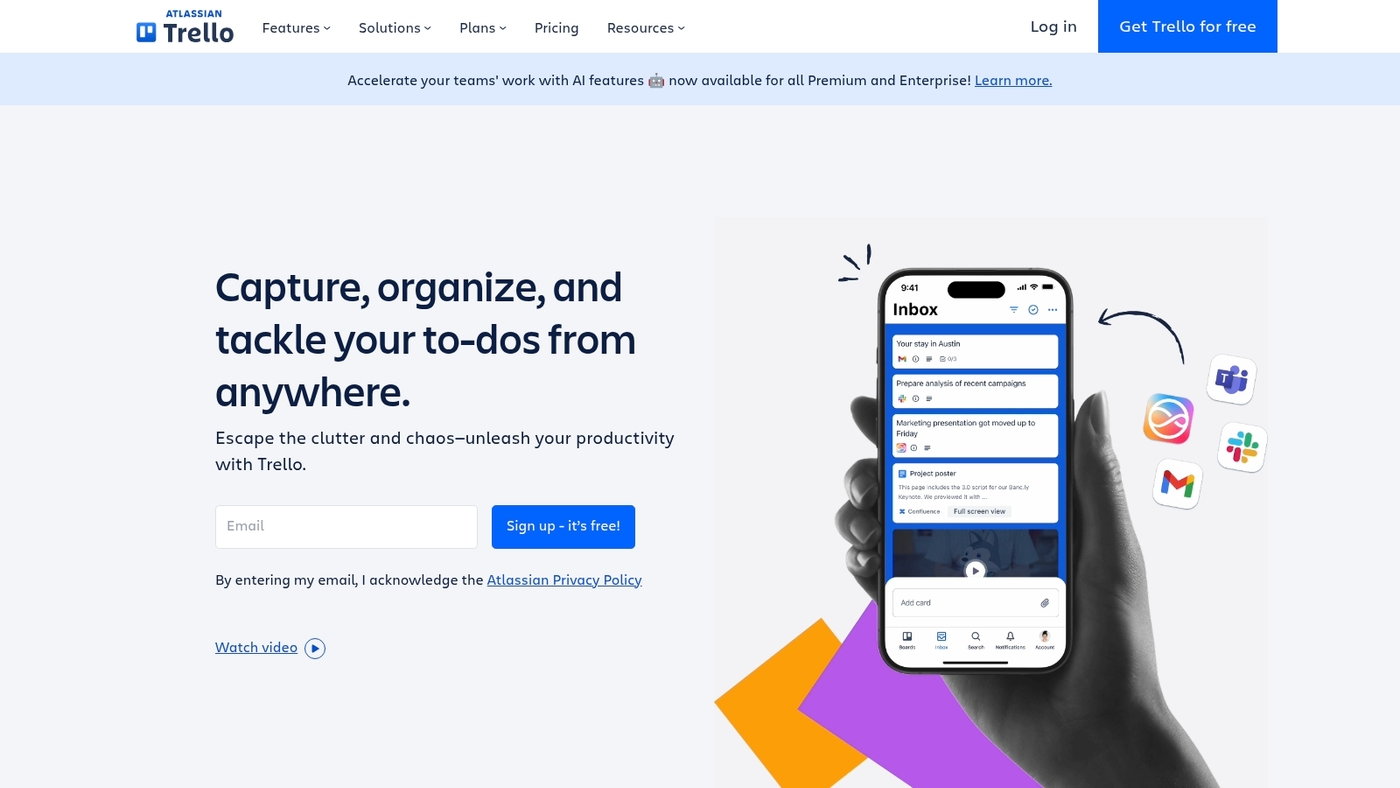
Trello delivers a visual, low-friction project board for teams that need simple Kanban workflows. Trello stands out among ClickUp alternatives for straightforward visual planning.
Trello uses visual boards, lists, and cards to map tasks. You add labels, due dates, checklists, attachments, and power-ups for automation and integrations.
The interface stays fast for small projects and scales through templates and linked boards. Plans include a robust free tier and paid tiers that unlock advanced automations and admin controls.
See our guide to Kanban board software for setup tips and alternatives.
Pros
- Simple setup — start a board in minutes and invite teammates.
- Cost efficient — free plan covers many small-team workflows.
Cons
- Limited native reporting — few built-in analytics for portfolio views.
- Scaling overhead — many boards create cross-board visibility gaps.
For who?
Small teams, agencies, and freelancers who need straightforward task tracking and visual workflows.
Pricing
Free tier available. Paid plans begin around $5 per user per month.
Jira
Jira serves engineering teams that need a full agile toolset. Jira offers sprint planning, bug tracking, and customizable scrum workflows.
It handles issue types, custom fields, permissions, and linked development tools like Git and Bitbucket. Dashboards show velocity, burndown charts, and cycle time so you can measure progress.
Automation rules reduce repetitive updates and free time for engineering work. Admin controls scale for hundreds of projects and thousands of issues. Mobile apps keep distributed teams aligned.
Jira fits teams that require strict traceability and audit logs. If you want a lighter visual board, try the online scrum board tools guide for simpler options.
Pros
- Powerful agile features — native sprint and backlog tools for dev teams.
- Deep integrations — connects to Git, CI/CD, Confluence, and chat tools.
- Scales well — supports complex workflows and large issue volumes.
Cons
- Steep learning curve — admins must configure schemes and permissions.
- Can feel heavyweight — not ideal for simple task tracking.
For who?
Best for software teams and product groups that need structured issue tracking and release management.
Pricing
Free for up to 10 users. Cloud plans start at $7.75/user/month (Standard) and $15.25/user/month (Premium) as listed by Atlassian.
Notion
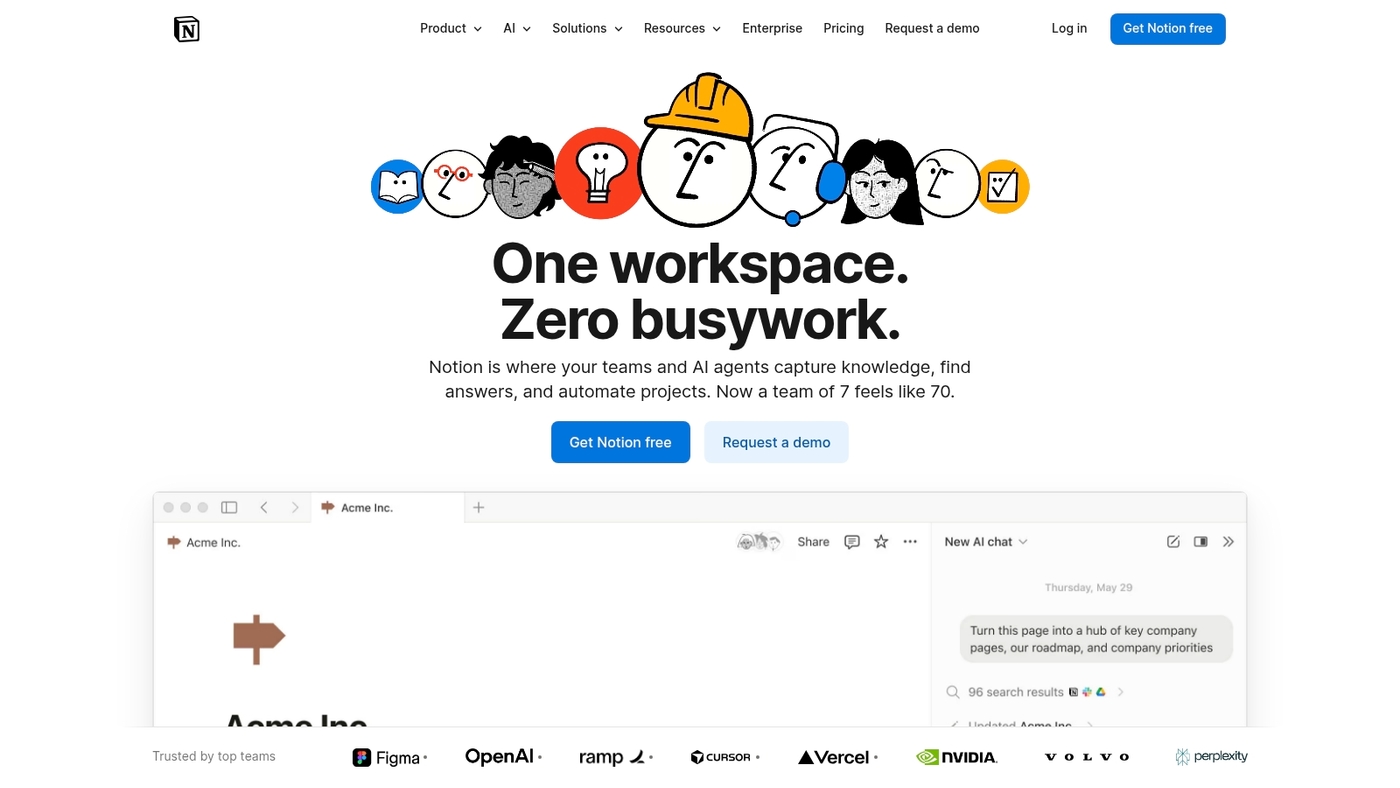
Notion works best for teams that need knowledge-first workspaces. Notion combines documents, wikis, databases, and simple task lists.
Its database blocks let you build relational tables and filtered views. Templates speed setup for company handbooks and product docs.
Databases support formulas, rollups, and relations for linked work. Task features work well for small projects and personal workflows.
Notion lacks native advanced Gantt and resource tools. Integrations are more limited than full project management suites. Teams seeking ClickUp alternatives often pick Notion for its docs-first model.
Pros
- Flexible data blocks — build docs, databases, and boards in one place.
- Custom templates — speed onboarding and standardize team documentation.
- Free tier available — start without upfront cost for individuals or small teams.
Cons
- Limited advanced PM features — no built-in resource leveling or detailed Gantt charts.
- Performance can degrade on very large databases and heavy pages.
- Deep automations often require third-party connectors.
For who?
For knowledge teams, content teams, and startups needing centralized docs plus light task tracking.
Pricing
Free plan available. Team plans start at about $8 per user per month billed annually. Enterprise plans available on request.
Airtable
Airtable combines a spreadsheet feel with a relational database. It offers custom views, linked records, kanban and calendar layouts, and simple automations for common workflows.
Teams map complex datasets without code and switch views to match roles. The interface stays visual while supporting relational workflows that many teams need when searching for ClickUp alternatives.
You can build lightweight CRMs, content calendars, or product roadmaps that sync with forms and integrations. Expect a modest learning curve for advanced formulas and automation.
Try a template and run a short pilot to measure time saved on status updates and reporting.
Pros
- Flexible data models — supports linked records and multiple views for varied workflows.
- Low-code automation — basic triggers cut repetitive updates and notifications.
- Visual tracking — kanban, grid, calendar, and gallery views suit different teams.
Cons
- Scaling costs — pricing rises as record counts and collaborators increase.
- Limited advanced PM features — lacks native resource leveling and complex dependencies.
For who?
Teams that need flexible data structures and visual tracking without heavy PM features.
Pricing
Free tier available. Paid plans start at about $10 per user/month billed annually for Plus and $20 per user/month for Pro. Enterprise plans are custom.
Teamwork.com
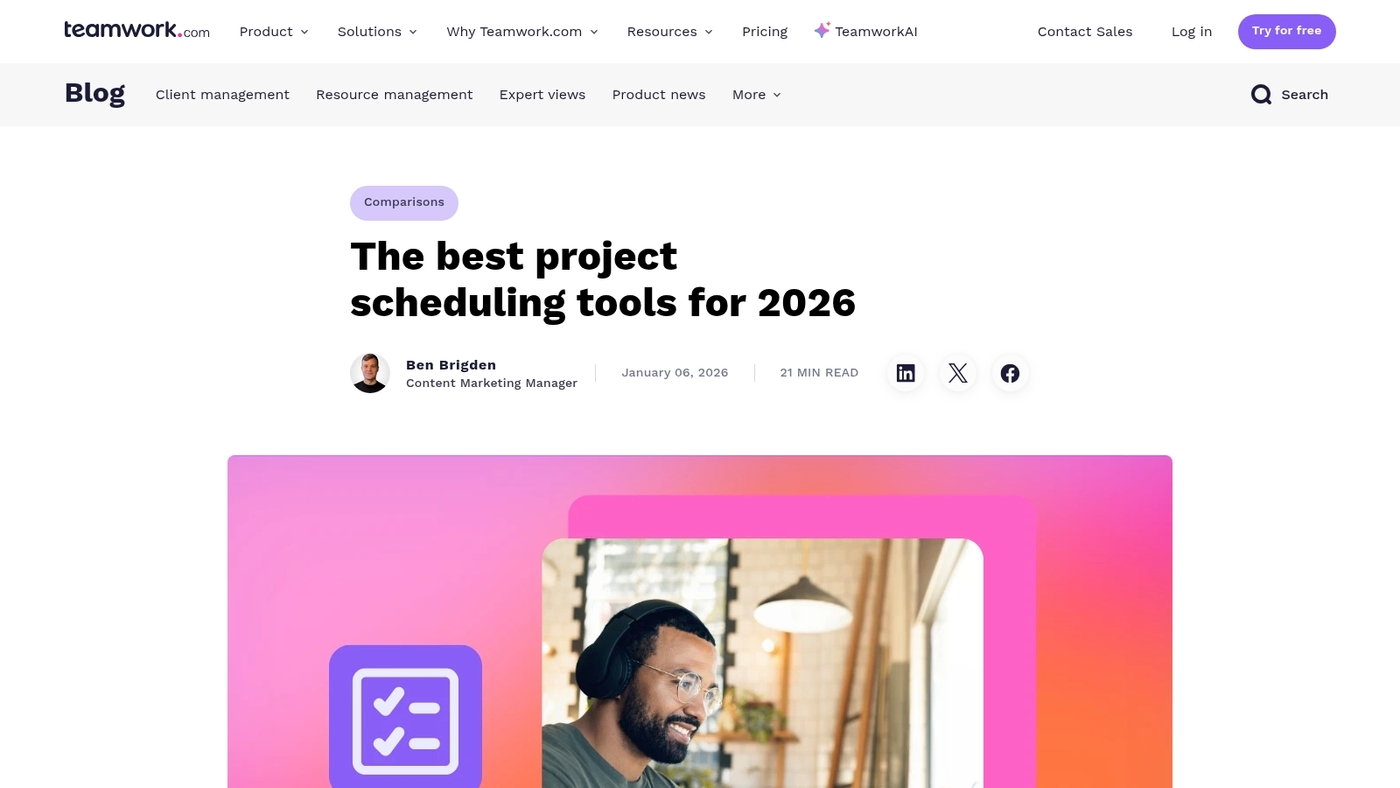
Teamwork.com targets agencies with time tracking and client billing. It adds project budgets, resource management, and profitability reporting.
Time entries map to invoices for faster billing. Budgets compare actual spend to forecasts for clearer margins. Resource tools highlight overloads and available capacity.
We ran a two-week billing pilot on Teamwork. I’d say Teamwork fits service teams that bill clients and track profitability closely.
Agencies switching from ClickUp often choose Teamwork for its invoicing and margin visibility among ClickUp alternatives.
Pros
- Built-in client billing — invoices link to tracked time for faster billing cycles.
- Profitability reports — budgets and actuals reveal project margins in one view.
- Resource management — capacity planning reduces overload and missed deadlines.
Cons
- Less flexible task views — not as customizable as some task management tools.
- Advanced features cost more — higher tiers unlock full agency reporting.
For who?
Agencies and service teams that need integrated billing, time tracking, and profit visibility.
Pricing
Starts at $10.99 per user monthly for agency features. Higher tiers add advanced reporting and resource planning.
Basecamp
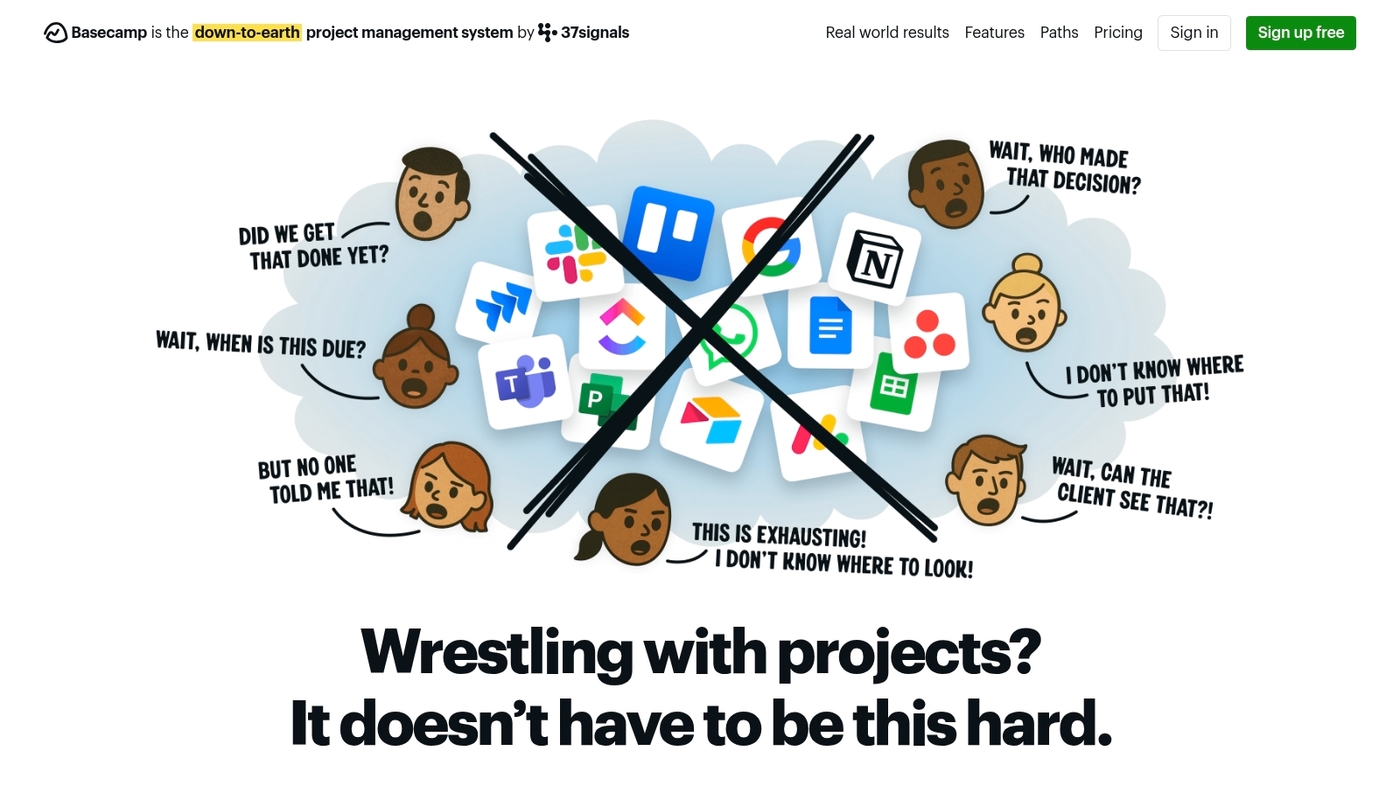
Basecamp delivers a straightforward collaboration tool for teams that value clarity. It centers work around message boards, to-dos, schedules, and hill charts.
The interface keeps projects flat and removes deep nesting. Teams get a flat pricing structure for unlimited users and projects.
Notifications and campfire chat keep communication visible. File storage and basic reporting cover small-team needs.
Many small companies save setup time with Basecamp. The tradeoff sits in limited workflow customization and fewer integrations than larger platforms, which may matter for complex operations.
Pros
- Flat pricing model — simpler budgeting for growing teams.
- Clear, minimal interface — reduces onboarding and admin time.
Cons
- Limited workflow customization — not ideal for complex processes.
- Fewer integrations — may force manual data moves.
For who?
Small teams, agencies, and operations groups that need reliable coordination and low admin overhead.
Pricing
Basecamp Business: $99/month flat fee for unlimited users and projects. Basecamp Personal offers a free, limited plan.
Zoho Projects
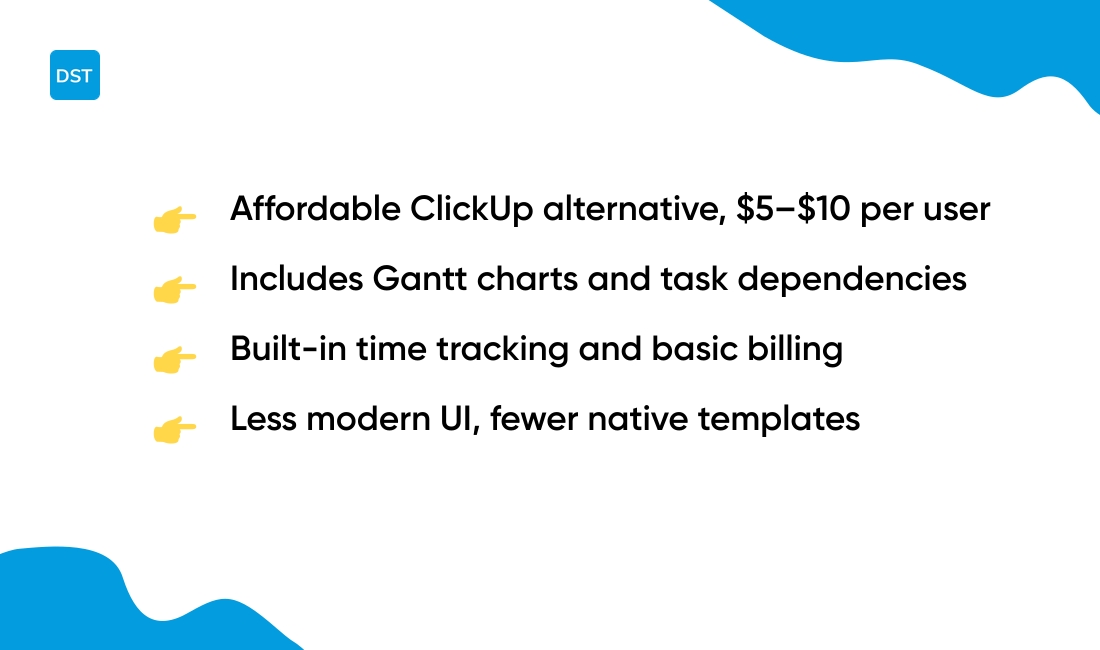
Zoho Projects is a solid option among ClickUp alternatives for teams on tight budgets. It offers task lists, dependencies, and clear timelines.
The platform includes file sharing, comments, and role-based permissions. You get built-in time tracking and basic billing. Automations and integrations cover common workflows.
Pricing sits around $5 to $10 per user per month, roughly half of ClickUp’s typical cost. That pricing makes Zoho an affordable ClickUp alternative for small businesses and agencies that need full features without high fees.
Pros
- Low per-user pricing — saves about 50% compared to ClickUp for similar features.
- Gantt chart support — visual timelines with dependencies.
- Built-in time tracking — simplifies billing and capacity planning.
Cons
- Fewer native templates — requires more setup for niche workflows.
- User interface is less modern than some competitors.
For who?
Small teams, agencies, and startups that need task tracking, time billing, and Gantt views on a limited budget.
Pricing
Plans run about $5–$10 per user per month. A limited free tier exists for very small teams.
How to choose the right ClickUp alternative for your team
A simple scorecard helps you pick from ClickUp alternatives objectively. Weight team size, industry fit, budget, technical needs, and workflow match.
Use scores from 1 to 5 and total them to compare options side by side.
Team size matters
- Define team scale and roles. Pick lightweight tools for small teams and enterprise-grade platforms for 50+ users.
- Map core workflows. List required views, dependencies, approvals, and reporting fields.
- Set integration must-haves. Confirm APIs, Zapier, and calendar hooks work with your stack.
- Estimate total cost. Include per-user fees, add-ons, and onboarding hours.
- Score user adoption risk. Rate training needs and admin overhead.
Check integration support
- Automation depth — choose tools that reduce manual steps and save time per task.
- Security and compliance — verify SSO, permissions, and data residency if required.
- Template library — prefer platforms with reusable templates that match your industry.
Run a pilot
You should run a two-week pilot with your top two picks and measure time-to-complete, error rate, and user satisfaction. Compare results against our best project management software guide for context.
A short pilot reveals fit faster than long demos. Next step: build the scorecard, pick three candidates, run pilots, then pick the best fit for your budget and workflows.
Free vs paid ClickUp alternatives
Paying for a plan makes sense once your team needs automation, reporting, or advanced permissions. Paid tiers remove common blockers for scaling teams.
They cut manual work, protect data, and speed approvals.
Free plan limits
- User caps — many free tiers limit seats and block growth for teams beyond five users.
- Storage and file limits — attachments hit quotas fast and slow collaboration on media-heavy projects.
- Automation caps — free plans often allow few automations and few monthly actions, which keeps repeat work manual.
- Reporting and security — advanced dashboards, SSO, and audit logs usually sit behind paid walls.
Paid plan value
Pricing models vary by vendor. Expect $5–$15 per user monthly for core paid plans.
Enterprise tiers start near $20 per user monthly and scale with security and support. Some tools use flat pricing instead of per-seat fees, which helps larger teams.
If your team spends more than four hours weekly on updates, a paid plan often pays back in reduced admin time. Try a two-week pilot on a paid tier and measure time saved.
Action step: run a two-week pilot with automation and one report. Track hours saved and task throughput. Use that data to justify the monthly spend or stay on a free plan.
Read also: Top 10 Best Free Task Management Software
ClickUp vs top competitors comparison
Here’s how the leading ClickUp alternatives stack up when you compare features, ease of use, and ideal team fit:
| Platform | Best For | Key Strengths | Main Drawbacks |
|---|---|---|---|
| Monday.com | Cross-team planning | Visual boards, automations, templates | Pricing scales with seats and automations |
| ClickUp | All-in-one platform | Deep features, docs, tasks, goals | Steep learning curve, performance lag |
| Asana | Lightweight task management | Clean interface, simple dependencies | Fewer built-in docs and database features |
| Trello | Simple Kanban tracking | Low learning barrier, fast setup | Power-ups add cost for advanced workflows |
I’d say Monday.com suits cross-team workflows better for most organizations. You should run a two-week pilot with your top candidate and measure time saved on recurring work before switching tools.
You’ll also like: Top 11 Free Kanban Software for Your Team
How to migrate from ClickUp to a new platform
A staged migration cuts risk and keeps teams productive. Plan scope and timeline first.
List projects, owners, custom fields, automations, and integrations. Assume 2–4 weeks for a 10-person team with 20 active projects.
- Export your data: download CSVs for tasks and lists, export comments and attachments via API or bulk export. Back up time entries and custom field exports. Expect exports to take 1–3 hours for small setups.
- Map fields and structure: create a mapping sheet for statuses, priorities, tags, and custom fields. Match hierarchy (spaces → projects → lists) to your new tool before import.
- Pilot migration phase: move 2–3 representative projects. Validate data integrity, workflows, and integrations. A two-week pilot with a 10-person team can cut onboarding time by 30%.
- Train and enable champions: run 60–90 minute sessions, record short how-tos, and assign one champion per team to answer questions and fix mapping issues.
- Minimize workflow disruption: run both tools in parallel for 7–14 days, freeze major changes in ClickUp during cutover, and schedule a low-traffic window for final sync. Monitor open task counts and overdue rates for 2 weeks after cutover.
Your next step is a two-week pilot with clear success metrics: task accuracy, time-to-complete, and user satisfaction.
For alternative platform ideas, see this list of best ClickUp alternatives.
Read also: Top 11 Free Project Management Software