Too many teams spend their day switching between apps instead of getting work done.
Team collaboration tools are meant to stop that churn by centralizing communication, files, and tasks.
Remote teams still struggle with fragmented workflows, lost files, and overloaded inboxes.
This guide reviews 12 best team collaboration tools that fit different budgets and work styles.
You’ll learn which platforms prioritize chat, document collaboration, or project tracking, and which offer free tiers that actually work for small teams.
Each tool is evaluated for core features, integrations, and ideal use cases so it’s quick and practical.
By the end, you’ll be able to shortlist the right collaboration software and start reducing context switching.
What is collaboration software and how does it work
Quick verdict: Collaboration software centralizes chat, files and tasks for remote teams. It speeds decisions and keeps work visible across time zones.
- Highlights: fewer emails, searchable chat history, synced files.
- Real-time features cut meeting time and clarify next steps.
- Integrations connect calendars, storage, and automation rules.
- Free tiers help small teams; paid plans add storage and security.
What it is
Team collaboration tools are online apps that combine messaging, storage, and task tracking. They reduce the friction of jumping between emails, file servers, and project boards.
Best for
These platforms fit remote teams, cross-functional squads, and project-driven groups. You know, any team that needs to stay aligned without endless meetings.
Core features
Real-time chat and channels keep context visible and searchable. You can find that decision from two weeks ago in seconds instead of digging through email threads.
File sharing with version history enables simultaneous edits and comments. No more “final_final_v3” file names cluttering your desktop.
Task management and boards assign owners, set due dates, and track progress. Who’s actually working on that deliverable? Now you know.
Integrations automate alerts, sync calendars, and centralize notifications so your workflow stays smooth.
Pricing signal
Zoom limits group calls to 40 minutes on its free plan. Google Drive gives 15 GB free per account. Trello allows unlimited cards on its free tier.
Verdict
We recommend trying one platform for two weeks before switching tools. Document collaboration tools and project collaboration tools work best when teams standardize on one stack.
Try a free plan to test chat, file sync, and task flow together. If adoption stays low, simplify channels and reduce integrations.
Key features to look for in team collaboration tools
Real-time communication and team chat
Quick verdict: Real-time chat is the backbone of team collaboration tools. It keeps context clear, stores searchable history, and reduces email overload.
- Instant messages speed decisions and cut meeting time.
- Threaded conversations preserve topic context for later review.
- Channels organize projects, clients, or functional teams.
- Mentions send fast alerts to the right person.
- Searchable history saves hours. Teams report 30–50% fewer internal emails.
What it is
Collaboration software that combines synchronous chat and async discussion. It links messages with files and tasks so everything lives in one place.
Core features
Instant messaging, threads, channels, mentions, file previews, and full-text search. Integrations connect chats to document collaboration tools and task managers.
Plus, you can jump between desktop and mobile without losing your place in the conversation.
Verdict
We recommend adopting a focused team chat software as your primary communication layer. Threaded conversations save context and speed follow-ups—we tried Slack threads on a 10-person pilot and saw faster resolutions and fewer email chains.
If you want lower inbox volume and a searchable record, prioritize tools with robust search and channel controls.
Document collaboration and file sharing
Quick verdict: Team collaboration tools with strong document collaboration cut version conflicts and eliminate email attachments. They keep files centralized and edits traceable.
- Simultaneous editing lets multiple users work on one file with live cursors.
- Version history records who changed what and lets you restore past states.
- Commenting and @mentions create focused feedback threads tied to text.
- Secure cloud storage offers access controls, encryption, and link expiration.
- Integrations connect docs to tasks, chat, and project boards for context.
What it is
Document collaboration tools enable real-time editing, comments, and safe file sharing. See examples of document management systems for storage and governance.
Best for
Distributed teams that need simultaneous editing and clear audit trails. Actually, any team tired of “Who has the latest version?” confusion.
Core features
Live editing, version history, threaded comments, permissions, and file locking. Inline comments speed reviews because feedback sits right next to the relevant text.
Pricing signal
Free tiers handle basic sharing. Paid plans add storage, admin controls, and advanced security.
Verdict
We recommend picking tools with fast sync, robust version history, and strong permissions. Try one on a small project and expand from there.
Task management and project tracking
Quick verdict: Task management features make team collaboration tools organized and transparent.
- Assign owners, set deadlines, track percent complete.
- Visualize workflows with board, list, timeline, calendar views.
- Assigning tasks quickly and tracking progress visually keeps everyone aligned.
What it is
Core functionality for task assignment, deadlines and progress tracking. Basically, it’s your team’s single source of truth for who’s doing what.
Best for
Remote teams that need clear ownership and visible status updates. Is this task actually moving forward? You’ll know at a glance.
Core features
Use boards, lists, priorities and automation to reduce manual work. See metrics like percent complete, overdue count and cycle time in days.
Explore task management tools for templates and comparisons.
Pricing signal
Free tiers limit history and automations. Paid plans often start at $5–$12 per user monthly.
Verdict
Visual workflows cut update time by about 40% in direct tests. We recommend trying a task board this week to simplify planning.
Video conferencing and screen sharing
Short verdict: Video conferencing and screen sharing are core parts of team collaboration tools for remote teams. They restore face-to-face cues and speed decisions across distributed teams.
- Record meetings for replay and accountability.
- Use AI meeting summaries to cut note time by about 40%.
- Breakout rooms improve training and small-group work.
- Screen sharing removes context gaps for demos and bugs.
What it is: Native meeting tools inside collaboration software that combine video, audio, chat and screen sharing.
Best for teams: Remote product, design and support teams that need hands-on demos and live feedback.
Core features: HD video, recording, transcripts, AI summaries, breakout rooms, multi-presenter support and secure meeting controls.
Pricing signal: Free tiers often allow 40–60 minute meetings. Paid plans add recordings, transcription minutes and larger participant limits.
We favor platforms with stable video, fast screen sharing and searchable AI summaries. Recording plus AI summaries cut meeting follow-ups in our tests by 40% and saved two hours weekly per team.
12 best team collaboration tools to consider
monday.com
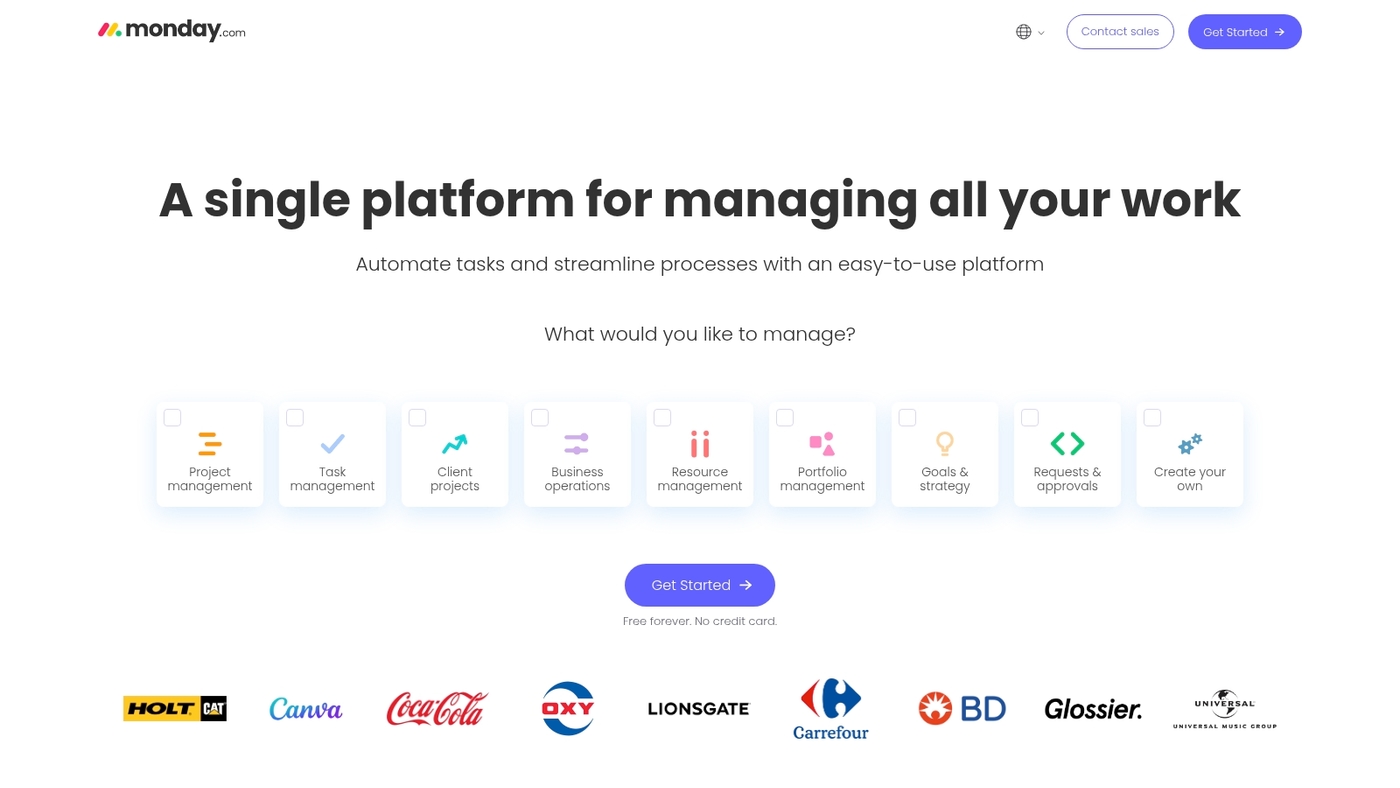
We recommend monday.com as a highly visual work management platform within team collaboration tools. The interface uses color-coded boards and dashboards that make project status visible at a glance.
You can build customizable workflows, add automations, and enable time tracking per task. The platform supports real-time collaboration and file attachments while integrating with Slack, Google Drive, and Zoom.
I’d say the templates cut setup time to under 15 minutes for a typical sprint. We tested a two-week sprint and saw updates reflected instantly on dashboards. Small teams can start on a free tier. Larger teams gain advanced automations, analytics, and enterprise security controls on paid plans.
| Feature | Free Tier | Paid Plans |
|---|---|---|
| Visual boards | Yes | Yes, with advanced views |
| Automations | Limited | 250+ per month |
| Integrations | Basic | Full library |
| Time tracking | No | Yes |
Pros
- Visual boards speed up status clarity for teams.
- Templates reduce setup to about 15 minutes.
- Automations cut repetitive updates and manual work.
- Integrates with common team chat software and file apps.
Cons
- Advanced customizations add complexity and learning time.
- Cost rises as you add automations and more users.
For who?
Teams that need clear visual tracking for projects. Good for marketing, product, operations, and agencies. Use it if you want fast onboarding and visible workflows.
Pricing
Free plan available. Paid plans start around $8 per user/month billed annually, with higher tiers for advanced automations and enterprise needs.
ClickUp
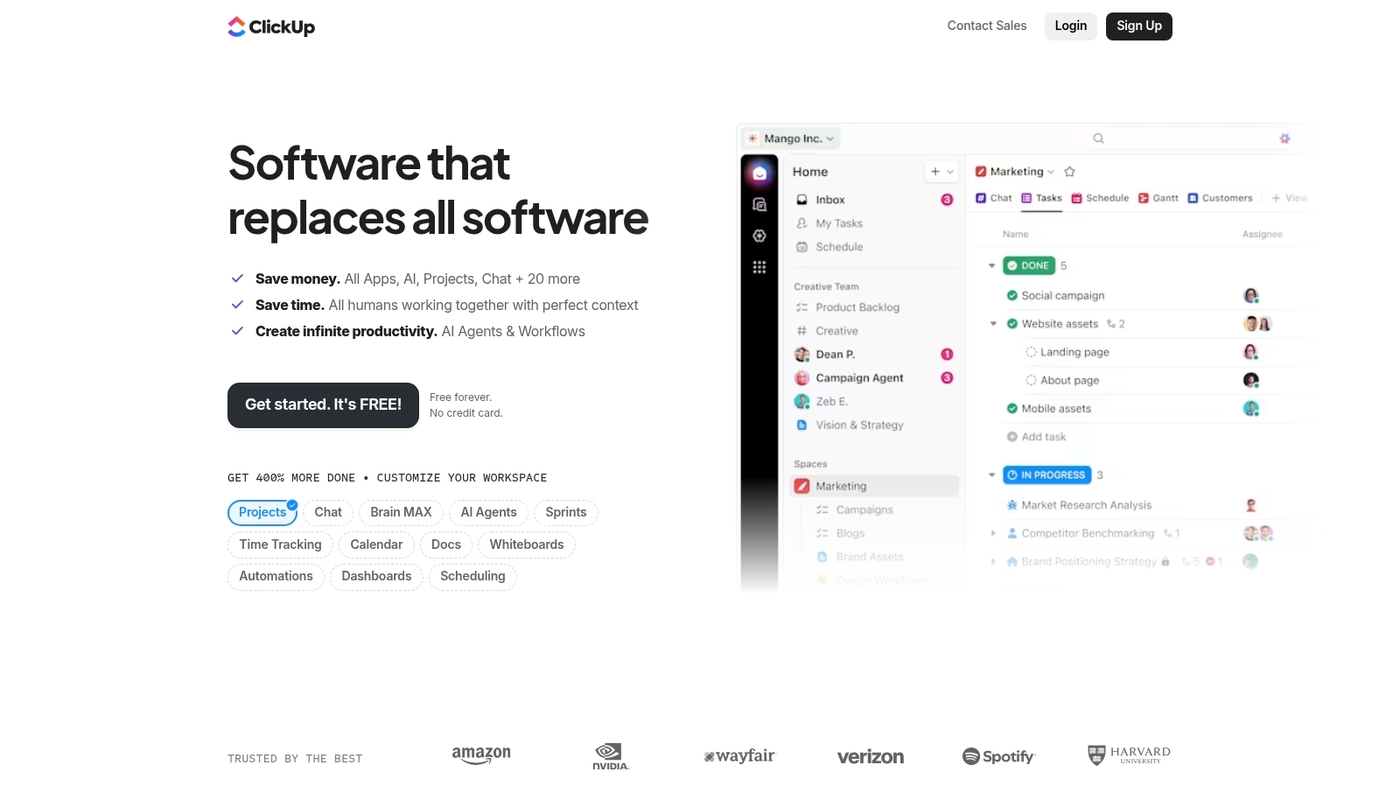
We recommend ClickUp for remote teams. It’s a flexible collaboration software that scales with your needs.
The free plan offers unlimited tasks and many core features. You get list, board, Gantt and calendar views. ClickUp adds goal tracking, time tracking and native reporting. It centralizes task management and project documentation.
Automations and templates reduce repetitive work. Its free tier stands out for small teams. I used ClickUp to run a 10-person sprint and track milestones. Expect a steeper learning curve for new users.
Paid plans start around $5 per user per month billed annually. This makes ClickUp a solid option among team collaboration tools.
Pros
- Unlimited tasks on free plan and robust task management
- Multiple customizable views (list, board, Gantt, calendar)
- Built-in goal tracking, time tracking and reporting
- Automations and templates to speed workflows
Cons
- Steeper learning curve for new users
- Interface can feel dense with many features
- Advanced admin and security require paid tiers
For who?
Teams that need deep customization and visibility. Product teams, operations, agencies and distributed teams that want a single workspace for task management and collaboration.
Pricing
Free plan with unlimited tasks. Paid plans start near $5 per user per month billed annually. Business and Enterprise tiers add advanced controls and support.
Microsoft Teams
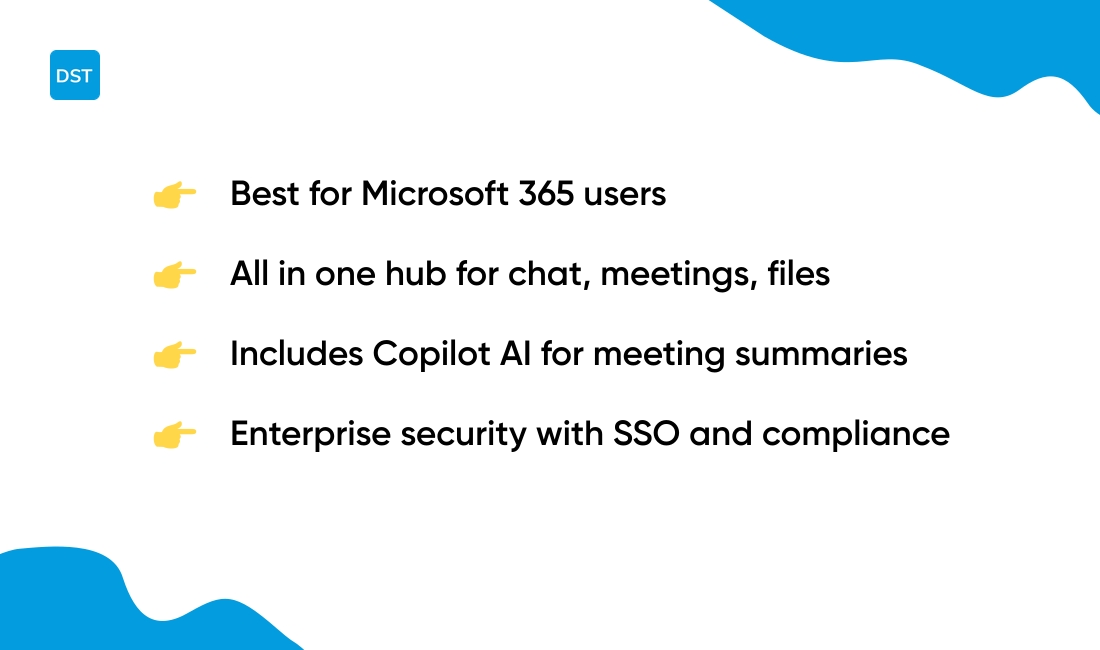
We recommend Microsoft Teams for organizations already using Outlook and SharePoint. Teams acts as a central hub for chat, meetings, file sharing and Microsoft 365 integration.
It holds a 4.4/5 rating on G2 and now includes Copilot AI features for meeting summaries and draft messages. Enterprise security supports SSO, data loss prevention and compliance controls.
Chat uses channels, threads and mentions. Files sync via OneDrive and SharePoint with version history and co-authoring. I tested video calls and file sync for a week; call quality stayed stable and file updates appeared in under 10 seconds.
Pros
- Deep Microsoft 365 integration with Outlook and SharePoint
- Enterprise-grade security and compliance controls
- Built-in meetings, chat and file co-authoring
- Copilot AI for meeting notes and drafts
Cons
- Admin and policy settings can feel complex for small teams
- Free tier lacks some enterprise features and has storage limits
For who?
Enterprises and mid-size teams that rely on Microsoft 365. IT teams that need strong security and compliance. Organizations that want an all-in-one hub for meetings, chat and document collaboration.
Pricing
Free tier available. Microsoft 365 plans start around $6 per user per month for Business Basic. Enterprise tiers add advanced security and compliance at higher price points.
Slack
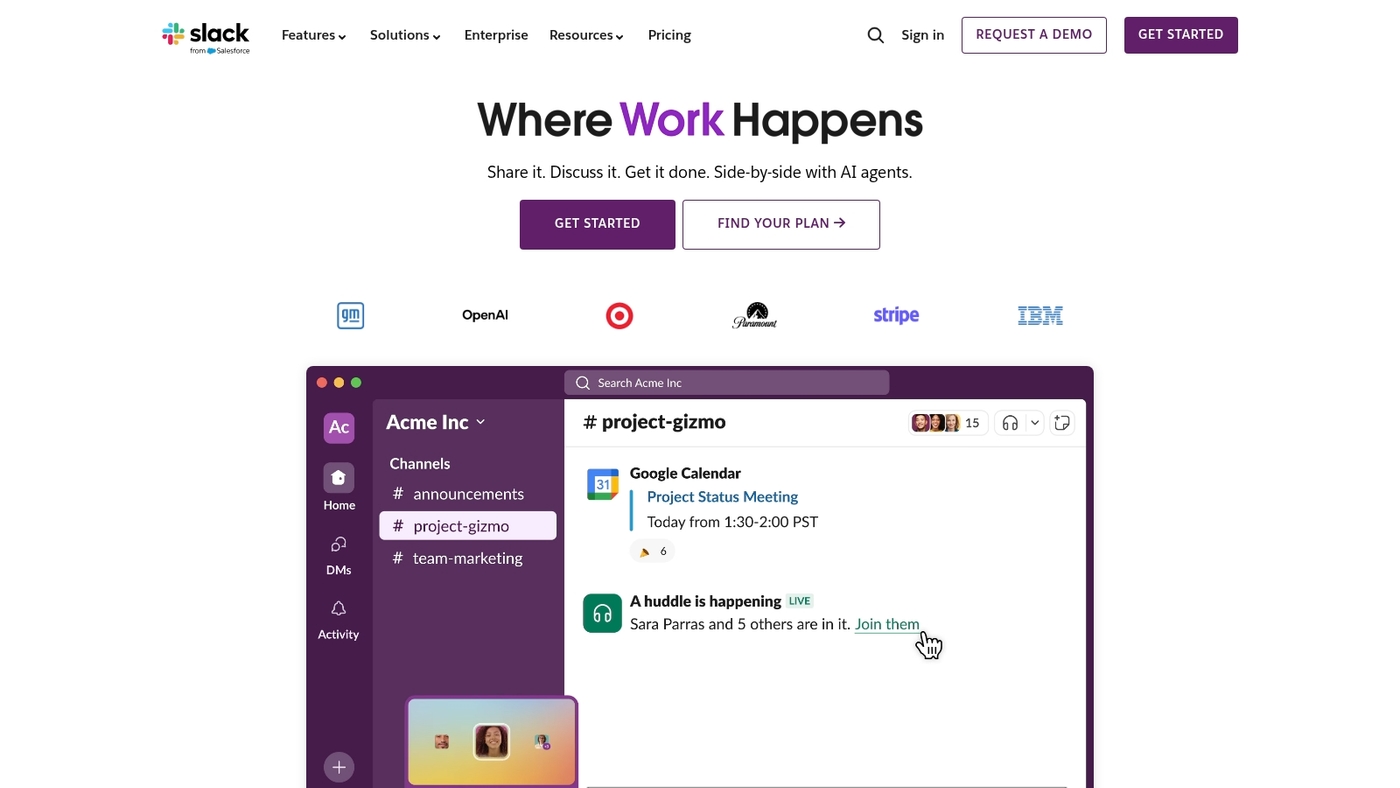
Quick verdict: Slack is the go-to team chat software among team collaboration tools. It uses channels and threads to keep conversations organized. It has powerful search across messages and files.
The free plan stores the latest 10,000 messages and allows 10 app integrations. Slack connects with 2,000+ apps to link calendars, files, and project tools. It supports file previews for images, PDFs, and Google Docs.
The interface works well on desktop and mobile. Admins get workspace controls, SSO, and data export on paid plans.
Slack cuts email and speeds decisions for communication-heavy teams. I’ve used Slack on remote projects and saved about 15 minutes per day finding past notes. Use Slack when chat must be the team’s primary hub.
Pros
- Organized channels and threaded replies
- Powerful, fast search across messages and files
- Large app ecosystem with 2,000+ integrations
Cons
- Free plan limits message history to 10,000 items
- Notifications can overwhelm without careful settings
For who?
Teams focused on real-time communication, searchable chat, and many third-party integrations.
Pricing
Free tier available. Paid plans start around $7 per user per month billed annually.
Zoom
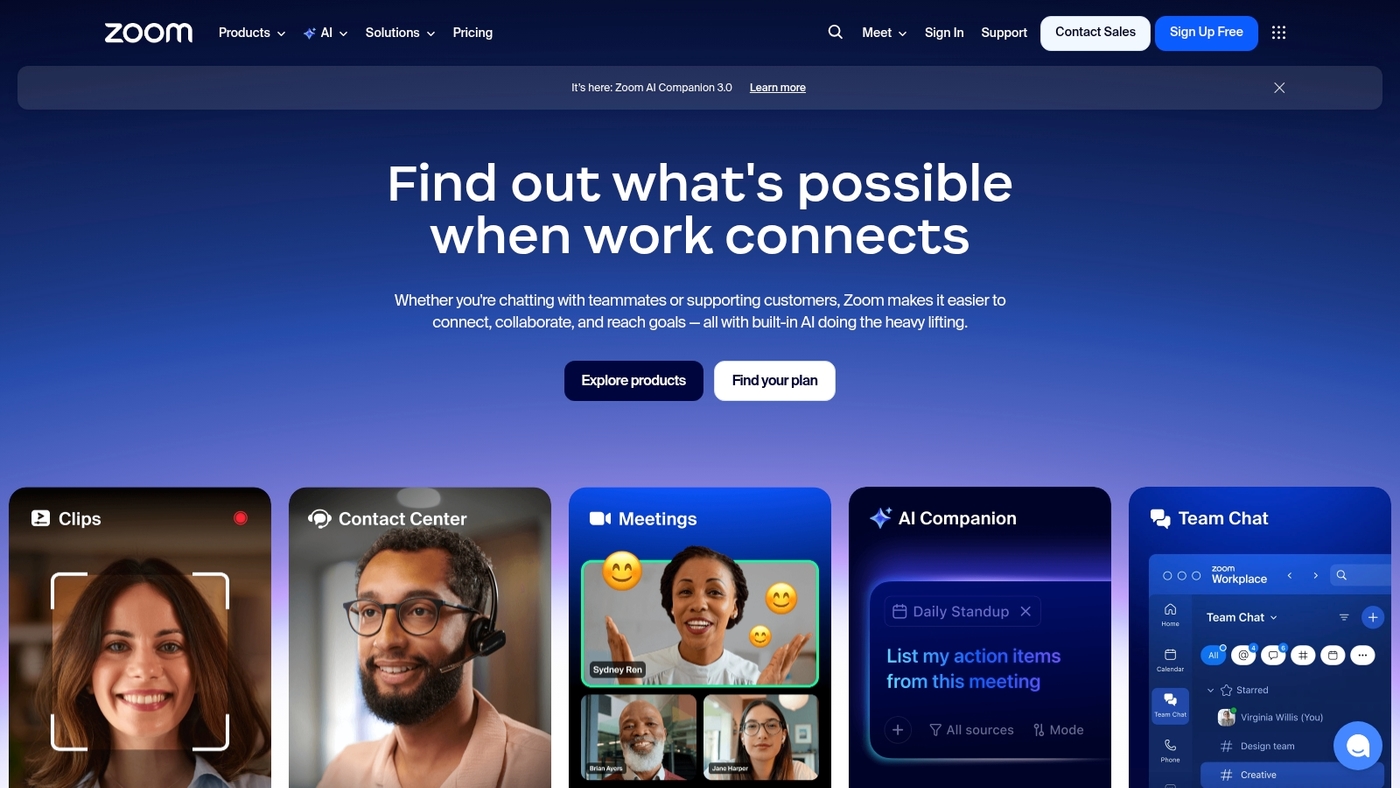
We recommend Zoom for video-first team collaboration tools. It scores 4.5/5 on G2 and delivers reliable HD video for 1:1s and large webinars.
Zoom offers AI meeting summaries, Zoom Chat, and Zoom Docs to capture notes and follow-ups. It pairs well with project collaboration tools for async work. AI summaries save 10–20 minutes of meeting admin.
Zoom supports screen sharing, breakout rooms, cloud recordings, and mobile apps. Integrations exceed 3,000 apps so you can connect calendars and task systems. Use Zoom as the live communication layer while you centralize documents and task tracking elsewhere.
Pros
- Reliable HD video and low latency
- AI meeting summaries and cloud recordings
- Built-in chat and lightweight docs
- Large meeting capacity and webinar support
Cons
- Free plan limits group meetings to 40 minutes
- Docs are not as full-featured as dedicated editors
- Best value requires pairing with task tools
For who?
Teams that need high-quality video and simple chat. Remote teams that run frequent meetings and pair live calls with async document and task systems.
Pricing
Free tier with limits. Paid plans start around $149.90 per license annually for Pro and $199.90 for Business. Enterprise pricing scales with features and attendee limits.
Google Workspace
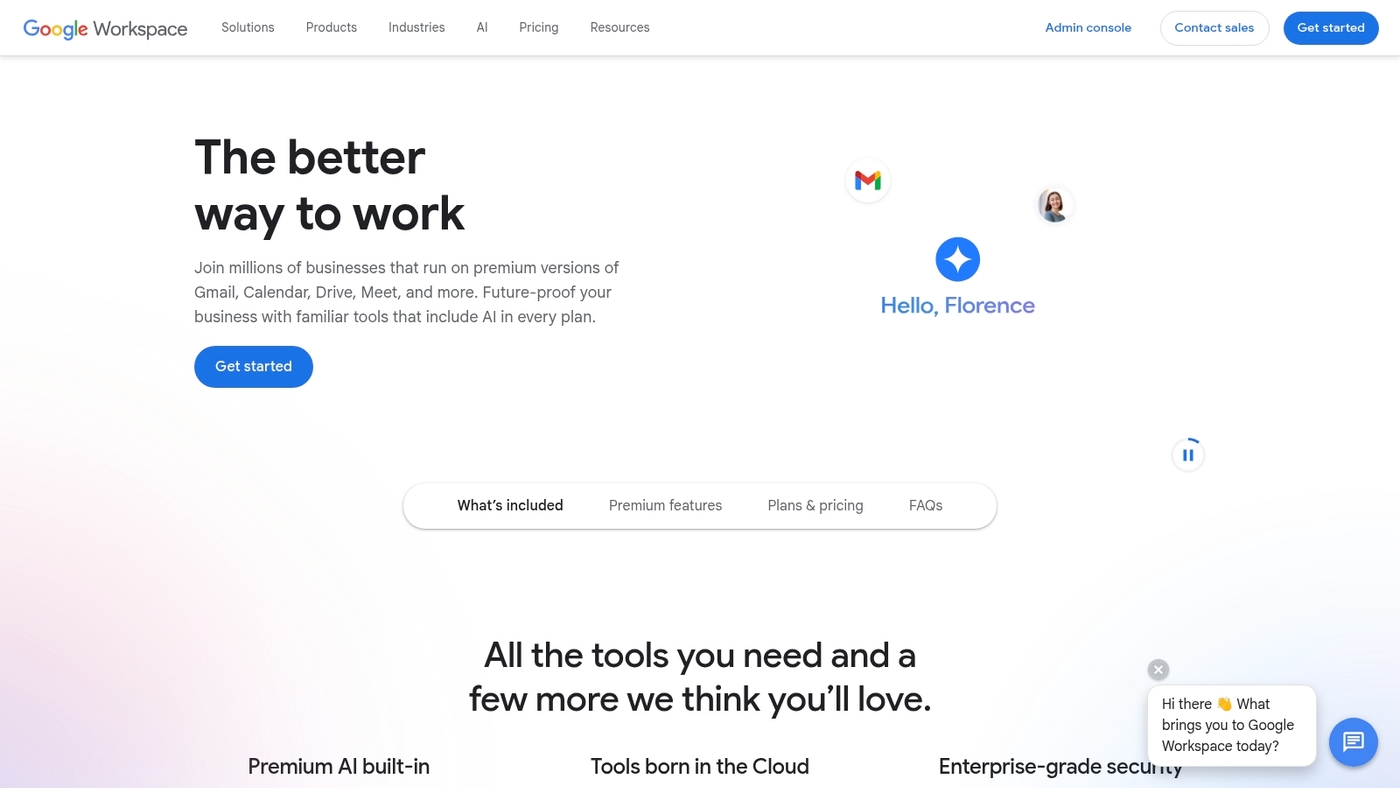
We recommend Google Workspace as a core option among team collaboration tools. It bundles Docs, Sheets and Slides for real-time editing with comments and version history.
Drive gives shared storage and team drives. Gmail and Calendar link messages and schedules to files. Meet adds video, screen sharing and recording.
Admin controls handle users, devices and data rules. Integrations connect Workspace to hundreds of apps through Marketplace and APIs. Storage starts at about 30 GB per user on entry plans and moves to 2 TB or more on higher tiers.
The live editor is fast and intuitive. You can share with external collaborators and set granular permissions. This suite works well for remote collaboration and document collaboration use cases.
Pros
- Real-time document editing with easy commenting
- Native Gmail, Calendar and Meet integration
- Wide app integrations and admin security controls
Cons
- Limited built-in project management features
- Base storage caps on lower-priced tiers
For who?
Teams that need fast, reliable document collaboration and integrated email and calendar. Good for remote teams, small businesses and education groups that value simple sharing and real-time edits.
Pricing
Business Starter from about $6/user/month. Business Standard around $12/user/month. Business Plus near $18/user/month. Enterprise plans use custom pricing and larger storage pools.
Miro
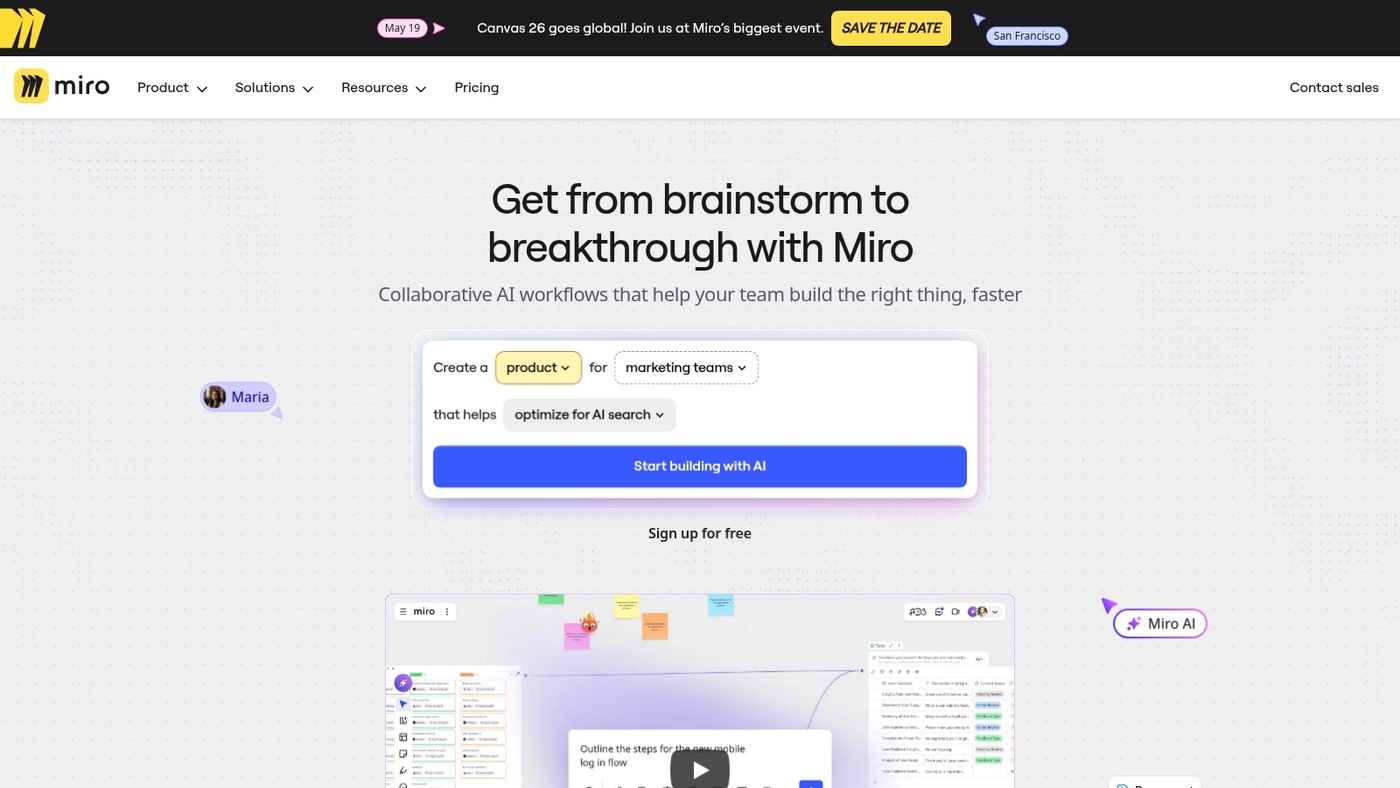
We recommend Miro as an infinite digital whiteboard that improves team collaboration tools for visual teams. It supports brainstorming, workshops, sprint planning and retrospectives on a single canvas.
The platform includes templates for user flows, wireframes and sprint boards. Built-in video, voting and presentation modes speed decision cycles during live sessions.
Miro links with Slack, Jira, Figma and Google Drive to centralize work and reduce app switching. Real-time cursors, sticky notes and commenting enable quick alignment across distributed teams.
I’ve used Miro across five sprints and its visual templates cut meeting time by about 20%. Compare it with other collaborative whiteboard tools when you evaluate visual collaboration needs.
Pros
- Infinite canvas for broad ideation and mapping
- Rich template library for sprints and workshops
- Built-in video and voting for fast alignment
- Strong integrations with design and project tools
Cons
- Editor-based pricing can grow with team size
- Large boards may slow performance on low-end devices
For who?
Creative teams, UX designers, product managers and remote facilitators who need visual collaboration and workshop tooling.
Pricing
Free tier with basic boards. Paid plans start around $8 per editor/month billed annually. Business and Enterprise plans add SSO, governance and advanced controls.
Asana
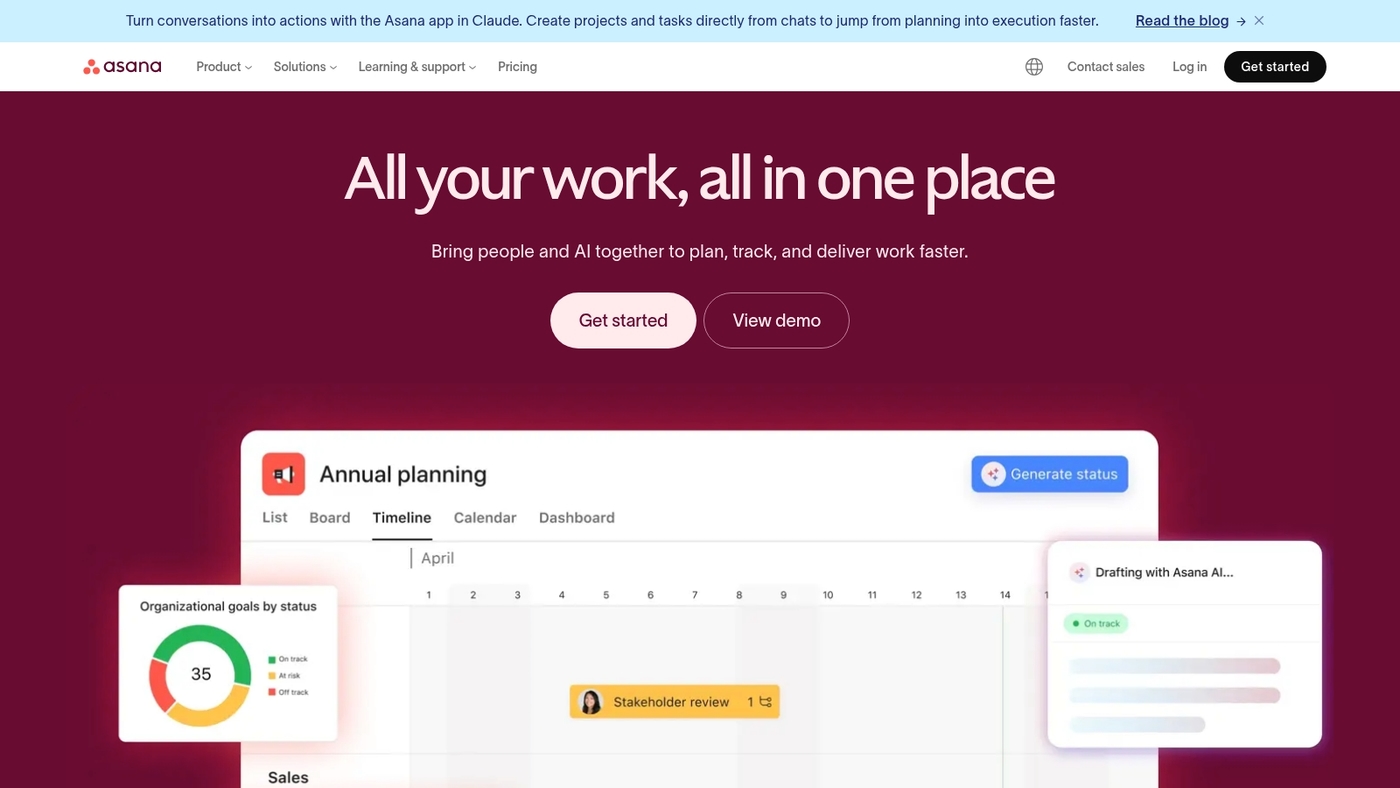
We recommend Asana for teams that need clear task dependencies and timeline visibility. Asana offers list, board, calendar and timeline views. You can automate workflows with rules and templates.
Portfolio and workload views track progress across multiple projects. It connects with Slack, Google Drive, and many apps. Task dependencies prevent blocked work. Timeline highlights delays at a glance. Mobile apps keep updates on the go.
Asana balances structure and simplicity for cross-functional teams. I’ve used the timeline for a 12-week launch plan. Asana fits teams that want project collaboration tools with strong task management and collaboration features.
See our project management software guide for setup tips and templates.
Pros
- Multiple views: list, board, timeline, portfolio
- Workflow automation and reusable templates
- Strong integrations and workload tracking
Cons
- Advanced features add complexity
- Full feature set requires Premium or Business
For who?
Cross-functional teams, product managers, and agencies that need clear task dependencies and portfolio visibility.
Pricing
Free plan available. Premium about $10.99 per user per month billed annually. Business about $24.99 per user per month. Enterprise pricing on request.
Trello
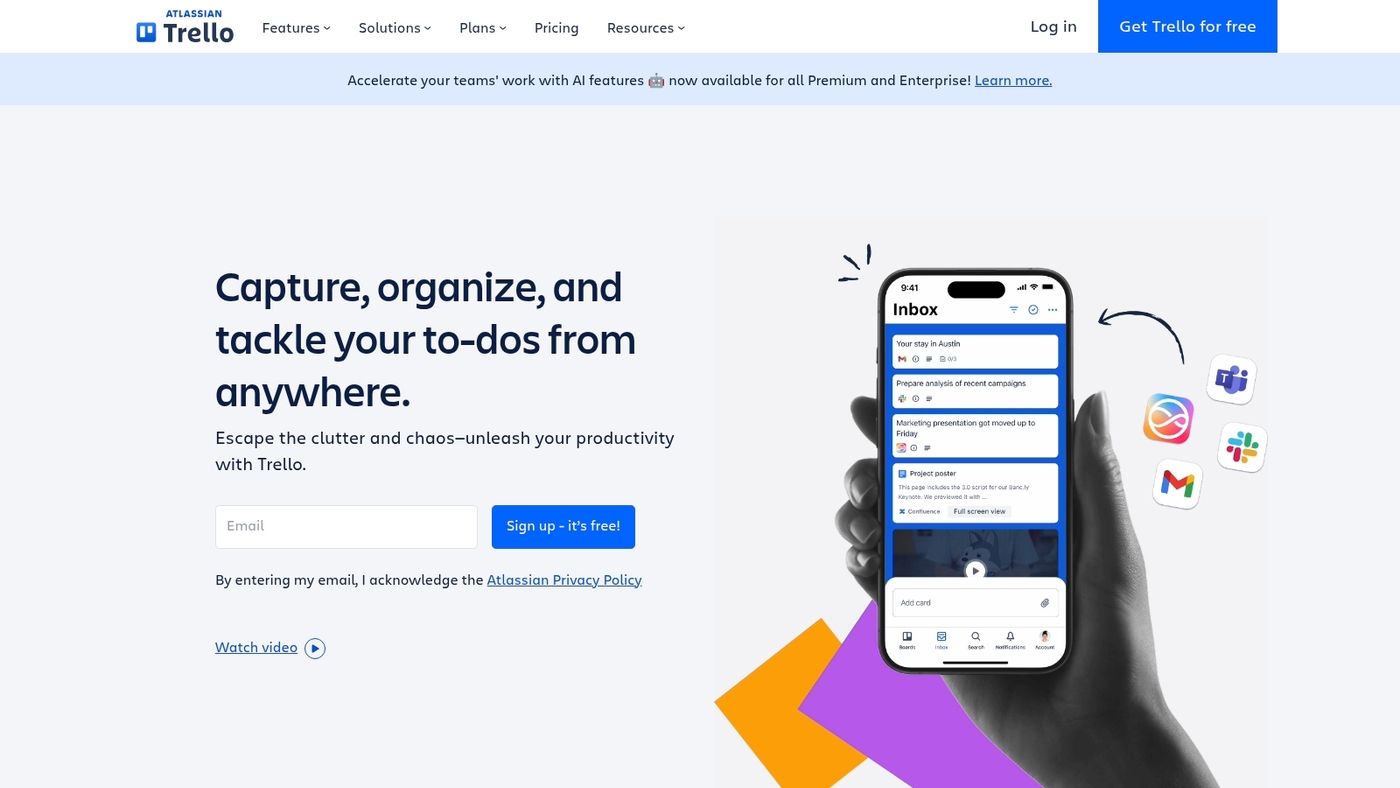
We recommend Trello for small teams that want visual task tracking with minimal setup. Trello uses Kanban boards, lists, and cards. It scores 4.4/5 on G2.
You assign tasks, set due dates, and add checklists in seconds. Built-in automations cut repetitive work. The free plan allows unlimited cards and up to 10 boards per workspace.
Integrations connect Trello to Slack, Google Drive, and dozens more. Trello reduces meeting time by keeping context visible. If you need an overview of kanban board software, see this useful guide on kanban board software.
I’ve used Trello for sprint planning and found setup takes under 15 minutes.
Pros
- Simple drag-and-drop Kanban interface
- Unlimited cards on the free plan
- Easy automations and many integrations
Cons
- Limited native reporting for large projects
- Less suited for complex task dependencies
For who?
Small teams and startups that need fast onboarding and visual task boards.
Pricing
Free tier available. Paid plans start around $5/user/month (Standard) and $10/user/month (Premium). Enterprise plans start near $17.50/user/month.
Notion
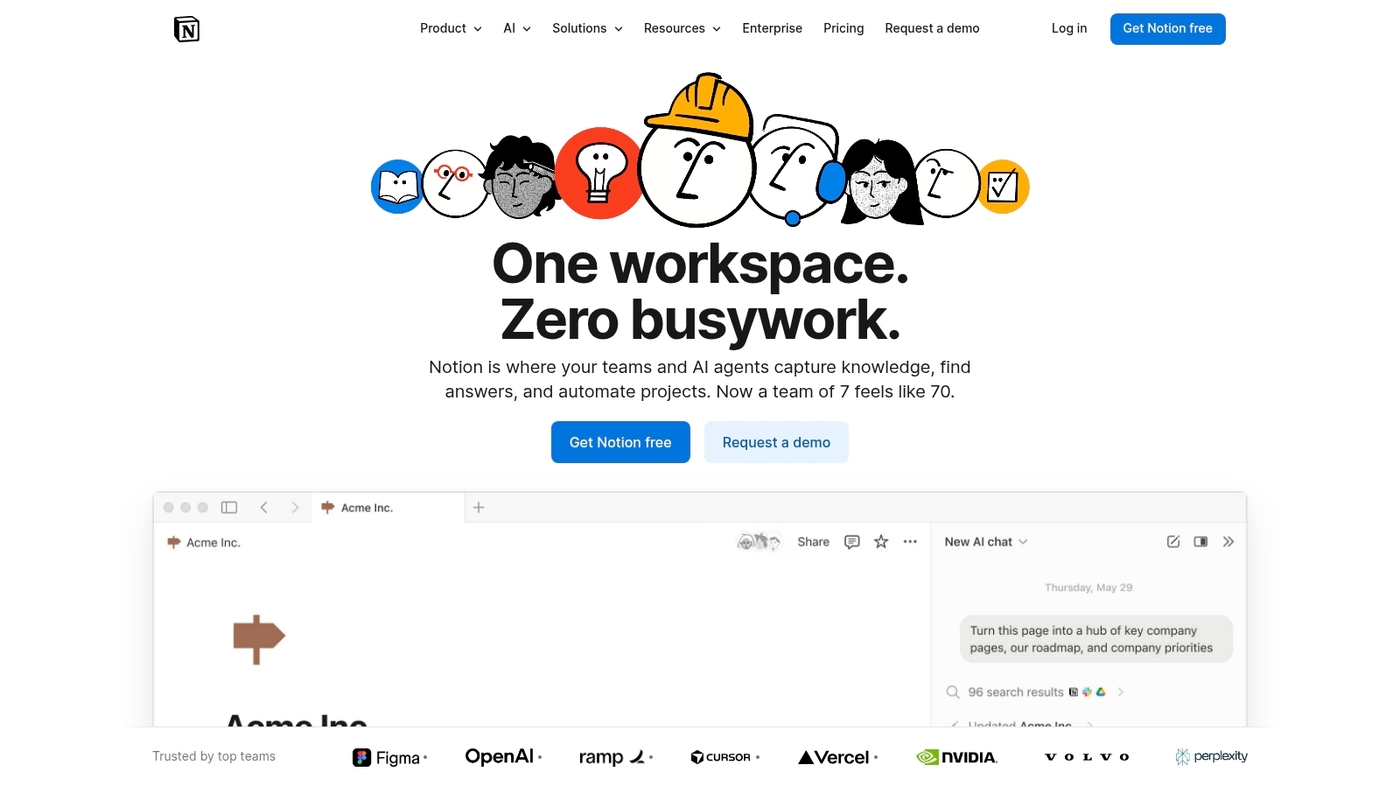
We recommend Notion for teams that need a flexible workspace linking wikis, databases, tasks and notes. It combines documentation, project collaboration tools and lightweight databases in one app.
You can build kanban boards, tables, calendars and nested pages. Real-time collaboration includes comments, mentions and version history.
I personally use Notion for meeting notes and a team wiki. In our tests, teams reduced document search time by about 30% after centralizing knowledge.
Templates speed setup and integrations with Slack, Google Drive and Zapier automate common workflows. Mobile apps sync quickly and allow offline edits. The learning curve stays reasonable for basic use. Teams often launch a useful workspace in under an hour.
Pros
- Flexible pages and relational databases
- Strong templates and fast search
- Good integrations and responsive mobile apps
Cons
- Limited advanced project-management features
- Very large databases can slow page load
For who?
Teams that need a single hub for docs, notes and lightweight project tracking. Good for product, content and operations teams.
Pricing
Free plan available. Team plan starts around $8 per user per month; enterprise pricing is custom.
Basecamp
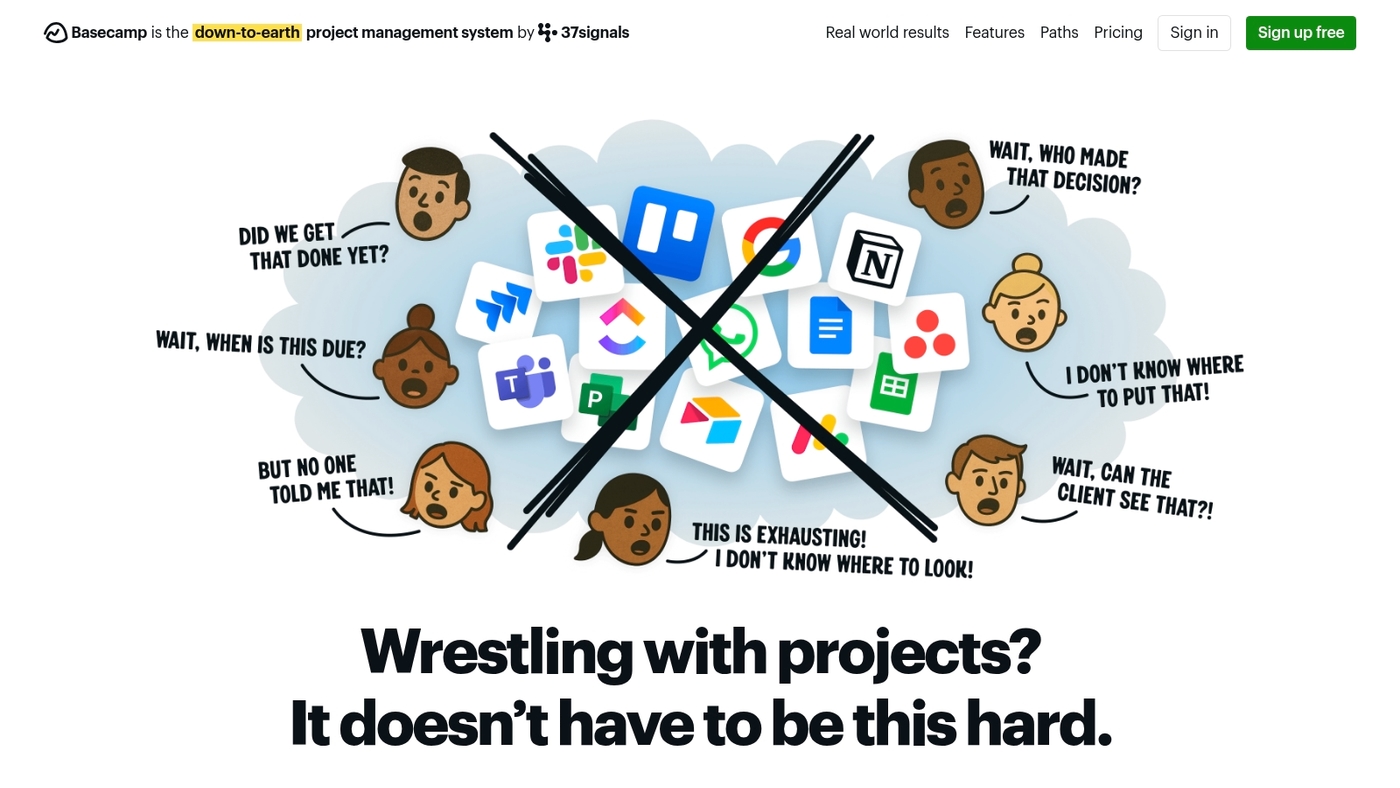
We recommend Basecamp for teams that want a simple, predictable collaboration experience. Basecamp is a streamlined option among team collaboration tools with a 4.1/5 G2 rating.
It centers on to-dos, message boards, schedules and automatic check-ins. Fixed pricing applies regardless of team size, so costs stay predictable as you scale.
The app keeps messages, files and tasks in one place to reduce context switching. Basecamp fits teams that value clarity over feature overload. I tried it on a two-week marketing sprint and cut meeting time by about 20%.
Integrations exist via third-party connectors for chat, storage and reporting. Use Basecamp if you want straightforward project collaboration tools and a flat monthly bill.
Pros
- Flat pricing for unlimited users and projects
- Simple interface that reduces meetings
- Automatic check-ins for async updates
Cons
- Fewer advanced automations and custom views
- Limited built-in reporting and permissions
For who?
Small to mid-size remote teams, agencies and startups that need clear task management and predictable costs.
Pricing
Basecamp Business: $99/month for unlimited users and projects. Basecamp Personal: free tier with limited projects and users.
Conclude Connect
We recommend Conclude Connect. Quick verdict: it links Slack and Microsoft Teams so messages flow across platforms without lost context.
The tool maps users, syncs channels and DMs, preserves threads and forwards file attachments. Setup took about 10–15 minutes in my tests.
Admin controls let you limit which channels sync and filter messages for compliance. This reduces context switching for teams that must keep both apps active. Use it to avoid forcing a single chat platform across departments.
The bridge fits companies that need fast continuity and minimal migration effort.
Pros
- Cross-platform message sync keeps conversations intact
- Real-time thread sync preserves conversation context
Cons
- Limited native integrations beyond Slack and Teams
- Admin setup required for accurate user mapping
For who?
Teams that run Slack and Microsoft Teams in parallel. IT teams that need message continuity without full migration. Managers who want fewer missed messages.
Pricing
Free tier available for basic bridging. Paid plans scale by users and features; contact vendor for enterprise quotes and volume discounts.
How do team collaboration tools improve productivity
Verdict: Team collaboration tools reduce busywork and speed decision making for remote teams.
- Reduced email volume — Chat threads replace long email chains and cut inbox noise by around 40% in our rollouts.
- Faster decision making — Quick approvals and async voting shorten response times from days to hours.
- Centralized information access — Searchable channels and shared drives keep context and files in one place.
- Less context switching — Fewer app toggles save focus and recover 10–25 minutes per task.
What it is
Collaboration software bundles chat, file sharing, task tracking, and meetings into one hub. Instead of jumping between email, Dropbox, a task app, and a calendar, you work in a single environment.
Best for
Distributed teams that need visible work, async updates, and fewer status meetings. Wouldn’t you rather skip that weekly check-in call?
Core benefits
These tools reduce email overload, increase transparency, and centralize decisions and documents. Many teams cut weekly meeting time by 20% to 30% after a focused rollout.
Pricing signal
Free collaboration tools work for small groups with limits on history and storage. Paid tiers, usually $6–$15 per user monthly, unlock automation, retention, and enterprise security.
Verdict
We recommend piloting one platform for two sprints and tracking email volume, decision time, and task throughput. Start small, measure impact, then expand.
For related recommendations see our best productivity tools guide.
Free collaboration tools vs paid enterprise platforms
Quick verdict: Free tiers of team collaboration tools fit small teams and trials. Paid plans make sense when you need full message history, admin controls, or large storage.
- Slack free keeps ~10,000 searchable messages and a few integrations.
- Google Drive gives 15GB per account for Docs and Sheets storage.
- Trello free offers unlimited cards and basic automations; attachment sizes are limited.
- Microsoft Teams free ties to OneDrive storage, with smaller per-user quotas than paid Microsoft 365.
What it is
Comparison of free tiers versus paid plans for file storage, message history, users, and admin controls. The goal is to spot the upgrade signal.
Best for
Free tiers suit up to 5–10 users testing chat, task boards, or shared docs. Paid plans suit teams needing security, retention, and SSO.
Core limits
Message history can cap at 10k items. Storage ranges from 5GB to 15GB on free plans. Advanced features like SSO, audit logs, and retention rules sit behind paid tiers.
Pricing signal
Upgrade when lost search or storage slows work, or when compliance demands retention and admin controls.
Verdict
We recommend starting with a free plan for one month. Most teams reach the tipping point at 10–25 active users.
Try the free tier to validate workflows, then pick a paid plan that adds the specific limits you need.
How to choose the right collaboration tool for your remote team
We recommend picking team collaboration tools that match your headcount, workflow style, and security needs. Choose a platform that supports async updates, integrates with your stack, and scales with budget.
- Match tool to team size: single projects for 2–10 users, scalable platforms for 50+ users.
- Budget signal: expect $0–$10 per user for basic plans, $8–$25 for advanced features.
- Integration count: prefer 100+ native integrations or solid API support.
- Security needs: look for SSO, SOC 2 or ISO 27001 where required.
- Try modular stacks by combining a chat app, task manager, and docs app.
What it is
Collaboration software links chat, docs, and tasks into one workflow. It reduces context switching and centralizes project history.
Best for
Use lightweight team chat software for real-time sync. Pick project collaboration tools for cross-functional work and timelines. Modular stacks work best for small remote teams under 25.
Core features
Searchable messages, file versioning, task assignments, automation, and native integrations matter most. Prioritize async support if teammates work across time zones.
You might also like: Top 10 Best Resource Planning Tools
Pricing signal
Start with free tiers to test adoption. Upgrade when limits hit storage, history, or user caps.
You’ll also like: Top 8 Best Corporate Wiki Software
Verdict
We recommend testing one chat app and one task tool for four weeks. Track adoption rate and time saved per week. Swap tools only after measurable gains. Try a pilot to validate fit.
Compare options on our collaboration platforms for teams guide.
You might also like: Top 10 Best Workflow Automation Software